LayoutBuilder - Overview
The LayoutBuilder utility is used to add/edit layouts and flowcharts - just as the PrintBuilder utility is used to add/edit event reports, general reports, and order system reports. All layouts modified through the LayoutBuilder are modified through the Layout Editor. All flowcharts modified through the LayoutBuilder are modified through the Flowchart Editor. All field layouts can be modified directly from the main screen.
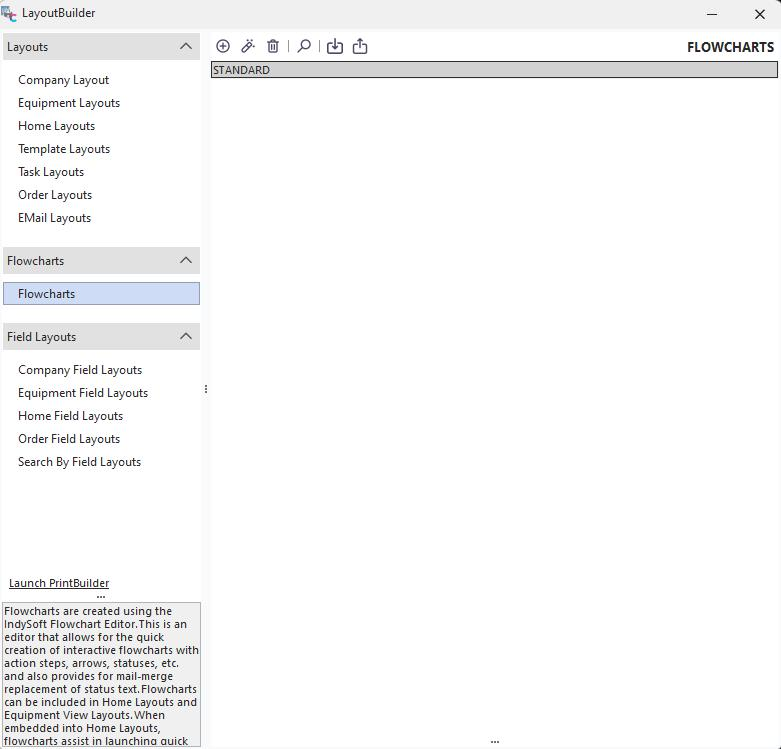 ../Storage/indysoft-help-publication/hm_clip3211.png
LayoutBuilder Main Screen
There are seven different types of layouts:
- Company Layou t - a single layout (always named 'STANDARD')****used in the Advanced Company Search dialog when the company preview is displayed. See Company Layout for more details.
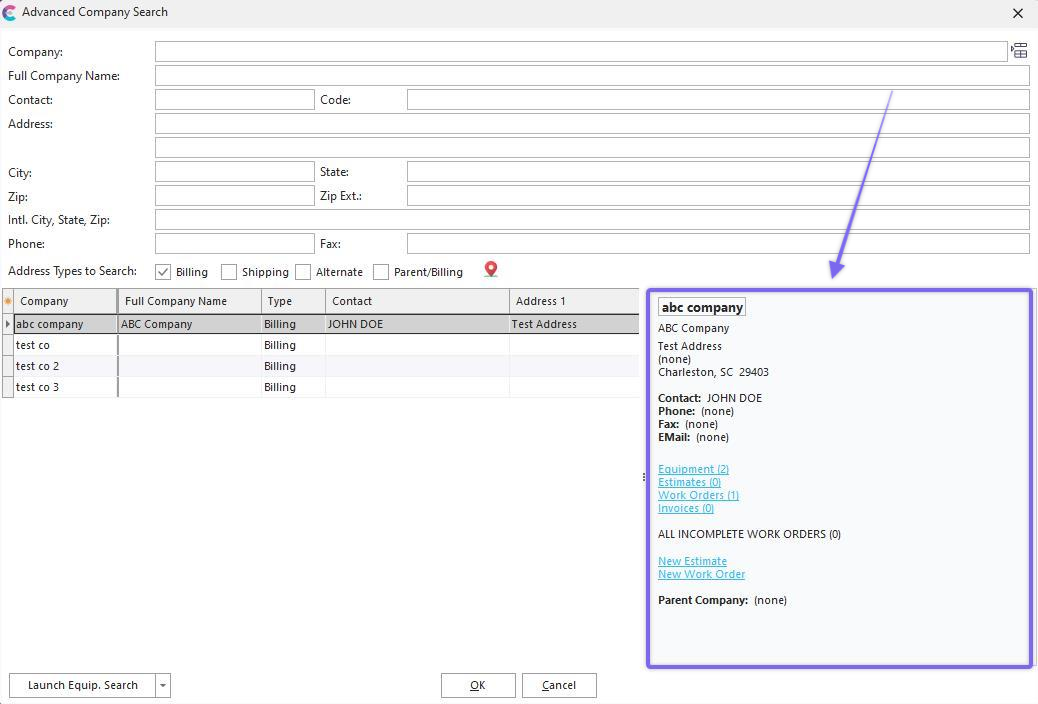
Example - Company Layout in Advanced Company Search
- Equipment Layouts - these layouts can be used on the 'Equipment View' tab in the Dashboard main screen or in custom search by dialogs when previewing equipment information. Multiple layouts can be designed. Individual layouts are mapped to users, profiles, companies, or system-wide through the Setup Custom Searches / Reports / Layouts dialog in Profile Manager (or a parallel option in LayoutBuilder/PrintBuilder). Equipment layouts can optionally contain embedded flowcharts also designed through LayoutBuilder.
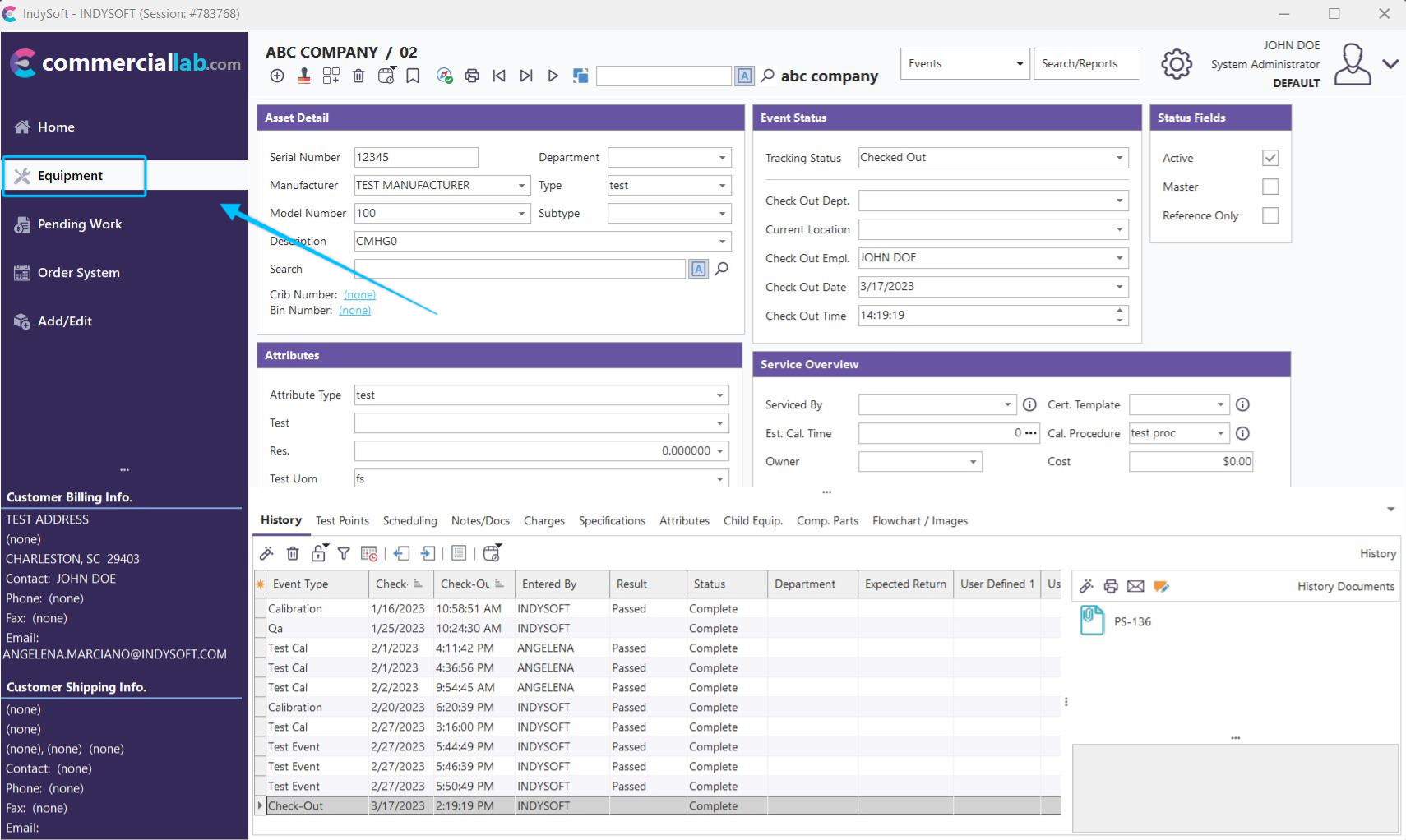
Example - Equipment View
- Home Layouts - these layouts can be used on the 'Home View' tab in the Dashboard main screen. Multiple layouts can be designed. Individual layouts are mapped to users, profiles, companies, or system-wide through the Setup Custom Searches / Reports / Layouts dialog in Profile Manager (or a parallel option in LayoutBuilder/PrintBuilder). Home layouts can optionally contain embedded flowcharts also designed through LayoutBuilder.
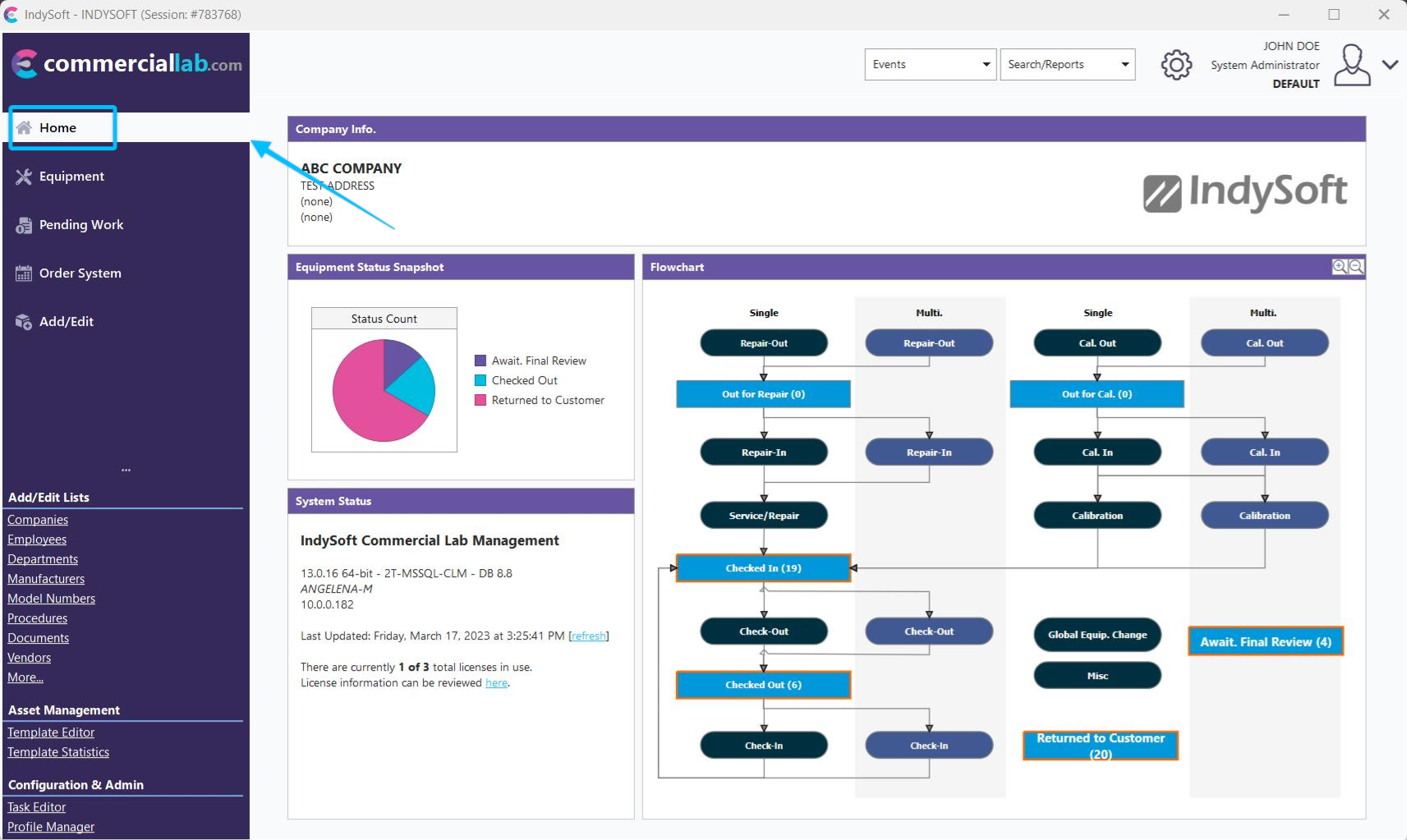
Example - Home View
-
Template Layouts - these layouts are used in the Template Editor utility when editing templates. They are similar in scope to Equipment Layouts but are used with templates. Multiple layouts can be designed. Individual layouts are mapped to users, profiles, companies, or system-wide through the Setup Custom Searches / Reports / Layouts dialog in Profile Manager (or a parallel option in LayoutBuilder/PrintBuilder).
-
Task Layouts - these layouts are used with the Task Editor (Preventive Maintenance version only). They are similar to Equipment Layouts but used with Tasks for editing descriptive fields for each task. Multiple layouts can be designed. Individual layouts are mapped to users, profiles, companies, or system-wide through the Setup Custom Searches / Reports / Layouts dialog in Profile Manager (or a parallel option in LayoutBuilder/PrintBuilder).
-
Order Layouts - these layouts are used with the Order System. They are similar to Equipment Layouts but used with Estimates, Work Orders, and Invoices for editing descriptive fields for each order. Multiple layouts can be designed. Individual layouts are mapped to users, profiles, companies, or system-wide through the Setup Custom Searches / Reports / Layouts dialog in Profile Manager (or a parallel option in LayoutBuilder/PrintBuilder).
-
EMail Layouts - Workflow Configuration uses these layouts...Report Rules for sending emails based on an HTML layout.
 Note: Events also use layouts, which are edited through Workflow Configuration - Field Settings.
Flowcharts can be designed for use within Equipment Layouts, Home Layouts, and Task Layouts.
The general design/functionality of LayoutBuilder is very similar to PrintBuilder - with the same group panels on the left, the grid on the right for selecting the layout/flowchart, and add/edit/delete/import/export buttons above. On the left-hand side of the LayoutBuilder dialog, you will notice groups of templates. Select the template type, then the templates that match this type will be displayed to the right in the grid. Use the buttons above the grid to add/edit/delete/export/import templates:
LayoutBuilder Header Bar Options
 New Template
Press this button to create a new template of the selected type. The following dialog will be displayed:
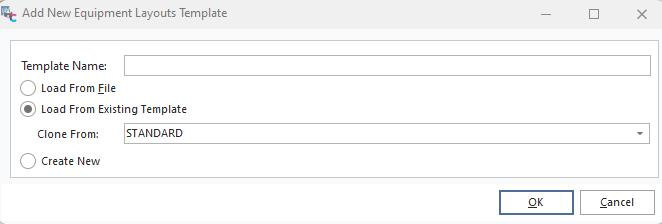
Add New Template Dialog
Enter a template name (required), then select 'Load File File' or 'Load from Existing Template.' The 'Clone From' drop-down will be populated with existing templates of the current type. Press OK to create the new template. Once created, you will see the new template in the grid, which will be auto-selected.
 View Template
This button will launch the selected template for editing. The appropriate editor will be launched - Layout Editor for layouts and Flowchart Editor for flowcharts.
 Delete Template
This button will permanently delete the selected template. You must confirm the deletion before proceeding.
 Setup Custom Search Bys / Reports / Layouts
This button lets you modify the custom search bys, reports, and layouts that various users, companies, profiles, and system-wide can view. This dialog/functionality is equivalent to the Setup Custom Searches / Reports / Layouts in Profile Manager
 Import From File
Use this button to import layout/flowchart settings that were previously saved to a file. The settings for the currently selected layout/flowchart will be overwritten. To create a new layout/flowchart based upon a file, use the 'New Template' button and select 'Load from File.'
 Export To File
Use this button to export the currently selected layout/flowchart to a file. This file can be used as an offline backup of the layout/flowchart, or the file can be used later to update a layout/flowchart in this or another IndySoft database.
LayoutBuilder Right-Mouse Click Options in Grid
Several options are available via right-mouse click in the grid for each layout/flowchart:
View Template - equivalent to the 'View Template' option described above
Delete Template - equivalent to the 'Delete Template' option described above
Import From File - equivalent to the 'Import From File' option described above
Export To File - equivalent to the 'Export To File' option described above.
Visibility/Usage
As each layout is selected, any relevant visibility/usage rules will be displayed in the grid below. Use this section to add/edit these rules quickly. See the Setup Custom Searches / Reports / Layouts topic for more details. |