Part/Operation Search
 Note: the topic below only applies to the Tool Management version of IndySoft.
The Part/Operation Search is accessible in a few different ways. The first and most straightforward way is in the 'Search' dropdown on the IndySoft main dashboard. You can also use the keyboard shortcut: Alt+9
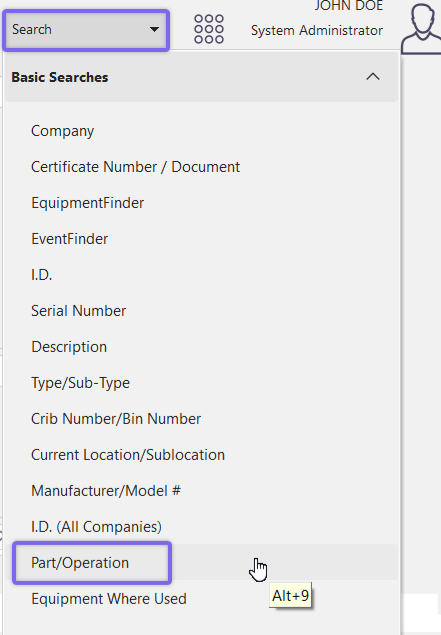
Locating 'Part/Operation' Search Dialog
This search is also available from the Part/Operations module of IndySoft, located in your system's file explorer under: C:\Program Files\IndySoft\partops.exe
You can launch the module from the Admin Panel options. See below for navigation instructions:
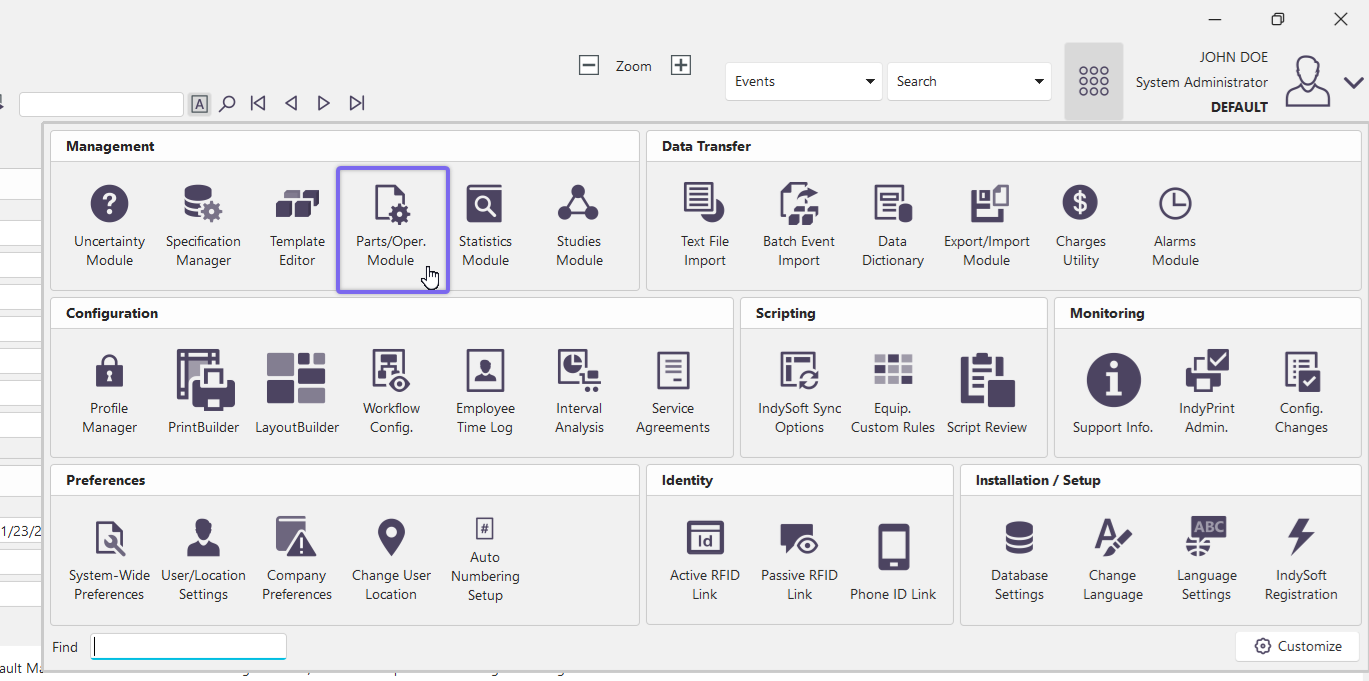
Locating the 'partops.exe' module
Once you open the part/ops module of IndySoft, the module home view will appear in a new window. To perform a part/operation search, navigate along the top bar and click 'Search by' then 'I.D...'
You can also use the keyboard shortcut 'Alt+1' to quickly navigate to the search dialog.
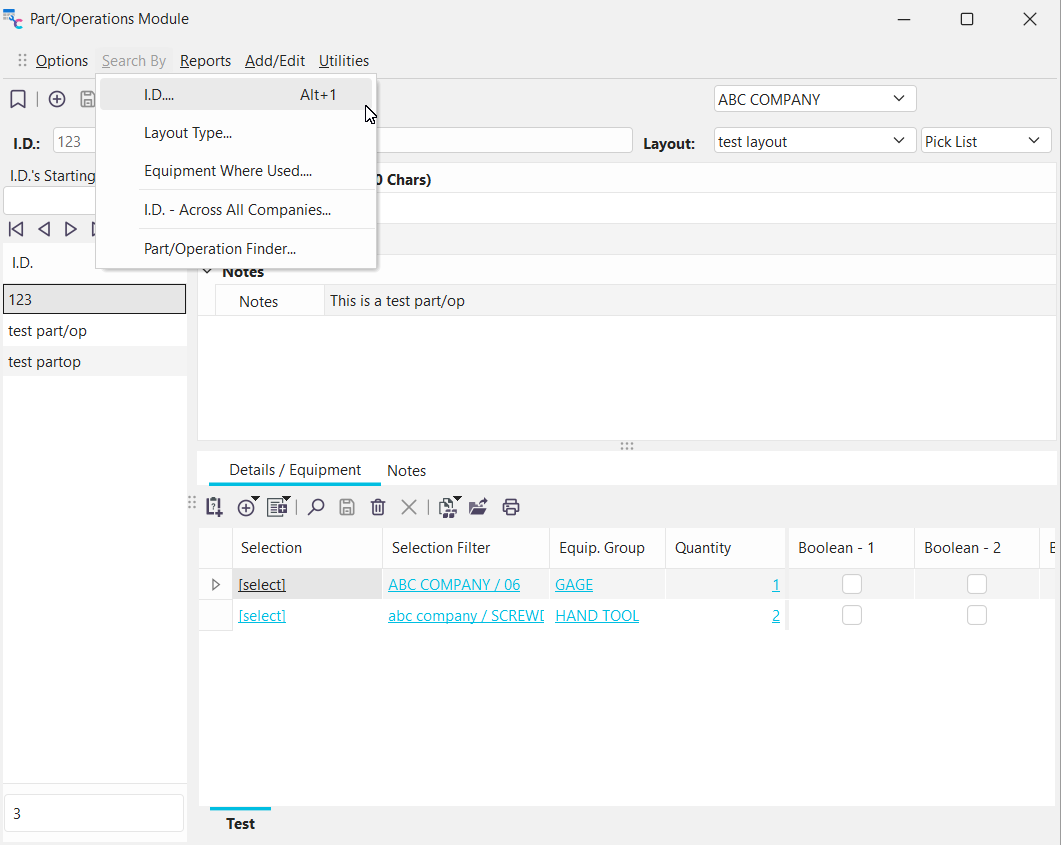
Navigate to Part/Op search by I.D.
This will open the 'Search By I.D.' dialog for part/ops, featured below:
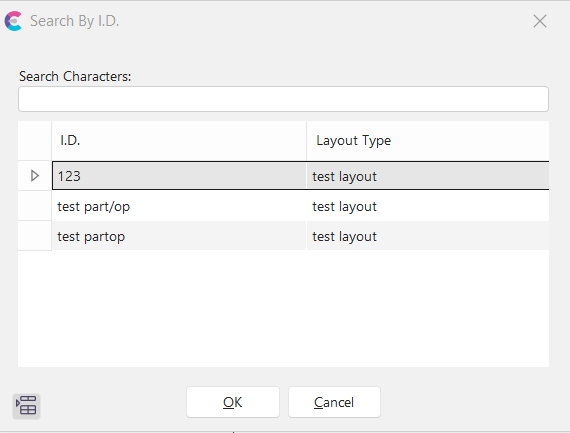
Search by Part/Operation I.D. dialog
Use this dialog to select a part/operation from the current company. Once a part/op is selected, press OK, then equipment related to this part/operation through the Parts/Operations module will be available in a follow-up dialog. Equipment selected in this second dialog can be viewed on the main screen. |