Pending Work Options
Beginning in version 14.2, as a System Administrator in the Pending Work section, you can now set preferences for both the Pending Work and the Branch Manager. To access, simply click on the cog icon in the lower right-hand corner of Pending Work. The Pending Work Options are divided into two tabs:
- General Options
- Work Order Line Items Contexts
General Options
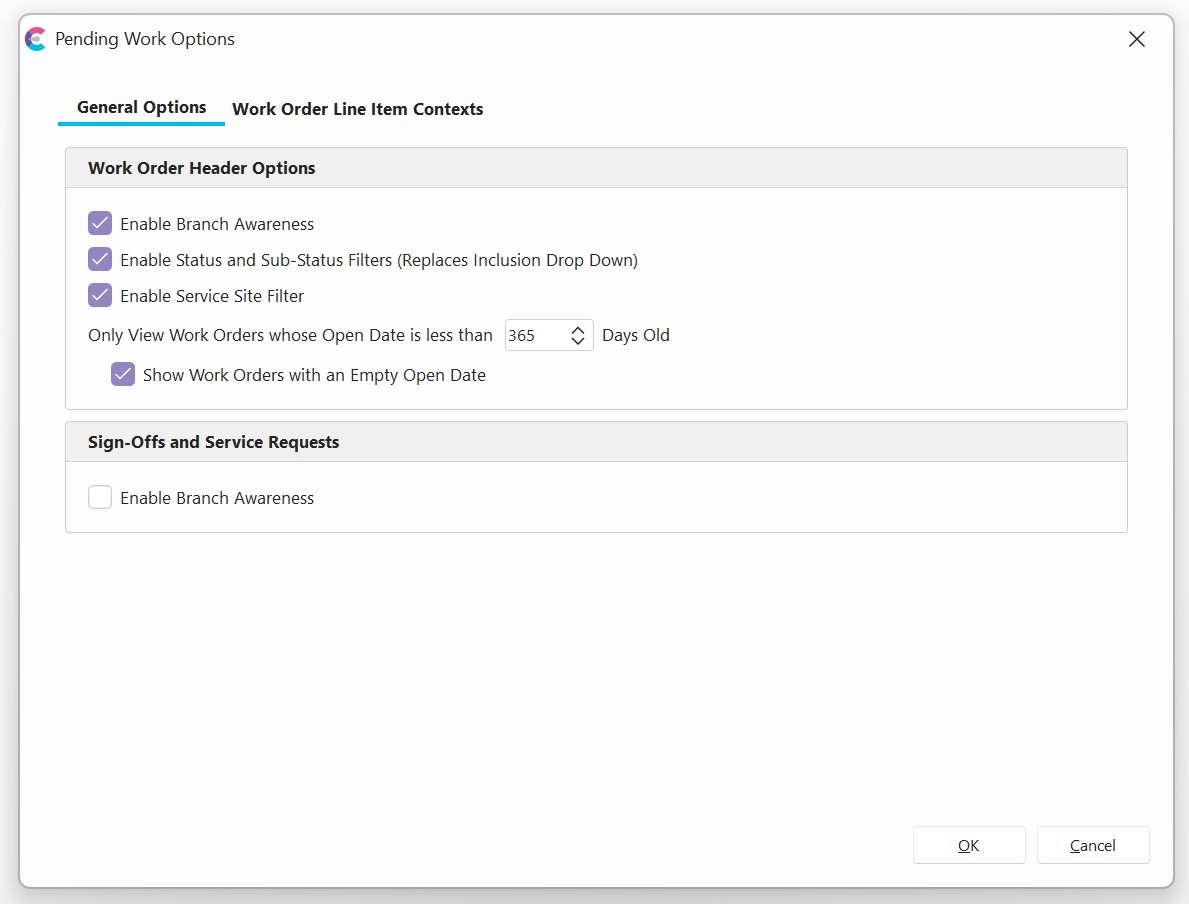
Work Order Header Options specifically apply to the "Work Orders" tab in the Pending Work.
- Enable Branch Awareness will only show Work Orders assigned to the Branch that the user currently has selected in their User/Location Settings. (Orders without a Branch will also show)
- Enable Status and Sub-Status Filters will allow a more complex filtering option which utilizes both the Status and newer Sub-Status fields at the work order level.
- Enable Service Site Filter allows a user to filter by "On-Site" vs. In-House Work Orders directly in Pending Work.
- Only View Work Orders whose Open Date is less than.. will exclude Work Orders whose Open Date is greater than the specified number of days old.
- Show Work Orders with an Empty Open Date will allow users to see Work Orders whose Open Date is blank even if a number of days is specified. If 0 is selected, then no date filter will apply.
Sign-Offs and Service Requests apply to the Document and Event Sign-Offs, and the Service Requests sections of the Branch Manager left-hand panel option.
- Enable Branch Awareness, will only show Sign-Offs and Requests which apply to the User's Current Location. The Branch field for Document and Event Sign-Offs comes from the Event "Branch" field for the event which needs the corresponding sign-off. Events without a "Branch" specified will show for all user/location settings. Servi Requests have a dedicated Branch field which will be filtered against. Reques s without a Branch will be shown for all users regardless of their User or Vendor Location.
Work Order Line Item Contexts
Work Order Line Item Contexts allow System Administrators to design views for individuals and groups in the Branch Manager and Pending Work sections of the software. Contex s work in conjunction with the: Vendor/Branch Locations, Equipment Tracking Statuses, and Work Order Statuses and Sub-Statuses. With the filter options provided, contexts produce meaningful views for users with specific use cases. These contexts can also be assigned "Quick Events" as preferred actions directly exposed in the interface of the context.
It is strongly recommended that if you are a multi-site commercial lab or entity, that you adopt theSystem-Wide Vendor List, Enable Vendor Branch Management, and assign Vendor/Branches to users to get the full feature set behind Work Order Line Item Contexts. If you do not use Vendor/Branches, then these Contexts can still provide useful views for organizations who utilize Work Orders.
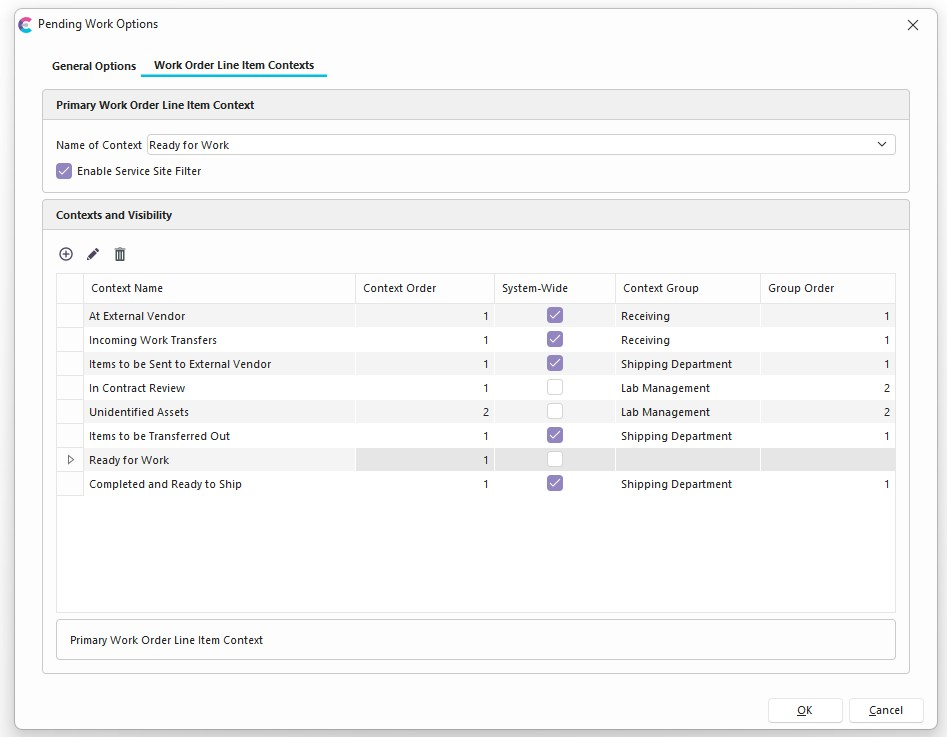
Primary Work Order Line Item Context allows the System Admin to be able to assign a Work Order Line Item Context to the "Work Order Line Items" section of the Pending Work Tab. This will always show as the second item under the "Work Orders" section. The Primary Context can be thought of as the section to show items that are "Ready for Work". The Primary Context is different than any additional context as it can be used to see work assigned to specific users, be used to assign work to users, have a "Service-Site" drop-down filter, and have a Scheduled Work Status Filter.
- Enable Service Site Filter shows the Service-Site drop-down in the Work Order Line Item or Primary Context tab and allows the user to specify if they want to look at line items that are "In-House" or "On-Site." Filtering the Service-Site will filter by the dedicated Service Site line item field if it is populated, if it is not populated, then it will filter by the related Work Order Header Service Site field.
Contexts and Visibility allows administrators to be able to create, edit, and delete Work Order Line Item Contexts and any corresponding Visibility Rules. If the Context is flagged as System-Wide or is the Primary Context, then visibility rules will not be applicable as the primary context is controlled by the Home Layout Setting !HIDEWORKORDERSPENDING! and a system-wide Context is shown for all users who can see the related Pending Work or Branch Manager Tabs.
Visibility Assignment
Branches can be used to assign Contexts to users who are viewing particular Vendor/Branch Locations. The Br nch can either be manually selected in the user's user/location settings or applied from the System-Wide Vendor Location Setting. If the Context is assigned to "Branch A" and not to "Branch B," then only users who have the Vendor/Branch view set/assigned to "Branch A" will see that Context with the proper Vendor/User Location settings applied. If vie ing "Branch B," then that Context will not be visible. Assigning Contexts to Branches can work in conjunction with Branch Profile assignments.
Branch Profiles can be used to assign users with a profile association to a branch to be able to view that Context. Only B anch Admin style Profiles are able to be selected for the purposes of assignment. For example, if a user has a "Lab Manager" profile associated with "Branch A" and a "Standard User" association with "Branch B" and the Context is associated with the "Lab Manager" Branch Profile, then the Context will only be visible when the user is in the "Branch A" Location. If the Context is also associated with "Branch A" and "Branch C", then only users who have "Lab Manager" associations with those 2 Vendor Branches will be able to see those Contexts when viewing those Vendor/Branch Locations. Vendor Branch Locations can be associated with Users in Profile Manager from the main user creation/edit form or from the drop-down "Management" tab under "Setup System-Wide Vendor Location Preferences" (Standard User Associations Only).
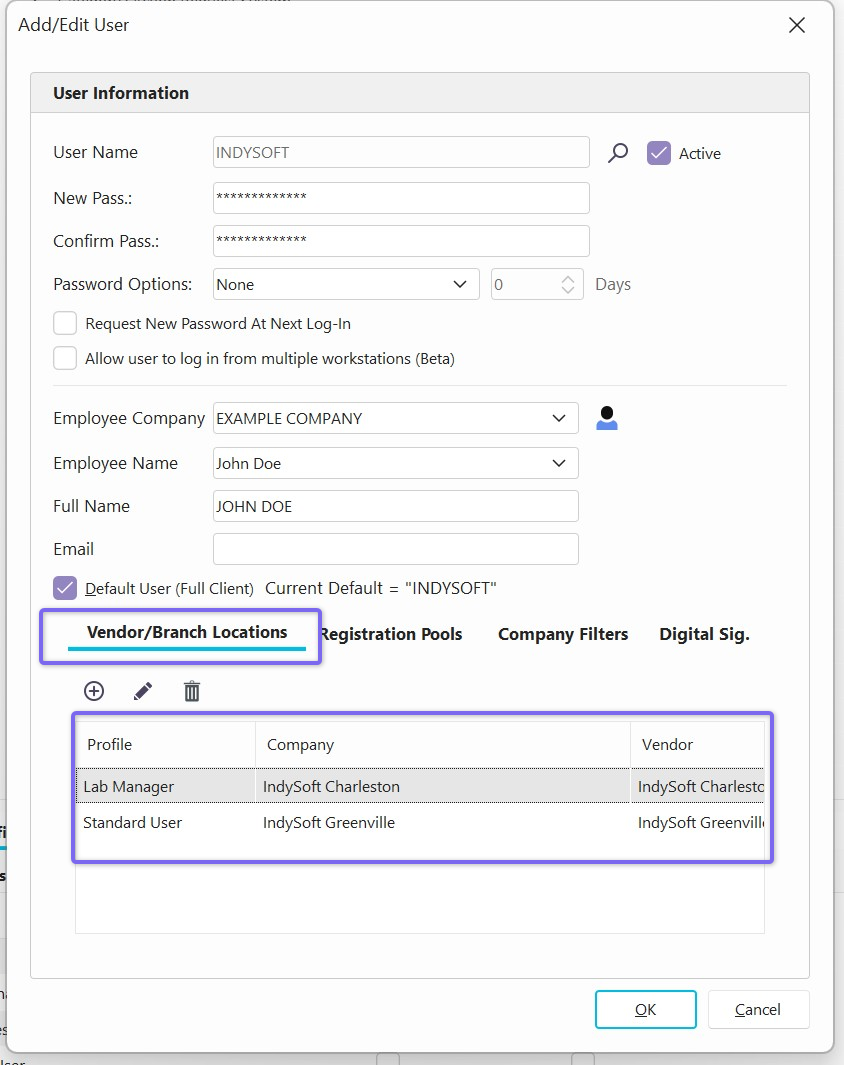
Users can have contexts assigned to them independently of any Branch or Branch Profile settings applied.
Note that if the Context is the Primary Context, it cannot have visibility rules or context groups associated. The primary context will always show up as the second item on the Pending Work tab. (Unless hidden or the Work Order Option above it is hidden.)