Test Points
IndySoft's Test Points Tab is quick and easy to use. It allows the user to enter established test point data or use IndySoft's test point results data. If your test point data is in an Excel Spreadsheet, you can select the document and use it during the calibration event as the test results. There are several different ways to use test point data, but we will look at setting up a basic test point result screen.
The Test Point Toolbar:

The Test Point Tab Toolbar contains (from left to right) "Toggle Default Tolerance," "Tolerance Calculator," "Specify Error," "Calibration Setup Wizard," "Cut," "Copy," "Test Point Duplicator," "Edit Multiple Rows," and "Test Point Type." For more information on these icons, see the IndySoft User Help Manual.
Let's enter some test points manually...

NOTE: You can also set up test points by typing the information per line and column.
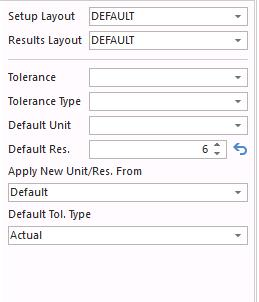
To manually enter your test points, click the "Toggle Default Tolerance" icon  on the far left side of the test point toolbar; this will open the tolerance dialog box below.
Now we can begin setting up the data:
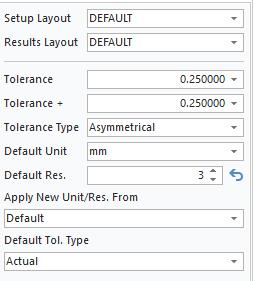
- Select your Tolerance Type, "Asymmetrical." This will allow you to enter each test point's plus and minus tolerance values.
2. Set your tolerance at .25 for each type.
3. Make your Default Unit of Measure Millimeters.
4. Set your Default Resolution to 3. The Default Resolution is the number of digits to the right of the decimal point.
5. Save the test point information.
Begin entering the following information in the test point grid:
Description - Test 1
Standard - 25 - arrow down
Standard - 30 - arrow down
Standard - 35 - arrow down
Standard - 40 - arrow down
Standard - 45 - arrow down
Standard - 50 - arrow down
These values do not reflect real test point data. They are merely examples to demonstrate how the plus and minus tolerances work when values are placed in the standard field.
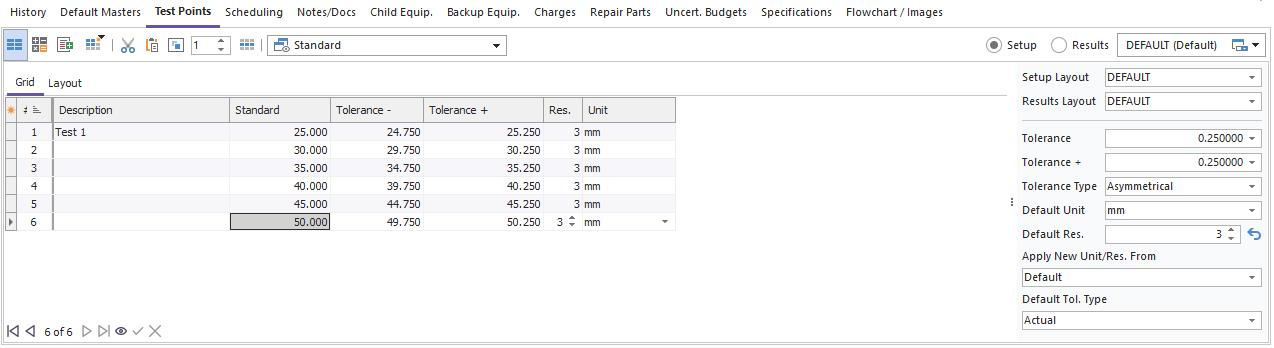
These test points will now be available for use during the Calibration Event. |