Work Orders
Work Orders are used in IndySoft when receiving equipment from a customer. The Work Order number is automatically generated and can be found in the "Order System" under "Work Orders."
In the IndySoft Commercial Lab Edition, the standard Receiving event will automatically create Work Orders for Calibrations. (Please refer to the full IndySoft Help Manual to describe how this is set up.)
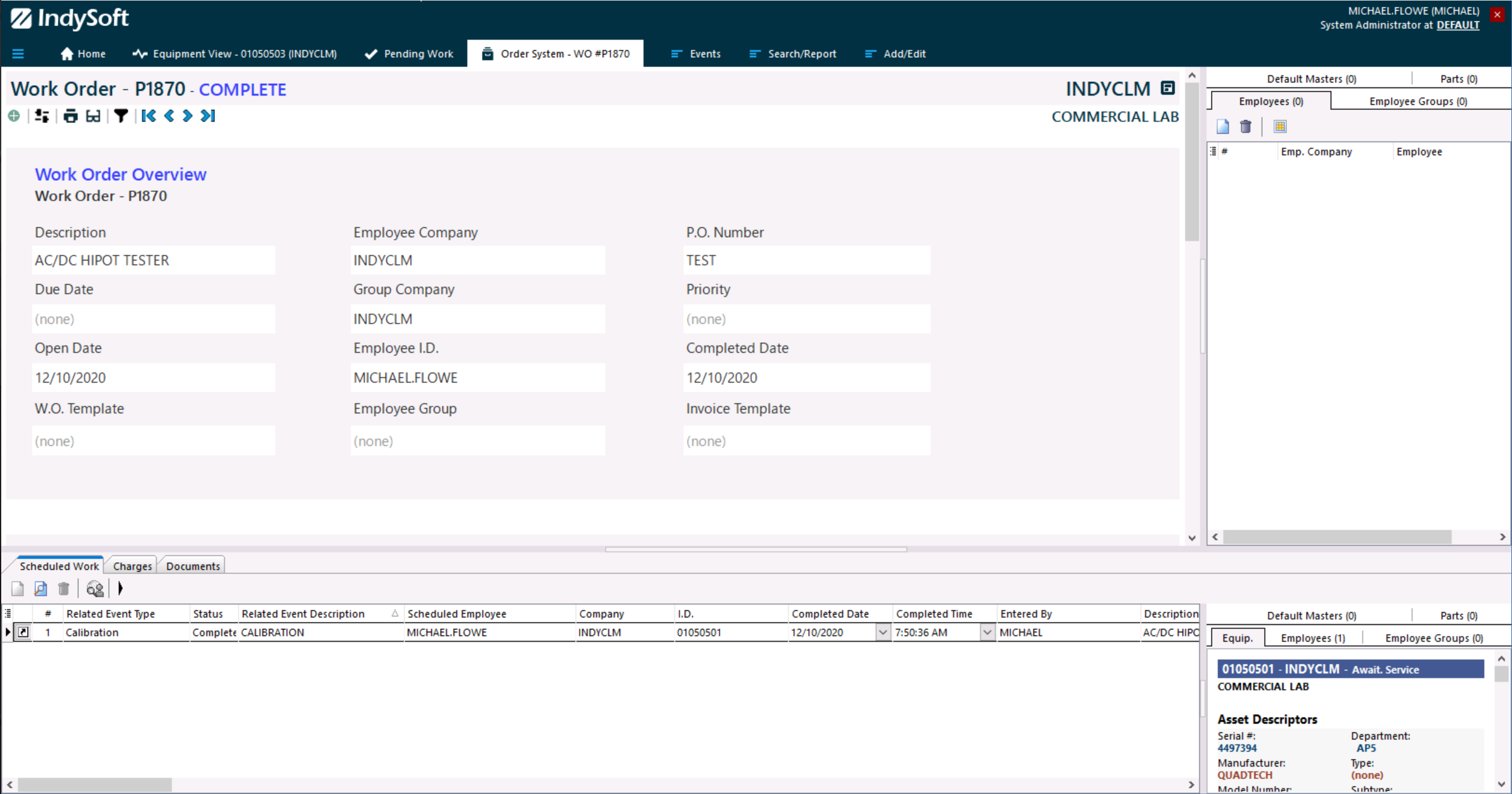
To search for the most current Work Order or any Work Order for that fact, click on the Binoculars icon on the menu and select the way you want to search for the Work Order.
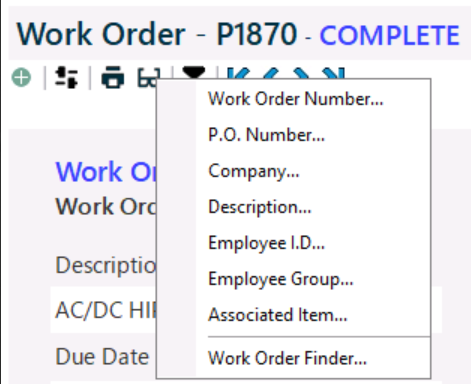
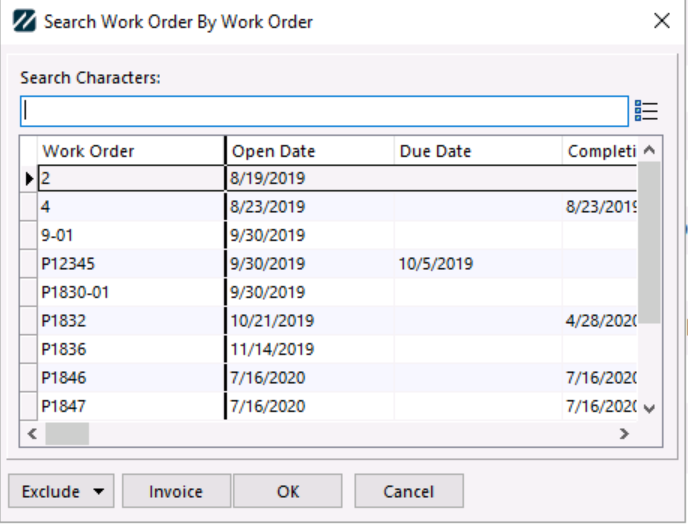
The " Exclude " button will allow you to filter out any Work Orders that have not been completed or invoiced yet. This feature is a real time-saver in that it only shows the most current Work Order numbers. As you can see, by checking the complete and invoiced options, the only numbers that will show are the ones that have not yet been worked on.

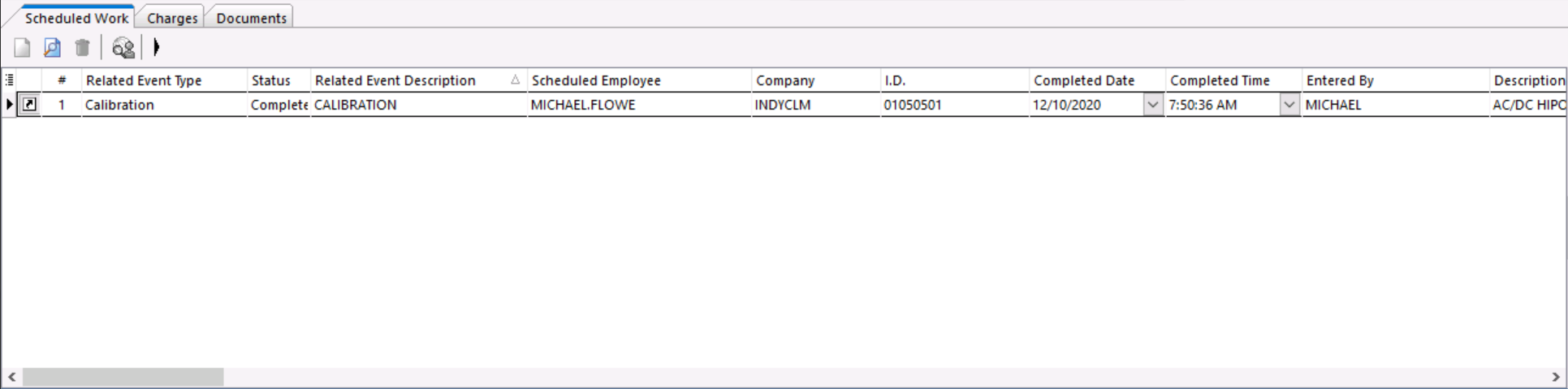
Select the Work Order number, which will appear with the selected " Charges " tab. Click on the "Scheduled Work" Tab.
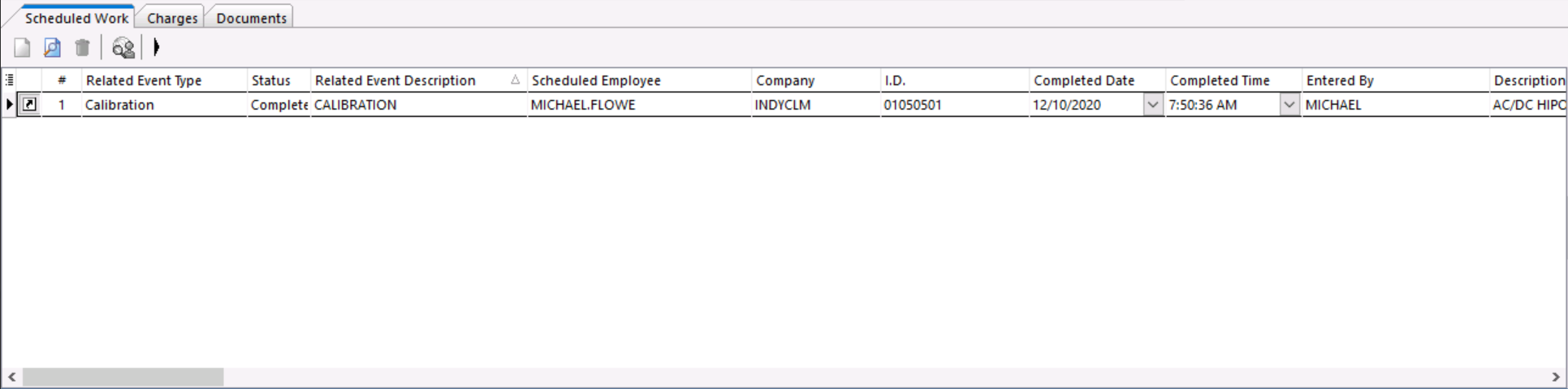
All of the equipment will have a status of "Incomplete." Begin working on the equipment by clicking the "Go To Related Event" icon . This will launch whatever event is displayed in the grid. In the above example, the gages are going to be Calibrated. Once the event is completed, the scheduled work will be marked as complete.
Estimates and Invoicing are only available in the IndySoft Commercial Lab Edition of the software. |