Dashboard Main Screen - Overview
The IndySoft Dashboard main screen has two main sections:
- Navigation Panel
- Header Section
Header Section
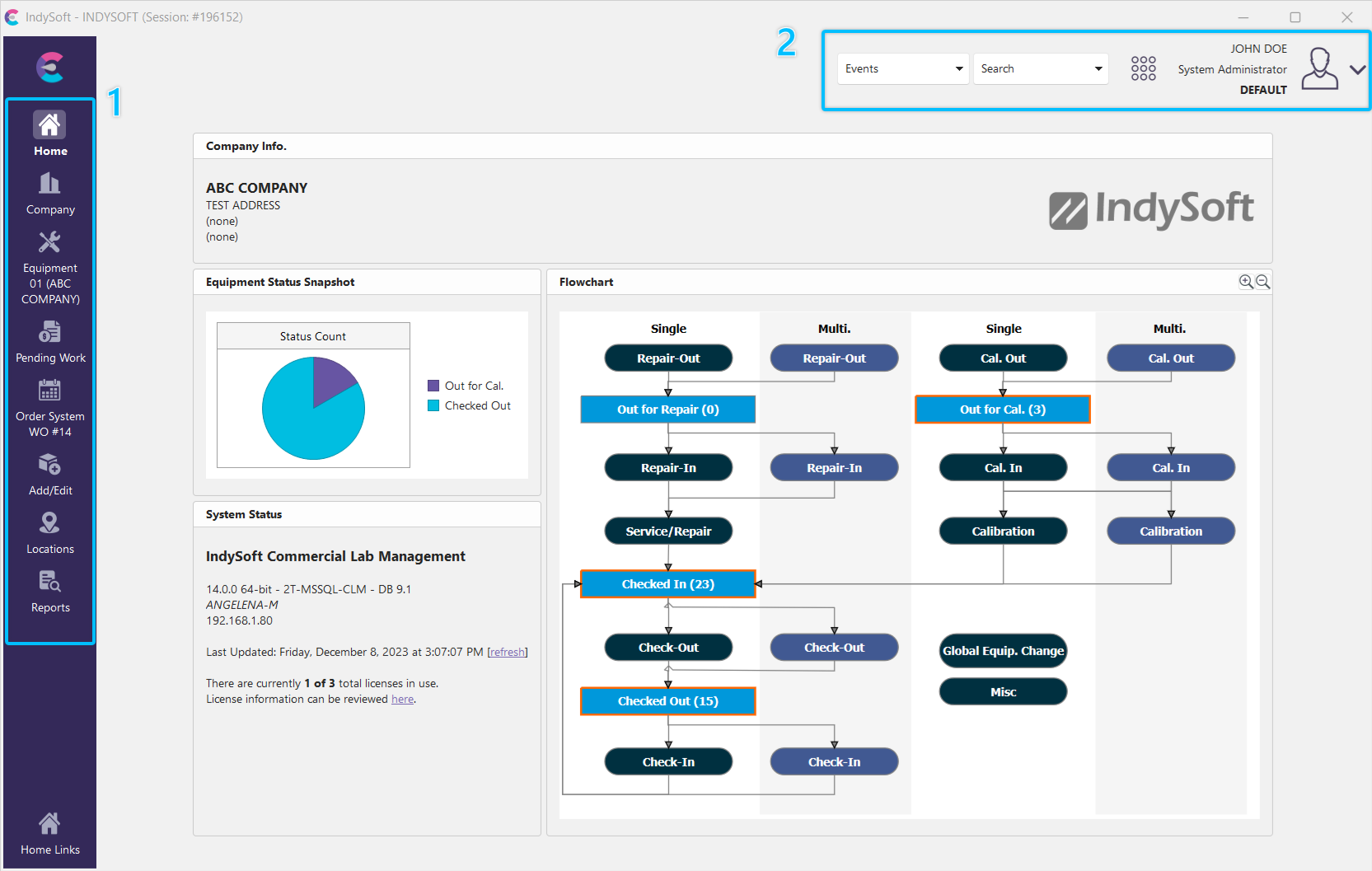
Header Panel - Dashboard Main Screen
The Header Panel contains links to standard features in IndySoft, including event launching, searches, etc.
 The Admin Panel is accessible from the menu icon. This will launch as a fly-out menu. Click anywhere outside of the menu to close out.
 User/Location Settings can be accessed through the man outline button.
Navigation Panel
There are up to 8 primary tabs on the Dashboard main screen:
- Home - this tab contains an overview of workflow counts and hyperlinks to utilities, search by's, reports, etc. This tab is always the first tab seen upon login, so it is generally used for an 'overview' of essential data (for the user logged in).
- Company - this tab contains the company advanced search and allows for adding/editing/deleting of companies from the add/edit list
- Equipment View - this tab contains field information for one (and always one) asset in the database. All equipment information can be viewed and modified (if appropriate security rights are in place).
- Pending Work - this tab lists all Pending Work items for active work orders assigned to the selected employee or employee groups (or all - depending upon selection). Events can be quickly launched from this listing, and users can also quickly navigate to related assets and work orders. Pending Document Sign Offs and Event Signs Offs are also available for review and quick launch.
- Order System - this tab contains details about all estimates, work orders, and invoices in the database.
- Add/Edit - this tab contains all add/edit lists in the IndySoft system.
- Locations - this tab contains all location information in a dynamic tree format. Locations can be created or deleted from here. Equipment under a specific location can be viewed. This tab replaced the Location Tree Editor utility.
- Reports -
Note that all main tabs and most main header menus can be hidden if desired. See the notes in the related sections (linked above) about how to hide the content - options to hide main sections of the functionality on the Dashboard main screen are always made from within the Home View layout.
 The Home Links will launch any additional side hyperlinks in a fly-out menu. Click anywhere outside of the menu to close out.
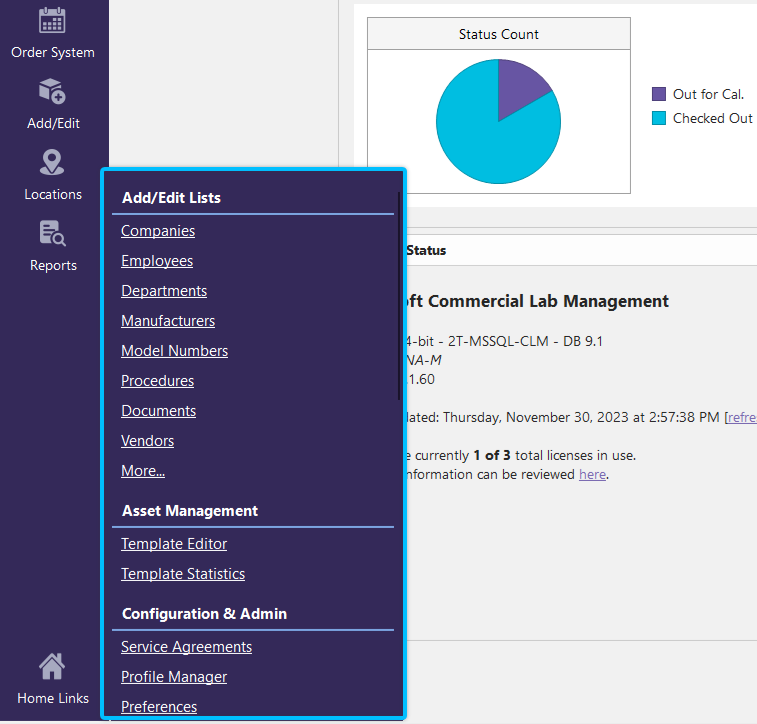
Home Links Menu
 Productivity Tip
Try the mouse wheel!
Home Views and Equipment Views typically are set up (in LayoutBuilder) to automatically resize their content/tables based on the page width. But the height of the form might often be taller than can be displayed on the IndySoft main form - requiring vertical scroll bars. In this case, use your mouse wheel (if available) to scroll quickly.