Supporting Documents
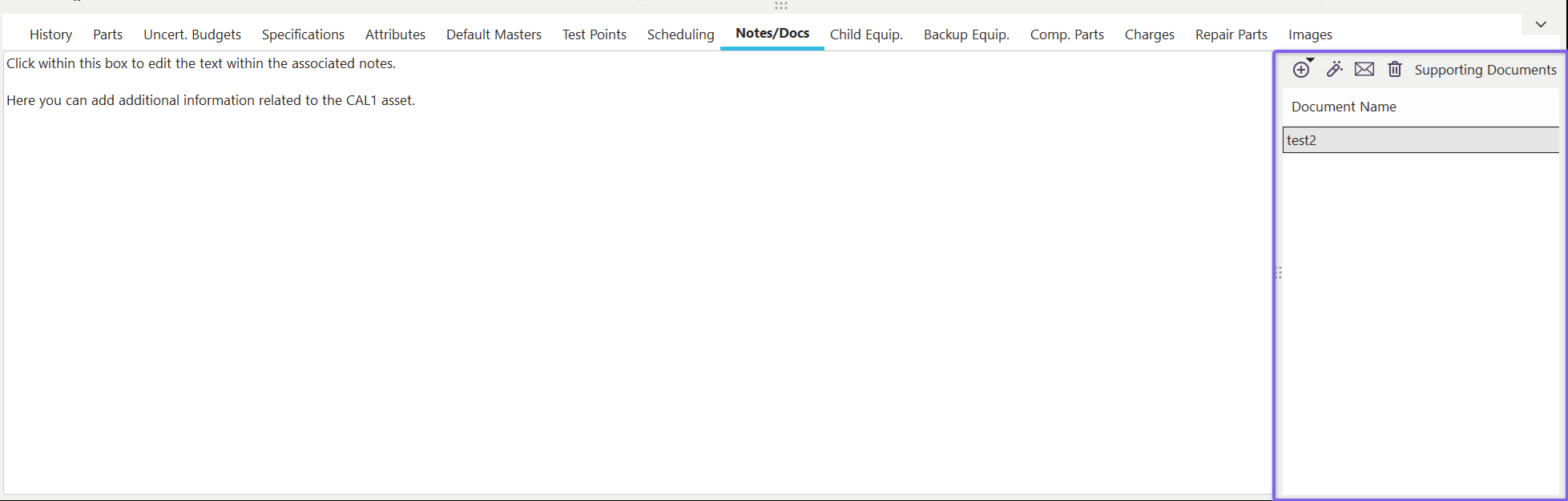
Notes/Docs Dialog
Several Equipment detail dialogs/tabs allow for supporting documents to be associated with each item:
·Charges
·Component Parts
·Repair Parts
·Machines
·Custom 6 Items
·Backup Equip.
In each case, the interface for adding/editing/deleting these Supporting Documents is the same. Supporting Documents are always associations with documents in the Add/Edit..Documentation...Documents wizard. This interface is similar to the Supporting Documents on Notes/Docs and Schedule Procedures in Scheduling.
 Add Supporting Document
Two options are available for adding supporting documents:
Add Document
Use this option to select a procedure from the Advanced Procedure/Document Search dialog.
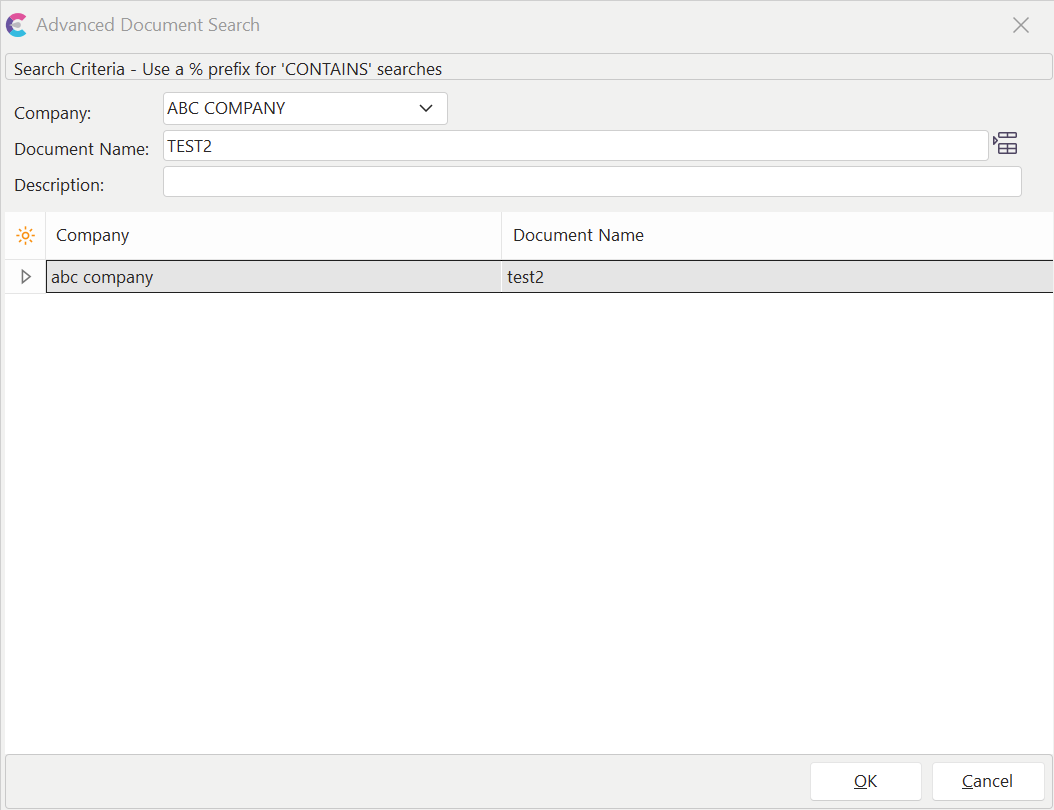
Add Document Dialog
Add New Document From File
Use this option to select a document from a file quickly. This operation will accomplish two things at once. 1) the file will create a new IndySoft document in the Add/Edit...Documentation...Documents wizard. The current company will be used as the owner of the document. The file name will be used for the document name (minus the file extension and possibly truncated to make an acceptable name). 2) This new document will be associated with the asset, like the 'Add Document' option above.
 View Supporting Document
Use this option to view the selected document. This will retrieve the document from the database, and Windows will be prompted to display it through the default file association for its extension.
 Delete Supporting Document
Use this button to delete the selected document. Note that this deletion removed the association of this document with the asset - it does not permanently remove the procedure from the Add/Edit..Documentation...Documents listing. |