Upgrading a Previous IndySoft Database Version
This topic only applies if you are upgrading a previous IndySoft database to the latest version. After installing a new client, you will be warned that the database needs to be upgraded if your existing database is out of date.
- Make sure all users are out of IndySoft
Before upgrading your IndySoft database, ensure all users have logged out of IndySoft.
2. Make sure you have a backup of your original database
Before upgrading your database, make a backup using your database's provided backup tools.
3. Start the Database Upgrade Utility
The Database Upgrade Utility is installed with each client into the IndySoft program directory as isupdb.exe. Run this executable and log in as an IndySoft 'System Administrator.' Upon login, a window similar to the one below will appear.
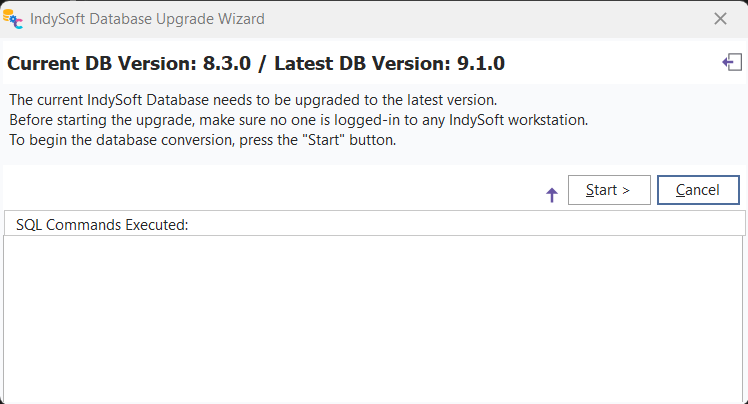
Database Upgrade Utility Dialog
If your database needs upgrading, you will be notified of your current version and the version that the database will be upgraded to. If the Current and Latest DB versions are the same, then there is no need to run the database upgrade utility. If you would like to Preview the SQL that is taking place during the upgrade, press the double-down arrow to the left of the start button. This will display a small window listing all SQL sent to the database. After the upgrade, this text is automatically pasted to the clipboard (if the SQL preview window is shown).
Press the Start button to begin the upgrade process. You will be updated on the upgrade progress and when the conversion is complete. If there are any errors, save them to a file and send it to IndySoft support. |