Update Layouts
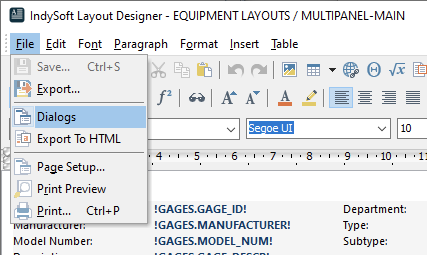
There are two major things that need to be done for layouts. First, on both the Equipment and Template layouts, you'll need to ensure UncertAttrib. (Specifications) are enabled. This will help you review pipette and balance settings at a glance. To do that, open the relevant equipment/template layout and choose File: Dialogs:
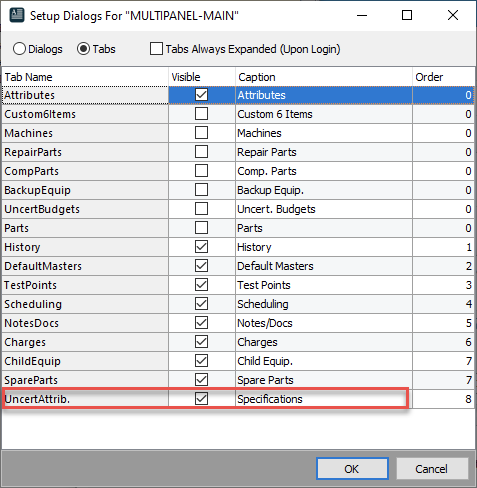
This will open the Setup Dialogs for the layout to ensure UncertAttrib. is checked as visible. You will probably have TestPoints checked, but this is a good time to confirm that as well.
The second step is to create hyperlinks for the various script projects on layouts. At a minimum, your Equipment and Template layouts will need hyperlinks for PIPETTE METHOD SETUP and PIPETTE BALANCE SETUP. Your home layout (probably for admins only) is a good place to put MIGRATE PIPETTE SETTING if you're upgrading from a 12.1 or early version. ADVANCED RS232, TEST RS232, and TEST SARTORIUS SPEEDCAL can all be added to any of the layouts.
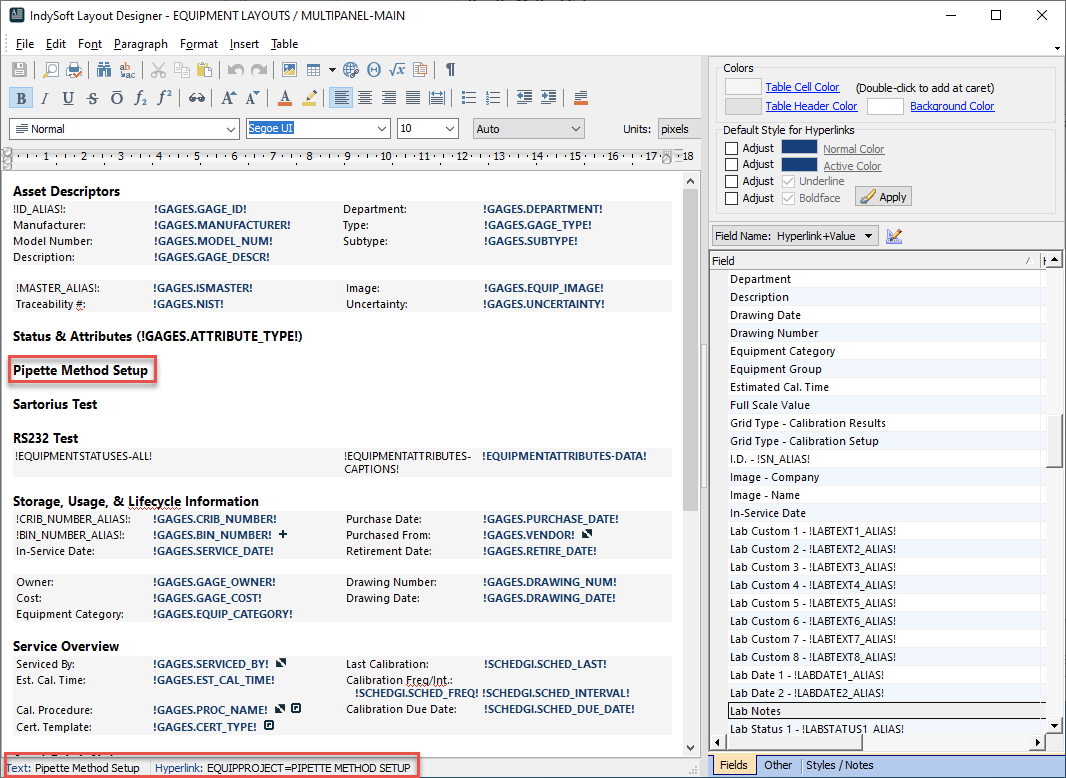
The screenshot below shows a text with a hyperlink. You can see the text is Pipette Method Setup, and in the bottom of the window you can see both the text and the hyperlink.
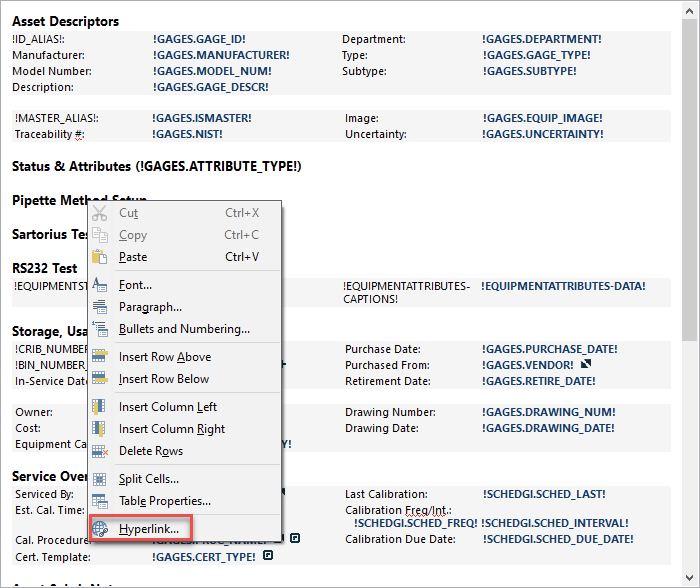
In general, you can create any text/image for the hyperlinks. Once the text or image is on the layout, select it and right-click. Then choose Hyperlink...
You can now confirm the selected text, and enter the hyperlink.

The hyperlink options are as follows:
EQUIPPROJECT=ADVANCED RS232
EQUIPPROJECT=MIGRATE PIPETTE SETTING
EQUIPPROJECT=PIPETTE BALANCE SETUP
EQUIPPROJECT=PIPETTE METHOD SETUP
EQUIPPROJECT=TEST RS232
EQUIPPROJECT=TEST SARTORIUS SPEEDCAL
Note that you'll need to use those exact value, regardless of whether you are modifying a template, home, or equipment layout. TEST RS232 is still available, but ADVANCED RS232 is far more useful, and is intended as a replacement for it.