Add/Edit...Equipment Info...Departments
Departments can be added in two ways.
- Directly on Equipment View, you can type in the Department name manually.
- Follow the wizard to create a list (Add/Edit Departments Steps Below).
Adding Department Manually on Equipment View
To add a department to a specific Equipment View unit, you must first locate the "Department" field.

Equipment View of Department
Once the Department is selected, you must select "Save Changes" for the changes made to be updated (this action can be done after all Equipment Information is revised)
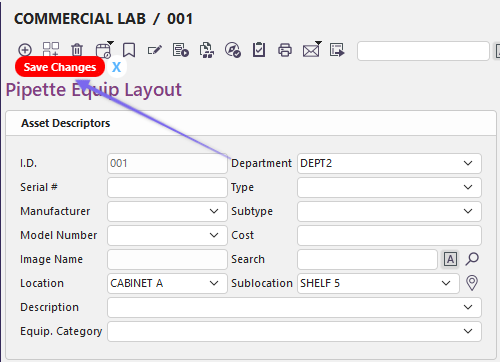
Department selected, and Save Changes Prompt appears.
If a new Department is being listed for the unit, a pop-up will appear to add this to the Add/Edit Department List.
If added, only the Department Name will be added to the Company (If no Default Company is chosen for Departments, it will be added to the Equipment Company.

Prompt if New Department is typed on Equipment View
Note: Remember that the lists available in the above example are by Company and come from the Default Companies set up in Preferences...By User...Default Companies tab.
Add/Edit Departments
When adding a Department from Add/Edit, there are four steps to correctly complete the department information (manually added Departments from Equipment View will not include any of these details).
To add to or manage the Department Lists, in the IndySoft header, click Add/Edit and select Equipment Info...Departments from the drop-down menu.
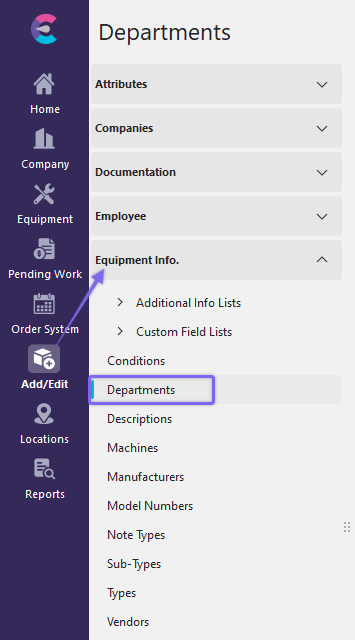
Navigate from the Add/Edit Tab to Equipment Info. / Departments
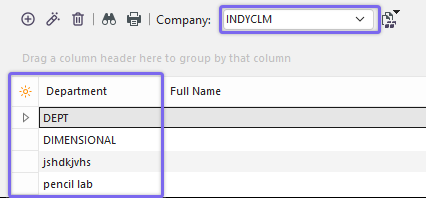
Add/Edit Departments - Company Highlighted
Be sure you're adding Departments to the right Company. Click  'New Item' to add a new Item or
  to 'View/Edit Item.'
Adding Departments
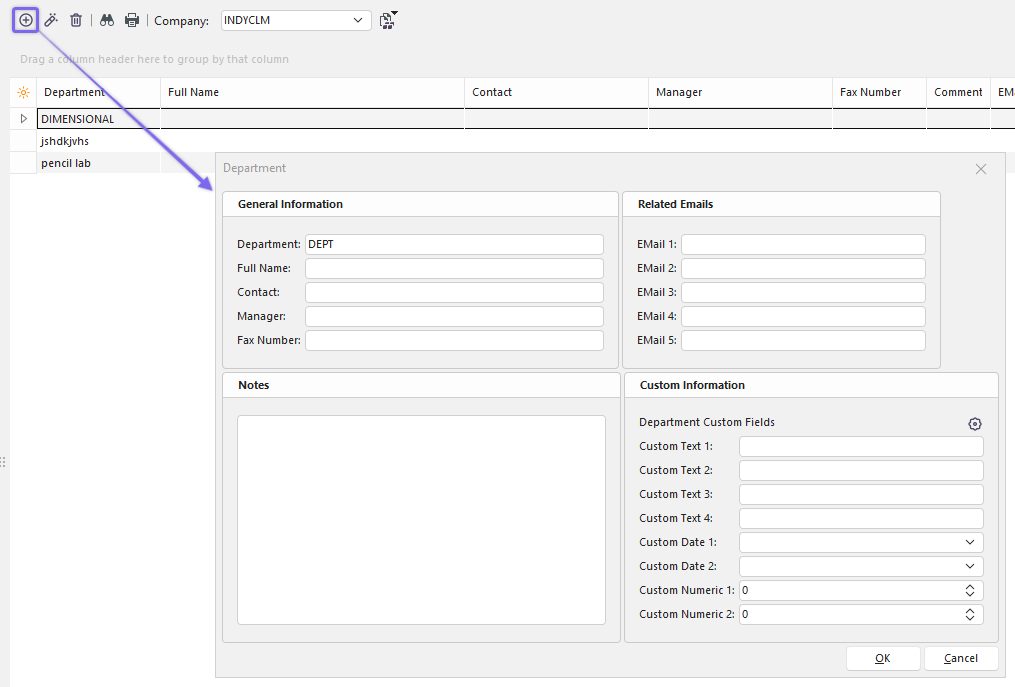
Add/Edit Department - Step 1
The first step in the Department Add/Edit wizard allows for input of general contact information per Department:
·Department - The unique name of each Department. Limited to 20 alphanumeric characters.
·Full Name - Allows for the entry of an additional non-unique description of each Department. Limited to 50 alphanumeric characters.
·Contact - The main contact person for the current Department is Limited to 30 alphanumeric characters.
·Manager - Manager for current Department. Limited to 30 alphanumeric characters.
·Fax Number - Area code + fax number for selected department. Limited to 15 alphanumeric characters.
Related Emails
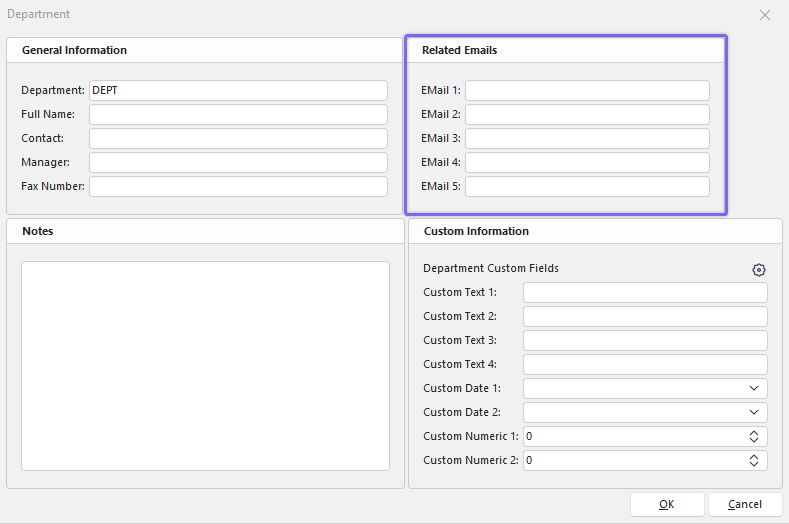
Add/Edit Department - Step 2
This step allows for the entry of up to 5 email addresses associated with this Department. These email addresses can be identified from Email Distribution Rules per Report Rule in the Event Configuration Module. Similarly, these email addresses can be identified from the Email Distribution Rules for Certificate in the Event Configuration Module. Thirdly, these email addresses can be identified from the IndySoft Alarm System when alarms are generated by equipment grouping.
For instance, as a result of a 'New Inventory' custom event, you can set up IndySoft to automatically send an email to the 1st-3rd Email addresses of the Department selected in the event to alert certain personnel to the arrival of new equipment.
Notes
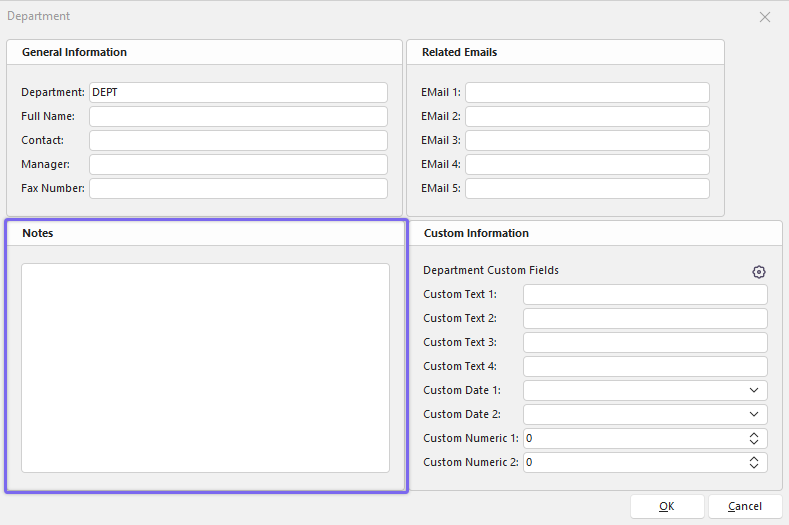
Add/Edit Department - Step 3
This step allows the entry of miscellaneous text-based information for the selected Department.
Custom Information
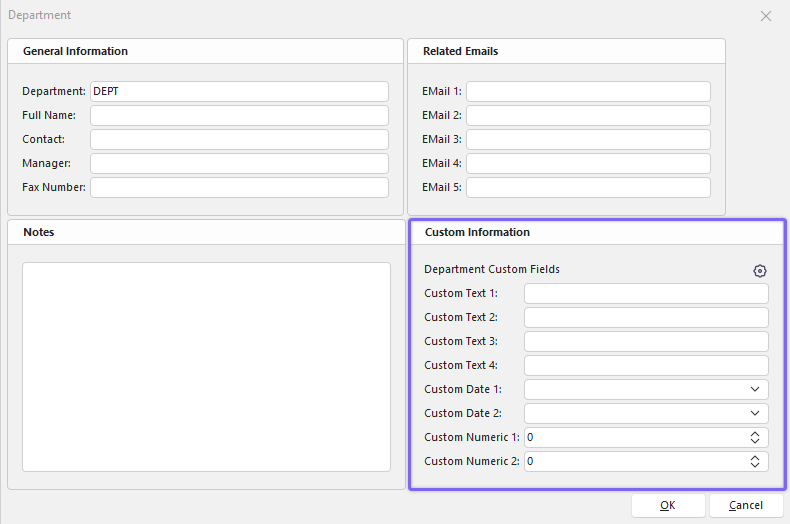
Add/Edit Department - Step 4
This final step allows for the entry of custom text field values set up by the Department. You can edit and save the Custom Text Labels (what you'd like to call them) by choosing the  icon.
icon.
 Productivity Tip
The Add/Edit Departments dialog box can be filtered and customized in many ways. See General Interface for more information.
Buttons and Icons are detailed here.