Add/Edit...Equipment Info...Vendors
A list of Vendors and their contact information can be created and used to order parts or products or outsource calibrations and repairs throughout IndySoft.
Add New Vendor
To add to or manage the Vendors list, in the IndySoft header, click Add/Edit and select Equipment Info...Vendors from the drop-down menu.

Add/Edit Vendors
Be sure you're adding Vendors to the right Company. Click  'New Item' to add a new Vendor or
  to 'View/Edit Item.'
General Info
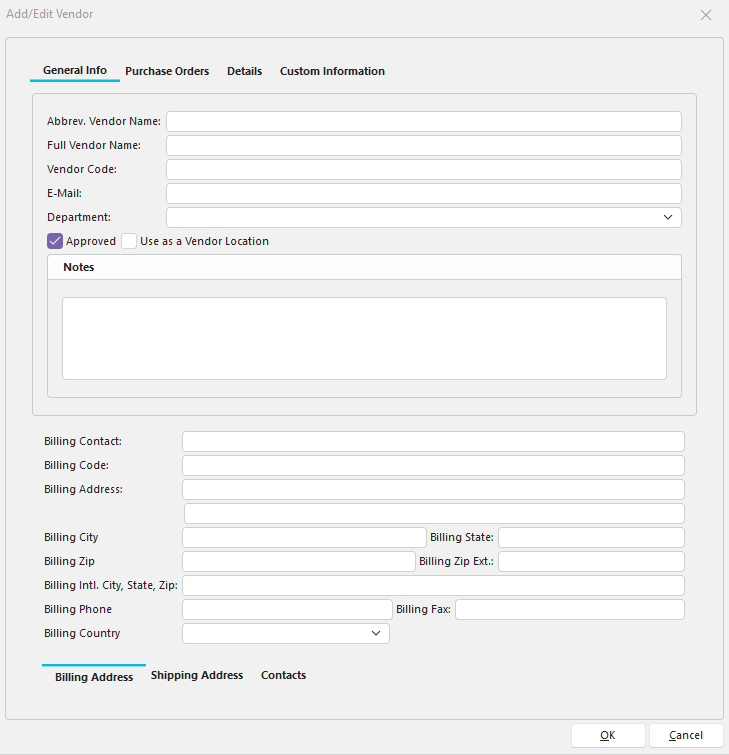
Add/Edit Vendor - General Info
Make sure to fill out the billing and shipping address fields if they differ.
A new "Contact" portion for vendors can be saved per Vendor. Specifying a "Contact Type" for a contact can help you with email distribution rules for documents and emails generated in events! Specifying an overall email for the Vendor can be used for email distribution rules as well.
Purchase Orders
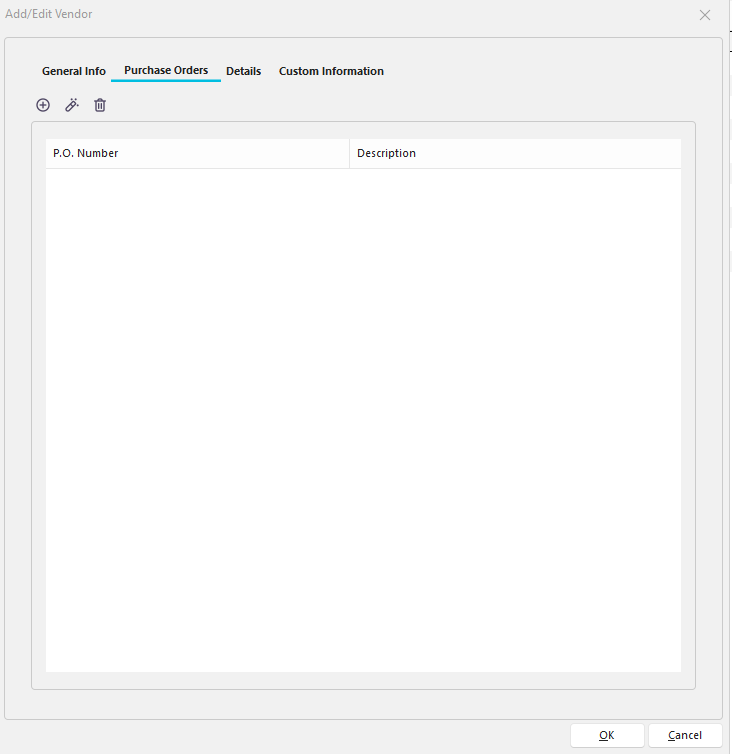
Add/Edit Vendor- Purchase Orders
Vendor POs received an update in version 13.
Details
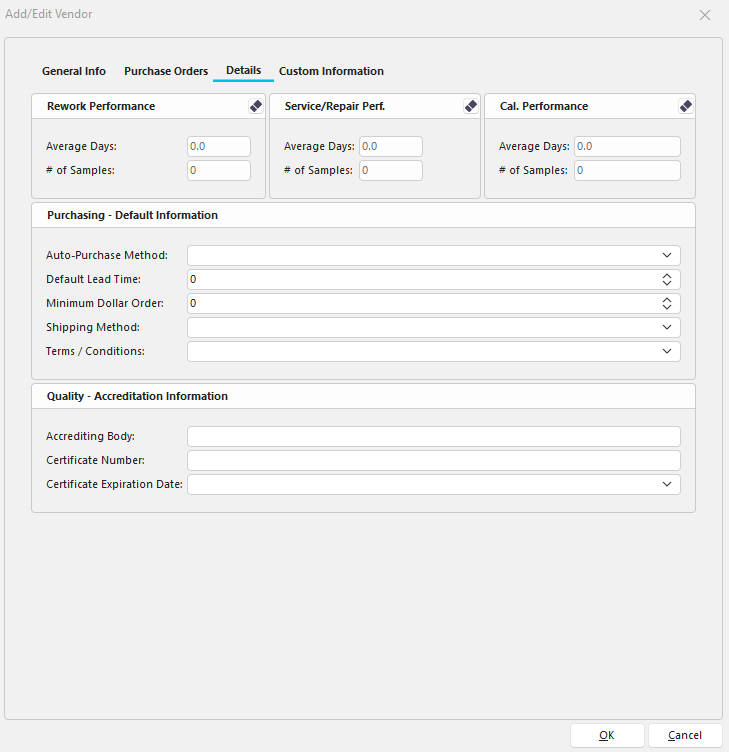
Add/Edit Vendor - Details
After you've outsourced to a particular vendor a few times, you'll gather information about them. The following three fields refer to past performance with that Vendor.
Rework Performance
How long does it take the Vendor to Rework something
Service/Repair Performance
How many days does it take for this Vendor to service/repair a product?
Calibration Performance
How many days does it take for this Vendor to Calibrate a product?
Productivity Tip
Step 5 of Workflow Configuration lets you enable the tracking feature for a specific event. You can also click the drop-down menu to associate tracking with your chosen event.
 Purchasing - Default Information
Auto-Purchase Method
- Print: Choose if you will be ordering via a printed-out order form
- Email: Choose if you will be ordering via email.
Default Lead Time
How many days in advance do you need to order the part/service...how long does it take them to process your purchase
Minimum Dollar Order
Enter a minimum amount the order must total before an order can be placed. Note: The dollar amount cannot be entered; you must scroll up or down using arrows
Shipping Method
Key in any instructions concerning shipping in this field. In version 13, this field received a link to a system-wide add/edit list. If you enter a value here, it will be the default value used in the corresponding field in the vendor PO system.
Terms/Condition
Any terms or conditions that go along with this particular Vendor. In version 13, this field received a link to a system-wide add/edit list. If you enter a value here, it will be the default value used in the corresponding field in the vendor PO system.
 This button will reset the values that are associated with this Vendor.
Notes
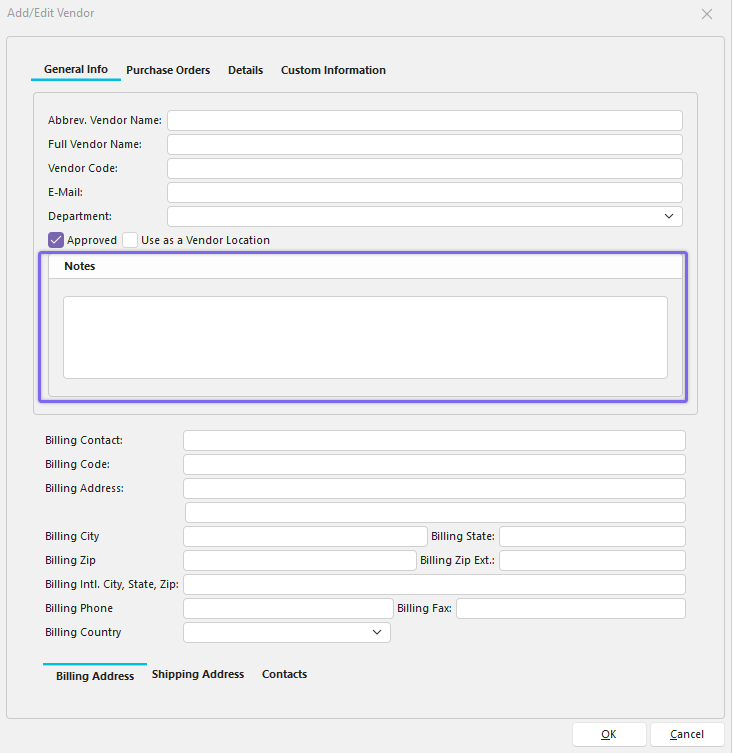
Add/Edit Vendor Step 2
Vendor Notes.
Custom Information
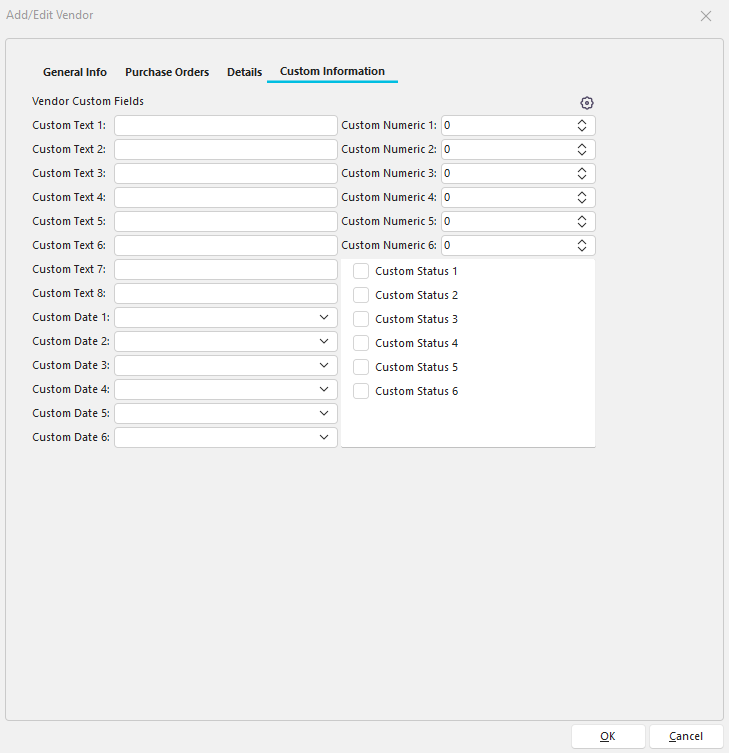
Add/Edit Vendor Step 5
Vendor custom fields can be set and used here. The cog button in the upper right-hand corner will allow you to alias them so that they make sense for your purposes.
Productivity Tip
The Add/Edit Vendors dialog box can be filtered and customized in many ways. See General Interface for more information.
Buttons and Icons are detailed here.