Create New Database
This simple screen is the only operation that most Single-User technicians must run before a trip to a remote site. Run this dialog, select the company or companies for sync using the 'Add Company' drop-down, and press 'Sync.' The database will be automatically created, and the current connection settings in Single-User will be automatically shifted to this new database. The database will be automatically named based on the company or companies selected. This newly created database will already have ALL the data synced over the weekend from the Starter Database Setup (Admin Only) operation (this new database is cloned from that database). But even beyond that, last-minute updates to documents, procedures, orders, templates, and masters can be included.
The grid displays a review of all selected companies. A reminder is given of the # of assets/events in the Multi-User database for this company and the # of assets/events in the current Single-User database (typically 0). Below the grid, an optional 'Last Sync - Summary' can display a review of the last sync operation, noting the date/time completed, total time, # of assets, events, and other notes.
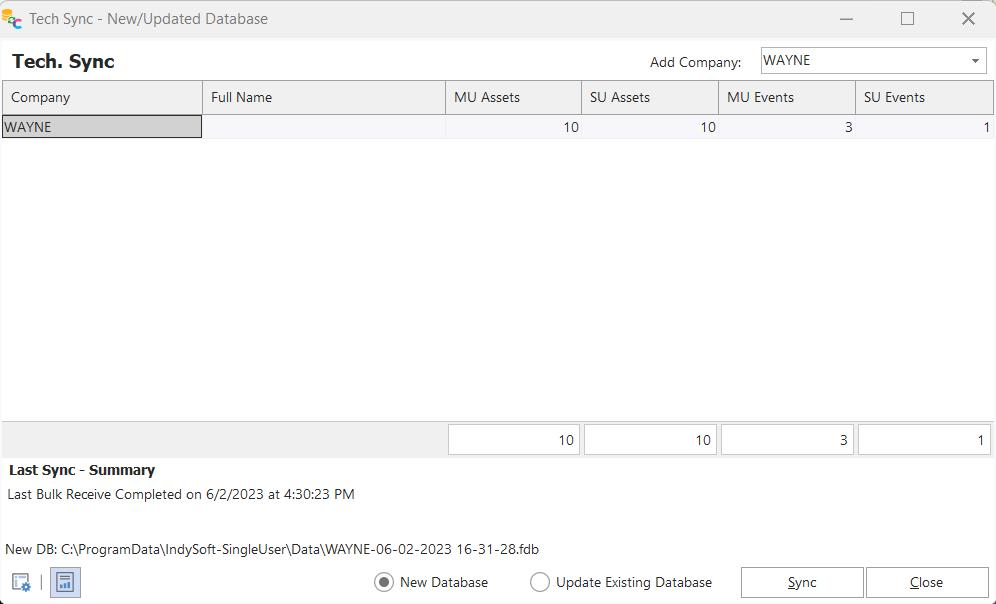
Create New Database
Two additional buttons are available at the bottom of the dialog:
· Bulk Receive Options: Use these options to decide on various sync options. The suggested default is to turn on ALL options simply:
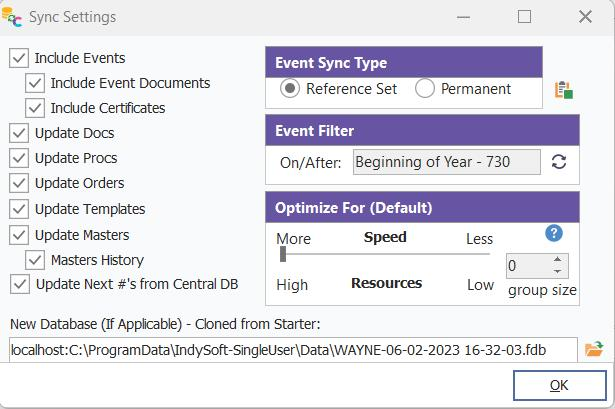
Sync Settings
Include Events: Include a sync of events for all assets synced.
Include Event Documents: Include a sync of related event documents in the events synced.
Event Sync Type (Reference Set / Permanent): Syncing with a reference set is faster, but this option can typically only be used when you are creating a 'New SU Database' (option on the bottom of the dialog) - since this operation brings in all the event numbers as they currently exist in the Multi-User database (actually flips the #'s to negative so they are marked as belonging to this reference set). The downside is that any events imported as part of a reference set cannot be modified in the Single-User database. But typically, this is not a concern since the event are meant to only be available for reference. Select 'Permanent' to re-create all event numbers as normal.
Include Certificates: Include event certificates in the events synced
Update Docs: Check if any Add/Edit...Documentation...Documents have been modified since the creation of the starter database. If so, these updated items will be synced.
Update Procs: Check if any Add/Edit...Documentation...Procedures have been modified since the creation of the starter database. If so, these updated items will be synced.
Update Orders: Check if any Orders have been modified since the creation of the starter database. If so, these updated items will be synced.
Update Templates: Check if any Templates have been modified since the creation of the starter database. If so, these updated items will be synced.
Update Masters / Masters History: Check if any Masters/Standards have been modified since the creation of the starter database. If so, these updated items will be synced. If 'Masters History' is checked, related events History is also synced for these masters/standards.
New SU Database (Clone from Starter): Turn ON to create this new database as a clone of the starter database. This is the suggested option - the new database's name is previewed in the edit box below. The name is created based on the company/companies selected for sync and the current date/time.
· Last Sync - Summary: Toggles on/off the display of the above 'Last Sync - Summary' panel. |