Equipment
Equipment search/report templates quickly locate and report on equipment groups. The look/feel of Equipment search/report templates is very similar to General search/reports. General search/reports apply to all non-equipment tables in the database, and Equipment search/reports apply to all equipment-related queries.
Before proceeding, please read Equipment Search By/Report Dialogs to learn about the main sections of an Equipment search/report and their usage when called from the main screen. This topic will deal with options relating to customizing an Equipment search/report.
When an equipment search/report is modified from PrintBuilder, you will notice two new buttons in the lower-right which are not visible to users that run the search/report from the main screen during normal use:
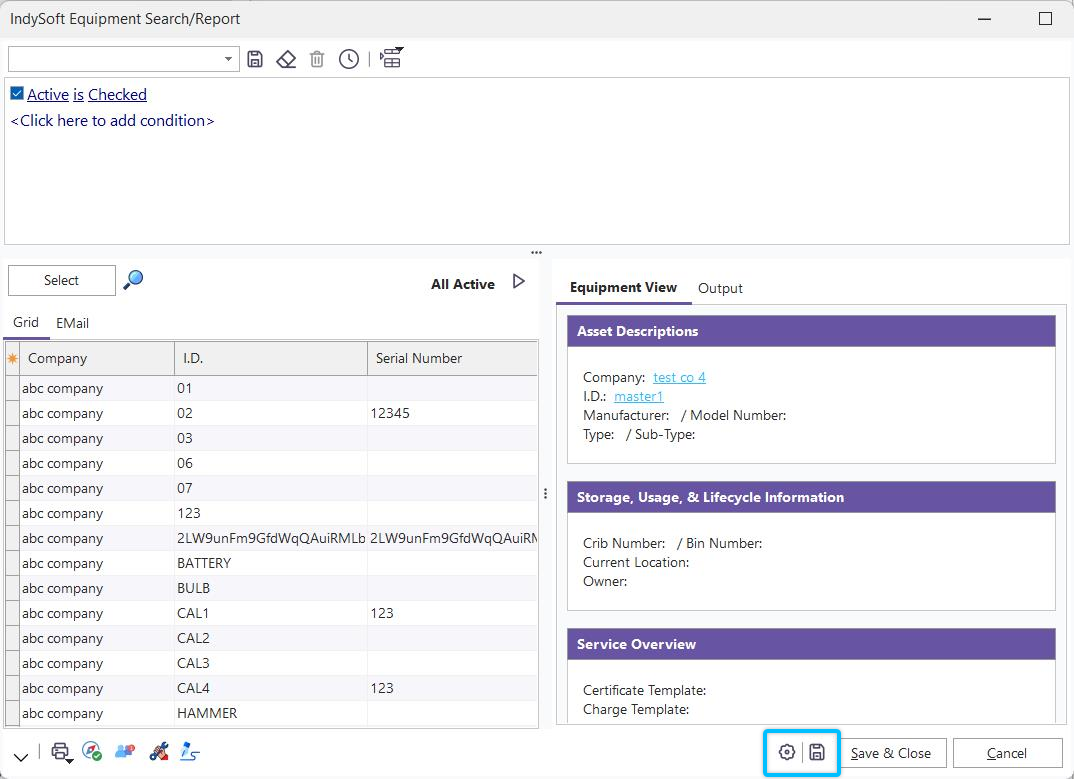
Additional Options and Save Buttons - Equipment Search/Report Design
 Save Settings
Use this button to save your current changes to the database - overwriting the previous search/report configuration. This operation is also performed with the 'Save & Close' button to the right, which closes the dialog.
 Additional Options
This button will display an important dialog listing all the various functionality options with an Equipment search/report. See the sections below for more details:
Additional Options - Search Options
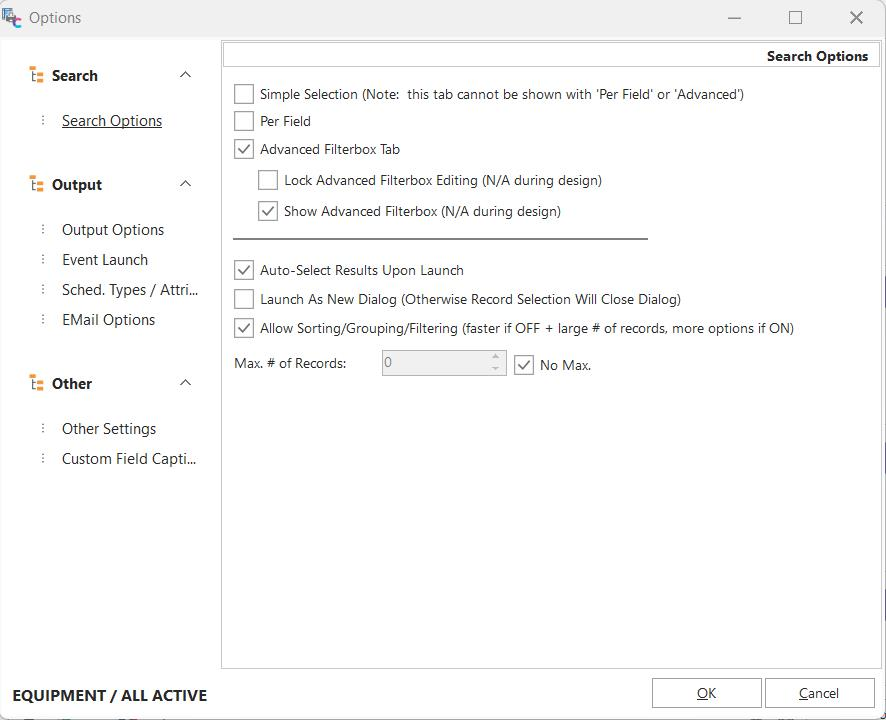
Additional Options - Search Options
Three possible search tabs are made visible in an Equipment search/report:
·Simple Selection
·Per Field
·Advanced Filterbox
For a summary of these three searching mechanisms, see Equipment Search By/Report Dialogs. When only one of these searching mechanisms is selected, then it will be displayed on the top of the dialog without any title (to save on screen space). When two searching mechanisms are enabled, they are shown as tabs, each with a description. Note: The 'Simple Tab' cannot be used with 'Per Field' or 'Advanced Filterbox' since the method of populating the selected equipment grid differs.
The 'Advanced Filterbox Tab' includes two additional options:
Lock Advanced Filterbox Editing - this option will disable the editing of the filter box when the search/report is executed from the main screen. In this disabled state, the small panel above the filterbox for recalling and saving past searches will be hidden. Note: This option is not applicable when the search/report is configured in PrintBuilder.
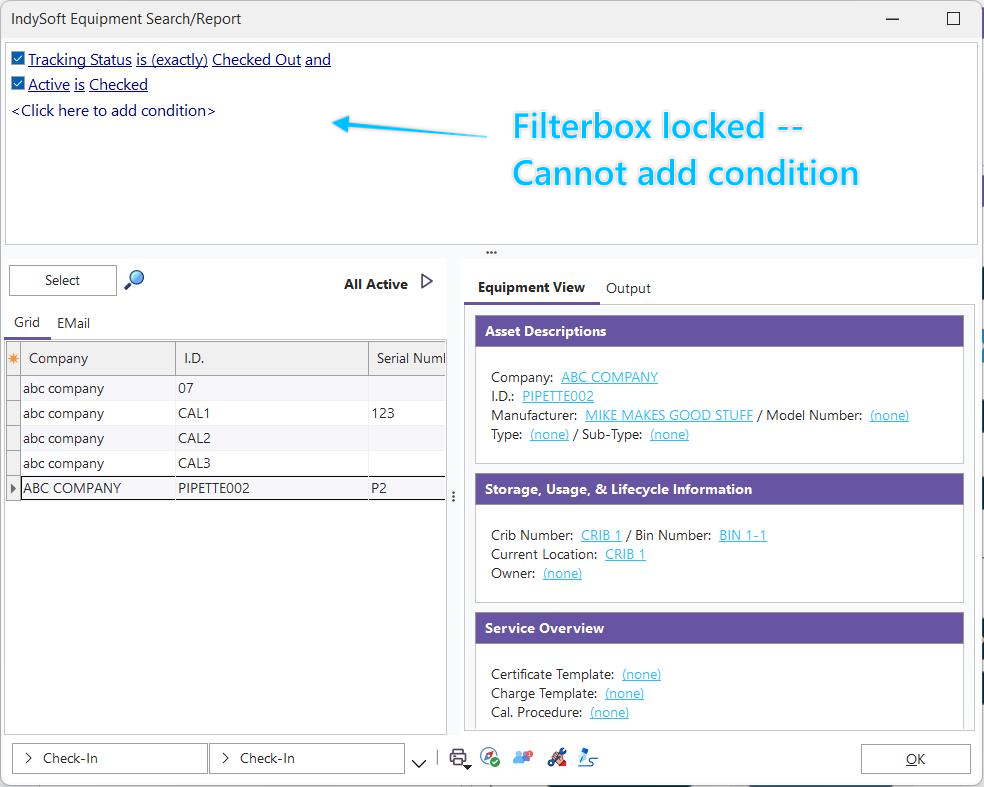
Example - Locked Advanced Filterbox
Show Advanced Filterbox - this option defaults to True. When unchecked, the filterbox will be completely hidden when the search/report is called from the main screen. Note: This option is not applicable when the search/report is configured in PrintBuilder. It is important to note that the filter setup during the design of the search/report is still being used to display the results. So the 'Auto-Select Results Upon Launch' option MUST be enabled for the report to be operative. This filter is hidden from the user to simplify the display.
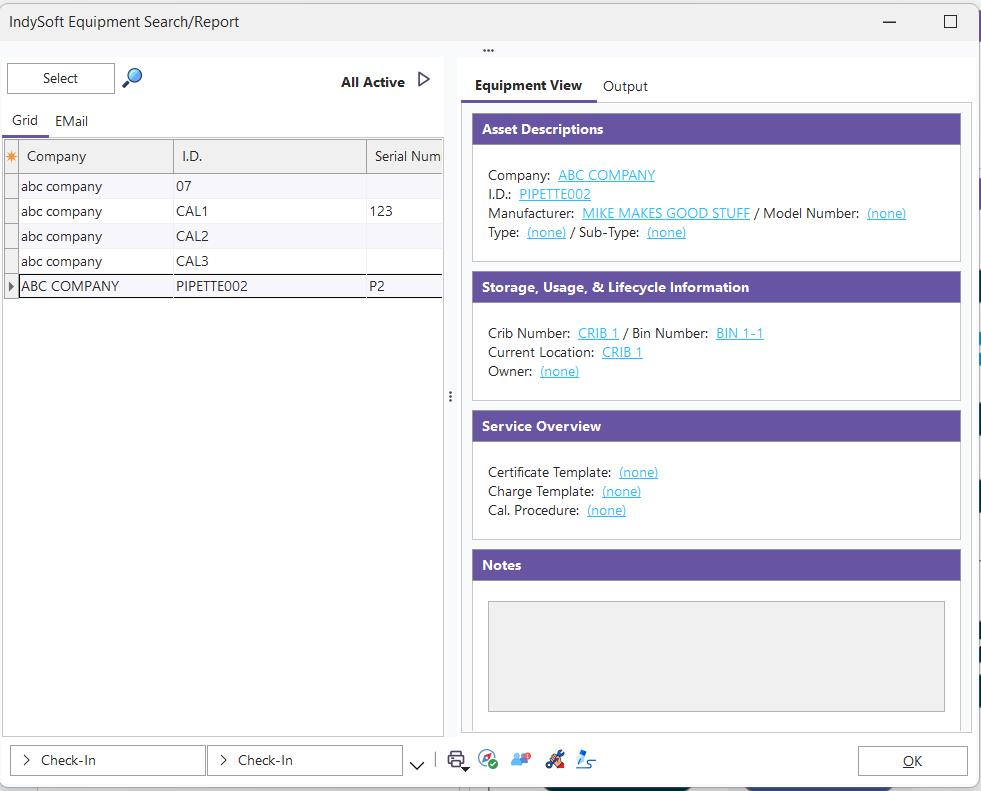
Example - Show Advanced Filterbox Turned OFF
Several other search-related options are available in this setup step:
Auto-Select Results Upon Launch - enable this option to automatically execute the filter when the search dialog is run to populate the selected equipment grid. If this option is NOT enabled, the user must confirm the search filter and press the 'Select' button to populate the results. Note: Using this option with the 'Simple Selection' tab will control whether your selected equipment grid begins in an empty state or****is pre-populated with the selected equipment populated in a previous search. This functionality is similar to the User/Location Settings...Application Settings...Auto-Clear EquipmentFinder' checkbox (which now only relates to the usage of the legacy EquipmentFinder dialog).
Launch As New Dialog (Otherwise, Record Selection Will Close Dialog) - this option controls whether the equipment search/report should be executed as a 'modal' dialog from within the IndySoft main screen or whether the search/report should be executed as a separate Windows dialog. By 'modal,' we mean whether the search/report screen should require the selection of an asset (or closing the report output, whichever is applicable) before the user proceeds with other actions in IndySoft. Launching the search/report in this fashion (within the IndySoft main screen process) is typically slightly faster - but as noted, it requires action before proceeding. If the search/report is launched as a separate 'window,' the search/report can be left onscreen while other actions are performed (other searches, new events, etc.). When launched this way, the search/report makes for a handy 'to-do' list - similar to the Navigator screen. Regardless of the setting selected, remember that search results will not be automatically updated when records are changed on the main screen or from another user's main screen - press 'Select' again to refresh the results.
Max # of Records / No Max. - this setting is similar to the 'Max # of Records' in User/Location Settings, but it applies only to this search/report. This maximum # of records will be enforced when the 'Select' button is pressed (or when the search is automatically executed) - if the maximum is exceeded, the user is alerted. Note: With Equipment search/reports, this setting is used INSTEAD of the User Preference. Think of that User Preference setting as a catch-all for more common search screens that are not designed/customized. This setting is used for all Equipment and General search/reports. This allows for much more flexibility - because some searches/reports return only 2-3 fields, it might be acceptable to return 10,000 records. But a lower max might be advisable for other complicated searches that return dozens of fields. Turn on 'No Max.' to skip any check for # of records.
Additional Options - Per Field
Additional Options - Per Field
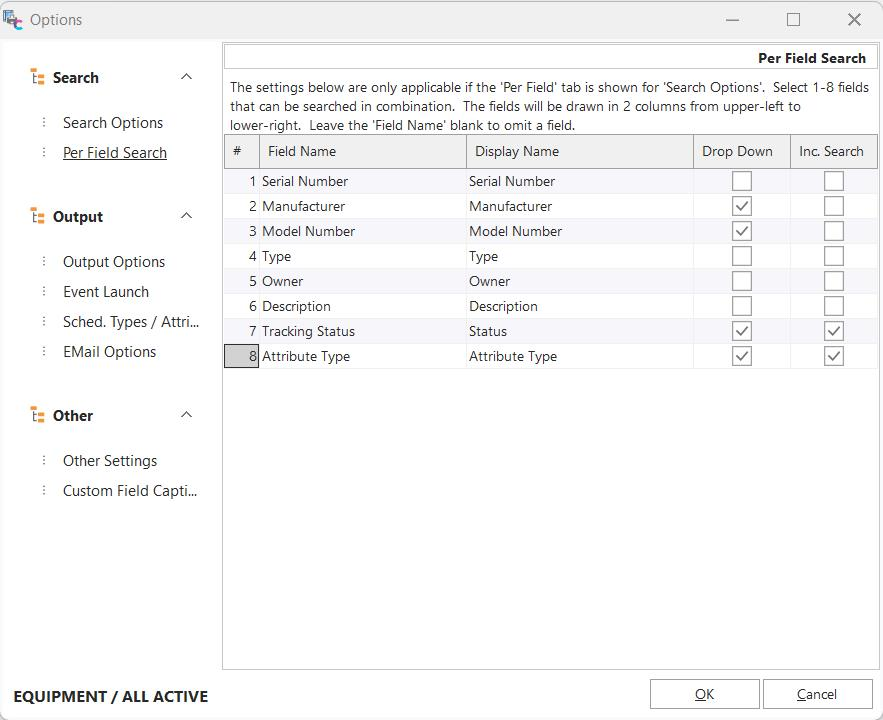
Note: this setup step is only visible if the 'Per Field' search type has been selected in the 'Search Options' step. As described in Equipment Search By/Report Dialogs, the 'Per Field' search allows for quick searching upon Company, I.D., and up to 8 other equipment-level fields - all fields can be searched in combination. As noted onscreen, these fields will be drawn in 2 columns from upper-left to lower-right. Simply leave a 'Field Name' blank to omit a field.
Field Name - the field to be searched; all text-based equipment-level fields are shown as options.
Display Name - the 'friendly' name for the field that should be displayed to the left of the edit box. Typically this is the same as the 'Field Name,' but it can be customized - be careful not to input text that is longer than can be displayed in the space given.
Drop Down - if the Field Name is linked in IndySoft to an Add/Edit list (not all text fields are), then use this option to enable a linked drop-down control rather than a simple edit box.
Inc. Search - this stands for 'incremental searching.' This setting only applies if 'Drop Down' is also enabled for this field. This controls whether keyboard typing within the drop-control attempts to select a matching item from the drop-down automatically. Also, when this option is enabled for a field, only items from the drop-down can be used for the filter, so partial values are not allowed. An empty text option is always added to the drop-down at the top of the list.
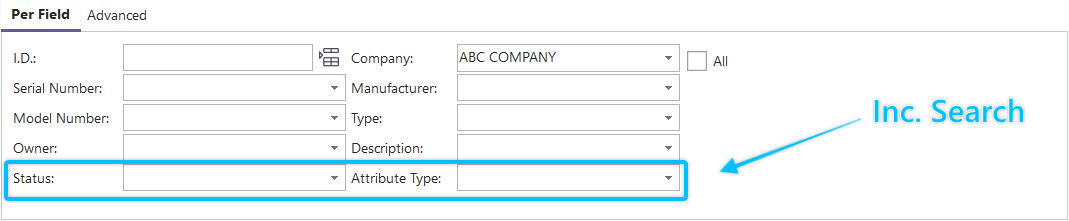
Example 'Per Field' Setup - 8 fields visible, 2 are 'Inc. Search'
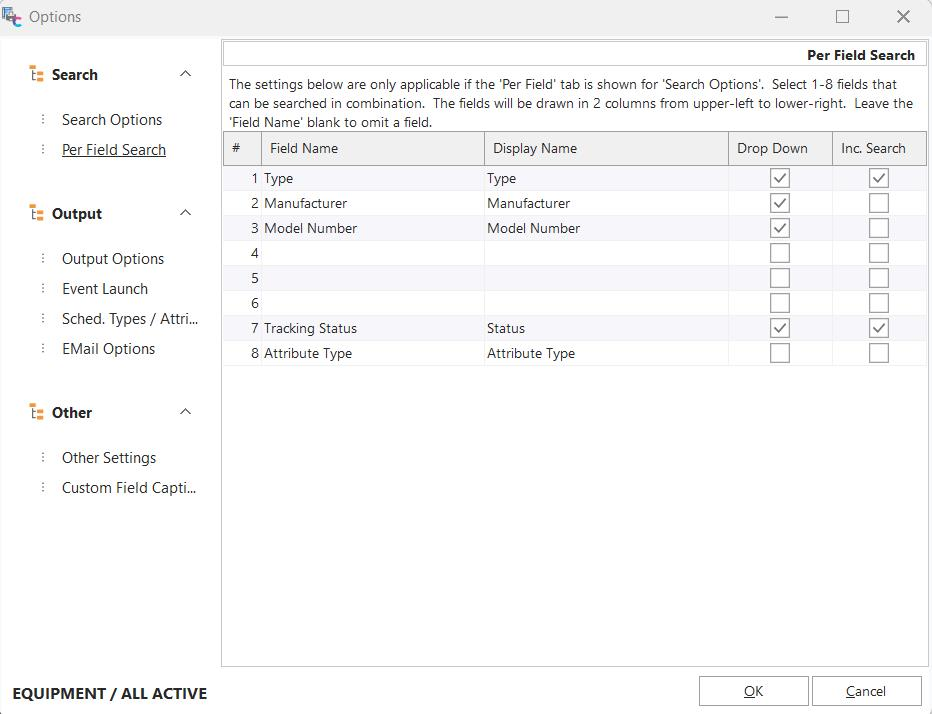

Example 'Per Field' Setup - 4 fields visible, 1 is 'Inc. Search'
Additional Options - Output Options
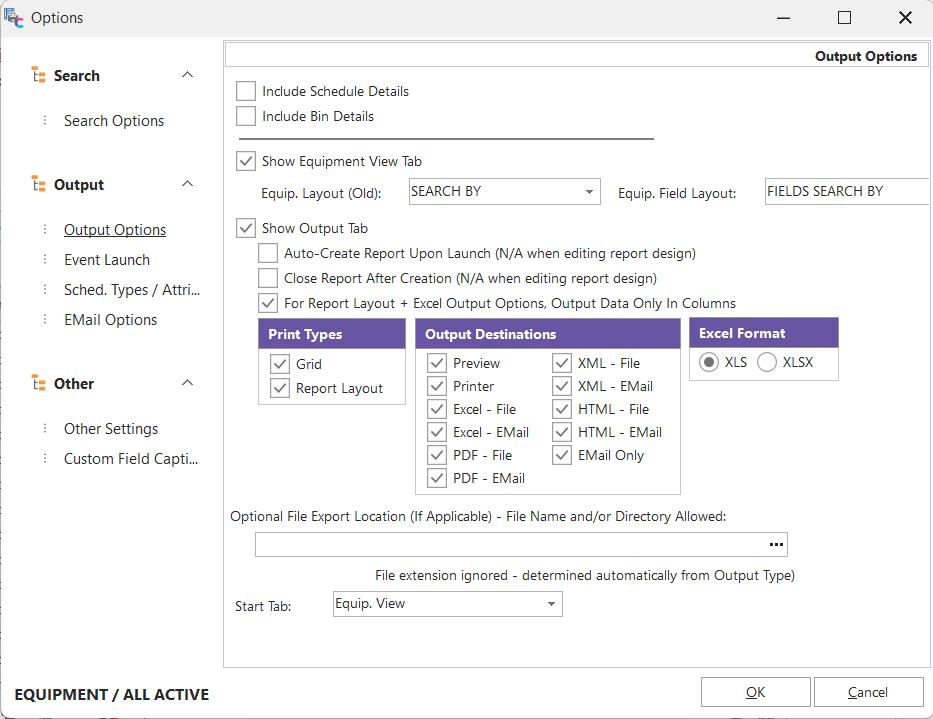
Additional Options - Output Options
The 'Output Options' are related to functionality in the results grid or the 'Equipment View' and 'Output' tabs that can be visible to the right.
Include Schedule Details - this option will make visible an embedded grid within each equipment record showing all schedules for the related asset. This embedded grid will only be displayed if schedules exist for this asset. Note: these schedule details differ from the schedule information displayed on the same level as equipment fields through the 'Sched. Types / Attributes' setup page.
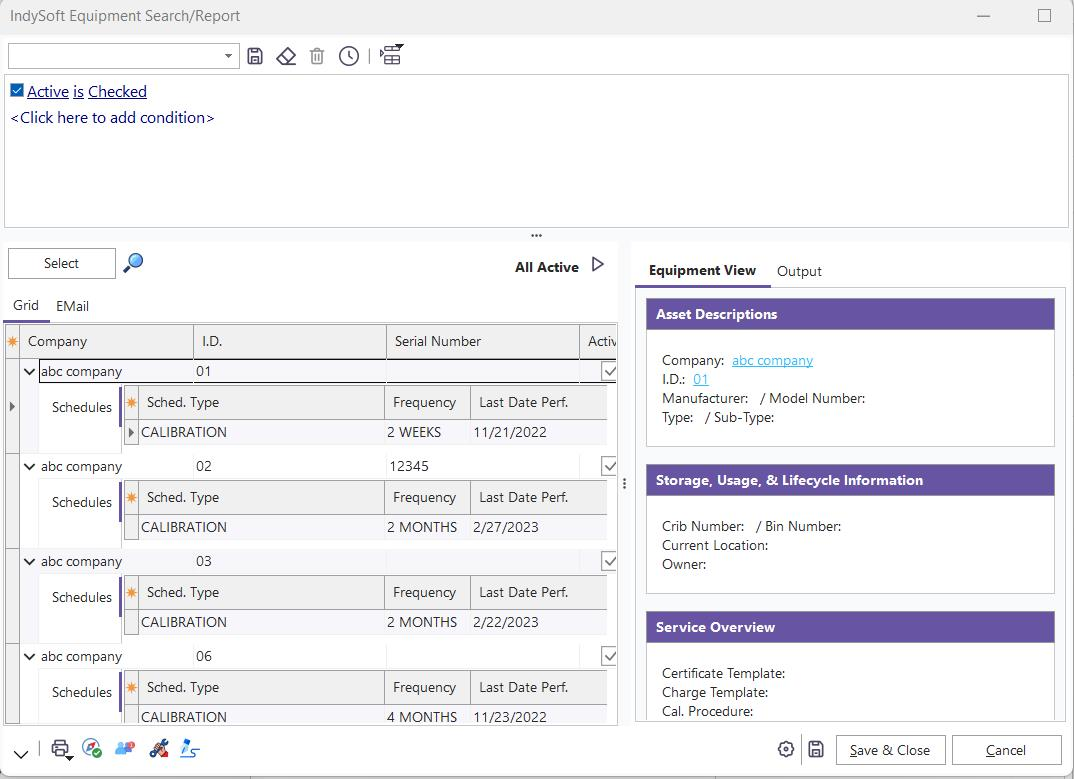
Example of Include Schedule Details
Include Bin Details - this option will only be visible/relevant if you are using the Tool Management version of IndySoft. This option will make visible an embedded grid within each equipment record showing all bins for the related asset - as set up from the Quantities/Bins tab on the Equipment View. This embedded grid will only be displayed if bins exist for the asset.
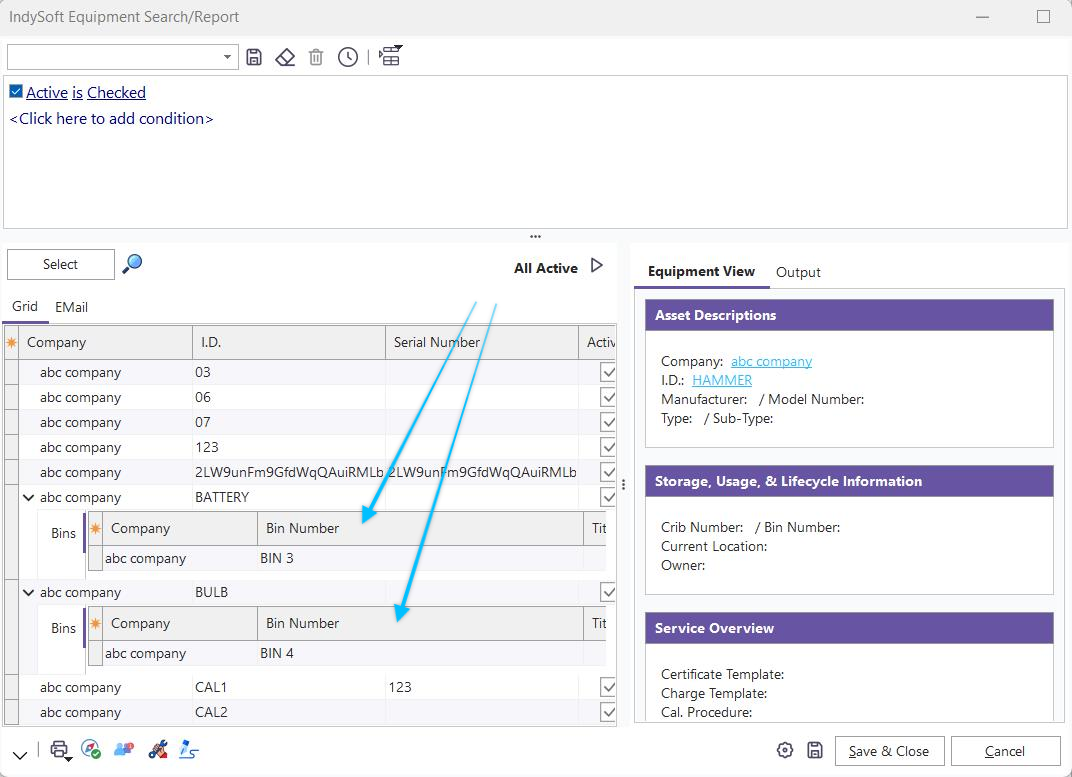
Example of Include Bin Details
Show Equipment View Tab - turn on this option to display the Equipment View tab to the right of the results grid. If the Output tab is also displayed, they will be shown as two tabs, only one visible at a time. The Equipment layout that should be used can be selected from the drop-down below.
Show Output Tab - turn on this option to display the Output tab to the right of the results grid. If the Equipment View tab is also displayed, they will be shown as two tabs, only one visible at a time. The five options below are relevant only if the 'Show Output Tab' option is ON.
Auto Create Report Upon Launch - turn on this report if you want to automatically press the 'Create' button on the Output tab upon creating the search/report dialog. The results will be returned (grid populated), and the Output report will be created based on the current settings for 'Print Type' and 'Destination.' This option is not operative when the search/report is designed in PrintBuilder.
Close Report Upon Creation - When this option is on, after the report is created and output (to screen, printer, file, etc.), the search/report dialog is closed. If this option is OFF, the search results will remain onscreen after creating the report. This option is especially easy to understand when the output is to 'preview.' The auto-create of the report will first display the preview dialog - typically large, covering your screen. When this preview window is closed, the search grid will be visible 'behind' (if this option is OFF). If this option is turned ON when the 'Auto Create Report Upon Launch' option is OFF, then after the user presses the 'Create' button on the Output tab, the search dialog will close.
For Report Layout + Excel Output Options, Output Data Only In Columns - this option is only relevant when the Output destination is 'Excel - File' or 'Excel - EMail' and the 'Report Layout' print type is used. This option is not relevant for the 'Grid' print type. When this option is OFF, the Excel output attempts to match exactly the cosmetic 'look' of the Report Layout, as set up in the IndySoft Report Designer. As an example, say your report design was as follows:

Example Report Design
If the 'For Report Layout + Excel Output Options, Output Data Only In Columns' option is OFF, then the Excel output (when viewed later within Excel) will look as follows:
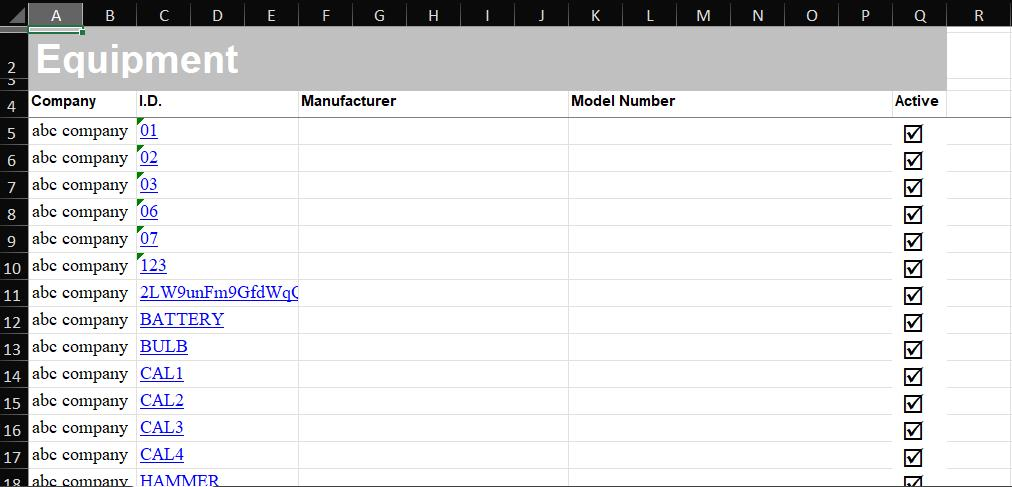
Example Excel Output - if option is OFF
If the 'For Report Layout + Excel Output Options, Output Data Only In Columns' option is ON, then the Excel output (when viewed later within Excel) will look as follows:
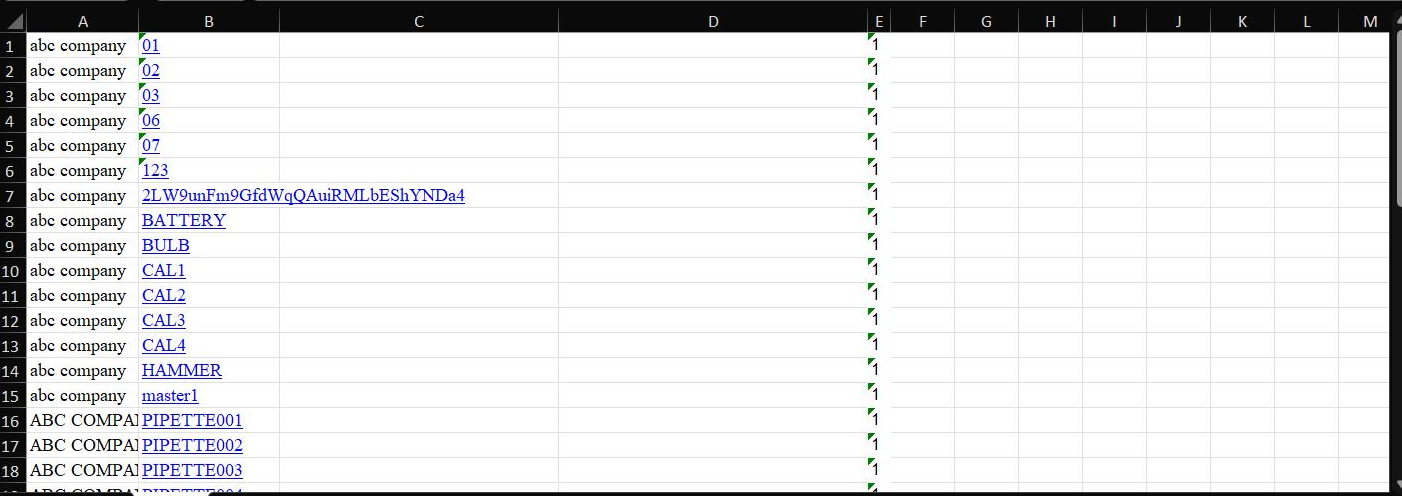
Example Excel Output - if option is ON
As you can see from the above example, the only items included in the Excel output are the equipment-level fields, along with the font style for these fields as set in the report design. All other bands and extraneous formatting are ignored. Also, all fields are output in consecutive columns regardless of their relative positions in the report design.
Report Types - Use this option to specify which Report Types will be available to the user when the search/report is run. All options not checked will be hidden from the Output tab.
Output Destinations - This option will specify which Output Destinations will be available to the user when the search/report is run. All options not checked will be hidden from the Output tab.
Optional File Export Location - This option is only relevant for file-related or email-related output (PDF, Excel, XML). Use this option to specify as much information as possible about the final destination for the file that will be created. Several variations are possible. First, a full directory and file name can be input. In this case, no 'select file' dialog will be shown when the report is created - it will be created to the specified location. Any existing file with the same name at that location/name will be automatically overwritten - so use this option carefully. Next, only a directory name can be specified. In this case, this file name will be automatically created in the format of:
SearchName-mmddyyyy-hhmmss.ext
Where 'SearchName' is the name of the current search/report, mmddyyyy-hhmmss is the current date and time, and .ext is the file extension that matches the Destination (pdf, Excel, XML). A third option: if you specify a file name and no directory, this file name will be used to create the file in the IndySoft \Temp directory. This is a common setup when the file is created for email output. Note: it is fine to specify a file extension here, but it is ultimately ignored when the final file is created - and replaced instead with the extension appropriate to the 'Destination' type (pdf, Excel, XML, etc.)
Start Tab - use this option to specify whether the 'Equip. View' or 'Output' tab is visible when the report is first displayed.
 Note about XML output.
XML output is a powerful feature of Equipment reports - especially when the report is set up to create a fixed file location automatically. Keep in mind the format of the XML file will be simple - following these general rules:
·Only fields displayed in the grid will be output
·Fields will be output in the same order top-to-bottom in the XML file as set up in the grid field header left-to-right
·XML Output is only allowed for Grid Print Type
·The root element will be <Equipment>, which will contain all records
·Each record in the grid will be included inside a <row> element
·Fields in each row will be named by the same field name as used in the grid
·Schedules and Bins details per record will exported within each <Equipment><row>, if applicable, within <Schedules> and <Bins> elements
·Spaces and other extended characters in Field Names will be replaced by an underscore in the XML field name, i.e., 'Max. Bin Capacity' = 'Max__Bin_Capacity'
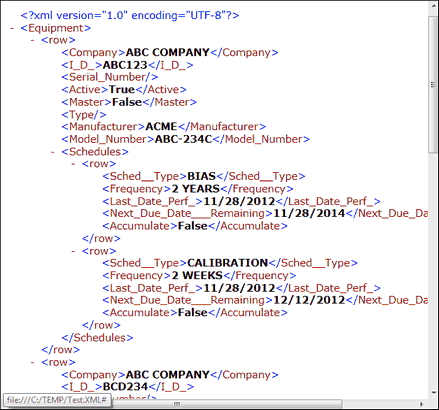
Example - XML Output
Additional Options - Event Launch
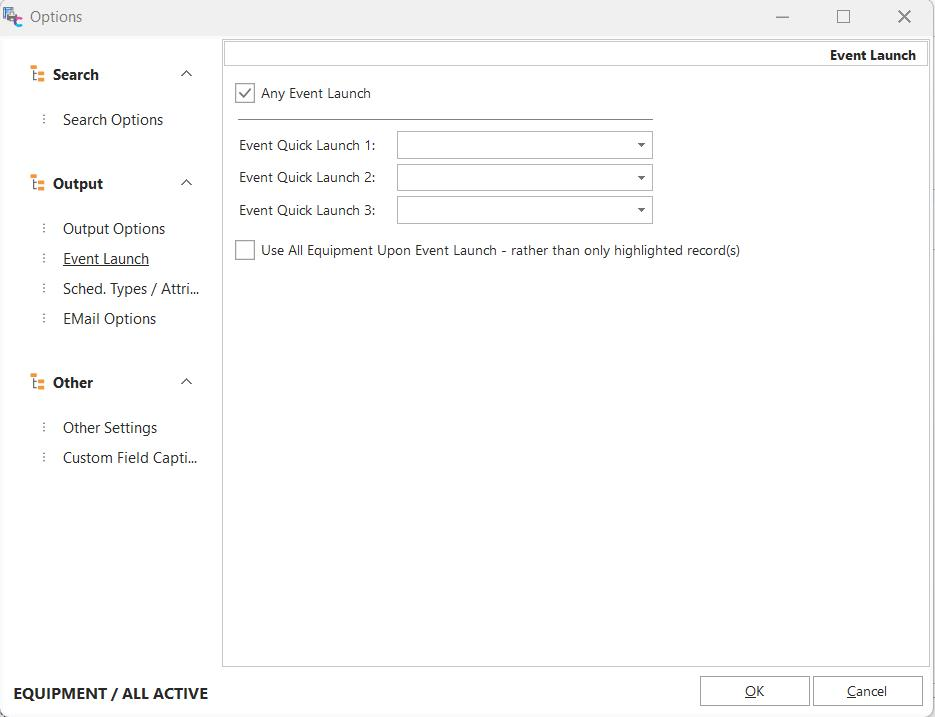
Additional Options - Event Launch
Use this setup page to specify any events that should be enabled for launch through the search/report dialog. These event launch buttons will be located in the bottom-left of the search/report dialog.
Any Event Launch - if this option is ON, you will see a small black arrow. If any Event Quick Launch buttons are shown, then this 'Any Event Launch ' button will be displayed to the right. This button gives the user access to launching ANY event, just as if they pressed the 'Events' menu from the header of the main screen. Only the events visible in their Events menu on the main screen will be shown - the events that pass Display Rules setup in Workflow Configuration for their current login.

Event Launch Button
Quick Event Launch 1-3 - use these three options to specify up to 3 events that can be launched quickly from buttons in the lower-left of the dialog. Considering the search filter, these events are typically the appropriate 'next step' events. For an example, see the 'Repair' button in the above screenshot.
Use All Equipment Upon Event Launch - rather than only highlighted record(s) - if this option is turned OFF, only the highlighted equipment in the grid will be used in the launched event. The launched event will include all the grid equipment if this option is ON.
Additional Options - Sched. Types / Attributes
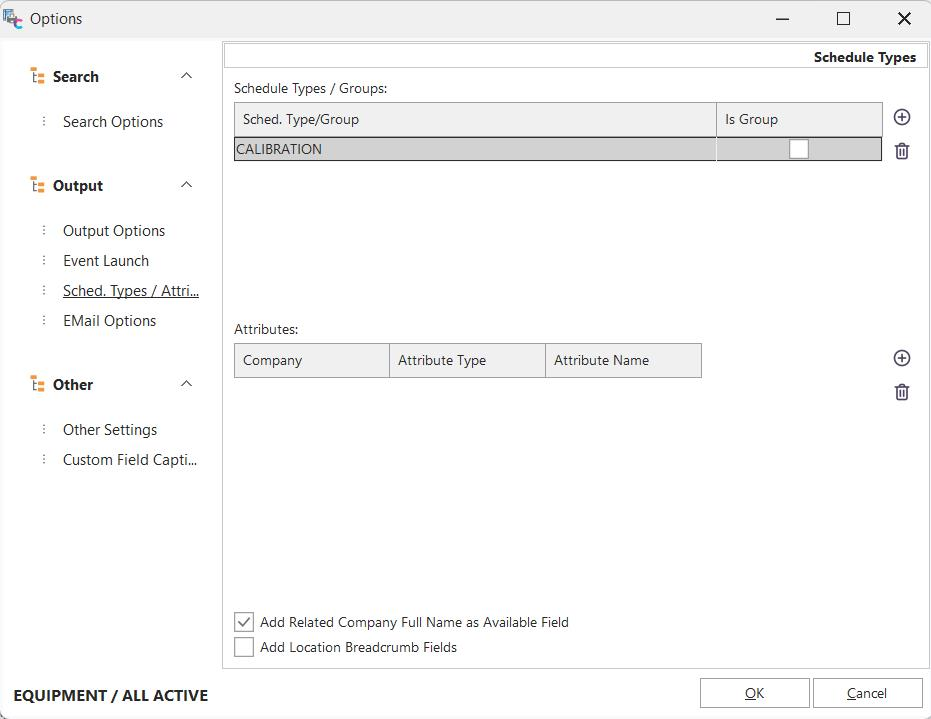
Additional Options - Sched. Types / Attributes
Use this tab to specify any schedule types, equipment attributes, or company full names that should be included as fields in the results grid. Note: these options differ from the 'Include Schedule Details' embedded grid that can be turned on through the 'Output Options.'
Schedule Types / Groups - adding a schedule type here will cause all schedule-related fields to be added for this schedule type into the results grid.
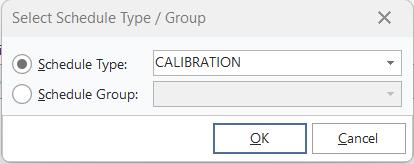
Select Schedule Type / Group
As an example, if the 'CALIBRATION' schedule type is chosen, then the search results grid will include the following fields, which could be set to visible when modifying the grid layout:
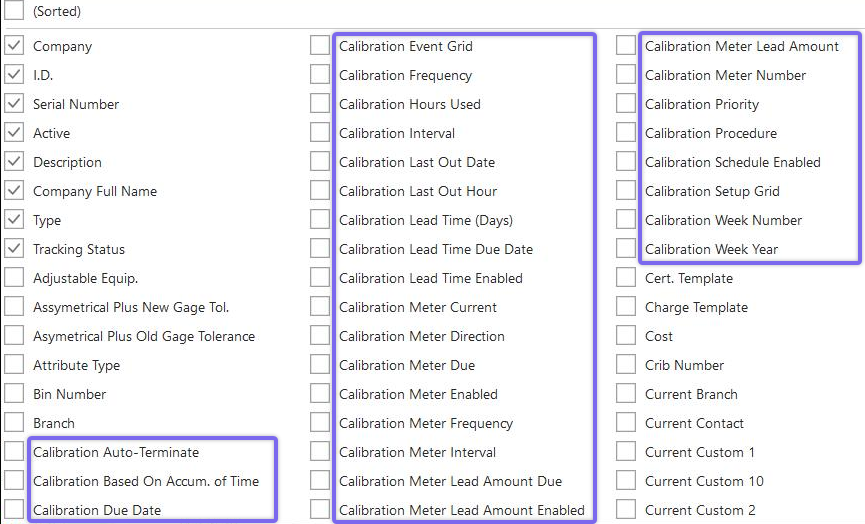
Example - CALIBRATION Schedule Fields
So for each schedule type listed, the same 'slate' of schedule fields is added to the grid - with the appropriate schedule type in the field names. If a schedule group is input (see Add/Edit...System-Wide...Scheduling...Schedule Groups), then this is equivalent to adding each schedule type in this group separately. It is a time-save when designing the report - and also, the schedule types included in that group could be modified later, and the report design would not have to be modified. Note: it is possible to display fields for a schedule type even if it is not referenced in the search filter.
Attributes - this concept is similar to the inclusion of 'Schedule Types / Groups' above, but equipment-extended attribute values are added to the grid in this case.
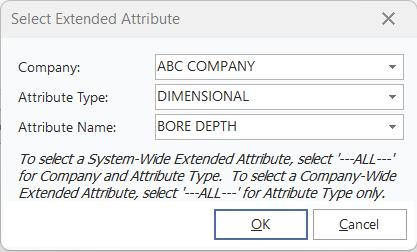
Add Extended Attribute
Select the company...attribute type...and extended attribute name. This will cause the value for this equipment extended attribute to be included as a single field in the results grid.
Add Related Company Full Name as Available Field - this checkbox adds only one field to the available fields in the equipment grid: 'Company Full Name.' This full name is joined from the Add/Edit...Companies...Companies wizard for the related asset. Seeing this field in the grid can often help clarify the company name - especially if the main company field is used for account numbers.
Email Options
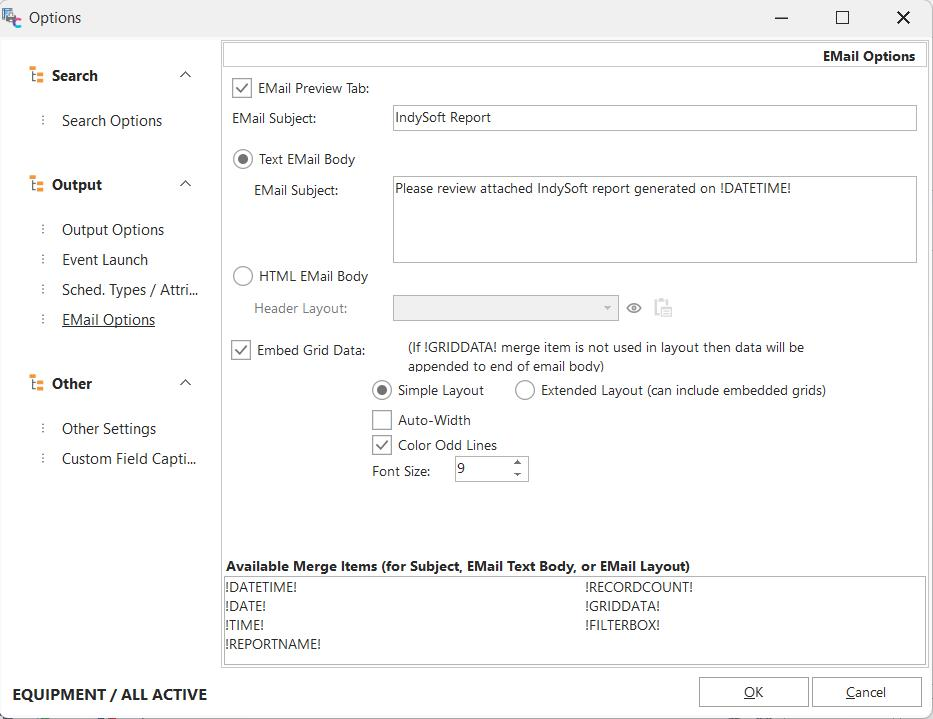
Additional Options - Email Options
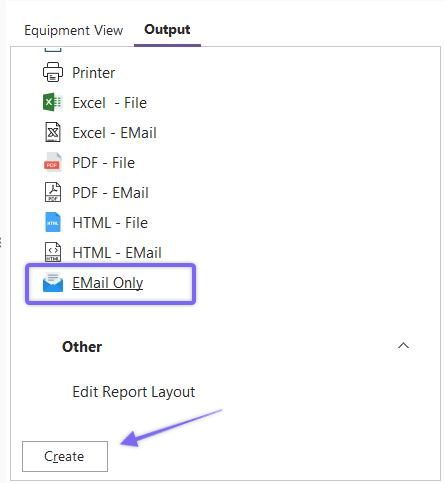
Output Tab - Email Only
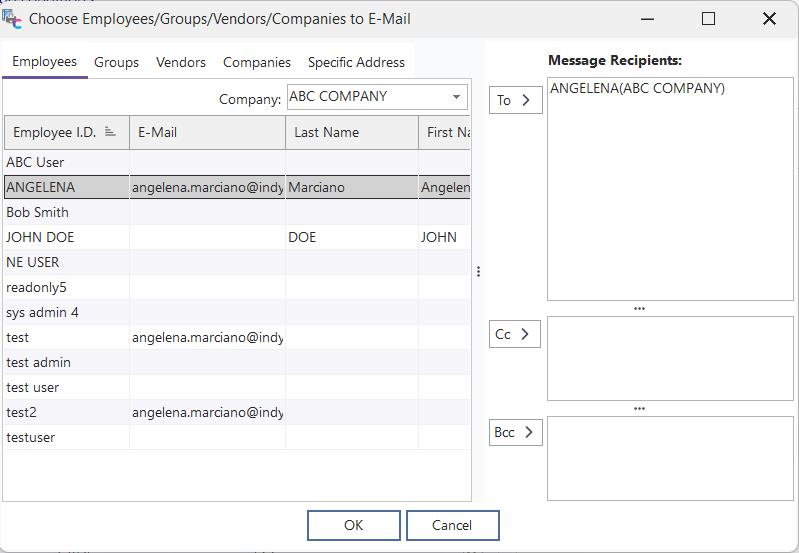
Choose Employees/Groups/Vendors/Companies to Email
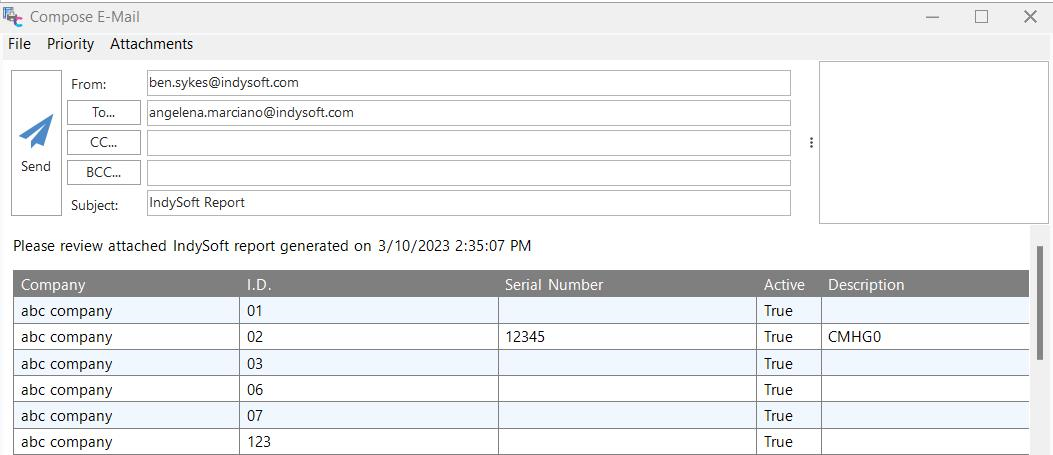
Email Only - Email Preview Screen
Additional Options - Other Settings
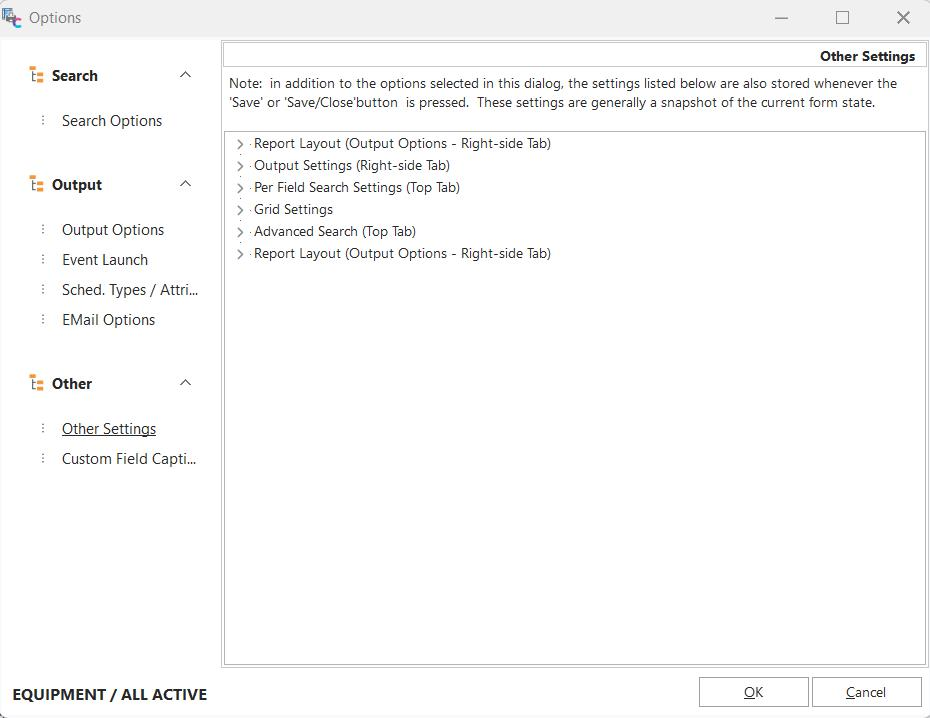
Additional Options - Other Settings
This final setup step reminds the user of additional settings saved in response to the setup of the search/report dialog when being edited from PrintBuilder. As an example, this 'Options' dialog does not need a setup step for the equipment filterbox - since the filterbox is already visible on the main search/report dialog. Most of these options should be obvious - but they are listed to be thorough. The visible fields, the widths of each field, the selected 'Print Type' and 'Destination,' and the Report Layout as set up from 'Edit Report Layout' - all these settings are saved with the report, along with the options specified in this dialog. Note: the height/width of the search/report dialog is also saved - but this size is only used as an initial value when a user initially runs the search/report. The user can then modify the screen to the size of their preference, and this new size will be remembered per user and search/report (like most other IndySoft screens).
Edit Report Layout
Back on the main search/report dialog when it is being designed through PrintBuilder...if the Print Type selected on the Output tab is 'Report Layout,' then you will notice an 'Edit Report Layout' hyperlink will appear:
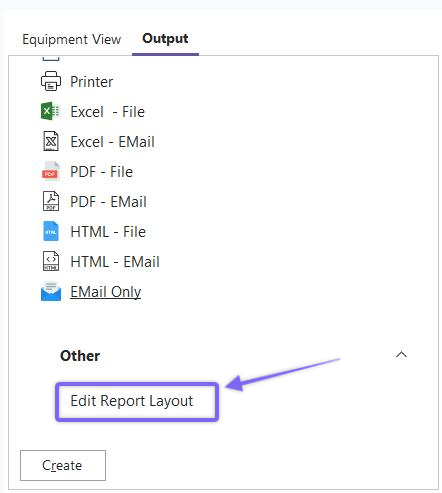
Edit Report Layout Hyperlink
Clicking on this hyperlink will launch the IndySoft Report Designer, which can be used to completely customize the layout of the fields/records in your report. As discussed in Custom Reports, this dialog is nearly identical to the IndySoft Custom Report Designer. Please see that section for more details. But a couple of notes on minor differences:
·The Data tab is not visible, as with Custom Reports - since the table/fields are already selected from the grid.
·All field names available for display in the designer will follow the same names as seen in the results grid.
·If the 'Schedules' or 'Bins' detail grids are mapped for display, these will also be available in the IndySoft Report Designer as table pipelines. And the master-detail linking of the appropriate fields is already completed for you behind the scenes. Create a subreport for displaying Schedules and Bins and point that subreport to the appropriate pipeline.
·To be most efficient, it is suggested that you use the 'Report Wizard' in the 'Options' menu. This wizard will help you quickly create a report that lays out your visible fields with field headings, a report title, and appropriate footer details.
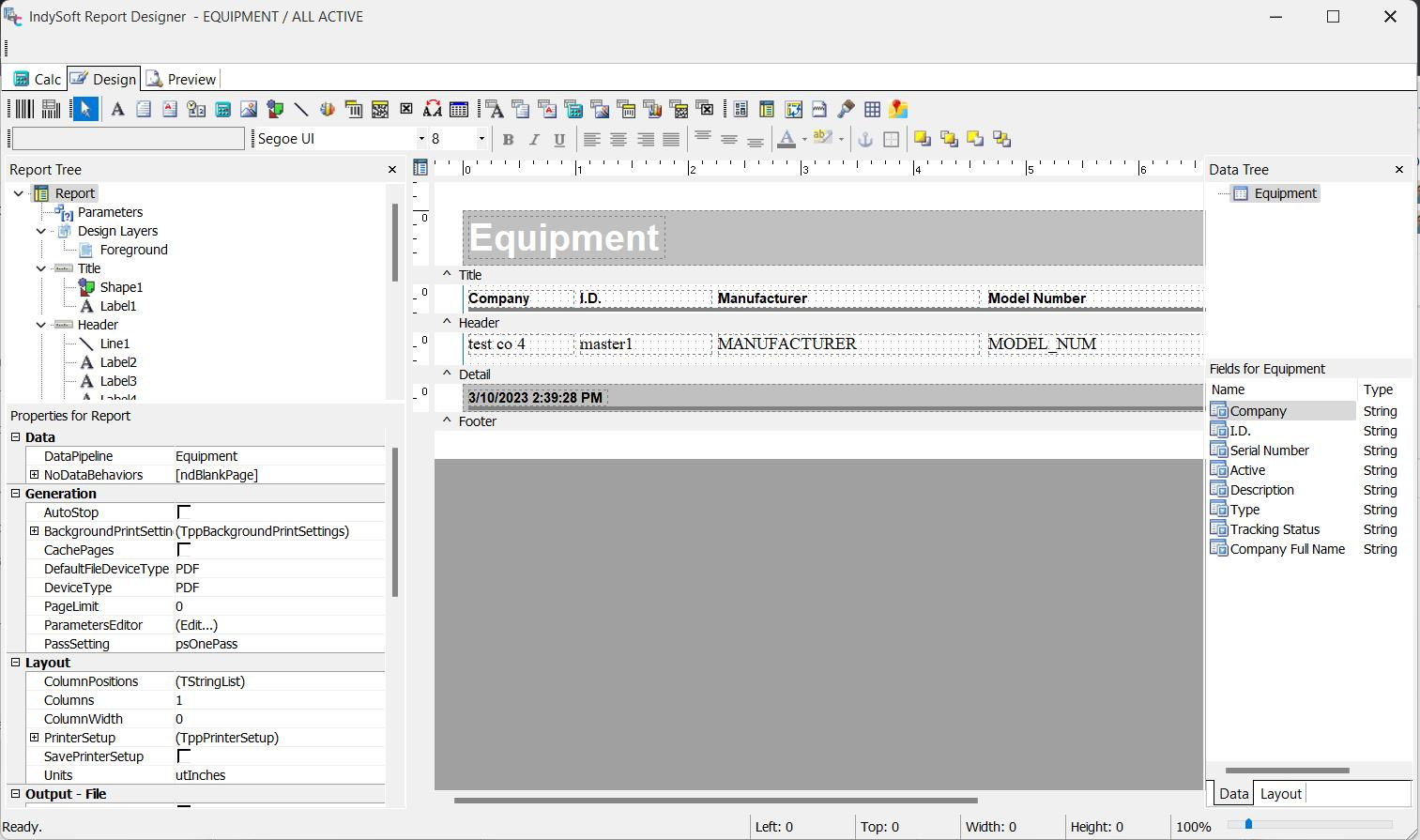
IndySoft Report Designer - Equipment example
Important Tip: you can place a 'System Variable' object into the report and choose the 'DocumentName' property. IndySoft dedicates this property to storing a friendly description of the search and sort criteria used to create the report. If you turn on WordWrap for this new object (a right-mouse click option on the object) and place the variable in the report header, then it will provide a quick summary of the search conditions. See the example below:
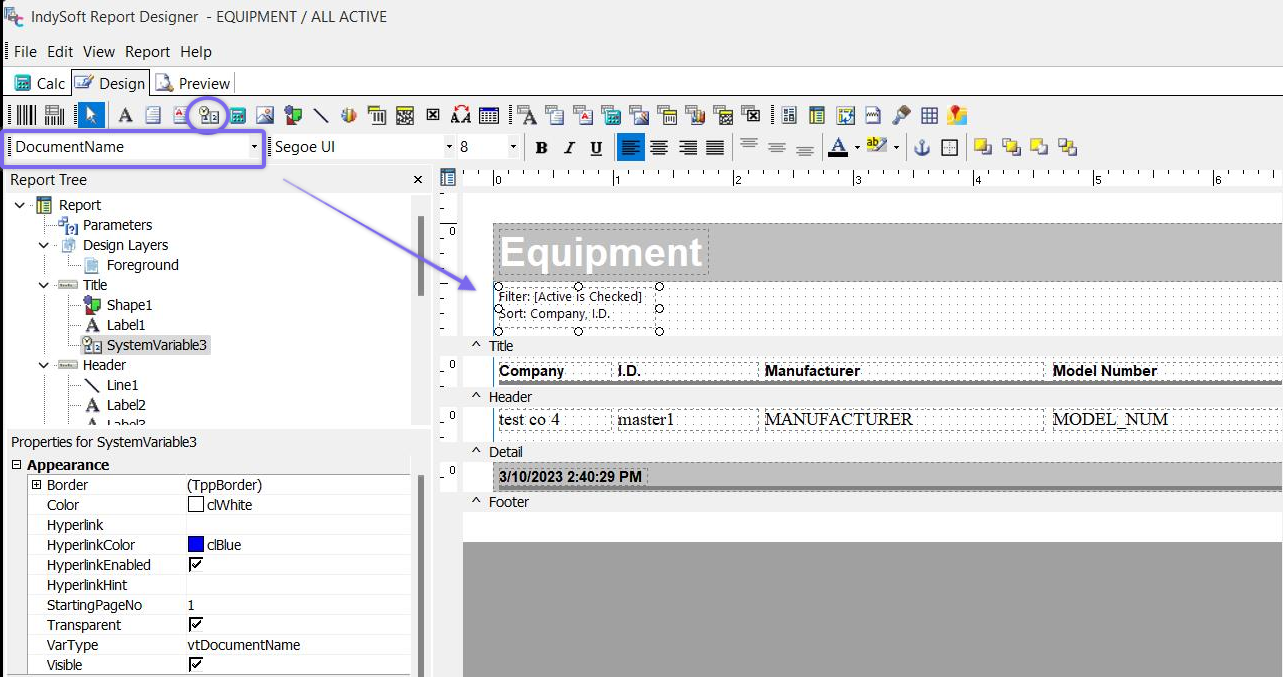
Example - use of a System Variable with DocumentName type - to display filter and sort
Equipment Print/Export Options
Note that below all equipment selected records grids, there are buttons with options for quickly exporting related documents from the assets to file/printer and sending the list to Navigator/EquimentFinder:
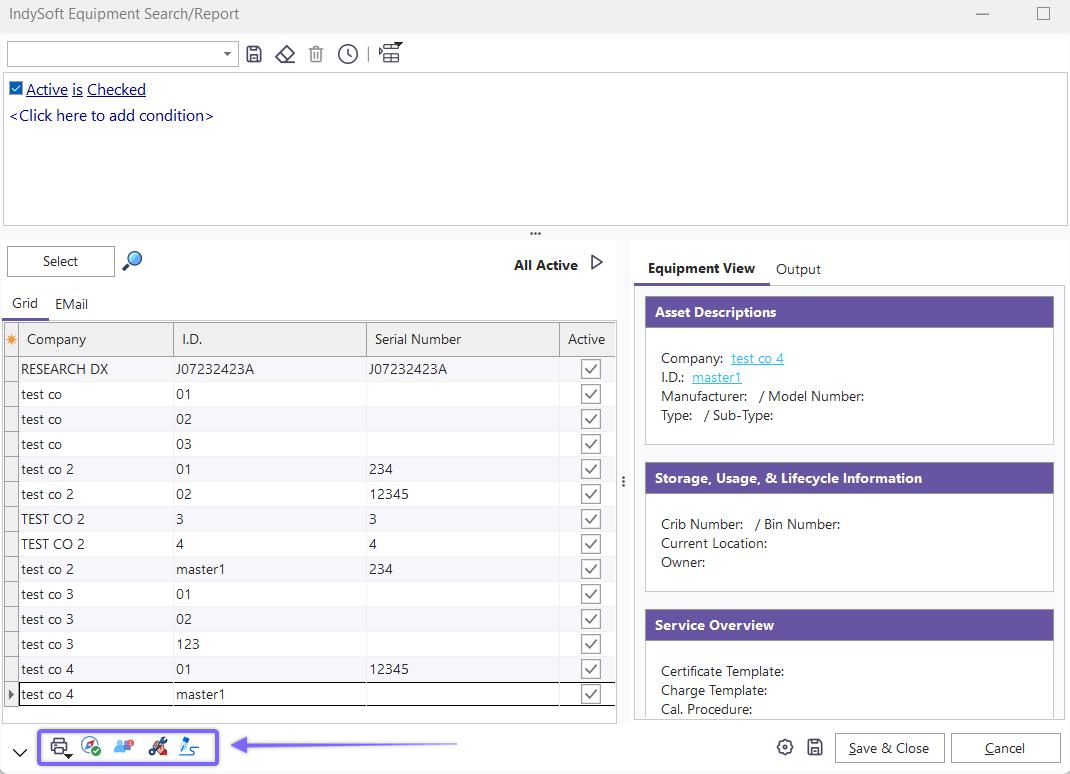
Equipment Print/Export Options
·Print Selected Equipment: Use this option to quickly print/export Certificates, Event Documents, P-Touch Stickers, and Worksheets. These options mirror those also available in EquipmentFinder and Navigator.
·Send Selected Equipment to Navigator: This option can send the records in the grid to your Equipment Navigator.
·Send Selected Equipment To Another User: This option can send the records in the grid to another user's Navigator. They will receive an alert within a minute or upon their next login to IndySoft. An optional email can also be sent.
·Send Selected Equipment to EquipmentFinder: This option will send the records in the grid to EquipmentFinder for the current user.
·Find Pending Sign-Off for Selected Record: This option will find the pending document sign-off associated with the highlighted record and launch it within the pending work tab |