Profile Manager - Security Profiles
Customizing Profiles
So, what makes Profiles different from each other? Each profile contains a list of security categories, each having individual security items that can be enabled or disabled. For example, let's compare an 'Auditor' with a 'Power User' in the default configuration.
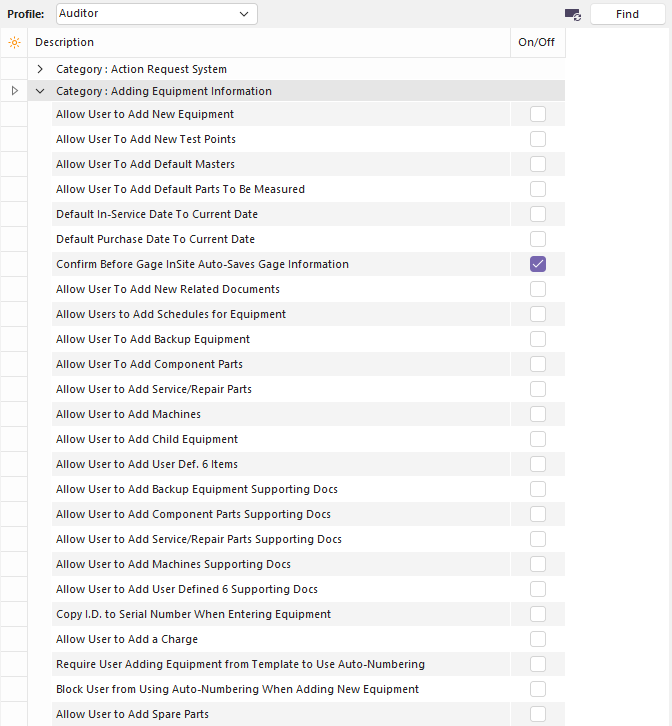
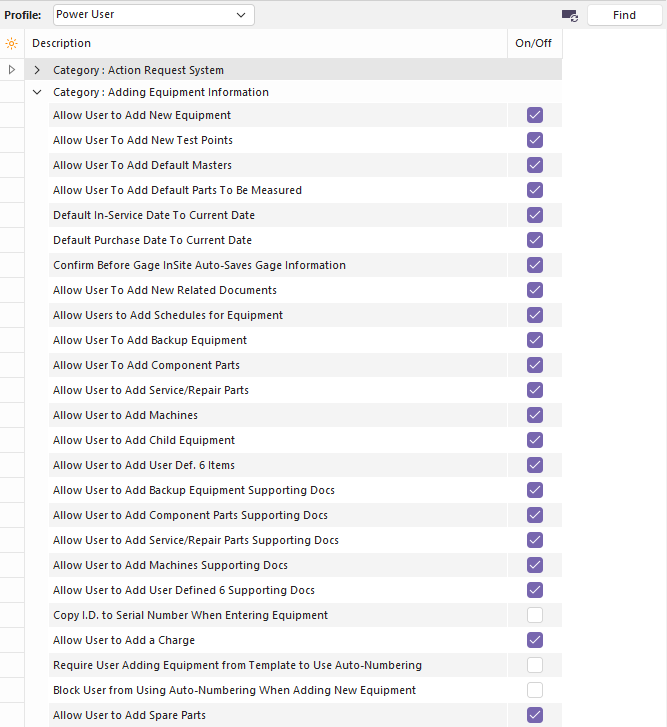
Compare Default Profile Settings
Notice how the Auditor and Power User a security group labeled 'Adding Equipment Information.' Every profile will have the same security groups available. The difference lies in what they can do within that security group. An Auditor generally views equipment and reports but does not change what equipment is present. As a result, if we want to consider 'Allow User to Add New Equipment' for an Auditor, we would have to say, 'no, Auditors aren't responsible for updating our equipment list.'
On the other hand, a Power User might be a lab manager. This would be someone who needs to be able to register new customer gages in the system. A lab manager would add equipment to the system and configure what will be done with it. This person needs us to 'Allow User to Add New Equipment.'
If you have Auditors that need to be able to add equipment, then you would check the boxes next to each security item that represents something you need Auditors to be able to do. Similarly, if you want to restrict Power Users from adding equipment, you would uncheck the appropriate security items.
Summary of Security Categories
Action Request System - These security items control the Action Request System.
Adding Equipment Information - These security items determine how much control a user has over adding or configuring equipment properties in the system.
Adding Studies - These security items determine whether a user can create a new study of a particular type.
Adding Template Information - These security items determine how much control a user has over adding or configuring templates.
Blocking Access To Equipment Information - These security items determine what aspects of a piece of equipment a user can change. They are limited to aspects represented in a single drop-down box or text box.
Blocking Access To Studies - These security items determine what aspects of a study a user can configure. They are limited to aspects represented in a single drop-down box or text box.
Blocking Access To Template Information - These security items determine what aspects of a template a user can change. They are limited to aspects represented in a single drop-down box or text box.
Blocking Access To Utilities - These security items determine what utilities a user can use.
Blocking Company Information - These security items determine which Add/Edit...Companies...Company fields can be modified.
Deleting Equipment Information - These security items determine what information about equipment a user can delete.
Deleting Studies - These security items determine the types of studies a user can delete.
Deleting Template Information - These security items determine what information about templates a user can delete.
Estimate System - These security settings are related to the Order System...Estimates.
Event Settings for '...' - Each event created in Options, Preferences, Work Flow Config. (Event Configuration)... will have a corresponding entry here. These security items determine what activities a user can perform about this type of event.
Export/Import Module - These security settings are related to the Export/Import Module.
Invoice System - These security settings are related to the Order System...Invoices.
Modifying Equipment Information - These security items determine what aspects of a piece of equipment a user can change. They deal with aspects that generally involve working with additional windows.
Modifying Studies - These security items determine what aspects of a study a user can configure. They deal with aspects that generally involve working with additional windows.
Modifying Template Information - These security items determine what aspects of a template a user can change. They deal with aspects that generally involve working with additional windows.
Parts/Operations Layout & Detail Field Customizations - These security items determine whether a user can adjust customizable captions and how they are displayed.
Reports That Can Be Viewed - These security items determine which reports a user can view.
Reports That Can Have Their Display Fields Modified - These security items determine which reports a user can customize.
Reports That Require a Password Before Print - These security items determine which reports a user needs a password to print. For example, this is useful for preventing users from getting hard copies of confidential information.
Requiring Company Information - These security items determine field requirements in Add/Edit...Companies...Company.
Requiring Equipment Information - These security items determine what information must be possessed by all equipment. For example, if every piece of equipment needs to be assigned to a Department, you would check 'Require All Users To Specify A Department.'
Requiring Estimate Information - These security items determine field requirements for Order System...Estimates.
Requiring Study Information - These security items determine what information must be possessed by all equipment. For example, if every R&R study needs to have the temperature recorded, you would check 'R&R Study - Require A Room Temperature.'
Requiring Template Information - These security items determine what information must be possessed by all equipment. For example, if every piece of equipment needs to be assigned to a Department, you would check 'Require All Users To Specify A Department.'
Requiring Work Order Information - These security settings determine field requirements for Order System...Work Orders.
Schedule Settings for '...' - Each schedule created in Add/Edit: System Wide: Scheduling: Schedule Types... will have a corresponding entry here. These security items determine what changes a user can make to a schedule and what information must be entered when performing a scheduled activity.
Validating Equipment Information - These security items determine whether information about a piece of equipment will be validated and how to update it, if necessary. For example, if the only Type of WIDGETs currently in the system are Sub-Type FUZZY and BALD, then entering a new WIDGET that is Sub-Type SLIMY would be a validation error. This can be ignored, SLIMY could be automatically added as a new Sub-Type, or the user can be asked to verify the new Sub-Type. This can be important if someone later tries to add a SLIMY WIDGET instead of a SLIMY WIDGET.
Validating Studies - These security items determine whether information about a study will be validated and how to update it, if necessary.
Validating Template Information - These security items determine whether information about a template will be validated and how to update it, if necessary.
Viewing Equipment Information - These security items determine what information about equipment a user can see and how much the user can customize the screen's layout.
Viewing Studies - These security items determine whether a user can view previously performed studies.
Work Order System - These security items determine a user's control over work orders.
Summary of Default Profiles
There are six profiles provided with IndySoft to give you an idea of how to set up profiles for your users. They are described briefly below. Feel free to adjust these as needed or to create new ones.
Auditor - An Auditor has the most restrictive profile besides No Access. An Auditor is only able to view information and run reports. Events can be viewed but not run or modified in any way. Full access is provided to the existing data, but it cannot be changed. This profile would be provided if someone needed to audit your system.
Power User - A Power User is almost the same as a System Administrator. The most significant difference is that a Power User cannot enter the profile manager. The Power User profile should be reserved for people performing report and event configuration, such as managers and team leaders. Because this profile provides access to features that can impact the experience of all the users and communications with customers through reports, only people with a high level of responsibility and training in IndySoft should have this profile.
Reports Only - A Reports Only user cannot add, modify, or delete equipment, studies, or template information. This user cannot access any options, add/edit lists, or other configuration systems. This profile only allows viewing equipment/event information, running reports, and performing events. The Order System is also locked down. It is viewable, but no data can be changed.
Standard User - A Standard User is the profile intended for anyone who performs daily work on equipment. It has substantial limitations in deleting and modifying information. This user can perform any event and view any information in the system but cannot access Add/Edit lists, System-Wide options, Profile Manager, PrintBuilder, and Event Configuration. The expectation is that a Standard User can use the system but not modify how the system has been configured.
System Administrator - This is the most powerful profile. This is the only profile that is allowed access to the profile manager. In addition, it is generally the only profile that would have access to Company and System-Wide options. System Administrators have unlimited access to the system. As a result, there should be between two and ten System Administrators, depending on the company's size. Be sure to have at least two System Administrators if one gets locked out for some reason.
No Access - This is the most restrictive profile. A user with this profile exists but is not allowed to view anything. This is especially useful for limiting users to certain companies. Set a user to No Access in general, then assign one of the other access levels per company.
Time-Saving Features - Security Settings
There are a lot of security settings in IndySoft. And many of our implementations have a large number of security profiles. So setting appropriate security settings can be a big task. Here are a couple of hints for strategy:
Finding Security Items
Security items can be searched by using the 'Find' button on the top of Profile Manager:

Find Next Button - Profile Manager
Type a keyword in the edit box to the left of 'Find Next' and press the 'Find Next' button. This operation will search within the currently selected profile for any matches to the keyword. For instance, say you need to set all security options related to 'Model Number,' and you want to limit the use of this field for 'Reports Only' profiles. First, select the 'Reports Only' security profile (highlight it in the Profiles tree), then type 'Model Number' in the search edit box (in the header) and press 'Find Next.' Press the F3 button (or Find Next again) for subsequent results. You will find security items for:
Blocking Access to Equipment Information...Block User From Modifying Model Number
Blocking Access To Template Information...Block User From Modifying Model Number
Blocking Access To Utilities...Selection Lists - Block User From Adding/Editing Model Numbers
Modifying Multiple Security Items
When modifying security items, you can look up the same security item for each profile and set it one profile at a time. But if you know that most/all of the profiles will take the same setting, then you can save some time. Find the appropriate security item (from within any profile), then select the right-mouse click option for 'Check Selected Item for ALL Profiles' or 'Uncheck Selected Item for ALL Profiles.'
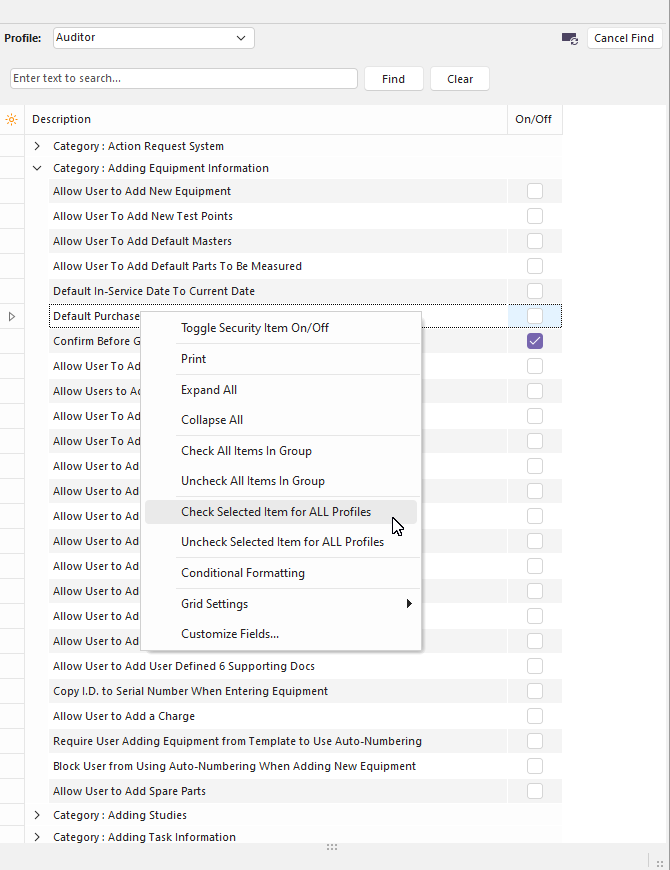
Check/Uncheck Selected Item for ALL Profiles
This operation will check or uncheck the security item for all profiles. Then, if you need to make one or two exceptions, you can navigate to those profiles and security items.
No Access Security Profile
If you have multiple companies tracked in your IndySoft database, then certain users may only be allowed to see and modify assets from particular companies. It is often a security breach at worst or inefficiency at best to even see these assets. In these cases, defaulting these users to a 'No Access' security profile might be helpful.
The 'No Access' security profile means that this user can do nothing by default. The user will log in to a blank screen until you drag a company exception onto this user through Profile Manager (and assign that exception a normal security profile). So if you have 12 companies in your database, and a particular user should only have access to assets from 2 companies... then make the user 'No Access' by default and then drag/drop the two company exceptions on the username and escalate the profile for those two companies. This method is quicker than establishing 12 different company exceptions - and it will hold up if you happen to add a 13th company down the road (for which this user does not need immediate access)
See the Profile Manager - Company Filters topic for advice on using company filters to make this process even more efficient. |