License Pools
License Pools are only relevant for the core IndySoft products:
·IndySoft Calibration Management
·IndySoft Tool Management
·IndySoft Preventive Maintenance
·IndySoft Commercial Lab Management
To edit the license pools for a particular product, either double-click in the embedded grid within the product or press the 'Edit Pool Details' button above the grid:
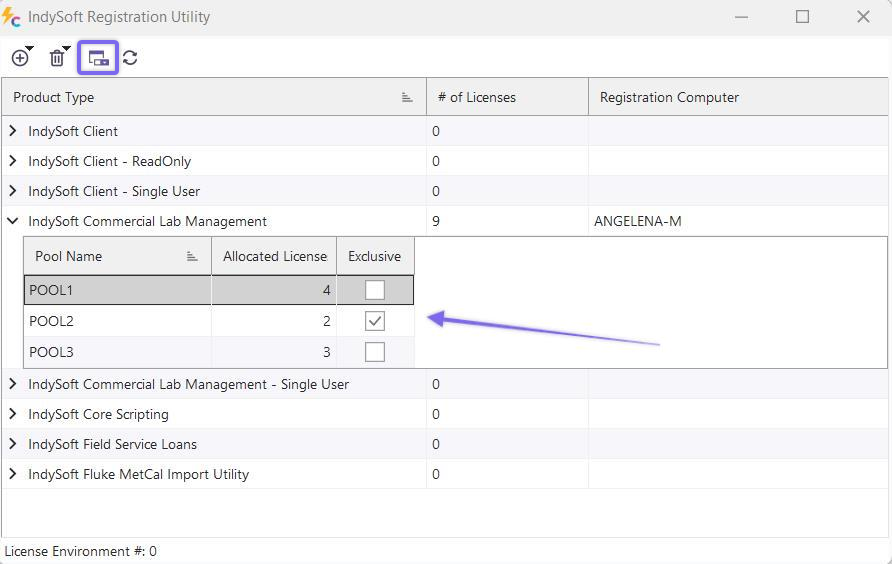
Edit Pool Details
License pooling is an optional feature that helps you manage user licenses that should be dedicated to a particular location or grouping. For example, say you have a common IndySoft database used for four locations using 80 licenses spread among 100 client computers where the software is installed. After using IndySoft for a few weeks, you might notice that your first 3 locations occasionally consume all 80 licenses during heavy usage, then when the 4th location comes online (maybe later in the day - in a later time zone), there are no licenses available. To spread this risk across all 4 locations, you could set up 4 license pools and then set up each username as tied to a specific pool. Then, each pool could be limited to 20 licenses. So, to implement this example, you would use the IndySoft Registration Utility to set 4 pools of 20 licenses each. In Profile Manager, you would modify the pool priority settings for each user to point them to the appropriate pool(s) and require each user to only log in through their pool(s).
Another example (maybe more common): say you have 80 software users across 4 locations. 60 of the users are technicians using the software each day, most always online consuming a license. Then, say you have another 50 users, but they are primarily customers or salesmen who have limited access - and typically, no more than 20 would be online at a time (in addition to your 60 technicians). So, the challenge there is how to ensure that all 60 technicians are able to log into IndySoft when needed. You want to allow for a pool of licenses for customer access - but you don't want this customer access to risk you running out of licenses for your technicians. To implement this example, you would set up a single 'CUSTOMER ACCESS' pool of 20 licenses (a subset of your total of 80 licenses) using the IndySoft Registration Utility. Then, in Profile Manager, you would set up all the customer-related usernames, so they must log in only through the 'CUSTOMER ACCESS' pool.
Important: Keep in mind that the ONLY practical effect of license pools is that they can potentially block a user from logging into the software when all licenses within their pool(s) are in use. But the ONLY time a user would ever be blocked based upon a license pool is if in Profile Manager (in addition to their pool priorities) their username had the 'Only Allow Login Using the Pool(s) Below' checkbox turned ON:
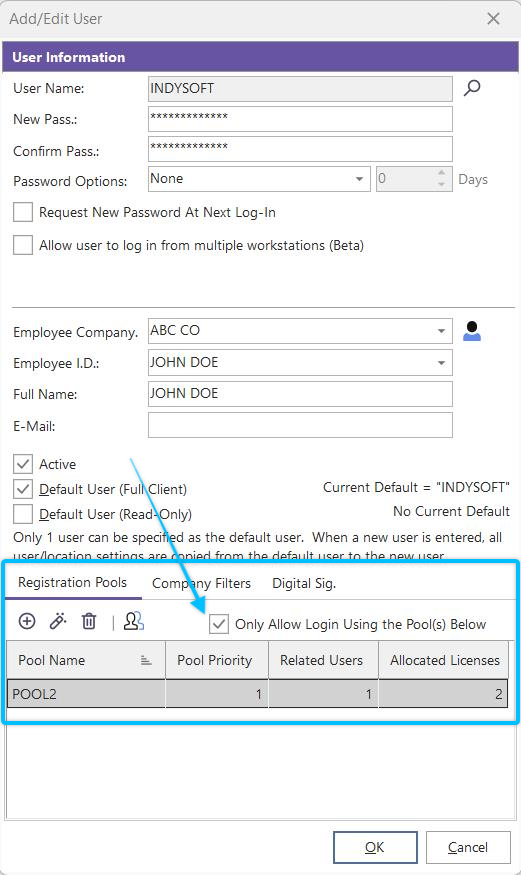
Only Allow Access Using Pool(s)
Another consideration: license pools can be set up as 'Exclusive'. This means that only users who have a priority setup for this pool can use these licenses.
Editing License Pool
Use this dialog to add/edit/delete license pool details for the selected product:
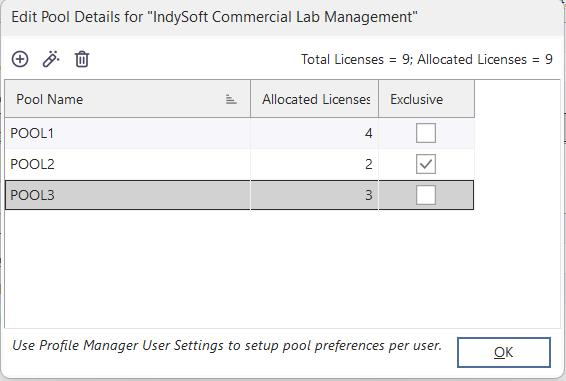
Edit Pool Details
Press 'Insert' with your keyboard or click the 'Add a Pool' button to add a new pool. Input the pool name count of licenses that should be dedicated to that pool:

Add/Edit Pool
Note that the number of licenses used between all pools cannot exceed the total number of licenses registered. The 'max' value will equal the number of remaining licenses not already associated with other pools. Use the 'View' button to edit a pool count. Press 'Delete Selected Pool' to permanently remove a pool.
See Profile Manager...Adding/Removing Users topic for more details on associating a pool priority to a user name. |