Custom Report Designer - Overview
For all types of templates other than STANDARD, Report Designer controls every aspect of the template. An important concept to understand is that a template controls the layout of the report it generates. A template in Report Designer will frequently look rather different from the reports it generates. As an example, this Certificate Template looks very different when being designed from when it is used to generate a report:
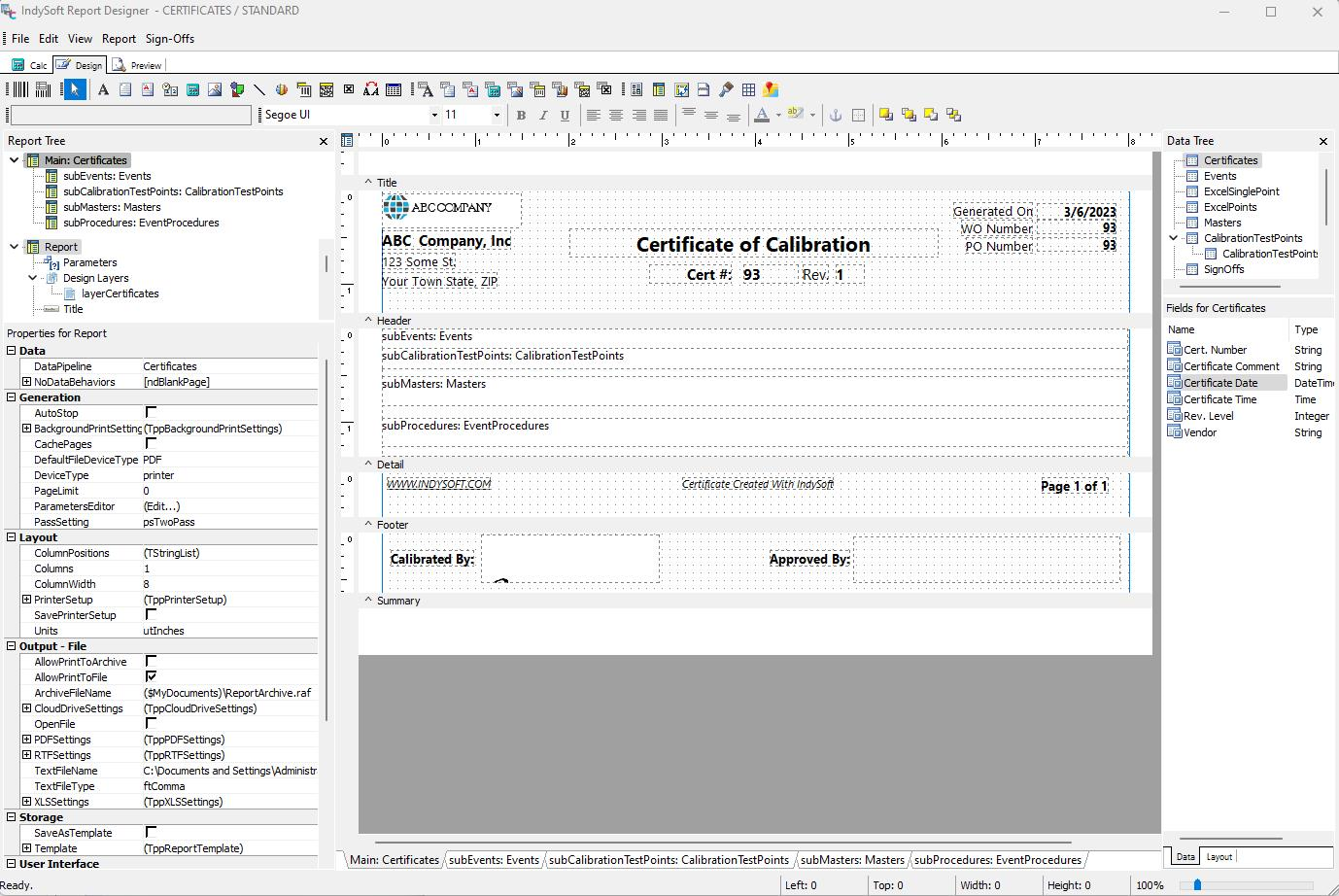
Report Designer - Template
This template is spread across five tabs and doesn't contain any useful information based on this tab. However, the report generated below reveals a neatly laid-out report. Moving back and forth between the two views will be a key tool for producing professional-looking reports.
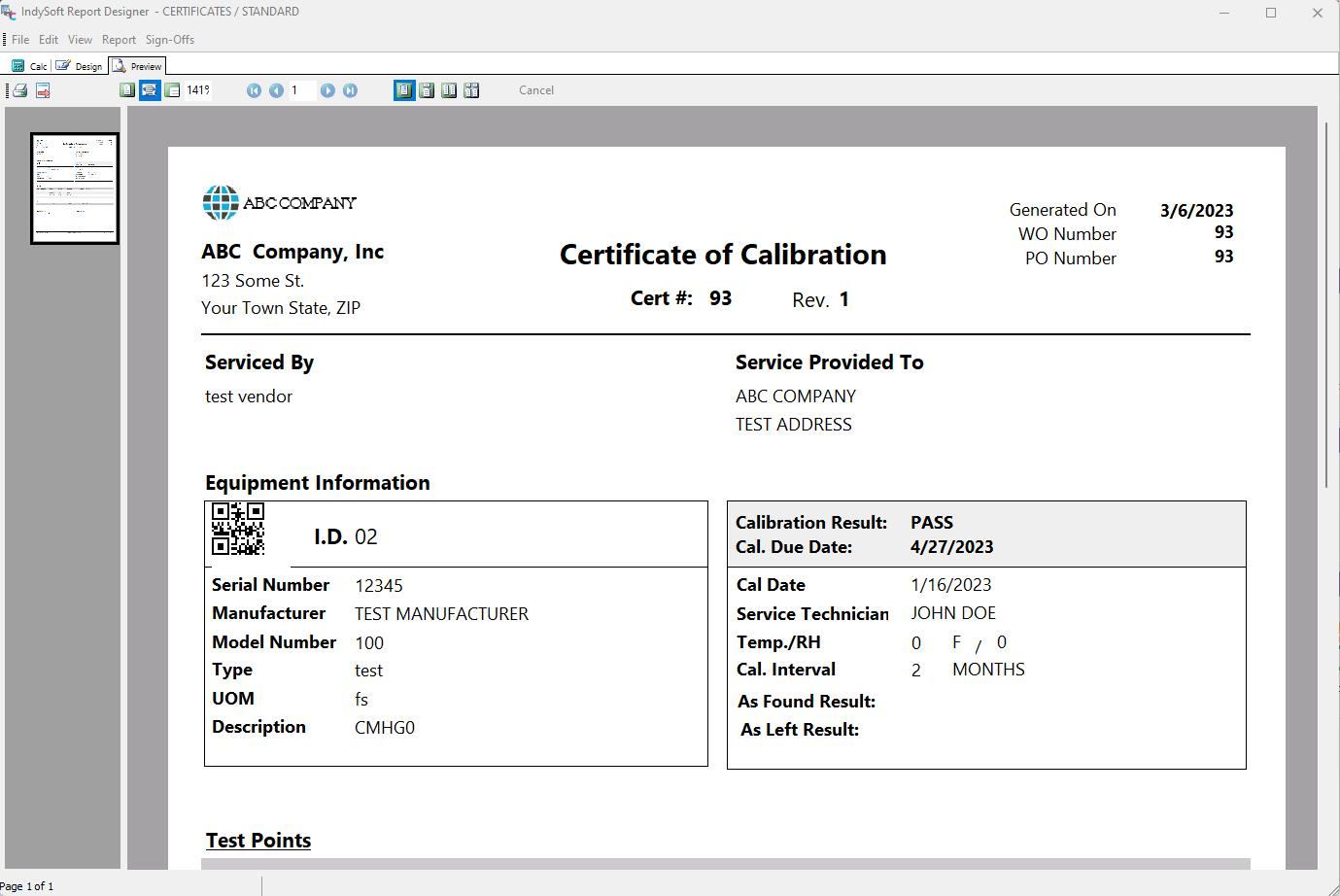
Calibration Certificate - Example
Take time to make your reports look good. The extra effort will make a big difference in how your customers perceive you. The reports you design here may be your company's only face besides your quality work.
Report Designer - Tabs
The heart of Report Designer is the four tabs in the upper-left corner of the screen.
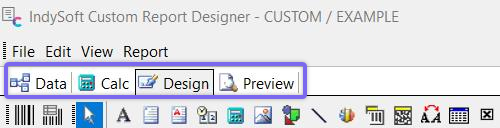
Report Designer - Tabs
Data
This tab is only present for CUSTOM Templates. It determines what data set you can use in your reports. All other Template types have their data set pre-defined.
Calc
This tab allows you to perform calculations in your reports.
Design
This tab allows you to control the overall layout of your reports. You have complete control over what information is presented, where it will appear, and how it will appear.
Preview
This tab allows you to view a sample report to see how it looks. Test your report a few times to be sure it works how you want it to. You can't take back emailing a poorly designed report to a customer. |