Edit Display Fields
This step in the Reports Setup wizard lets you modify which fields will appear in your report. Note**:** this step is not available for all reports.
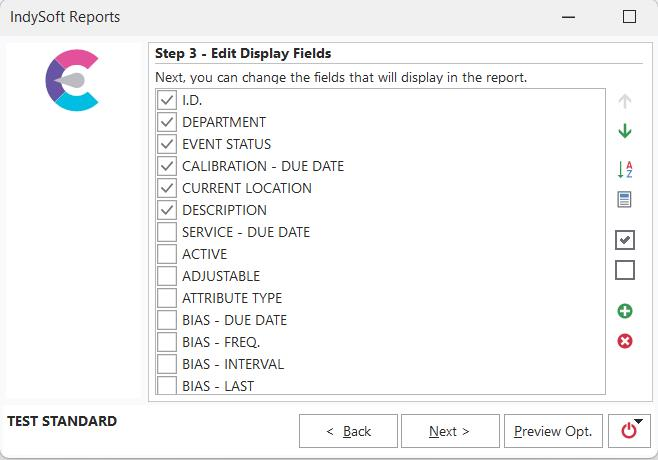
Standard Reports - Edit Display Fields
If a field has a checkmark in the box immediately to its left, it will appear in the report. Also, the position of the fields vertically in the dialog will affect the ordering of the fields in the final report. For instance, in the example dialog above, the order of the visible fields in the report will be Gage ID, Department, Event Status, Calibration - Remaining, Description, and Current Location.
Displaying and Ordering Information in a Report
A field can be toggled to visible or not visible simply by clicking on the field name or the box immediately to its left. To change a field's position with the mouse, click on the field and drag it to its desired location. (Note**:** when the field is dragged, the checked/unchecked state will appear to be opposite. This will be remedied when the field is dropped at its new location. This behavior is because IndySoft can only tell whether the user clicks on the field to change its checked/unchecked state or is dragging it to another location when the drop is successful.)

 Sorting / Global Field Buttons
Pressing either the up or down arrow will move the currently highlighted field up or down (respectively) one position. These buttons can be held down with the mouse to continually move the field in one direction in a 'rapid fire' manner.
 Alphabetize Fields
Pressing this button will alphabetize the fields for you, making it easier to find the correct field in this dialog and the final report. Alphabetizing is especially useful when there are a large number of fields. There are two options for alphabetizing: either to alphabetize all the fields (whether marked visible or not visible) or to alphabetize only the marked visible fields. When only the marked visible fields are alphabetized, they will also be grouped at the top of the list.
 Group Visible Fields
Pressing this button will group all the fields marked visible at the top of the list.
 Mark All Fields Visible
Pressing this button will cause all the fields in the list to be marked as visible.
 Mark All Fields Not Visible
Pressing this button will cause all the fields in the list to be marked as not visible.
 Add Extended Attributes Fields From Filterbox
 Clear Extended Attributes Fields |