Data Exchange Module - Equip./Event Bulk Receive

Data Exchange Module - Equip./Event Bulk Receive
The Equip./Event Bulk Receive tab can also receive assets from the Multi-User database to the Single-User database, like the 'Receive Information' tab. This tab is used for a much more targeted sync, however. Certain trade-offs exist when using this tab for the sync rather than 'Receive Information.' There are fewer selection options, and all assets within a given company must be fully synced AND replaced with all assets for that given company in the Single-User database. Further, the imported events are often brought over only as a 'Reference Set' (described below) - which will be overwritten before the next 'Equip./Event Bulk Receive' operation. However, in exchange for this limited functionality, the speed of this sync is FAR faster than the 'Receive Information' sync. Key differences to keep in mind:
a. Only Equipment and Event information is synced. Equipment information is always synced. Events can be included/excluded with the 'Include Events' checkbox.
b. Equipment (and related events) can only be selected from one company at a time. Multiple companies can be synced in one operation, but all assets within each selected company must be synced.
c. When related events are synced, to further speed the operation, you can exclude Event Documents and/or Certificates with the two checkboxes beneath 'Include Events.' These options are only relevant if events are being synced.
d. If the 'Event Sync Type' of 'Reference Set' is selected, the import will be as fast as possible. However, VERY IMPORTANT: any Reference Set of events in the Single-User database will be automatically deleted before the next 'Equip/Event Bulk Receive' import. So think of this Reference Set of events as the fastest-possible way to sync a large # of events for a group of companies relevant to your next week(s) of remote travel using your Single-User database. Once the trip is done, all modified assets/events will be synced back to the Multi-User database using the 'Send Updated Information' tab. Then two weeks later (as an example), when you are preparing for a new trip to perform remote service at a different set of customer sites... are you ok with removing the old Reference Set of events in favor of this week's new Reference Set. If you prefer to bring in the events as 'Permanent,' this can be easily selected - resulting in a slightly longer receive sync. (But still much faster than the 'Receive Information' tab).
e. If a set of events was previously imported as a Reference Set, then it is possible to loop through these Reference Set events and save them as permanent events in the database. (You might want to do this occasionally before performing a new Reference Set sync). Use the  'Review Current Reference Set' button to complete this operation.
With the above differences in mind, performing a Bulk Receive is very simple. Note the listing of companies in the Multi-User database within the 'Select Companies for Bulk Receive' box. These companies can be listed in multiple columns if desired. Right-mouse click in the company selection area to modify the # of companies displayed:

Equip./Event Bulk Receive
From this listing of companies, select one or more companies for sync into the Single-User database. As a company is selected, it will be shown for confirmation in the 'Selected' section to the right. This section summarizes each company's # of assets and events within each database. Use these counts to confirm if/when this company has been synced in the past. To remove a company, double-click on that company in the 'Selected' section (or right-mouse click and select 'Remove All'). Note: Pressing the' Review Current Reference Set' button can confirm if a Reference Set of events already exists in your Single-User database. Once the companies are selected, there are only a few additional options:

Bulk Receive - Additional Options
Turn on 'Include Events' to sync events along with equipment. If Events are synced, then you can filter the sync of any Event Documents or Certificates using the checkboxes below. Finally, if Events are synced, a decision must be made whether the events are synced as a 'Reference Set' or as 'Permanent.' Note the differences below:
oReference Set: This is by far the fastest way to sync events. However, this Reference Set can only exist in the Single-User database until the next Reference Set is imported (using this same 'Equip./Event Bulk Receive' tool). The current Reference Set will be deleted now- only one can exist simultaneously. If a set of events was previously imported as a Reference Set, then it is possible to loop through these Reference Set events and save them as permanent events in the database. Use the  'Review Current Reference Set' button to complete this operation.
oPermanent: These events are imported normally, as if synced from 'Receive Information' ('Event Documents' and 'Certificates' might have been excluded, however). These events will remain in the Single-User database even after the next Reference Set (or otherwise) is synced during a Bulk Receive.
Press ' Sync ' after confirming the above options to begin the sync. An important confirmation will follow - press 'Yes' to proceed:

Bulk Receive Confirmation
During the sync, two progress bars will be displayed to the right, which will disappear when the sync is complete:
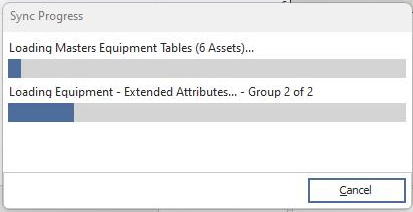
Bulk Receive - Progress Bars
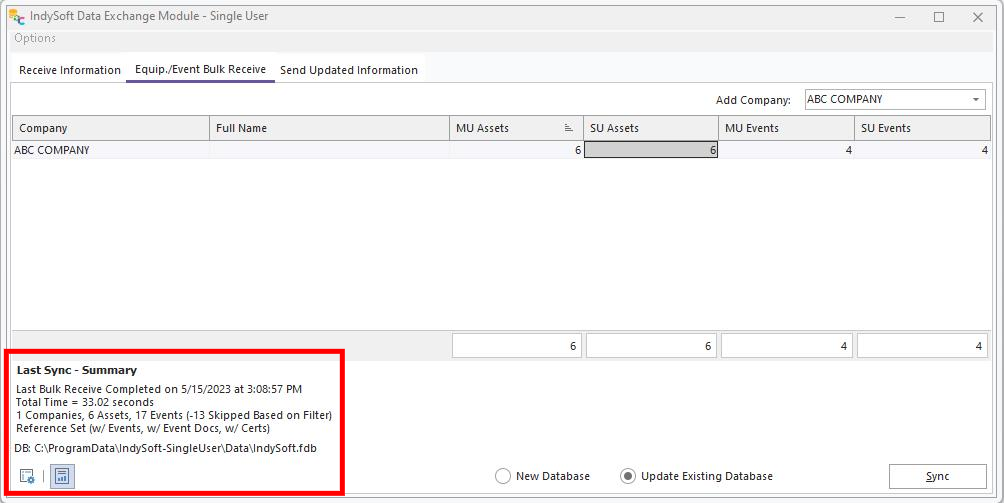
After completion, a summary of the last sync is displayed. This summary will be visible until the next Bulk Sync operation:
 |
|