Performing Events - General Overview
Performing Events In IndySoft
All events in IndySoft are completely customizable. The number of events, the names of events, the available steps required during an event, the order of data entry, on-screen fields, customized field labels, equipment changes as a result of the event, selection rules, event completion rules, and a host of other options are all set up within the Work Flow Configuration Wizard.
Since the Work Flow Configuration Wizard - Event Steps allows users to customize which steps appear within each event, we will assume within this help section that all event steps have been turned on for our example event. So, the information below will be grouped by event step, but only specific steps will be relevant to your particular IndySoft events.
Event Screen Layout
Several options in the Work Flow Configuration Wizard - Event Steps change the appearance of the Event screen. We will display examples and discuss various scenarios.
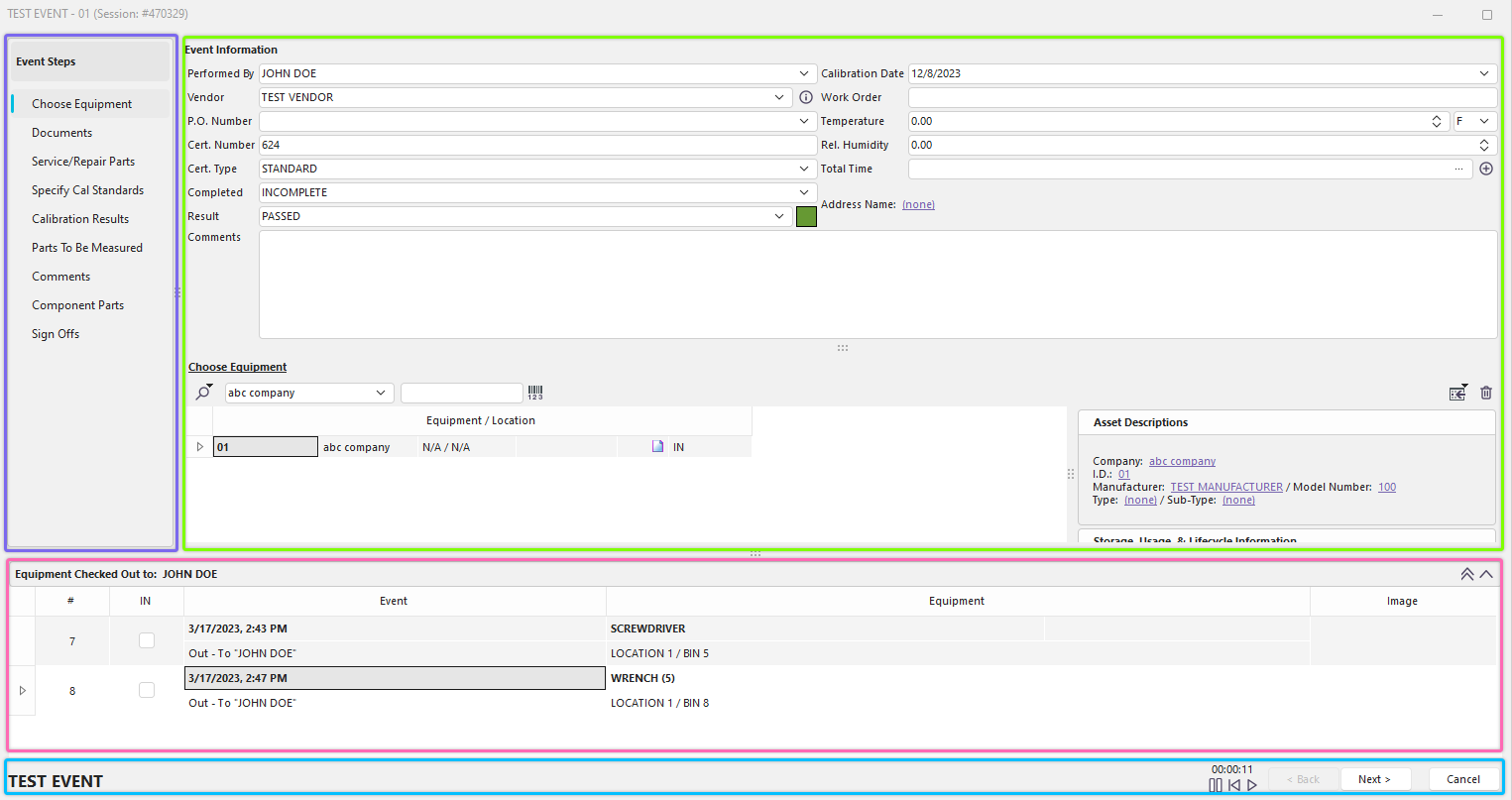
Event Window - All Sections
The events screen in IndySoft can have four primary sections:
1. Left-Hand Panel
See the Performing Events - Left-Hand Panel Types section for more details.
2. Event Steps
See the Event Steps - Overview section for more details.
3. Navigation Bar
See the Performing Events - Navigation Bar section for more details.
4. Equip. Out to Employee
See the Performing Events - Equip. Out to Employee section for more details.
Two of these sections are optional: Left Hand Panel and Equip. Out to Employee. Both can be turned on/off in the Event Configuration Wizard. Also, the number and sequence of Event Steps can be set up in the Event Configuration Wizard. Only one Event Tab is visible in the Event Wizard at once. For instance, the Event Wizard could be set up to look as simple as the following example:
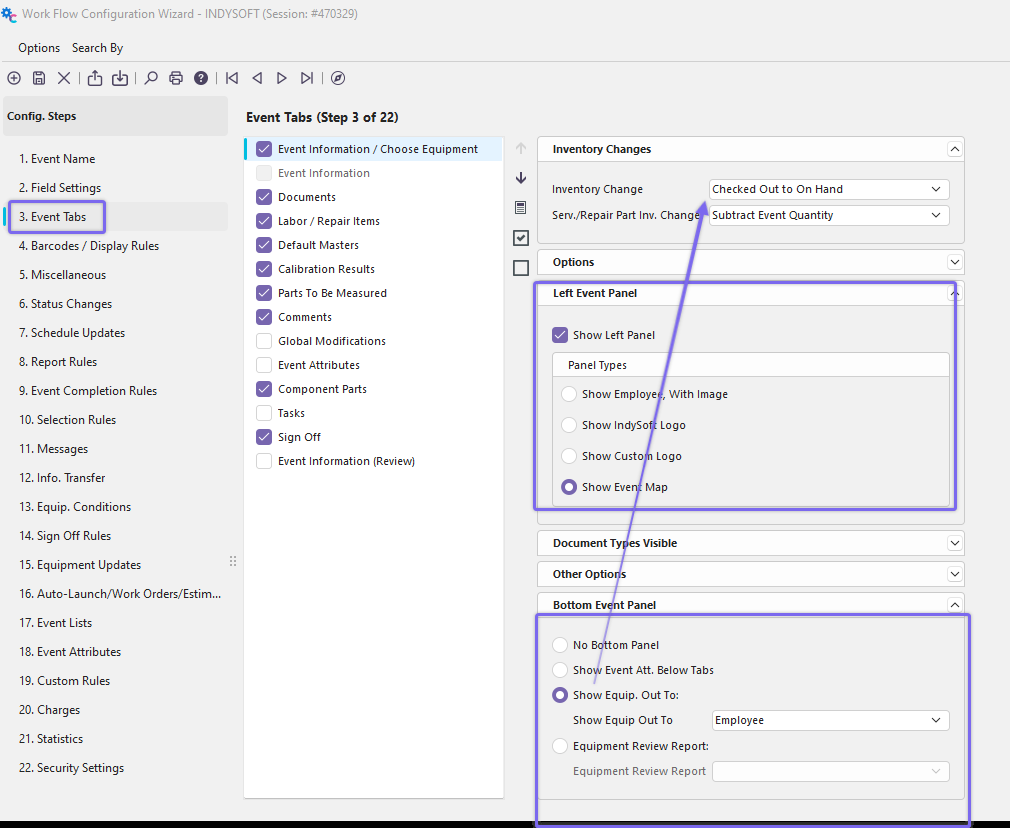
Workflow Configuration - Step 3 Example Settings
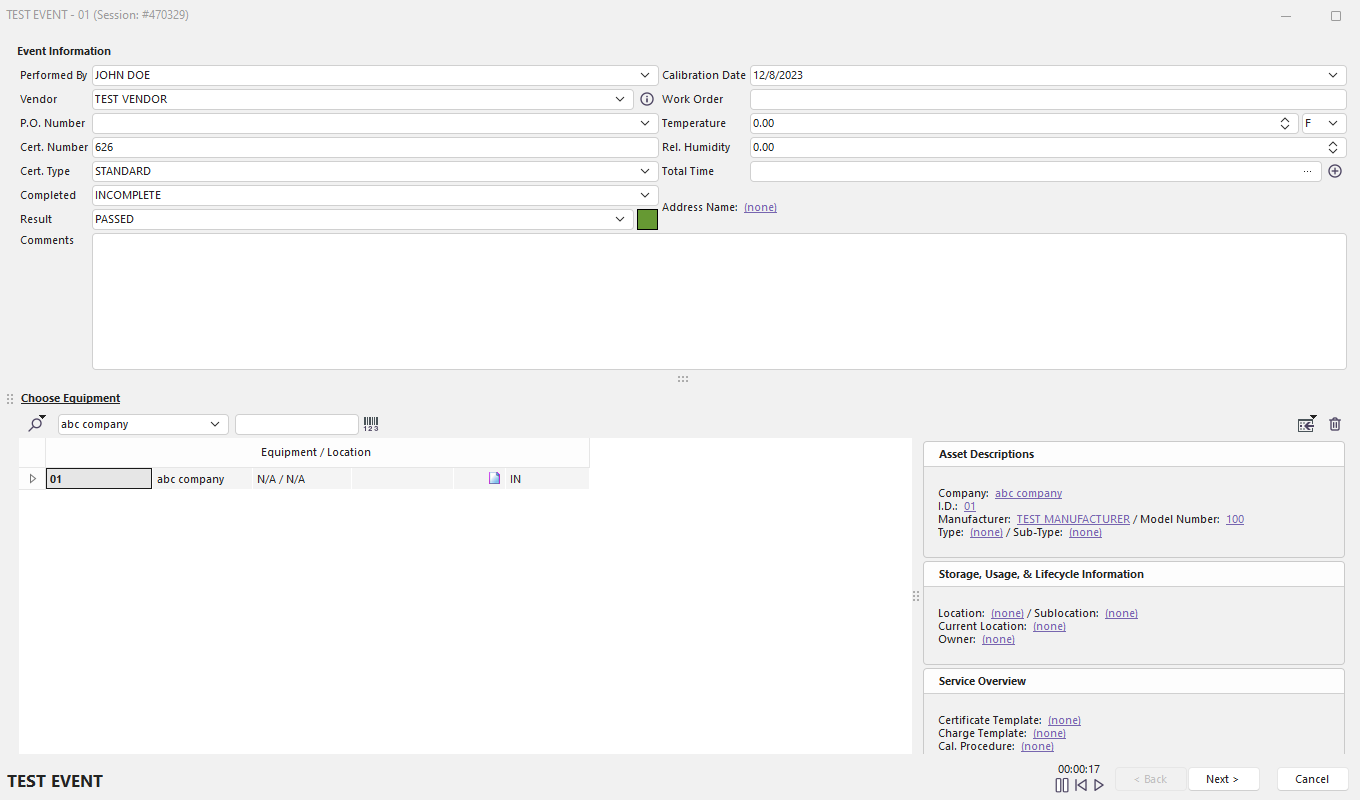
Basic Event Layout
In the above example, the left-hand panel and 'Equip. Out to Employee' sections have been turned off, and there is only one Event Tab in the entire wizard (so the 'Next' button immediately is entitled 'Finish'). When there are multiple event tabs, you can navigate through the various event tabs by pressing the 'Back' and 'Next' buttons. To exit the event without committing to the event, press the 'Cancel' button. When you have reached the last step in the event wizard, the 'Next' button's caption will change to 'Finish.' Suppose you are performing an event upon only one piece of equipment. In that case, you will see the ID number of the selected equipment appear in the event wizard's caption bar and to the right of the event type listed in the bottom left-hand side of the event wizard form.
For each event type set up in IndySoft, the event wizard form's size and location will be memorized for the workstation when the event is exited. Finally, when the event wizard form is visible in IndySoft, the IndySoft main screen is temporarily hidden. This is done to focus attention on the current event. When the event is completed, the IndySoft main screen will reappear.
 Version 13.0.15 || New auto-close option for multiple ganged event tabs at once - with selection dialog for tabs |