Initial Setup

Clicking the top left gear icon in the primary interface will launch the setup utility.
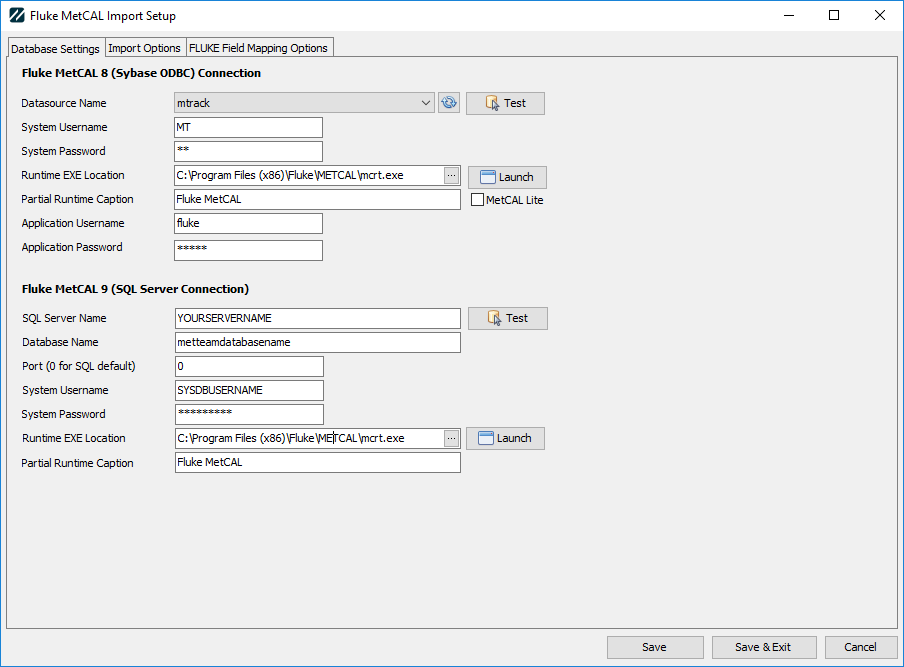
Database Settings Fluke MetCal8
Datasource Name
This dropdown will supply you with a list of ODBC data sources on your system. Please note that for MetCAL8, Sybase 32bit ODBC is used. You can click the refresh button to reload your ODBC driver list, and after the required parameters have been set, the Test button allows you to ensure you can connect to the database.
System Username/Password
This field is for the database-level username used to access MetCAL tables, views, etc. The password field should contain the password for your System Username.
Runtime EXE Location
If launching into Fluke MetCAL to collect data, ensure this path points to your mcrt.exe runtime.
Partial Runtime Caption
Enter the first few words of the Fluke MetCAL window title. This helps IndySoft find your runtime if it is already running.
Application Username/Password
If launching into Fluke MetCAL from IndySoft, the application can pass a username and password to the application to log you into MetCAL automatically.
Fluke MetCal9
SQL Server Name
Enter the name of the server on which the SQL Server is running.
Database Name
The database name will be the database instance running on the SQL server.
Port
Leave this at 0 for default/port 1334, or enter a new value if your port differs.
System Username/Password
This field is for the database-level username used to access MetCAL tables, views, etc. The password field should contain the password for your System Username.
Runtime EXE Location
If launching into Fluke MetCAL to collect data, ensure this path points to your mcrt.exe runtime. Please note that launching into Fluke MetTEAM (CAL 9) is limited in functionality compared to MetCAL8.
Partial Runtime Caption
Enter the first few words of the Fluke MetCAL window title. This helps IndySoft find your runtime if it is already running. |