Upgrading the TechSync Server
Example of Major Version differences.
12.1.x to 12.2.x to 13.0.x to 13.1.x
If you are using TechSync as a means to push data from offline single user workstations to your main database, then the first step in upgrading to a major version is to upgrade your primary database as well as your blank starter database on your TechSync server. Starting in version 13.0.9, IndySoft improved the user experience in upgrading. If upgrading to version 13, make sure that you are at least upgrading to 13.0.9.
IndySoft highly recommends that all syncs from Single user workstations be performed before upgrading your server. Request that all techs perform their syncs before the upgrade and confirm before updating that no syncs are sitting on the server not imported. To make sure that all items are imported from the server side you can simply stop your TechSync service from the IndySecureServer.exe interface, navigate to the sync log tab, and press the icon to manually perform the import. The icons from the Sync Log tab, once the service is stopped will either look like:  or
or  .
.
1. Download and Install the multi-user upgrade as well as the single user upgrade to your IndySoft TechSync server. If you are running your web-tier instance on the same server as your TechSync server (which we highly discourage) then you will need to run the web tier installer instead of the regular multi-user installer.
Note: The IndySoft 3-tier service (Global Connectivity Server) is generally used in the TechSync process. Whether that service is running on the TechSync server or another server, then that will need to be downloaded, installed, and started. (3-Tier Service is laid down by default by the Web-Tier installer, just make sure that Server is also updated and that the service is indeed running)
2. Upgrade your primary database.
3. Upgrade your server side Single-User database. It may be wise to stop firebird services on the server before doing this, then copying off your firebird database as a backup. Once copied off, make sure to restart firebird services. Also, be sure that you are updating the correct firebird database. Typically, and by default, the database that needs to be upgraded should be the one indicated in DatabaseSettings.exe in your Single-User installation directory.
C:\ProgramData\IndySoft-SingleUser\Data\indysoft.fdb
Running ISUPDB.exe from your Single-User installation directory will show you which database your are upgrading. If for some reason, you are pointed to a different location and are unsure of how to move forward, please contact support.
Upgrading the single user to version 13 will require a backup and restore of your firebird database. If any errors occur, please revert to your copied off database or contact IndySoft support.
4. If no errors are observed up to this point, then open your IndySecureServer.exe, start your services, and create a new starter database manually. If you do not have an IndySecureServer.exe shortcut on your desktop, then go into the installation directory "C:\Program Files\IndySoft" and open "IndySecureServer.exe."
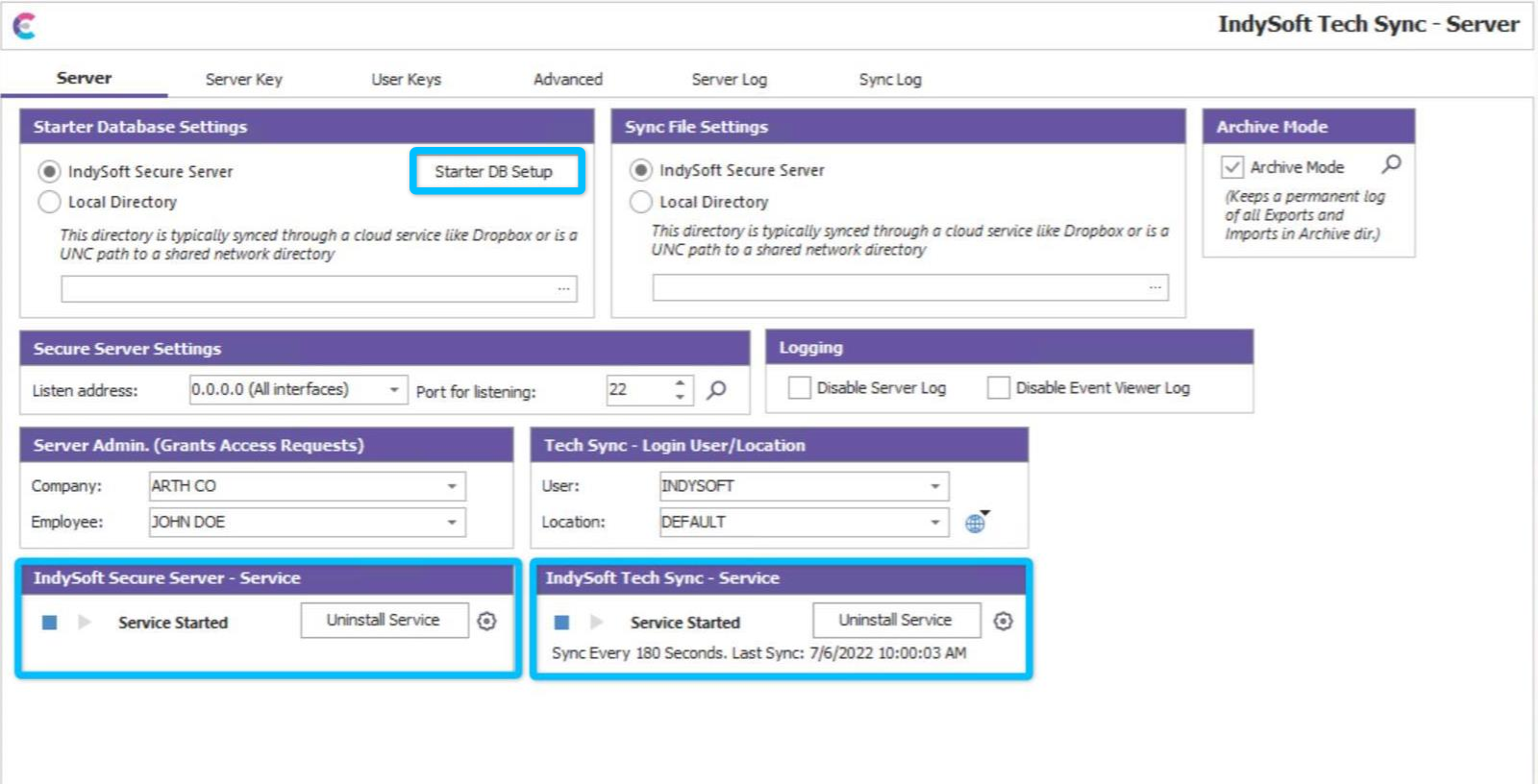
Make sure that your services have both been started! (Unless you have a UNC path only configuration, then you will only have the Tech Sync - Service as an option.) Then click on your Starter DB Setup button, confirm connection to your primary database, press Ok, and then manually press the play button to manually create your new Starter Database!
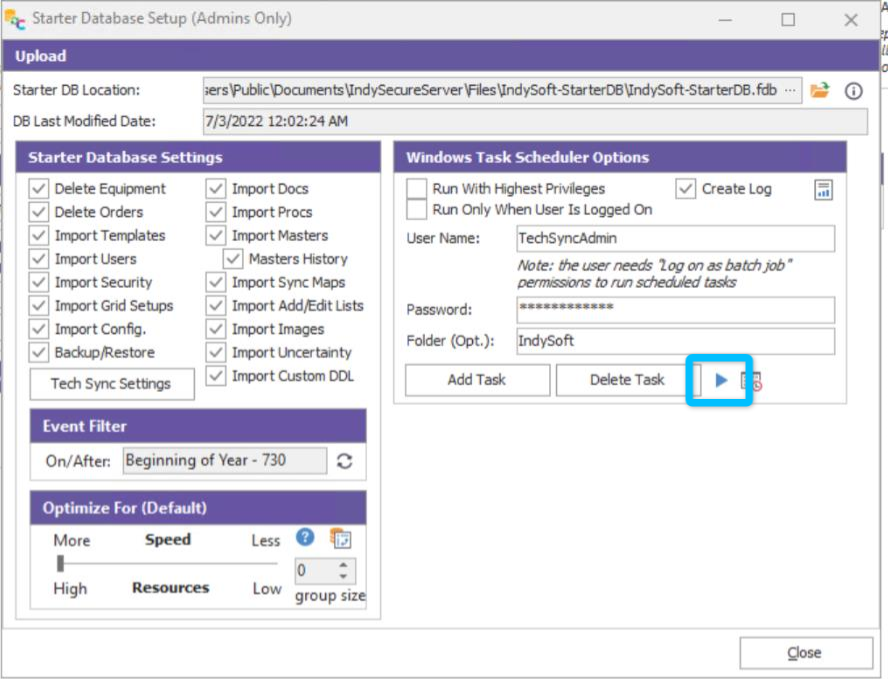
Upon a successful completion of your new starter database creation, you are now finished upgrading your TechSync server! Please close all user interface options on the server before leaving server. Primarily, anything related to the IndySecureServer.exe