Add/Edit...Locations...Crib Number
Crib Numbers are selected from the Equipment View Tab...Additional Info...Crib Number field. Cribs are keyed according to Company. Crib Numbers generally represent the 1st part of a 2 part key for Storage Location (Crib/Bin). When a piece of equipment is out on the floor or has been moved as a result of an event, generally, the 'Location' and 'Sub-Location' fields are used to track the equipment until it is eventually returned to its storage Crib and Bin.
Note: In newer versions, the 'Location' field takes the place of Crib Number, and 'Sub-Location' takes the place of Bin Number.
In v13, new equip field layouts, Crib Number, and Bin Number would need to be added to the layout with a User Created field to be visible.
Adding New Crib Locations
Cribs can be added to the database in two ways. The first way is while you are populating the information while adding new equipment to a company in Equipment View. The second way is from a master list in Locations of 'Cribs' that you previously added.
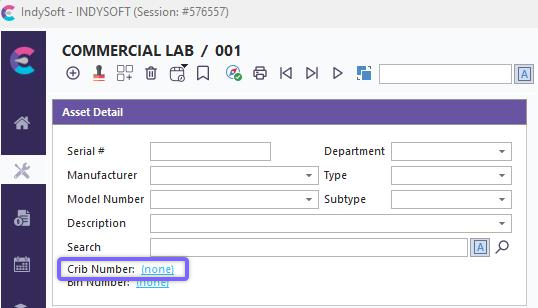
Dashboard Equipment View - Additional Info. - Crib Number
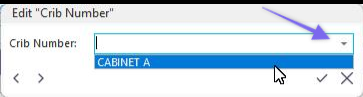
Dashboard Edit Equipment Field
In the Additional Info. fields, clicking the  will open the Edit Equipment Field dialog. You can type a new Crib, start typing one already populated, and the text will display, or select a Crib from the drop-down list. Click the
  to accept or the
  to cancel. Clicking
  will move you forward or back in the Additional Info. fields. You can also edit/delete the text in this field.
Note: Remember, the drop-down list will only be populated if you have entered the sub-types previously in the field or from the master list, which is explained next.
Add/Edit Sub-Type List
To add to or manage the Cribs list, in the IndySoft left-hand panel, click Add/Edit, then select Locations...Crib Number from the drop-down menu.
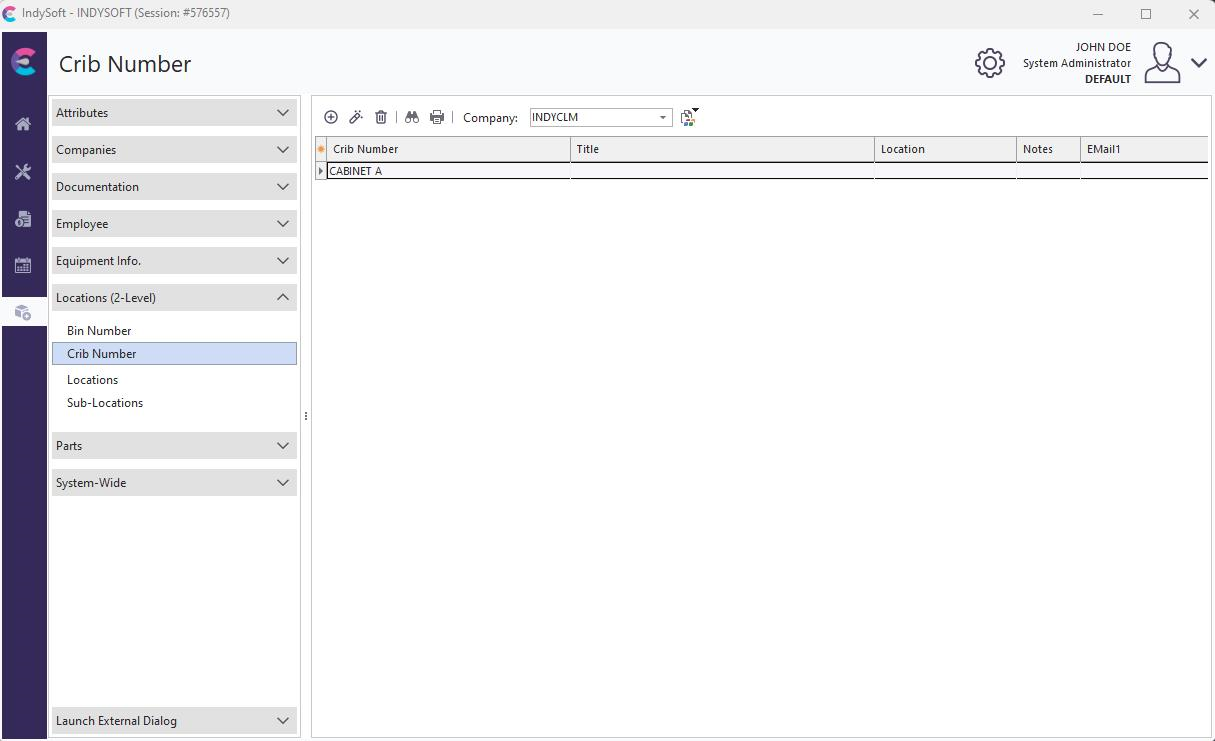 ../Storage/indysoft-help-publication/hm_clip3114.png
Add/Edit Crib Number
Be sure you're adding Cribs into the right 'Company.' Click  'New Item' to add a new Crib or
  to 'View/Edit Item.' (Sort by clicking the header above the column).
Step 1 of 3
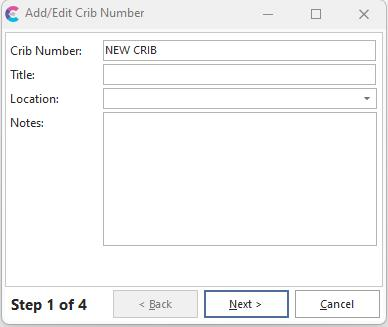
Add/Edit Crib Number Step 1
Crib Number
The unique name for each Crib Number. Limited to 40 alphanumeric characters.
Title
Allows for an additional non-unique description of each crib number. Limited to 50 alphanumeric characters.
Location
The physical location of the Crib within the Company. This drop-down is populated from the Add/Edit...Locations list
Notes
Allows for entry of any miscellaneous text-based comments about selected Crib.
Step 2 of 3
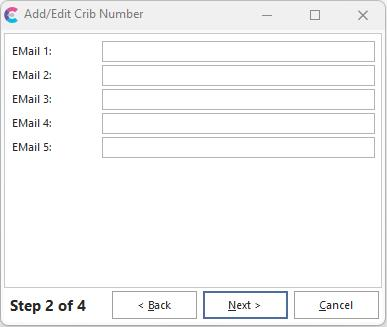
Add/Edit Crib Number Step 2
This step allows for the entry of 5 email addresses associated with this Crib Number. These email addresses can be recalled from EMail Distribution Rules per Report Rule in the Event (Workflow) Configuration Module. Similarly, these email addresses can be recalled from the EMail Distribution Rules for Certificate in the Event (Workflow) Configuration Module. Thirdly, these email addresses can be recalled from the IndySoft Alarm System when alarms are generated by equipment grouping.
Step 3 of 3
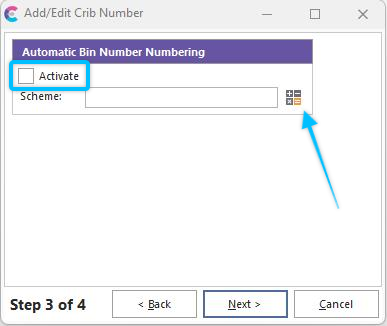
Add/Edit Crib Number Step 3
Automatic Bin Number Numbering
Activate
Checking this box will automatically assign a Crib name.
Scheme
Click the calculator icon  which will launch the Auto Numbering Setup Wizard.
Step 4 of 4
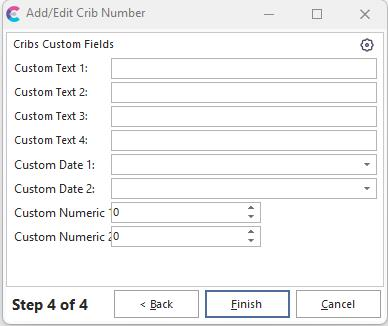
Add/Edit Crib Number Step 4
Document Custom Fields
Here, you can add values to the custom fields you have created. These values will show up under the field heading for Add/Edit Employees in the display window.
Auto Numbering Wizard
Auto Numbering can be selected in Equipment View by clicking the  icon next to Sub-Location (Bin Number) in Dashboard.
 Productivity Tip
The Add/Edit Crib Number dialog box can be filtered and customized in many ways. See General Interface for more information.
Buttons and Icons are detailed here.