Charges
 Note: the topic below only applies to the Calibration Lab Management version of IndySoft.
Default charges can be set up for equipment on the Charges dialog/tab. A listing of supporting documents can be associated with each default charge. To associate these default charges with event types so that charges are automatically added to events, see Workflow Configuration - Charges.
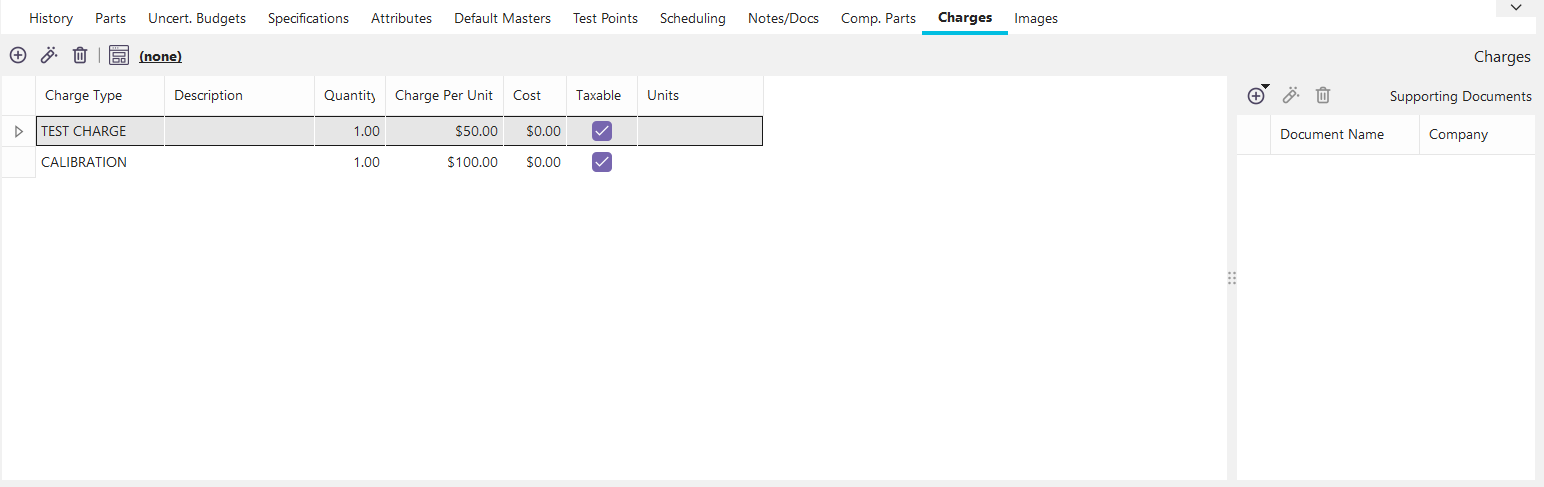
Charges Dialog/Tab
Adding/Editing/Deleting Charges
 Add New Charge
Use this button to add a new default charge for the selected asset. See the Default Charge Settings section below for more details.
 View Charge
Use this button to edit the selected charge. See the Default Charge Settings section below for more details.
 Delete Charge
Use this button to delete the selected charge. You must confirm the deletion before proceeding.
Default Charge Settings
When charges are added/edited, the following dialog and fields are used:
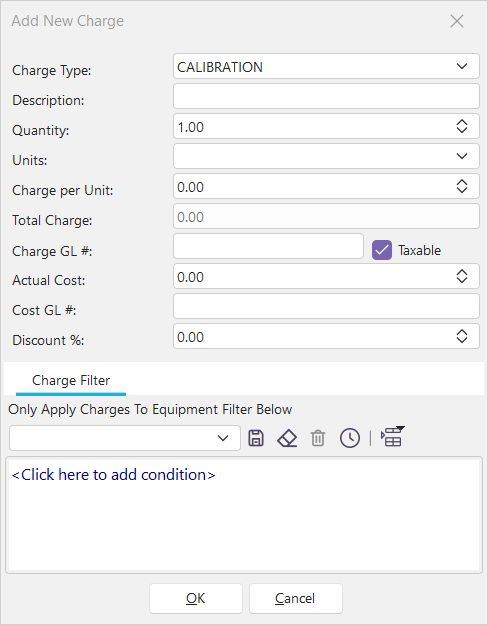
Add/Edit New Charge
Charge Type - the name of the charge type that you are setting up for the current asset. This must be selected from charge types entered through Add/Edit...System-Wide...Charge Types.
Description - an optional description of the charge type as it applies to the current asset.
Quantity - the quantity of this charge that is the default usage within events.
Units - the units for the selected charge, as applied to the quantity
Charge Per Unit - the charge for each unit. This amount will be multiplied by the Quantity to calculate the 'Total Charge.'
Total Charge - for reference only, not editable - the Quantity * Charge Per Unit.
Actual Cost - actual cost for providing the service, etc., internally
Charge GL #- the general ledger number related to the charge (generally used for accounting purposes)
Cost GL # - the general ledger number related to the cost (generally used for accounting purposes)
Discount % - an optional discount percentage that should be applied against the 'Total Charge' above when the charge type is used. This discount should be used when negotiating an exact discount percentage for this charge type and the current asset. It will be applied indefinitely until it is modified.
Taxable - checkbox for designating whether the current charge type is taxable.
Press OK when you are ready to save the charge type. Important: when default charges are used within events, estimates, work orders, etc., several other factors are considered beyond these equipment-specific charge types. For instance, a company discount rule might be in place. For more details, see Default Charge Calculations.
Charges - Supporting Docs
Each charge type can have unlimited supporting documents associated with the charge. For more information on adding/editing/deleting, see Supporting Documents.
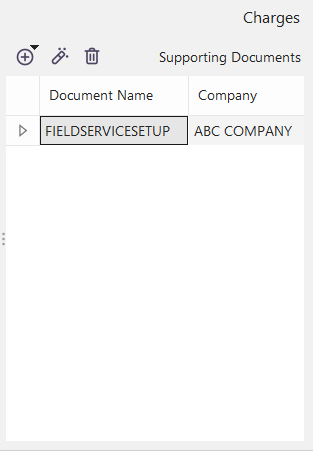
Charges Tab - Supporting Documents |