Component Parts
Component Parts are used to specify any components that are required for the use of this asset. For example, a battery might be considered a component part for a piece of equipment.
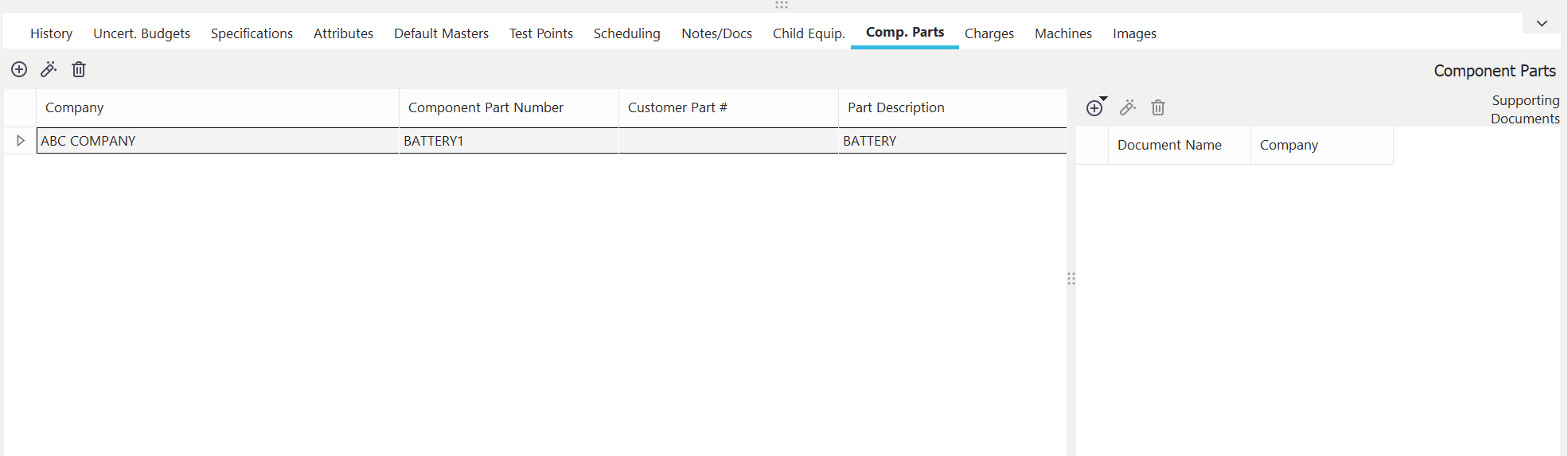
Component Parts Dialog/Tab
Component parts can be selected from items previously entered in the Add/Edit...Parts...Component Parts wizard, or they can be entered directly for the current asset. Each component part can have an unlimited number of Supporting Documents.
Adding/Editing/Deleting Component Parts
 Add New Component Part
Use this button to add a new component part for the selected asset. See the Component Part Settings section below for more details.
 View Component Part
Use this button to edit the selected component part. See the Component Part Settings section below for more details.
 Delete Component Part
Use this button to delete the selected component part. You must confirm the deletion before proceeding.
Component Part Settings
When adding/editing component parts for the current asset, you will see the dialog/fields below:
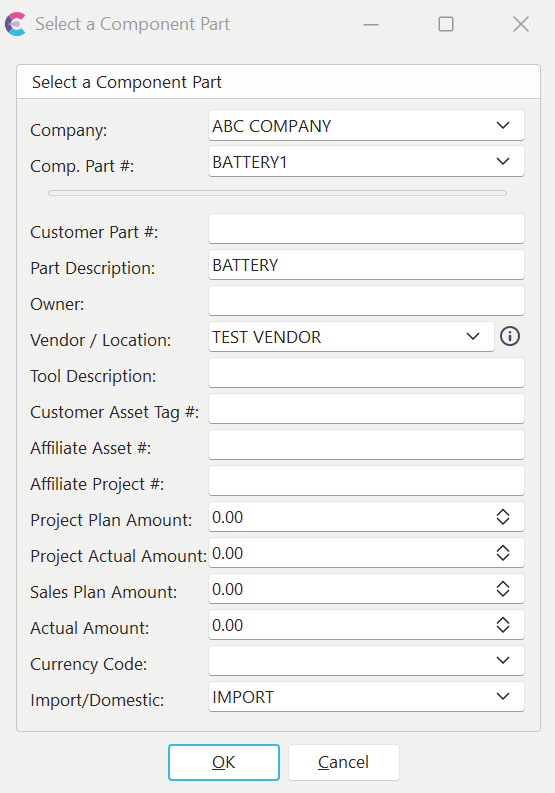
Select a Component Part
Company - the Company that owns the Comp. Part # is the following field—the 'Comp. Part #' items displayed in the following drop-down will be filtered to this company. This company will default to the company that owns the current asset. This field is required.
Comp. Part # - you can select from Component Parts previously entered into the Add/Edit...Parts...Component Parts wizard or freely typing a new 'Comp. Part #' for the current asset. The items available in the drop-down will be filtered to the Company selected above. This field is required.
Customer Part # - Optional - the Part # as referenced by the customer (or other entity)
Part Description - Optional - a description of the component part.
Owner - Optional - component part owner.
Vendor / Location - Optional - Vendor or Location for the component part. The drop-down list is populated from Add/Edit...Equipment Info...Vendors
Tool Description - Optional - a description of the tool (can be used along with 'Part Description' above to describe what the tool/part is and how it works with the current asset)
Customer Asset Tag # - Optional - Asset Tag # as defined by the Customer or User
Affiliate Asset # - Optional - Asset # as defined by an affiliate (a group of users within your system or another business group)
Amount - Optional - the cost of the component part
Currency Code - Optional - Currency Code for the Amount entered above. The currency values available in the drop-down come from Add/Edit...System-Wide...Currency Codes.
Import/Domestic - Optional - value can be either IMPORT or DOMESTIC. |