EquipmentFinder - Advanced Equipment Selection
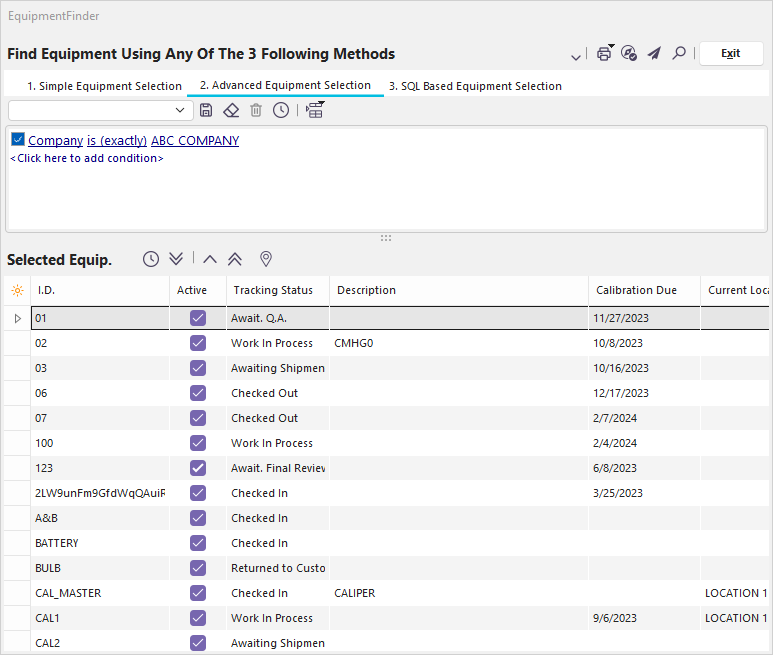
EquipmentFinder Advanced Equipment Selection Dialog
Finding Equipment with Advanced Equipment Selection
The Advanced Equipment Selection is far more powerful than the Simple Equipment Selection but can be a little trickier to get used to. Advanced Equipment Selection allows you to search on several fields simultaneously and gives you a more extensive selection of fields than Simple Equipment Selection. For each row, four choices can be made: The field to search in, the type of search to make, what to search for, and whether it will be connected by 'and' or 'or' to the following requirement. In addition, you can right-click on an item to indent it. When that is done, all the indented items are grouped and checked first. It is essential to realize that 'or' means either or both conditions are true.
Examples
In the example below, the search is for all equipment that belongs to Company 'ABC COMPANY,' is Type 'CALIPER,' and Active is checked. It turns out that ABC COMPANY only has 4 Active CALIPER assets, as shown at the bottom.
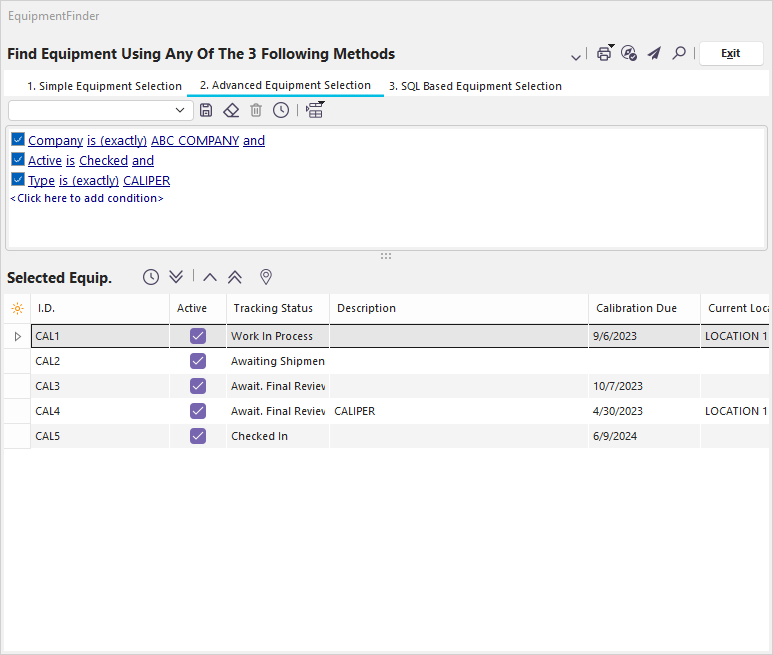
EquipmentFinder Advanced Selection Dialog - Getting Different Types
In the second example below, we are looking for either CALIPER or SCALE assets that belong to ABC COMPANY and are Active.
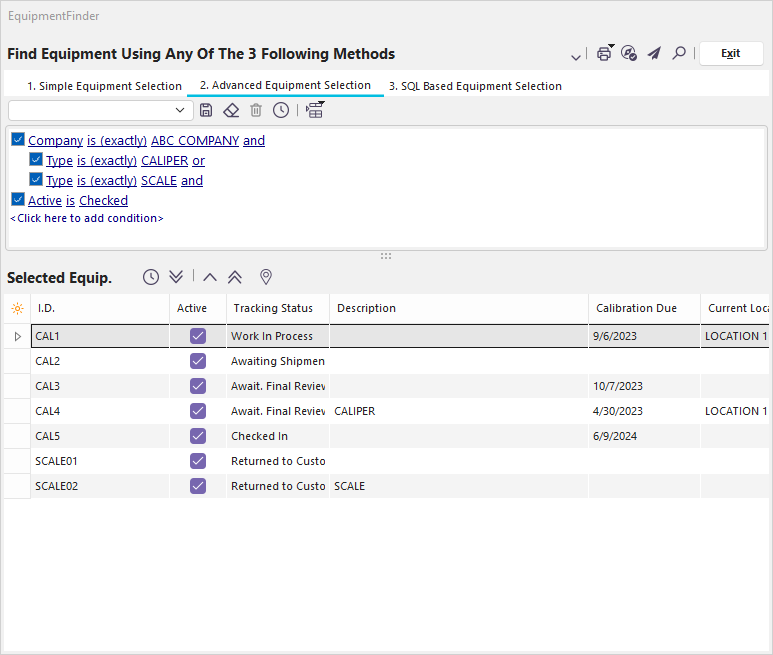
EquipmentFinder Advanced Selection Dialog - Using OR and Indents
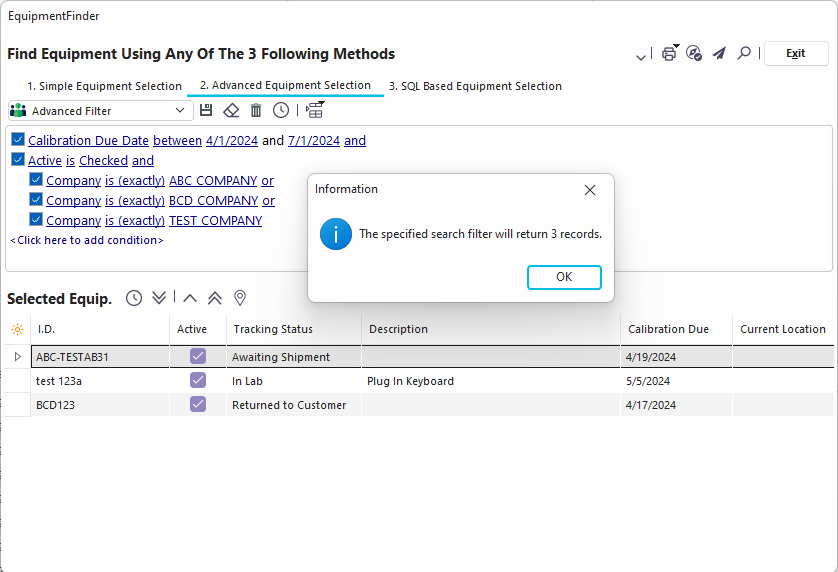
EquipmentFinder Advanced Selection Dialog - Using OR and Indents Example #2
See the Filterboxes topic for more details on the filtering interface.
Advanced Filter Options
When text is manually entered into the filterbox, IndySoft allows for several aliases that will be substituted for data appropriate to the current log-in when the filterbox is executed. For instance, you could set up an equipment filter to find all equipment owned by the current employee (the employee name that corresponds to the user name currently logged in) by entering the following:
Owner is (exactly - not in list) !EMP_ID!
This way, one filterbox can be saved for reuse by all users, but the result set will be different for each unique log-in. A listing of available filterbox aliases is given below:
!USER_NAME! or !UN! - The user currently logged in - as setup in Profile Manager
!USER_FULL_NAME! or !UF! - The full name of the user currently logged in - as setup in Profile Manager
!PROFILE! or !PR! - The security profile of the user currently logged in - as setup in Profile Manager
!COMPANY! or !CO! - The Company currently selected on the IndySoft main screen.
!GAGE_SN! or !SN! - The currently selected Equipment I.D. on the IndySoft main screen.
!WORKSTATION_NAME! or !WN! - the Workstation Name, as set up in User/Location Settings...Location Settings
!WORKSTATION_CRIB_NUMBER! or !WC! - the workstation's crib number, as set up in User/Location Settings...Location Settings
!WORKSTATION_DEPARTMENT! or !WD! - the workstation's department name, as set up in User/Location Settings...Location Settings
!WORKSTATION_LOCATION! or !WL! - the workstation's location code, as set up in User/Location Settings...Location Settings
!EMP_ID! or !ID! - the employee name associated with the user currently logged into the system. (Employee names are associated with user names through the Profile Manager).
!EMP_DEPARTMENT! or !ED! - the Department (Add/Edit Employees) of the employee associated with the user currently logged into the system.
!EMP_LOCATION! or !EL! - the Location (Add/Edit Employees) of the employee associated with the user currently logged into the system.
!EMP_TYPE! or !ET! - the Employee Type (Add/Edit Employees) of the employee associated with the user currently logged into the system.
!EMP_SUPERVISOR! or !ES! - the Supervisor (Add/Edit Employees) of the employee associated with the user currently logged into the system.
!EMP_GROUP! or !EG! - the Group (Add/Edit Employees) of the employee associated with the user currently logged into the system.
!EMP_SHIFT! or !EH! - the Shift (Add/Edit Employees) of the employee associated with the user currently logged into the system.
!EMP_INITIALS! or !EI! - the Initials (Add/Edit Employees) of the employee associated with the user currently logged into the system.
Move Equipment To/From Selected Equipment 
Once your selection is built, you can use the blue buttons to move it to the Selected Equipment Grid. Press ' Test Advanced Equipment Selection ' to check how much equipment matches the current search. To place all the equipment that matches the current search into the Selected Equip. section and remove whatever was there, press 'Start Processing of Advanced Equipment Selection.' To remove one item from the selected equip. section, highlight it and press 'Remove Equipment.' Press ' Remove All Equipment ' to remove all equipment from the Selected Equip. section. |