EquipmentFinder - Simple Equipment Selection
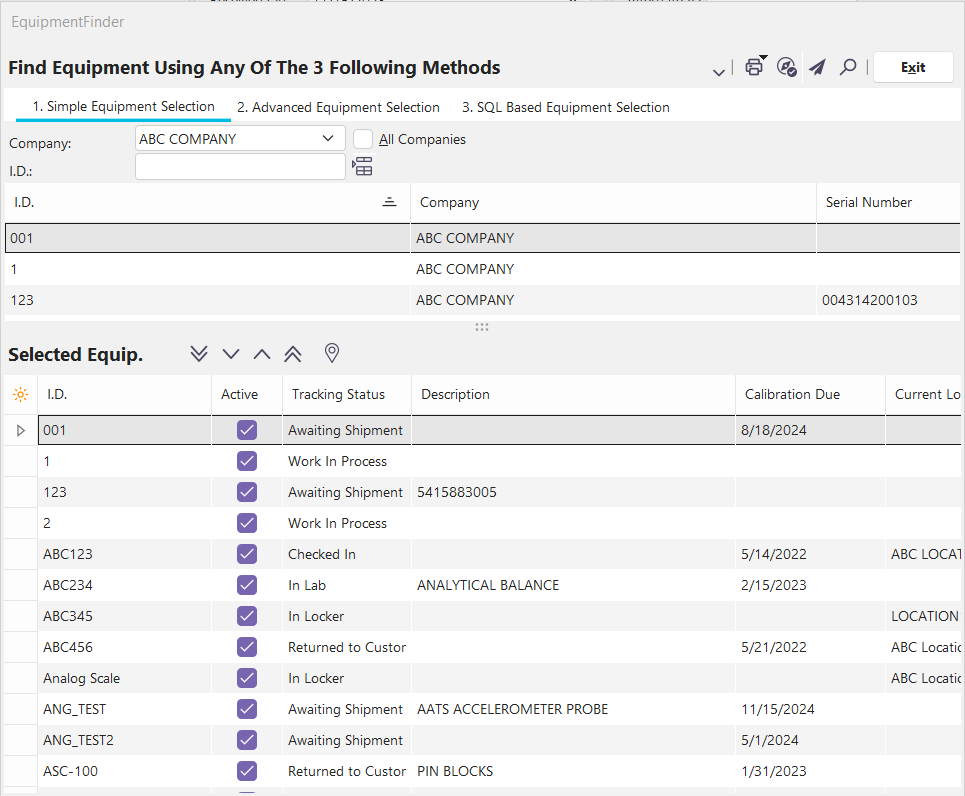
EquipmentFinder Simple Equipment Selection Dialog
Finding Equipment with Simple Equipment Selection
Simple Equipment Selection allows you to quickly find a piece of equipment based on a single aspect. For example, if you know that its I.D. starts with 'CV,' then you can type in 'CV' in the Simple Equipment Selection and get a list of all equipment with an I.D. that starts with 'CV.' You could also search for all Types that start with 'CALIPER' to get a list of calipers to choose from.
If this search isn't narrowing down your results far enough, try the Advanced Equipment Selection for more powerful options.
Searching By Different Fields
To search on different fields, click the column header of any of the following fields: I.D., Serial Number, Type, Current Location, Current Department, Checked Out To, Manufacturer, and Description. The field will be sorted and give you the option to also search by that field.
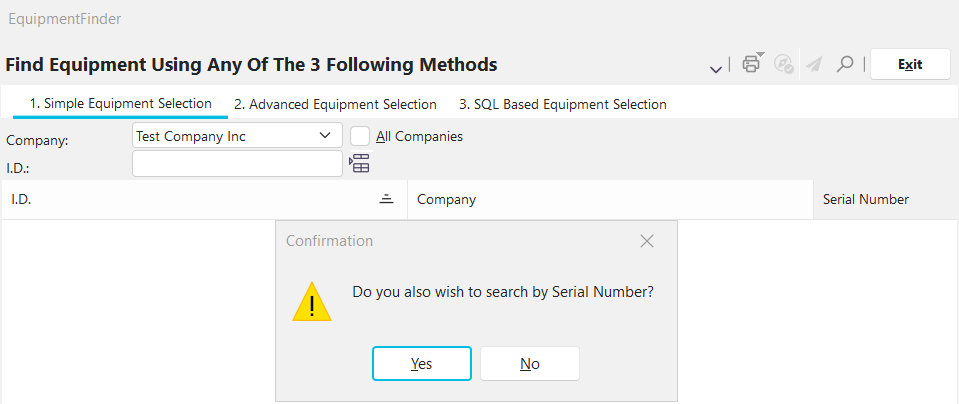
All Companies
Check this box to show all equipment from every company. Leave it unchecked to show equipment from only the company listed in the drop-down box.
 Show All Equipment
Press this button to show all the equipment for the company listed.
 Move Equipment To/From Selected Equipment
Once you have a list of equipment in the selection, you can use the blue buttons to move it to the Selected Equipment Grid. If you want to choose all matching equipment, press 'Add All Equipment.' To add the currently highlighted equipment to the Selected Equip. section, press 'Add Equipment.' To remove one item from the selected equip. section, highlight it and press 'Remove Equipment.' Press ' Remove All Equipment ' to remove all equipment from the Selected Equip section.
 Show Mapping
Press this button to show the current company address in IndySoft Mapping.
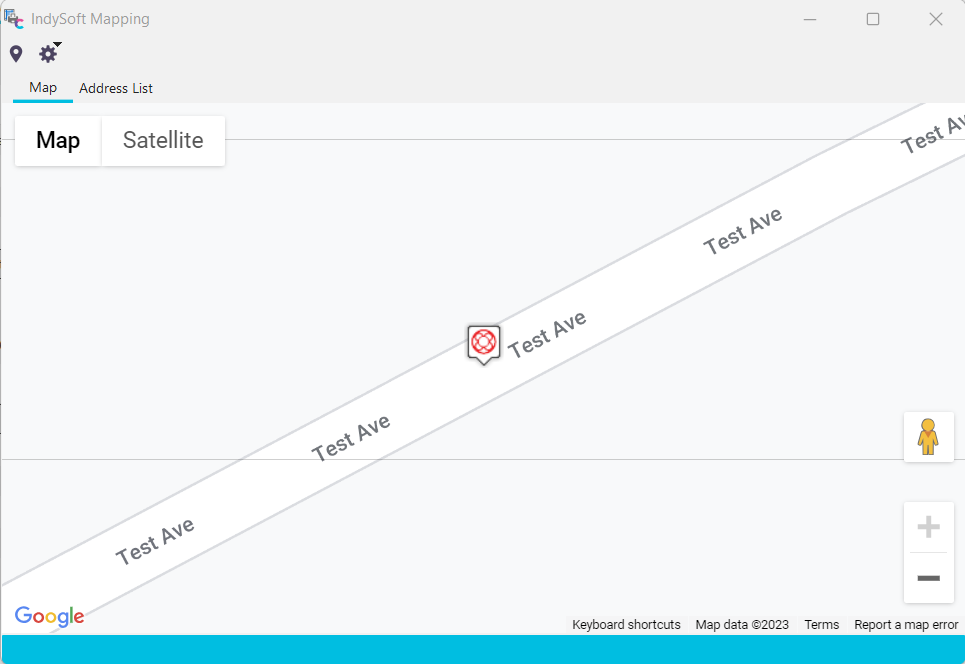
IndySoft Mapping - Map
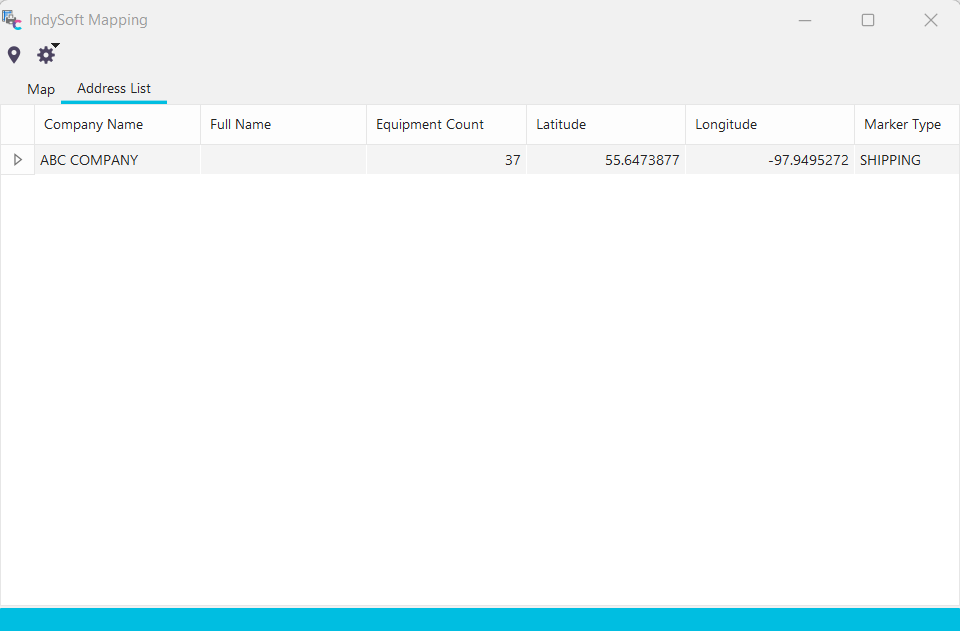
IndySoft Mapping - Address List |