Event Trail
The Flowchart Editor has an optional setting for 'Show Event Trail From'. This allows the administrator to specify (in terms of the current flowchart) what the 'starting' event is for the workflow. Once this is specified, IndySoft can quickly remind users of all events since (including) this important starting event. So in effect, we highlight the most recent 'round-trip' events in the workflow. In addition to highlighting these events in the flowchart, an 'event trail' panel is also displayed along the bottom of the History tab/dialog in Equipment View:
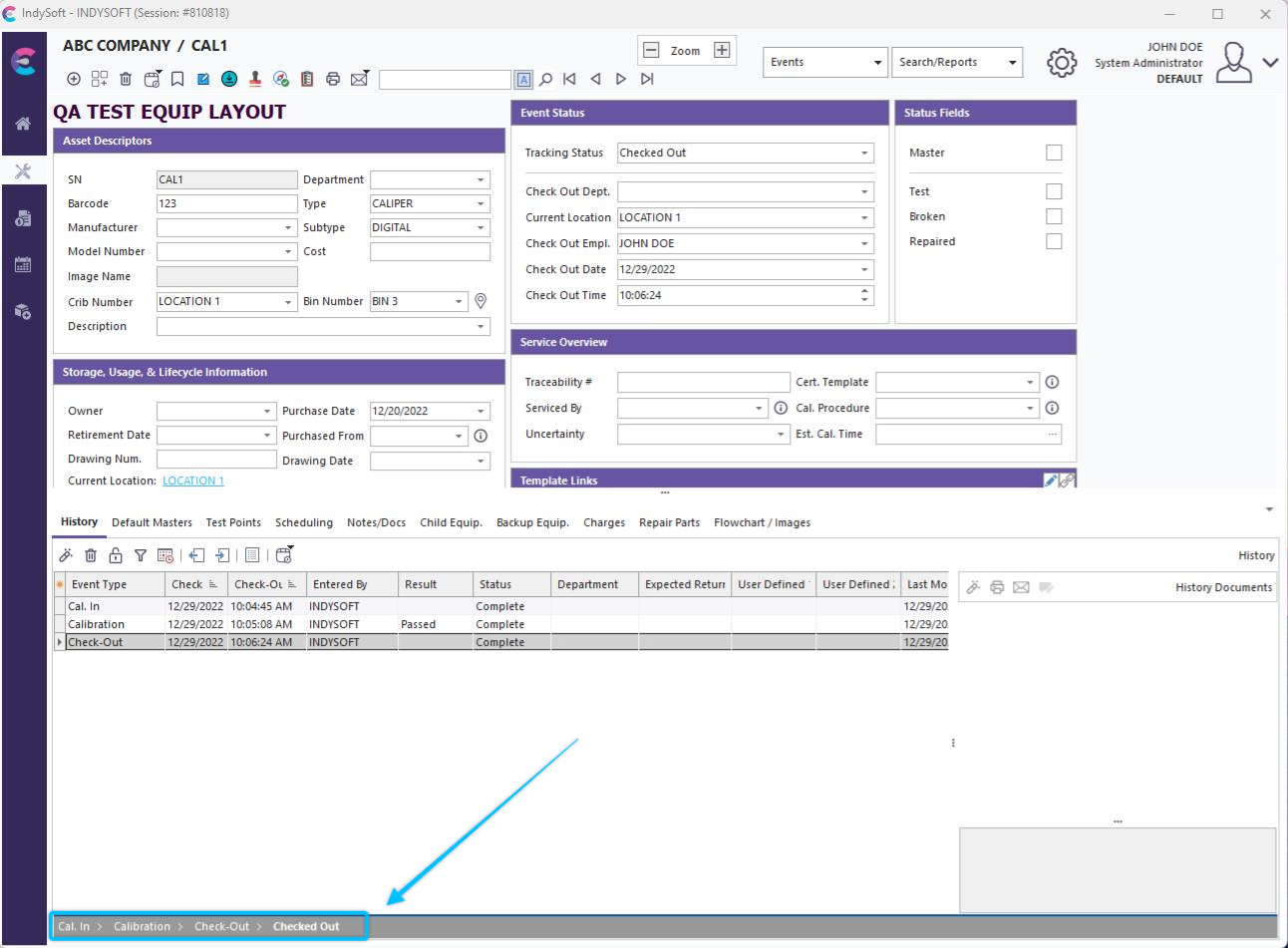
Example - Event Trail on Bottom of Equipment View
Think of this panel as a 'breadcrumb' trail that historically shows the current round-trip events from left to right. If you hover over individual events in the trail, you will be reminded of key event details through a hint:

Single-clicking (left mouse button) on an event in the trail will relaunch the event for review - just as if you had clicked on the 'History' detail dialog and selected that event from the History grid, then double-clicked. The event trail will end with the current tracking status of the asset in boldface. This last tracking status is for reference only - no single-click operation is defined.
Note: the event trail will also be empty if the current asset's tracking status is equal to the tracking status (if any) specified in the Flowchart Editor for 'Exclude One Tracking Status.' This setting notes the status of equipment (within that workflow) that is currently 'outside' the workflow - so it is either 'returned to customer,' 'active for use,' etc. |