Order Searching
Select this option from the 'Management' menu in Profile Manager...Order Searching. This dialog is used to set up the visibility of custom searches in the Order System for Work Orders, Estimates, and Invoices. The functionality is much like Setup Custom Searches / Reports / Layouts.
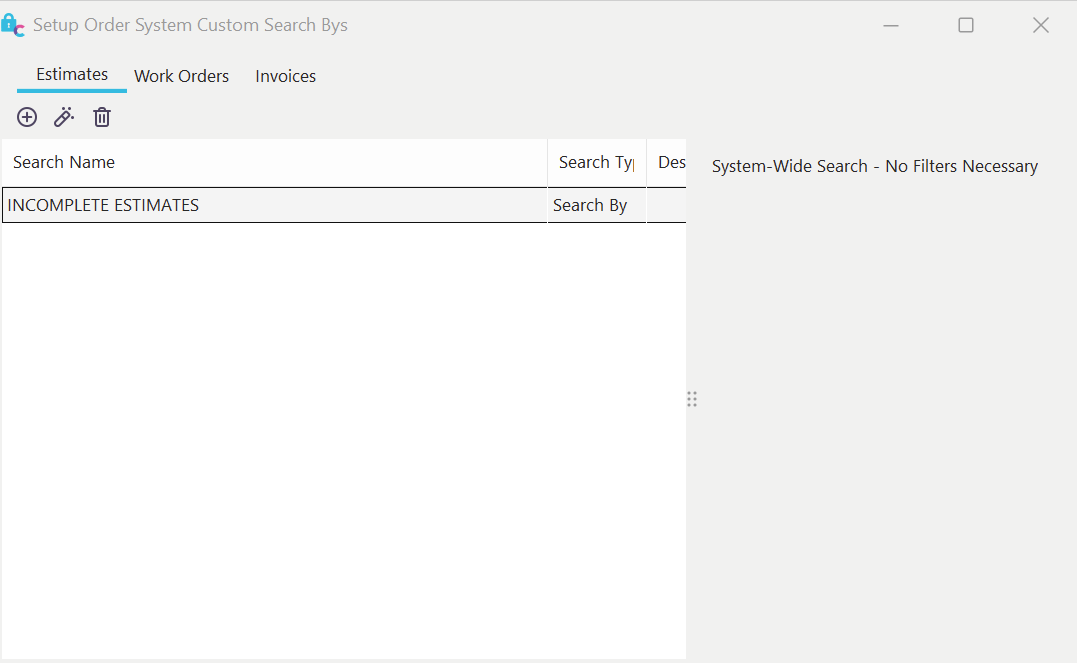
You will notice three primary tabs: Estimates, Work Order, and Invoices. The functionality is the same for each. The custom search-bys created in each section will only be visible in the Order System when that appropriate selection is used.
 Add Custom Search By - adds a new item to the list
 Edit Custom Search By - edit the selected item
 Delete Custom Search By - delete the selected item.
If the selected search-by is not set up as 'System-Wide,' you will see two tabs on the right. Use the 'Profiles' and 'Users' tabs to select the Profiles and Users that can see/use the selected search-by. This is just like the process in Setup Custom Searches / Reports / Layouts.
When editing a custom search by for Estimates, Work Orders, or Invoices, you will see the dialog below:
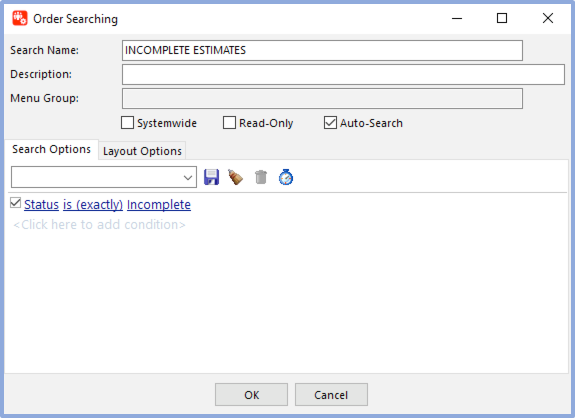
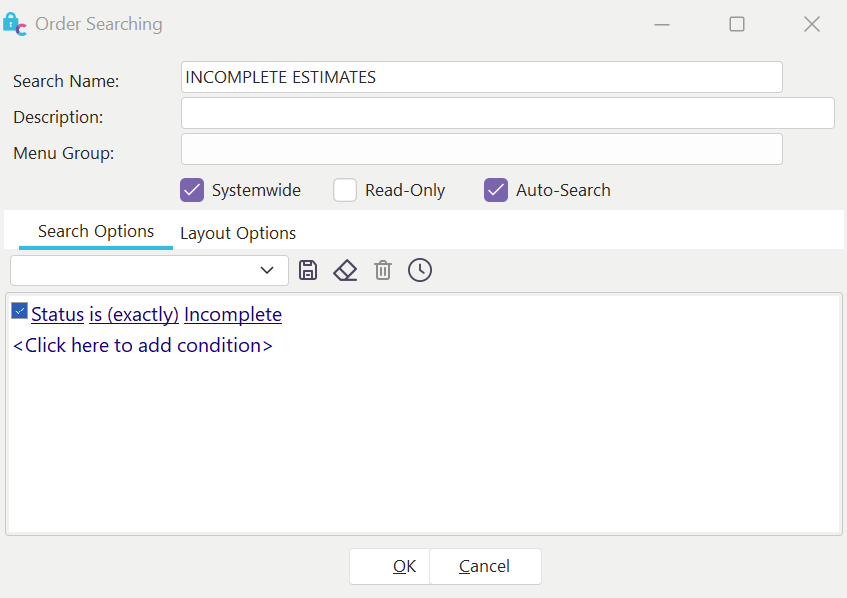
Order Searching - Custom Search By Setup
Search Name: Enter the name of the custom search by. This name must be unique across other search-bys for this group. This value is forced uppercase.
Description: Enter an optional description of the custom search by. When recalled, this description will be shown on the caption bar of the search-by.
Menu Group: This option is not currently enabled for use.
System-Wide: Check this option if you would like the custom search by to be visible for all users in the system. When this is checked, it is unnecessary (or possible) to set up Users and Profiles specific to this search-by.
Read-Only: Check this option if you would like to 'lock down' the search filter so users cannot modify the criteria.
Auto-Search: Check this option if you would like the search filter to be immediately executed when the search is used. This saves the user the time of pressing the execute button. But if the user typically modifies the search filter before execution, then you might want to uncheck this option.
Filter (bottom filter box): Enter your search filter in this area. This filter will be used as the default filter in the upper part of the search dialog. Search fields vary between Work Order, Estimate, and Invoice search by's. |