Profile Manager - System-Wide Vendor/Branch Location Management
Enterprise customers who utilize System-Wide Vendors and have multiple facilities utilizing the software may want to consider using the Vendor/Branch Location Administrative Management option. The primary purposes of this feature set include: association of Vendor/Location settings or contexts to users, device preset options, and Branch Administrator Functionality.
What does this REALLY mean?
The options outlined here allow greater administrative control over a user's basic preferences. After Version 8, users could manipulate their own user/location settings and create their own locations. This was a great improvement over having registry based workstation settings! But as our customers have continued to grow into Multi-Branch facilities, IndySoft needed to grow Multi-Branch support. Being able to create Vendor/Branch Location Contexts and assigning them to users will ensure that users who are working for specific Branches have the exact settings they need in a referential manner. Users can no longer change these settings unless they have been granted explicit access in Profile Manager as a Local Admin and Branch Admin. Not all User/Location settings are the same though! This is why we created the concept of device presets for Printers, External Devices, Web-Tier Tools Settings, and Default Calibration Standards.
Requirements to Utilize
- Minimum Version Requirement is 14.1.0
- A System-Wide Vendor Must Exist and Have a direct link from a Company flagged as a Branch in Add/Edit Company.. A Branch IS a Vendor in this mode.
Enable Vendor/Branch Location Administrative Management can be turned on in Profile Manager as a System Administrator. This can be found from the "Local Administrator and Branch Administrator Setup..." right click option in the Profiles section in the lower right hand corner. Above the checkbox, in the grid, the Administrator can designate appropriate Branch Administrator Profiles.
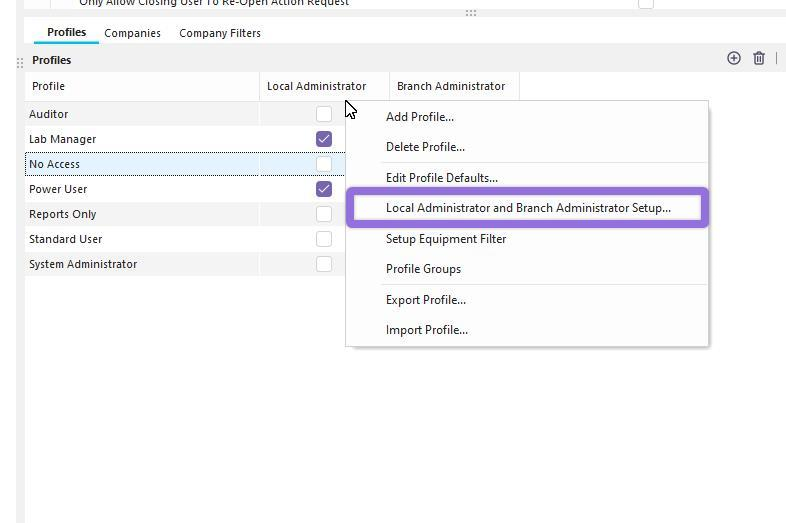
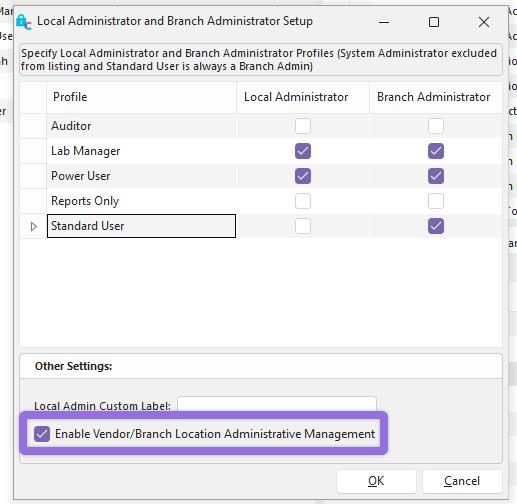
Enabling the Vendor/Branch Location Administrative Management option will:
- Allow System Administrators to be able to assign any Vendor/Branch to any User with any Branch Administrator Profile from the Edit User Screen
- Allow Local Administrators to be able to assign any Vendor/Branch to any User with any Branch Administrator Profile from the Edit User Screen as long as they have been given a Branch Administrator Profile for that Vendor/Branch
- Hide the "DEFAULT" user/location option for all users which have a Vendor/Branch and Branch Profile Association so that it cannot be used.
Branch Administrator Profiles are Profiles which are designated by a System Administrator to describe a relationship between a User and a Vendor/Branch. The Profile of "Standard User" is always marked as a Branch Administrator Profile and cannot be removed from the list. The general concept is that the Standard User relationship from a Vendor/Branch to a User is the most basic form of association and, generally, would not function to provide administrative privileges. Any Profile which is flagged as a Branch Administrator will utilize specific security items in various contexts. The Security Items reside under the "Vendor/Branch Location Options" Category.
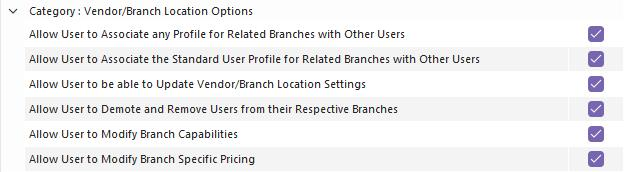
**Importantly...**Only System Administrators and Base Profiles marked as "Local Administrators" in the same section of Profile Manager can access profile manager to create associations of Vendor/Branches and Profiles to Users. "Branch Administrator" profiles, when used for Vendor/Branch profile associations have some features in the Taxonomy Manager and Others within Profile Manager.
Associating Vendor/Branches and Branch Admin Profiles with Users can be done in 2 places of Profile Manager with different features in mind.
1. Management Drop Down > Setup System-Wide Vendor Location Preferences
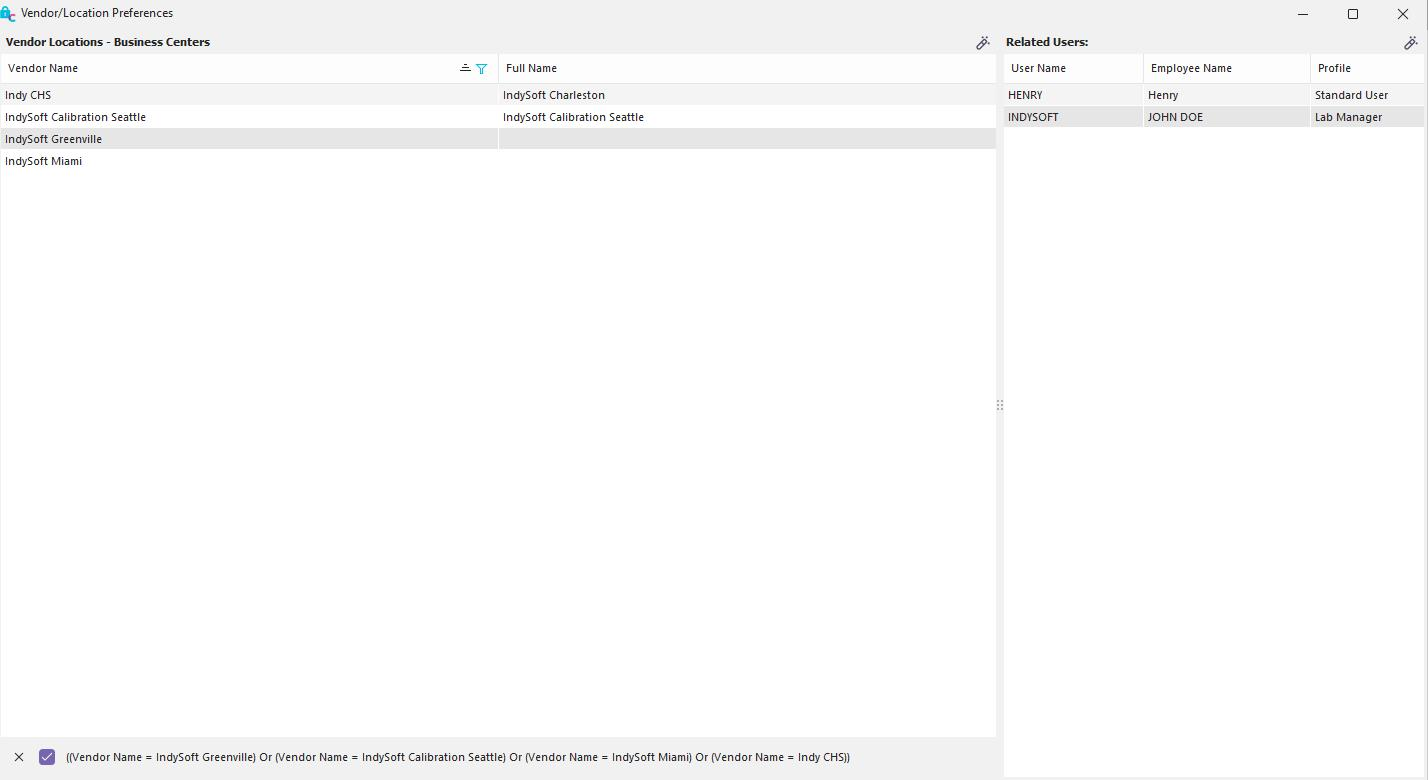
As a System Administrator, you may want to start with this interface for multiple reasons: This section is available BEFORE you enable the Vendor/Branch Location Administrative Management option, administrators can edit Vendor/Branch Location Preferences for multiple Vendors from the same screen, and Administrators can associate the Users to Vendor/Branches in a batch mode using the "Standard User" Branch Admin Profile Only. Simply put, this screen has the power to perform mass associations of users to a Vendor/Branch AND provides the Admin quick access to updating the Vendor/Branch Location Preferences.
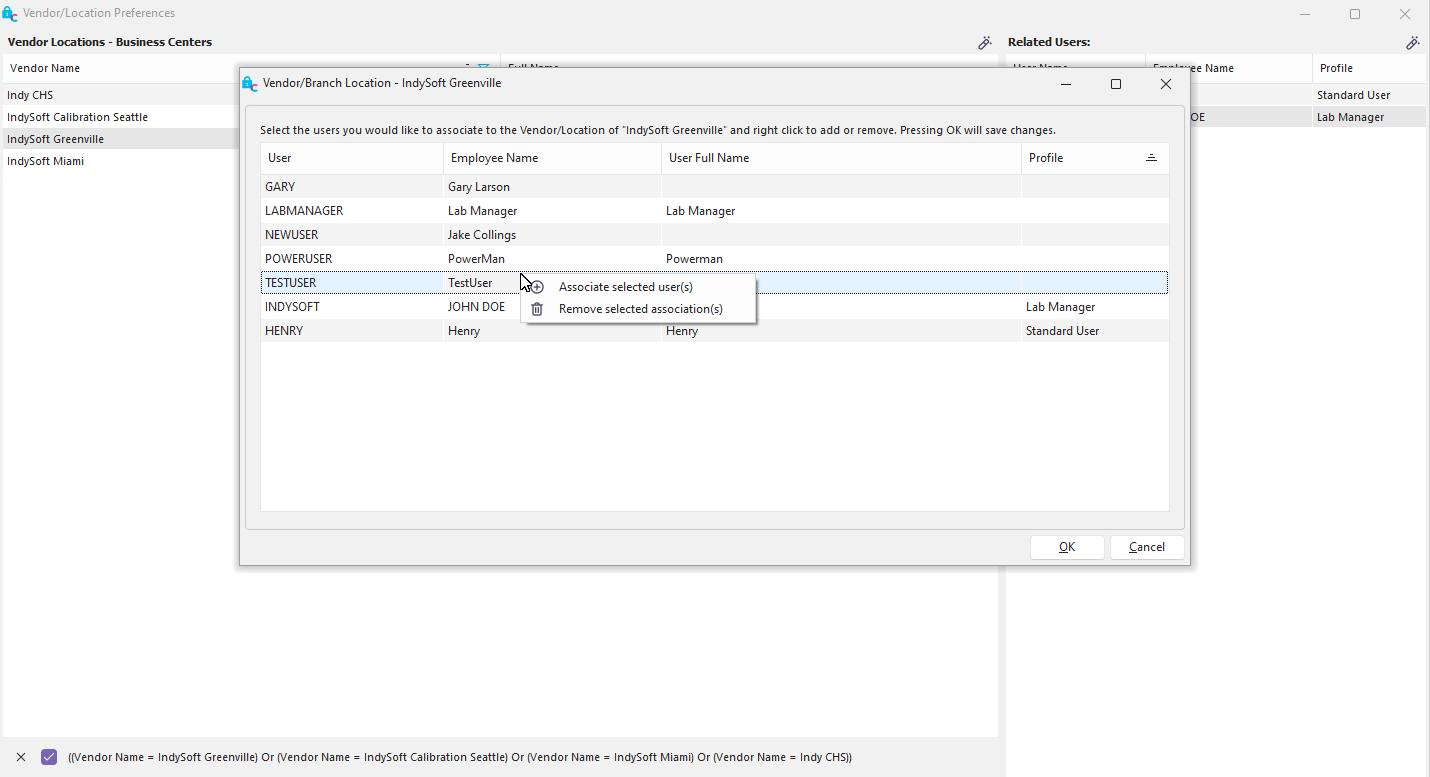
This interface will show you Vendor/Branches on the left hand side with the System-Wide Vendor Name, Full Vendor Name, Related Branch Name, and Full Company Name. Double clicking on one or pressing the edit button will take you into the Vendor/Branch Location Preferences. On the right hand side, the Admin can see the list of currently associated Users with their Employee Name and Related Branch Admin Profile.
Pressing the edit button will take the user into a batch association screen for the currently selected Vendor/Branch's Users. Admins with Access can quickly associate users using the standard user profile or remove profile associations. If trying to associate a Standard User Profile and the User already has a related Profile, the other Profile will be respected and not updated.
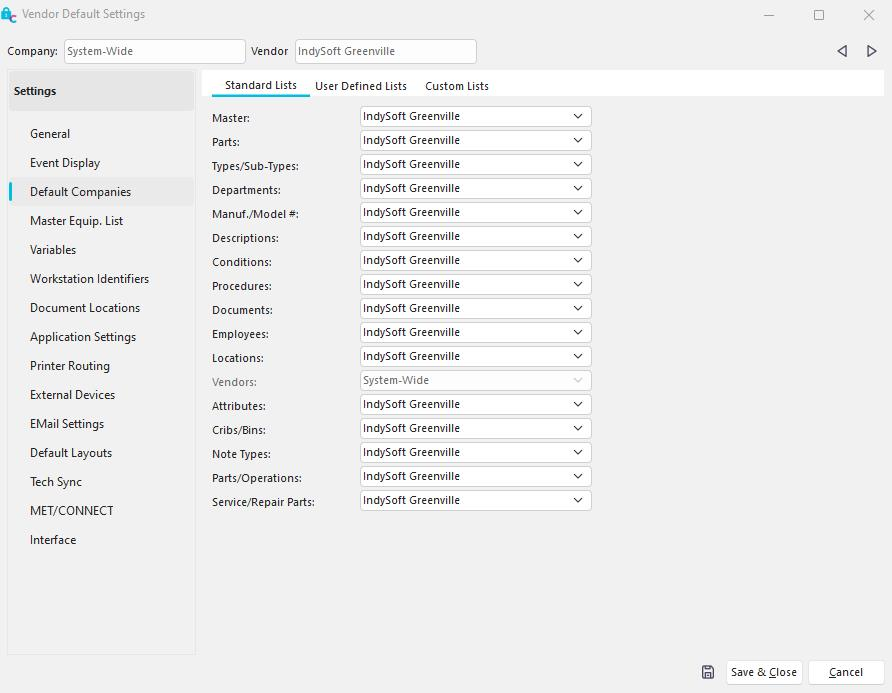
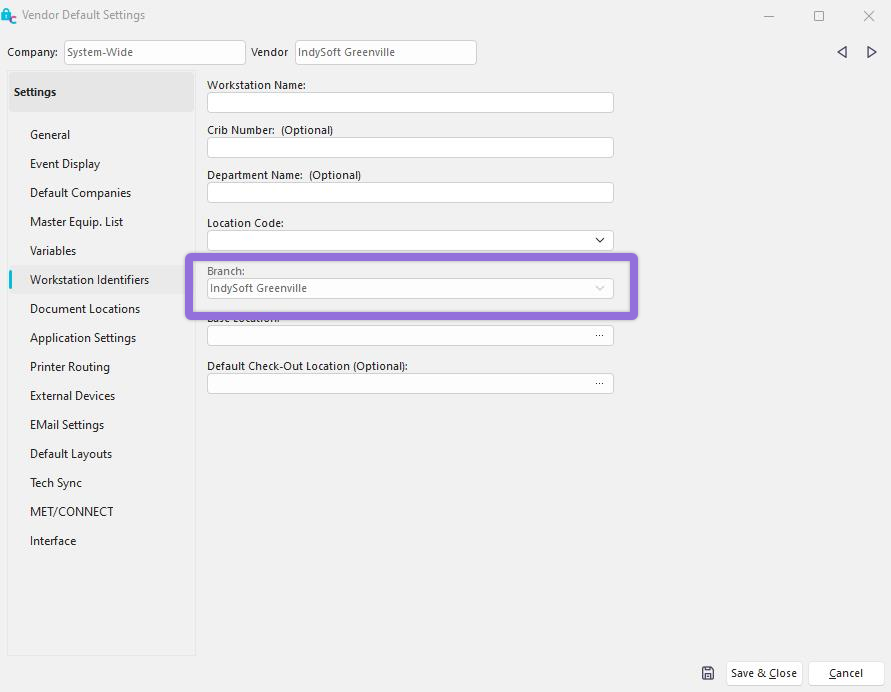
Note: In this mode, the Default Vendor should always be "System-Wide" and the Workstation Identifier or "Branch" for any Vendor/Branch Location should be the Vendor's directly associated Branch.
2. Creating or Editing a User
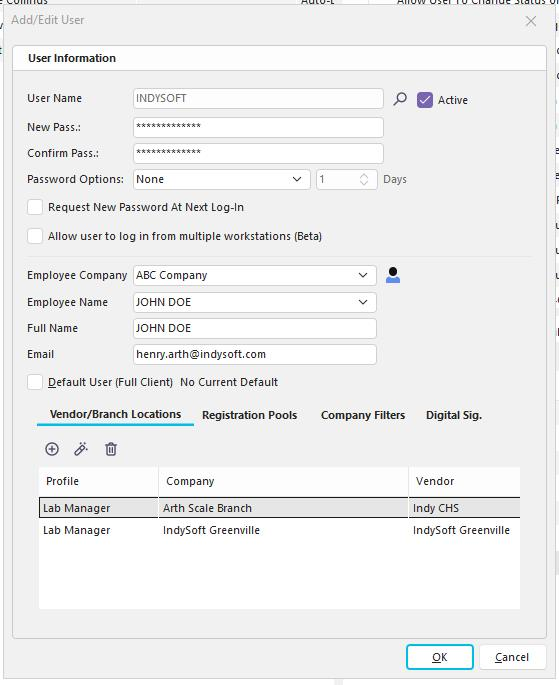
When creating or editing a user, you will notice a new Option for Vendor/Branch Locations. Associating Vendor/Branches and Profiles to Users should be done here when a System Administrator wants to grant elevated Profiles and privileges to Other Users for those specific Scenarios. This option only appears AFTER enabling the Vendor/Branch Location Administrative Management option. This is a more granular and specific association and allows any Branch Administrator Profile to be associated with a User.
After the user has an association of any kind to a Vendor/Branch, that user will automatically have access to that Vendor/Branch Location in their User/Location Drop Down List. This Name will appear as the related System-Wide Vendor Name. These particular options will be indicated with a globe icon and cannot be edited unless in Profile Manager. Any other legacy user/location settings (except for "DEFAULT") will still be shown but will be indicated by a person icon. These settings can be edited by the user, but new options cannot be created. Legacy User/Location Settings which are not "DEFAULT" can be removed or managed from a new option to "Manage User Locations" in Profile Manager.
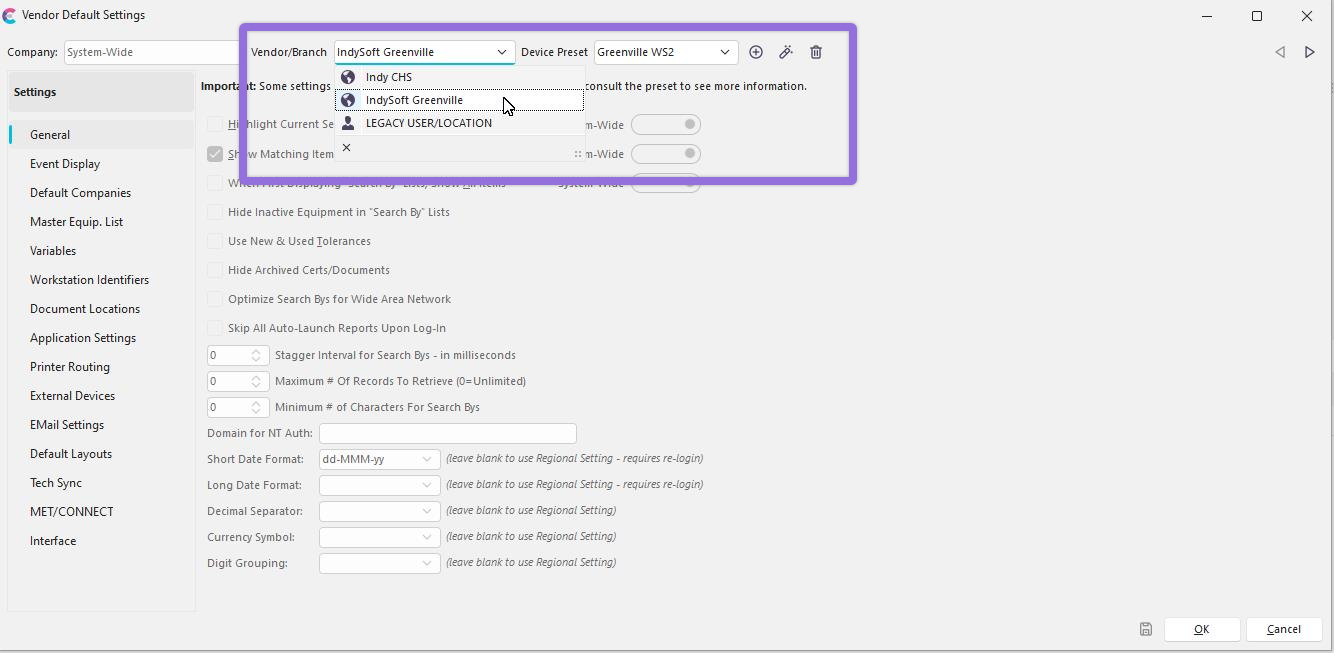
The Device Preset option and drop down will only appear if the user has selected one of the Vendor/Branch Locations for their preferences. Information on Device Presets can be seen under the User/Location Preference Help Section.