Searching for Company & ID through Single Barcode
Using a Barcode to Search on Company & ID
It is possible to search for a specific Company and I.D. through a single text search. Typically this would be helpful/necessary if you use a barcode or 2D code to quickly locate an asset (that might not necessarily belong to the company currently selected on the Equipment View on the main screen). Delimit the company and I.D. with a single ~ character to accomplish this combo search. For instance, if you wanted to search for the 'ABC123' asset in the 'ABC COMPANY', then your search text would be:
ABC COMPANY~ABC123
This combo-type search can be done from any barcode or 2D code read from the Equipment View on the main screen. Note: since any barcode read simply uses keyboard wedge functionality to accomplish the search, the same combo search can be performed by simply manually typing the above characters, including the ~ delimiter. As soon as any character is typed on the Equipment View, the search is accomplished through the 'Search By I.D.' dialog. You will note that this dialog responds to the ~ character by reading to the left, if the characters to the left of the ~ correspond to a valid company in the system (and the user logged in has the security rights to view this company) then the characters are cleared and this company is selected as the 'current' company for the search.
These same combo searches can be performed from the barcode reads on the 'Choose Equipment' dialog in the event system.
Note: IndySoft provides an easy way to display the Company and I.D. fields with the ~ delimiter in any PrintBuilder template that displays equipment information. Simply look for the 'Equip. Single I.D.' field under the Events pipeline and display it through a barcode type component:
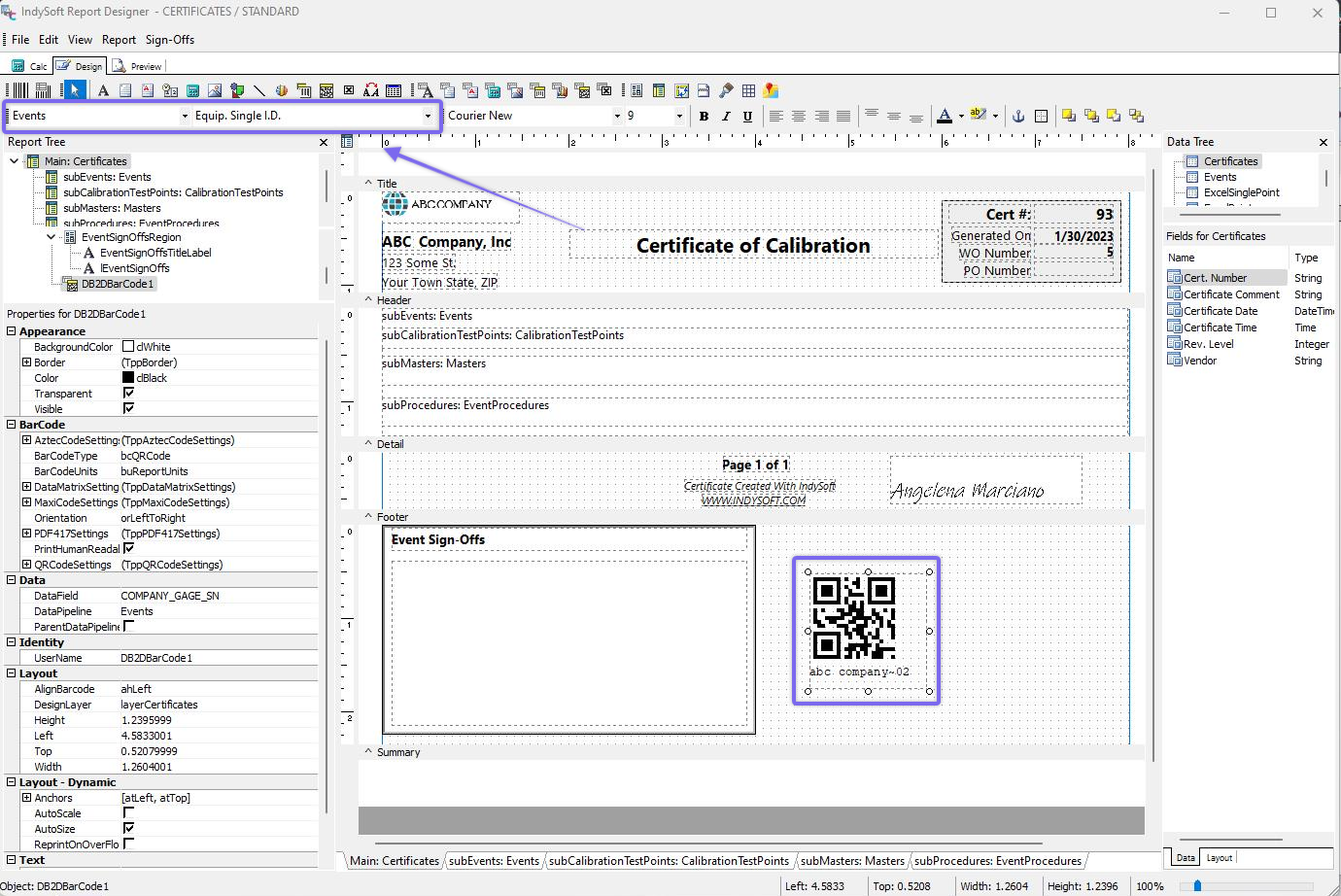
Example - PrintBuilder Event Reports - Equip. Single I.D. Field |