Add/Edit...System-Wide...Charge Types/Service Levels
Add/Edit Charge Types/Service Levels
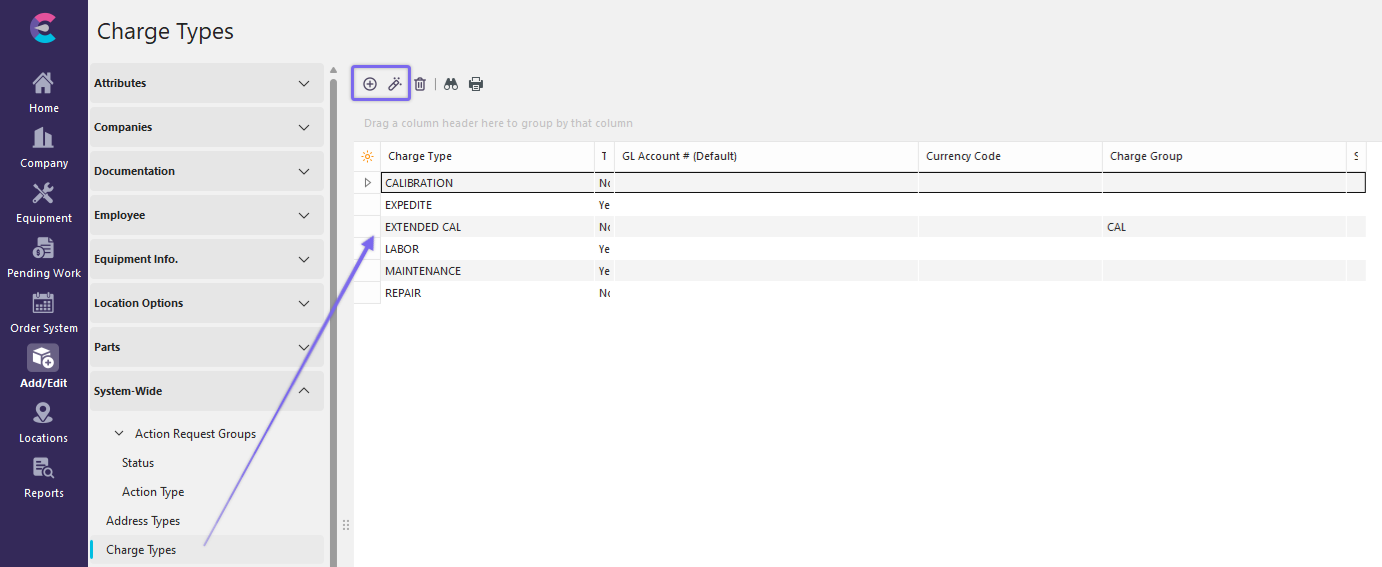
Charge Types can be populated with your company's specific terms and nomenclature in the Charges dialog/tab. To populate the Charge Types List in Dashboard View, navigate to the Add/Edit tab in the left panel and select System Wide --> Charge Types from the drop-down menu.
 ../Storage/indysoft-help-publication/hm_clip3126.png
System-Wide Add/Edit Charge Types/Service Levels
Click  'New Item' to add a new Charge Type or
  to 'View/Edit Item.'
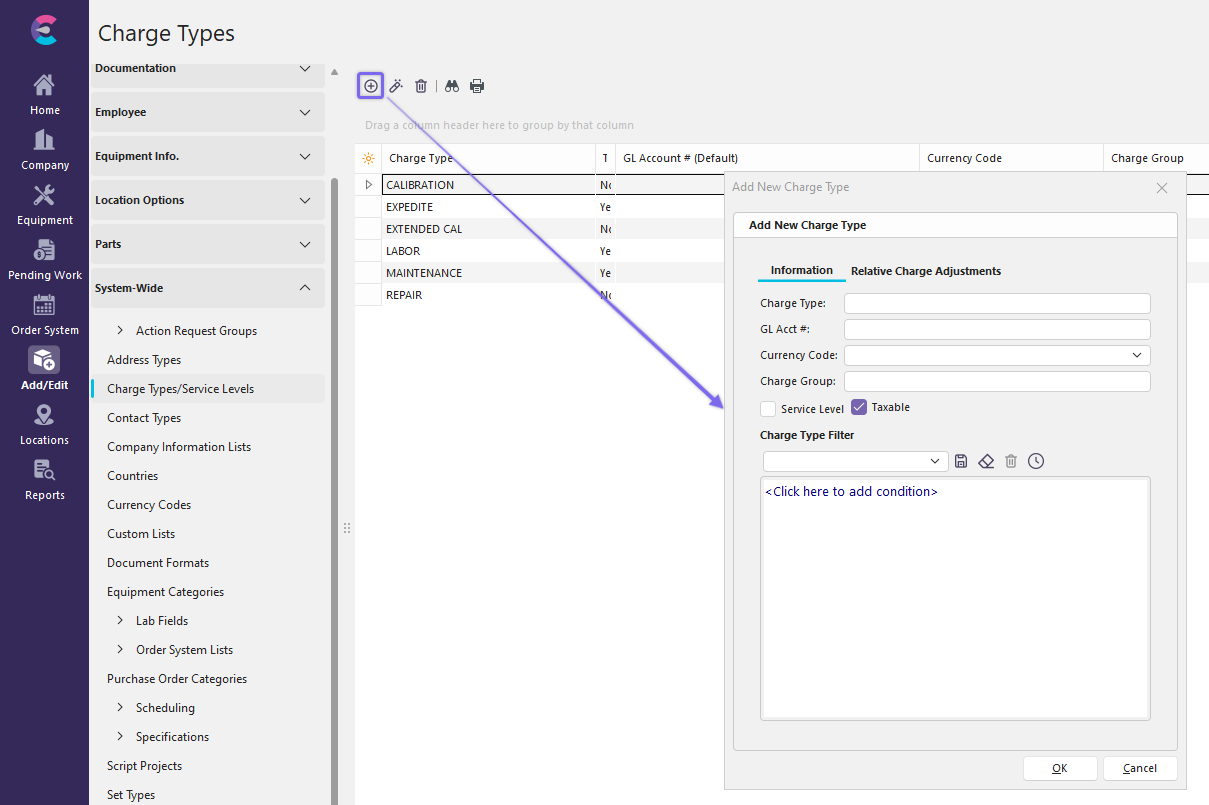
Add New Charge Type
Charge Type
Type in the specific term or nomenclature
GL Acct#
General Ledger account number (if applicable)
Currency Code
As of version 14.1, this field is slated to be deprecated from functionality as Currency Codes will NOT be driven by the Charge Type or Service Level.
Charge Group
This is another field which can be used to designate charges into groups. This can be used for Service Level and Non-Service Level Charges.
Taxable
Check box if Charge Type is taxable
Service Level
If Service Level is Checked, then this charge type can be selected as a Service Level in the dedicated Equipment (14.1) and Order System (14.2) Service Level Fields.
Service Group
If Service Level is Checked, then the user can designate that service level under a Service Group. The Service Group is intended for use in the Taxonomy Tree Batch Creation Options. Service Groups can be created under Add/Edit... System-Wide...Service Groups.
 Productivity Tip
The Add/Edit Charge Types and Charges dialog boxes can be filtered and customized in many ways. See General Interface for more information.
Buttons and Icons are detailed here.Using System Wide Charge Types - Dashboard
In the Equipment View tab, Click  on the Details menu.
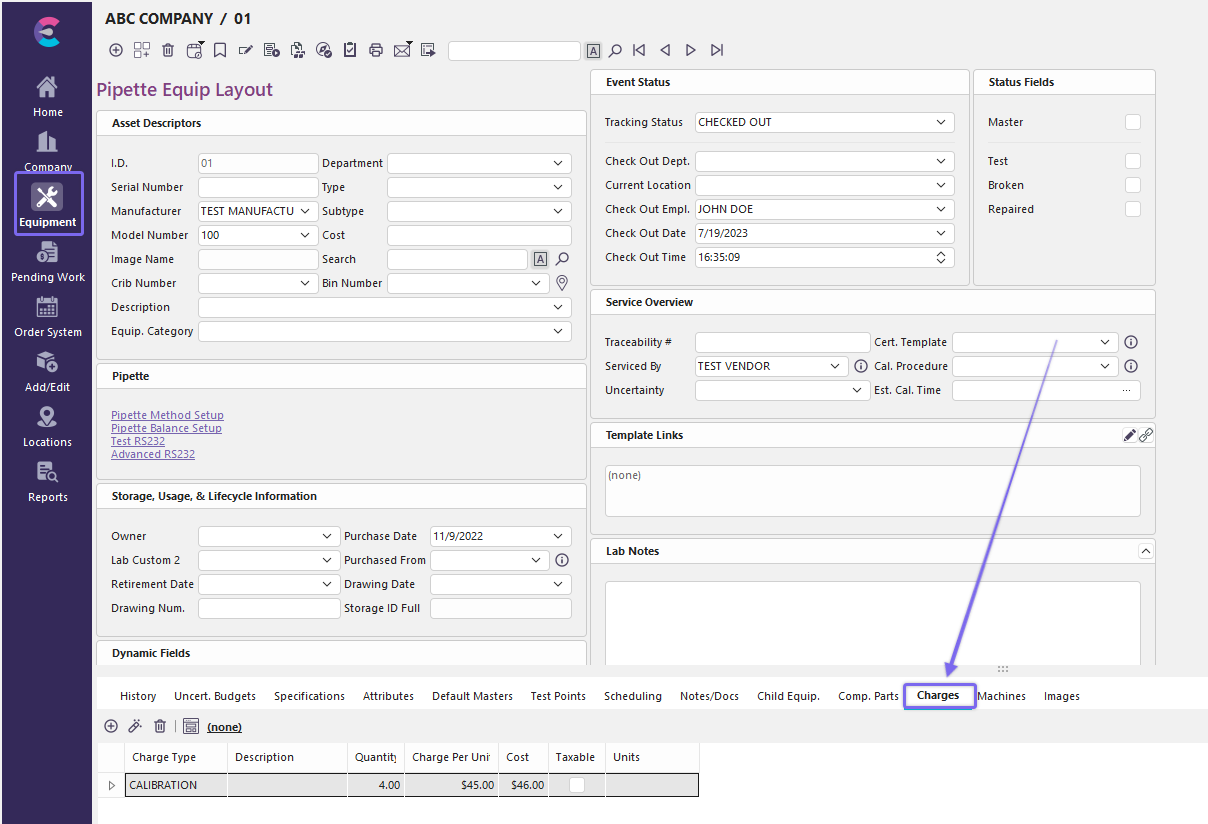
Equipment View - Details Menu
 ../Storage/indysoft-help-publication/hm_clip3128.png
Dashboard - Equipment View - Charges
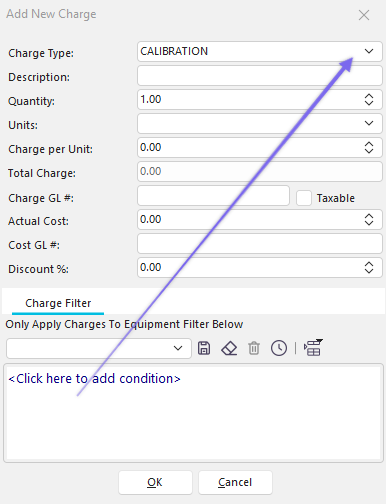
Click 'New Item' to add a new Charge Type from the List or to 'View/Edit Item.'
 ../Storage/indysoft-help-publication/hm_clip3130.png
Add New Charge with Drop Down Charge Type List
Fill out the applicable fields in the 'Add New Charge' Dialog. Click 'OK' to finish. Note: The 'Units' drop-down menu is populated via the Units of Measure list. The information you added will transfer to the Equipment View Charges window. Use the scroll bar to view all of the fields. Supporting Documents can also be added or viewed in the adjacent window. |