Event Steps - Sign Offs
Using Sign-Off Procedures During an Event
The 'Sign Offs' event step appears if the 'Sign Off' event step has been selected for the current event type through the Event Configuration Wizard - Event steps.
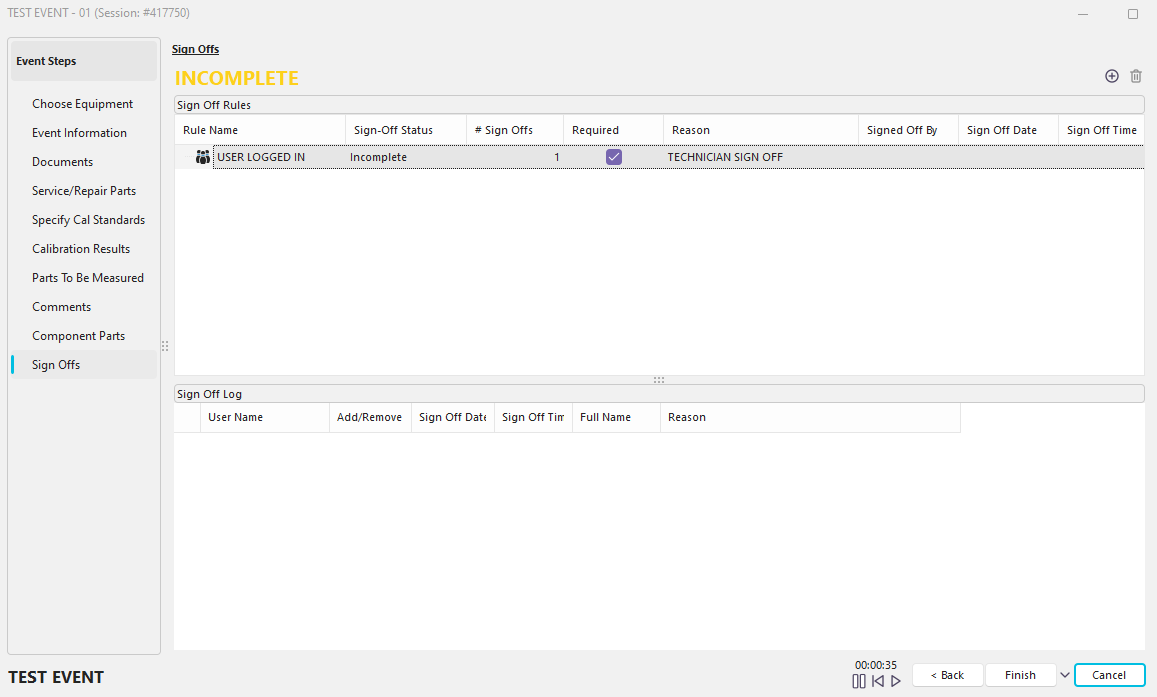
Event Steps - Sign Off's
This event step can allow extensive control over when an event is finally marked as 'COMPLETE.' When this event step is used, the Sign Off step has complete control over whether an event is marked as 'COMPLETE' or 'INCOMPLETE.' The Work Flow Configuration Wizard - Sign-Off Rules can specify various sign-off rules per event type. All sign-off rules are in text format at the bottom of the event step, in the gray box. Sign Off rules are grouped into several categories:
User Logged In Must Sign Off
In the Work Flow Configuration Wizard, you can require the user logged in at the event to sign off (resupply password) before the event is completed. This will ensure that the same person starts and finishes a particular event. If the sign-off has not yet occurred, then it is underlined.
Required Signatures
All sign-offs that are listed as being required are noted here. If the sign-off has not yet occurred, then it is underlined. Sign-offs are listed separately according to the sign of the group.
Non-Required Signatures
All sign-offs that are listed as not being required are noted here. These sign-offs are only suggestions and will not keep the event from being marked as 'COMPLETE.' If the sign-off has not yet occurred, then it is underlined. Sign-offs are listed separately according to the sign of the group.
Above the Sign Off-grid, two buttons are available:
Add Sign Off (Insert)
 This button will add a sign-off to the sign-off-grid (sign-off will be marked as an 'Add' type). An electronic signature dialog will be displayed, as shown below:

Electronic Signature Required
If the user name and password combination are correct, this sign-off will be added for the event, and the Sign Off Note will be saved with the sign-off. To remove this sign-off, you must again provide the correct username and password combination. All sign-off removals are noted in the sign-off grid, so a complete audit trail is seen.
After signing off, the Sign Off section will become complete, and the sign-off credentials (and note) will show in the area above the 'Sign Off Rules,' you will then be able to complete the event.
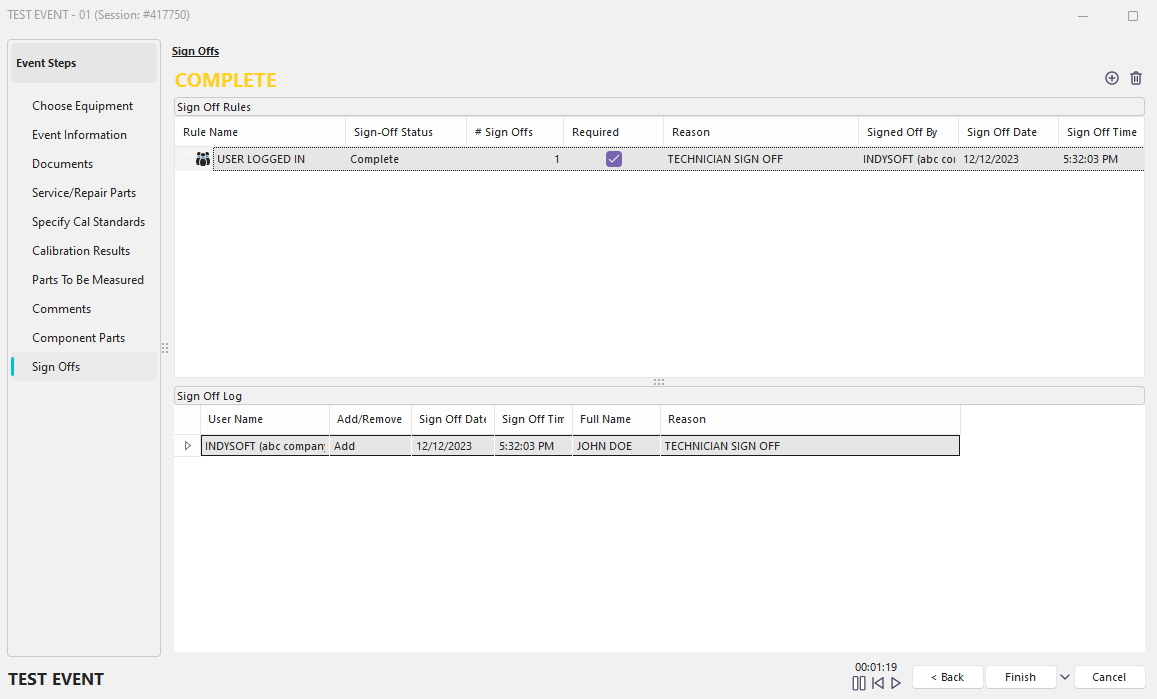
Sign Off Complete
Remove Sign Off (Delete)
 This button will delete the selected sign-off event from the Sign Offs grid upon confirmation. |