Test Points - Overview
The Test Points section of IndySoft is used for setting up calibration specifications for the currently loaded equipment. Once this information is set up, it will be used during the calibration of the gage. If this section is left blank, the calibration will prompt for a passed, failed, adjusted, limited in use, or report of value result. The 'Test Points' tab is located under your Equipment View, as shown below:
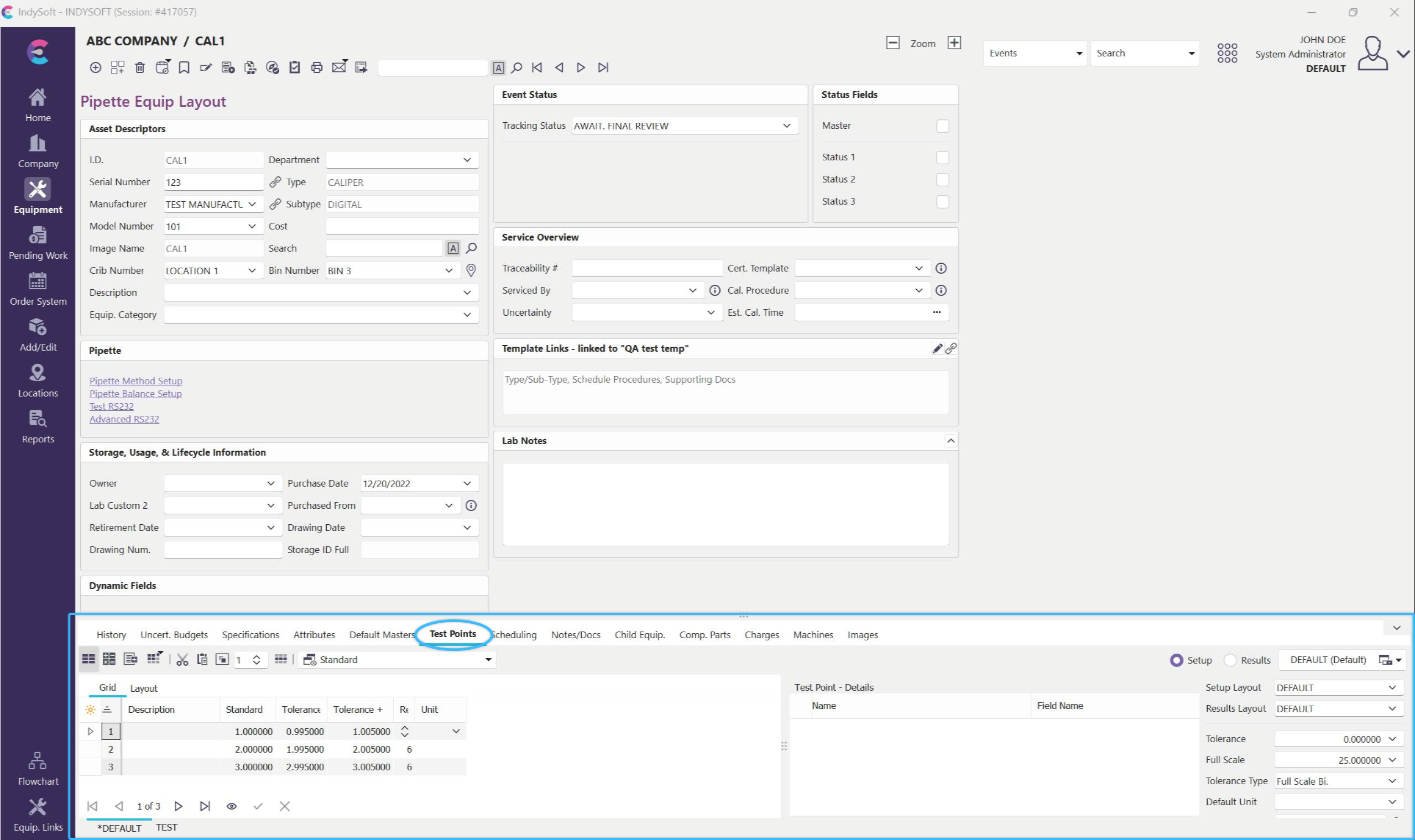
Locating the 'Test Points' tab
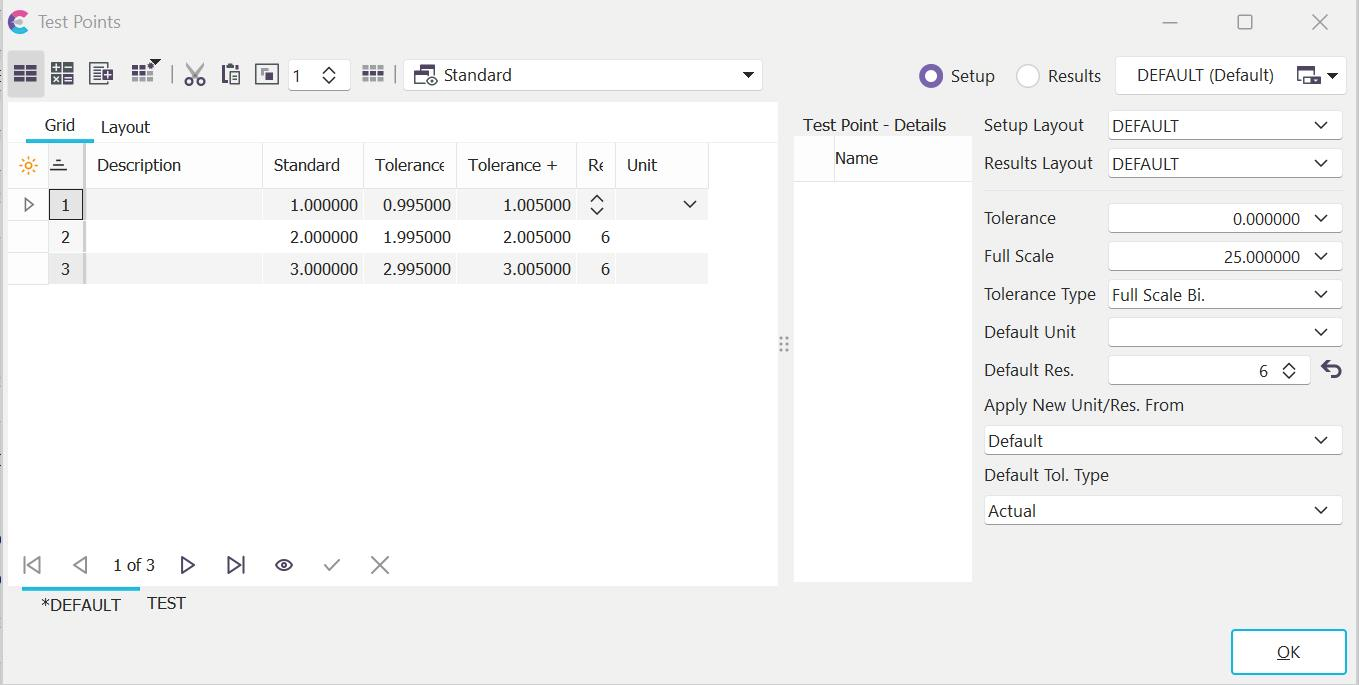
Test Points Dialog
Test Points Toolbar
The top portion of the Test Points tab consists of a toolbar for performing specific functions on the test point setup.

The Test Points Toolbar
 ToggleDefault Tolerance Info
The Default Tolerance wizard is used to specify a default tolerance, unit of measure, and resolution for the selected equipment.
 Tolerance Calculator
The Tolerance Calculator is used to calculate a calibration plus and minus tolerance for a specific test point, as opposed to the Default Tolerance, which is used on new test points (or whenever you change the Standard value).
 New Test Point Tab
The New Test Point Tab allows you to create multiple Test Point setups for each piece of Equipment. The existing test point setups are assumed Default. Once you have created the new tab and set up desired Test Points, launch a calibration event, and you will be prompted to select the desired tab.
 Calibration Setup Wizards
The Calibration Setup Wizard can auto-create calibration setups for certain types of gages. IndySoft comes standard with four modules for Pin Gages, Plug Gages, Ring Gages, and Setting Discs.
 Copy (Cut)
Choosing this option will display the following dialog. If you choose Multi-Select, the rows to cut or paste will automatically be displayed for you.
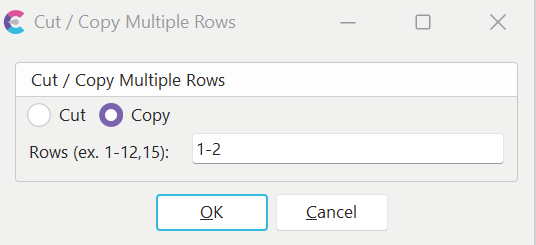
Cut / Copy Dialog
 Paste
Paste
Choosing this option will paste any test points that are in the IndySoft test point clipboard. This item is only selected when the test points are cut or copied. The test points will always be inserted before the currently selected line. To append to test points, place your cursor 1 line after the last row before pasting.
 Test Point Duplicator
The test point duplicator duplicates the currently selected test point in the grid for the number of times referenced in the spin control on the right. If several test points are similar, with only slight differences that need to be noted, this feature might save some time when inputting test points.
 Edit Multiple Rows
This option will allow you to globally edit any column by specifying the rows you wish to edit. Press this button, and the following dialog will appear.
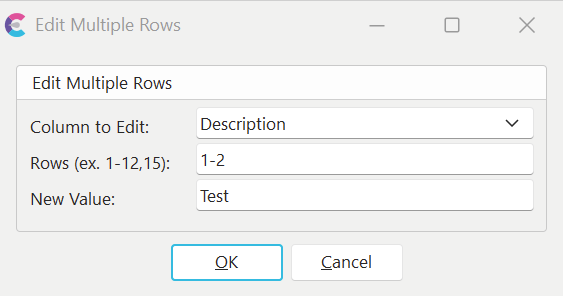
Edit Multiple Rows Dialog
Select the column you wish to edit. Next, specify the rows to modify. A simple range method can be used with # - commas can separate # or individual rows. You can also mix both methods. Last, specify the value you wish to duplicate. Press ok to edit the rows and columns specified. Note: To insert the 'standard' value into the text fields when setting multiple fields, use a #N and the multiple row editor will substitute the standard value for this symbol.
Multi-Select (Right-Mouse Click)
This option will allow you to select multiple test points simultaneously for Copying/Cutting. You can also use this feature when editing multiple rows at one time. To turn this feature on, right-mouse click in the grid and check the 'Multi-Select' option.
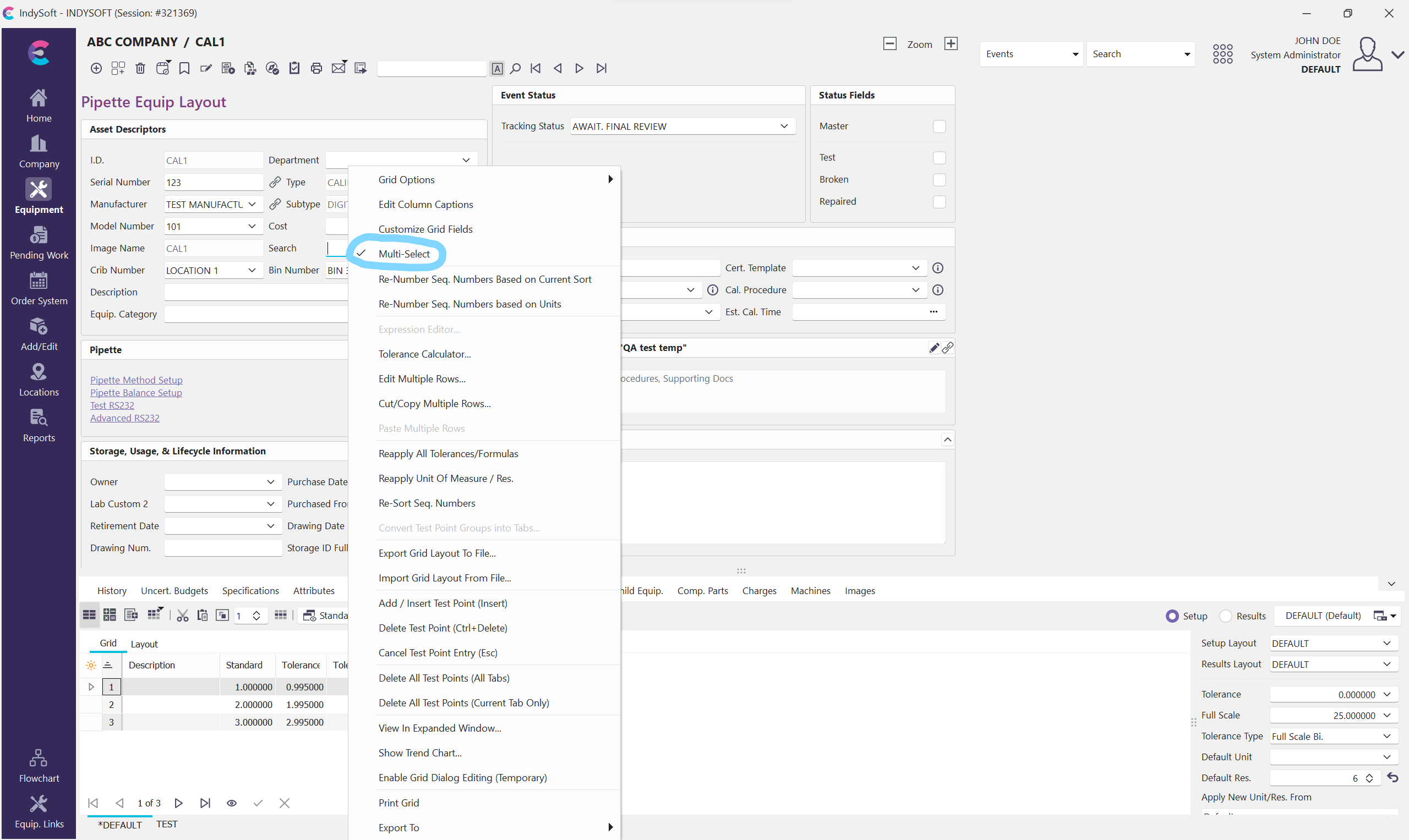
Multi-Select Option
 Test Point Type
The Test Point type drop-down button allows you to specify six types of Test Points to use when calibrating a piece of equipment in IndySoft: Standard, Excel Document, Excel Range, Excel Cells, Word Document, and VisualCal programs.
 Test Point Grid Setup
The Test Point grid setup button allows you to toggle between the setup mode for test points and what the end user will see when calibrating the equipment. It also allows you to drag/drop test point data types in/out of the grid and save different Grid Setups for each gage.
Test Point Section
The test point section of the test point tab contains an 'Excel' style grid that assists you in setting up the standard & tolerance values for each test point, along with other related data. The Test Points section records information that the user will be prompted for when performing a calibration. This data will determine if a gage passes or fails a calibration-type event. Also, the data set up beforehand and collected during the actual event can be used in the certificate of calibration created immediately after the event is completed. Many items can be recorded for each test point, the most important being Standard, Tolerance Minus (-), and Tolerance Plus (+). These values determine the limits for a pass or fail value for each test point. Below is a list of all the possible Test Point columns.
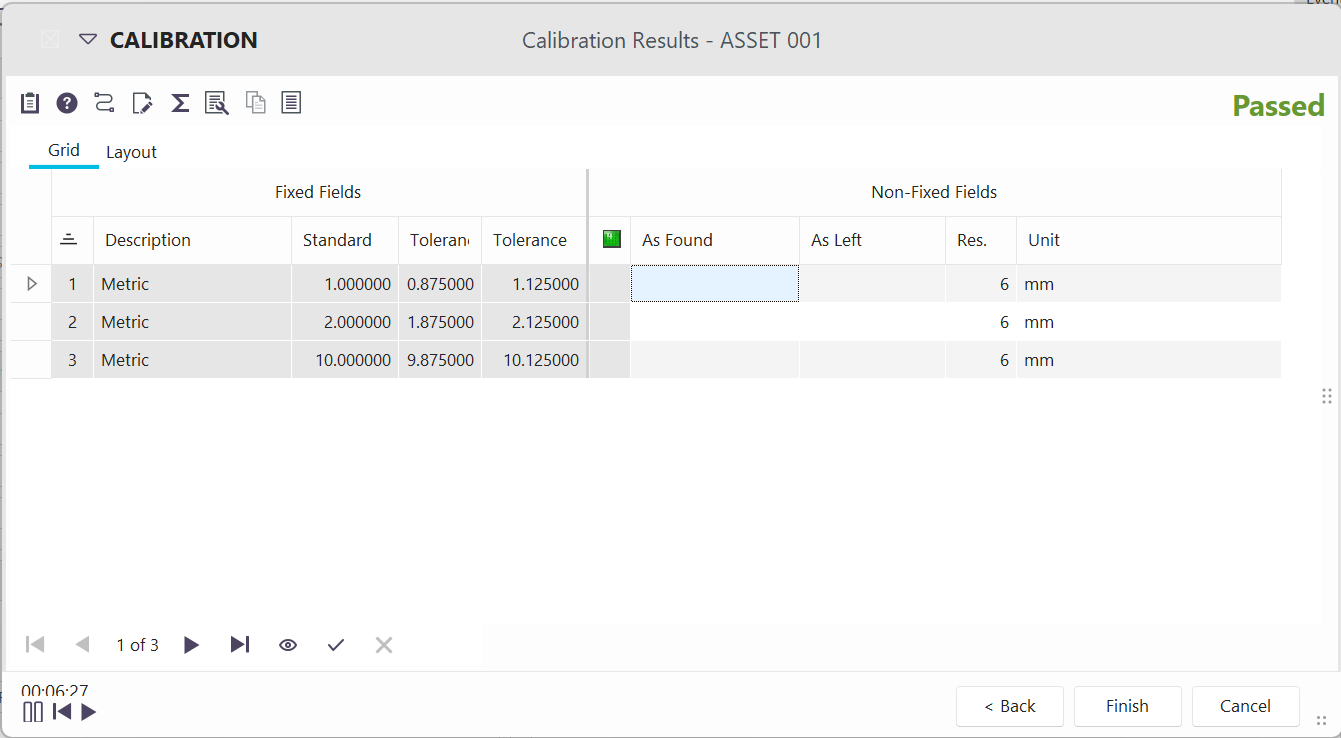
Test Points Section As It Will Display During Events
Sequence #
This column is used to specify the order of the test points.
Description
Description is used to describe what is being measured. Usually, this is representative of the standard size or the characteristic that is being measured.
Standard
This contains the Standard or Mean value for the test point.
Tolerance -
Tolerance Minus describes the lower 'acceptable' value for the test point. Anything below the Tolerance Minus value will be considered as failing the calibration test point.
Tolerance +
Tolerance Plus describes the higher 'acceptable' value for the test point. Anything higher than the Tolerance Plus value will be considered as failing the calibration test point.
Resolution
This field stores the resolution to display for each test point, resolution meaning the # of digits to the right of the decimal point. Resolution defaults to the resolution set in the Default Tolerances dialog.
Result Resolution
This field stores the result resolution to display for each test point, resolution meaning the # of digits to the right of the decimal point. Resolution defaults to the resolution set in the Default Tolerances dialog. Note: For backward compatibility, this field only acknowledges result resolutions greater than zero; otherwise, the Resolution field controls the resolution of the calibration result.
Unit of Measure
This field is used to store the unit of measure used for each test point. Unit of Measure defaults to the unit set in the Default Tolerances dialog.
Accuracy
Accuracy can be used to describe the accuracy of each test point.
Adjusted
This column is a checkbox that can be used during a calibration to 'manually' specify that a test point has been adjusted. Note that the test point must first have 'failed' the test point to mark it as adjusted. This field is only used during the calibration event and should only be added to the grid when the 'Calibration Results Grid' is displayed. See Customize Fields for more information.
As Found
As Found is used to specify the result for a test point before it is adjusted. (Note, not all equipment will need to be adjusted. Typically, equipment is only adjusted if one of the test points is found to be out of tolerance.) This field is only used during the calibration event and should only be added to the grid when the 'Calibration Results Grid' is being displayed. See Customize Fields for more information.
Final
The Final value is used to specify a result for a test point after the equipment has been adjusted. (Note, not all equipment will need to be adjusted. Typically, equipment is only adjusted if one of the test points is found to be out of tolerance)
As Found (Text)
As Found (Text) is used to specify the result for a test point before it is adjusted. It serves the same purpose as the As Found field, except text-based characters can also be added into this field. After entering data in this field, all text characters are stripped, and the remaining number will automatically be moved to the As Found column. (Note, not all equipment will need to be adjusted. Typically, equipment is only adjusted if one of the test points is found to be out of tolerance.)
As Left (Text)
As Left (Text) is used to specify the result for a test point after the equipment is adjusted. It serves the same purpose as the Final field, except text-based characters can also be added to this field. All text characters are stripped after entering data in this field, and the remaining number will automatically be moved to the Final column. (Note, not all equipment will need to be adjusted. Typically, equipment is only adjusted if one of the test points is found to be out of tolerance.)
As Found Temp
As Found Temp is used to specify the temperature for the As Found value.
As Found Temp Type
As Found Temp Type is where you can select Fahrenheit or Celsius.
As Found RH
As Found RH is used to specify the relative humidity.
As Found Pressure
As Found pressure is used to specify the As Found Pressure.
As Found Pressure Type
As Found Pressure Type is used to specify the Pressure used for the As Found value.
As Left Temp
As Left is used to specify the As Left Temperature.
As Left Temp Type
As Left Temp Type is where you can select Fahrenheit or Celsius.
As Left RH
As Found RH is used to specify the relative humidity.
As Left Pressure
As Left pressure is used to specify the As Left Pressure.
As Left Pressure Type
As Left Pressure Type is used to specify the Pressure used for the As Found value.
As Found Num 1-5
As Found Num 1-5 are used as custom number fields.
As Left Num 1-5
As Left Num 1-5 are used as custom number fields.
As Found Text 1-3
As Found Text 1-3 are used as a custom text fields.
As Left Text 1-3
As Left Text 1-3 are used as custom text fields.
As Found Modified By
As Found Modified By will show the last individual to modify the As Found field.
As Left Modified By
As Left Modified By will show the last individual to modify the As Left field.
As Found Last Modified Date
As Found Last Modified Date will show the date last modified.
As Left Last Modified Date
As Left Last Modified Date will show the date last modified.
As Found TUR
As Found TUR is the Test Uncertainty Ratio for the As Found.
As Left TUR
As Left TUR is the Test Uncertainty Ratio for the As Left.
As Found TUR Formula
As Found TUR Formula is the Test Uncertainty Ratio Formula used to calculate the As Found.
As Left TUR Formula
As Left TUR Formula is the Test Uncertainty Ratio Formula used to calculate the As Left.
Standard As Left
Standard As Left is used to specify the As Left Standard.
Tolerance - As Left
Tolerance - As Left is used to set up the As Left Tolerance.
Tolerance+ As Left
Tolerance+ As Left is used to set up the As Left Tolerance
As Found Guardband -
As Found Guardband - is a technique to protect against pass or fail decisions and performing adjustments. As Found Guardband- is placed around each specification limit with a width equal to some fraction of the actual measurement uncertainty.
As Found Guardband +
As Found Guardband + is a technique to protect against pass or fail decisions and performing adjustments. As Found Guardband+ is placed around each specification limit with a width equal to some fraction of the actual measurement uncertainty.
As Left Guardband -
As Found Guardband - is a technique to protect against pass or fail decisions and performing adjustments. As Left Guardband- is placed around each specification limit with a width equal to some fraction of the actual measurement uncertainty.
As Left Guardband +
As Found Guardband - is a technique to protect against pass or fail decisions and performing adjustments. As Left Guardband+ is placed around each specification limit with a width equal to some fraction of the actual measurement uncertainty.
Guardband Formula -
Guardband Formula - is used to specify the formula for your guardband.
Guardband Formula +
Guardband Formula + is used to specify the formula for your guardband.
Frequency
Frequency is used to set up the Frequency for your Test points.
Frequency UOM
Frequency UOM is the Frequency Unit Of Measure.
Frequency (Text)
Frequency (Text) is a Text representation of the Frequency/UOM text fields.
Cal Type
Cal Type is the storage area for Calibration Tabs. This is how you can have multiple Test point setups.
Tolerance Type
Tolerance Type is a way to have a default Tolerance per line.
Tolerance Type Value
Tolerance Type Value works with Tolerance Type to set up the default Tolerance per line.
Tolerance Type Value 2
Tolerance Type Value 2 is a bonus field used with Tolerance Type.
Tolerance Type Full Scale
Tolerance Type Full Scale is how you set your Tolerance Type for Full Scale.
Error Adjustment
This field can be used to automatically add/subtract the error from an As Found/As Left result (note: the initial data without any error adjustment applied can be found in the As Found/As Left Entered Value fields)
As Found Entered Value
As Found Entered Value is what you actually keyed into the field before the Error Adjustment.
As Left Entered Value
As Left Entered Value is what you actually keyed into the field before the Error Adjustment.
Total Seconds
Total Seconds will be the number of seconds you were on a test point.
Attribute 1
This field can be used to specify text-based data and the standard As Found/Final (aka As Left) readings. For example, if you were calibrating a gage block, and the gage block being measured was rusty, you could place 'Rusted' in this field.
Attribute 2
This field can be used to specify text-based data and the standard As Found/Final (aka As Left) readings. For example, if you were calibrating a gage block, and the gage block being measured was rusty, you could place 'Rusted' in this field.
Custom 1
Custom 1 can specify additional information about a test point line. For example, if you wanted to specify the Full-Scale value per line item, you could use this field for storing that information. See Customize Fields for information on customizing the text for columns. If you want to require that a user enter a value for this line in the test points, place the word 'REQUIRED' in this field (or Custom 2 field)
Custom 2
Custom 2 can specify additional information about a test point line. For example, if you wanted to specify the Full-Scale value per line item, you could use this field for storing that information. See Customize Fields for information on customizing the text for columns. If you want to require that a user enter a value for this line in the test points, place the word 'REQUIRED' in this field (or Custom 1 field)
Custom 3
Custom 3 can specify additional information about a test point line. For example, if you wanted to specify the Full-Scale value per line item, you could use this field for storing that information. See Customize Fields for information on customizing the text for columns.
Custom 4
Custom 4 can be used to specify additional information about a test point line. For example, if you wanted to specify the Full-Scale value per line item, you could use this field for storing that information. See Customize Fields for information on customizing the text for columns.
Visual Insp.
This field is a 50-character field that can be used to record visual inspection data during a calibration. The new Observation Text field is 100 characters and is the best way post version 12 to record inspection data.
Extra Number 1 - 5
Extra Number 1 - 5 can be used to specify additional numeric information for a test point line. For example, if you wanted to specify the numeric-based Full-Scale value per line item, you could use this field for storing that information. See Customize Fields for information on customizing the text for columns.
Failed
This column is a checkbox that can be used during a calibration to 'manually' specify that a test point has failed. This field is only used during the calibration event and should only be added to the grid when the 'Calibration Results Grid' is being displayed. See Customize Fields for more information.
Formula
The formula column can be used to perform calculations on the As Found/Final values after they are input during the calibration. For example, this can be used when recording results as a 'comparative measurement,' such as gage blocks. You could use a formula of R+S, and this would take the result that is entered and automatically add it to the standard value, calculating an actual 'As Found' value that will be used. If you wanted to subtract or add an error of -.00003 in the master gage block, you could use a formula of R + S - .0003.
Group
Group can be used to specify additional information about a test point line. See Customize Fields for information on customizing the text for columns. Note: As of IndySoft 2004 Enterprise, this field can play a new role. You can use this field to group your test points into sections. You can then configure an event type in Workflow Configuration to pick up only those specified test points or use a unique 'User Select' option to let the user pick which test points to use. See the Workflow Configuration screen for more information.
Individual Serial Number
This field is explicitly used for Gage Block sets where each gage block is individually serialized. Simply record the serial number for each gage block here.
Limited In Use
This column is a checkbox that can be used during a calibration to 'manually' specify that a failed test point only limits the use of the gage but does not entirely prevent the equipment from being used. This field is only used during the calibration event and should only be added to the grid when the 'Calibration Results Grid' is being displayed. See Customize Fields for more information.
Line Standard Formula
The formula column can be used to perform calculations on Standard values. This field can be used during the calibration test point setup grid or with the 'Calibration Results Grid.' For example, this can be used whenever you have a standard value that changes based on other information.
Master Type 1-5
Master Type - 1 of 5 Equipment Categories Used in the test point/uncertainty calculations
Report of Value (ROV)
This column is a checkbox that can be used during a calibration to 'manually' specify that a test point is only a report of value and not a determination of a calibration's pass or fail result. This field is only used during the calibration event and should only be added to the grid when the 'Calibration Results Grid' is being displayed. See Customize Fields for more information.
Space After
This column is a checkbox that can be used to break up sections when appearing on a certificate of calibration.
Tol. Type
This field is one of 2 options, either Relative or Actual. By default, Actual is always selected. Actual states that actual values should be used when specifying tolerance plus and tolerance minus. Relative states that you should enter the plus and minus tolerance by its relative value. Tolerance Minus will be subtracted from the standard value. Tolerance Plus will be added to the standard value. To default to Relative tolerancing, check the 'Use Relative Tolerancing as Default' menu item when right-mouse-clicking on the Calibration Test Points Grid.
Tolerance - Formula
The Tolerance Minus formula column can be used to perform calculations on the Tolerance Minus value. This field can be used during the calibration test point setup grid or with the calibration result grid. For example, this can be used whenever you have a Tolerance Minus value that changes based on other information.
Tolerance + Formula
The Tolerance Plus formula column can be used to perform calculations on the Tolerance Plus value. This field can be used during the calibration test point setup grid or with the calibration result grid. For example, this can be used whenever you have a Tolerance Plus value that changes based on other information.
Uncertainty As Found
Uncertainty can be used to describe the accuracy of each test point. This field notes the Uncertainty specifically for 'As Found'. Note there is an 'Uncertainty As Left' field that can be used for noting the calculated (or manually input) uncertainty for As Left. Note: in versions before IndySoft 10x, only one field was labeled 'Uncertainty.' This is the same field in the database structure - but now labeled more specifically as 'Uncertainty As Found.'
Uncertainty As Left
Uncertainty can be used to describe the accuracy of each test point. This field notes the Uncertainty specifically for 'As Left.' Note there is an 'Uncertainty As Found' field that can be used for noting the calculated (or manually input) uncertainty for As Found.
Used Tol - Formula
The Used Tolerance Minus formula column can be used to perform calculations on the Used Tolerance Minus value. This field can be used during the calibration test point setup grid or with the calibration result grid. For example, this can be used whenever you have a Tolerance Minus value that changes based on other information.
Used Tol + Formula
The Used Tolerance Plus formula column can be used to perform calculations on the Used Tolerance Plus value. This field can be used during the calibration test point setup grid or with the calibration result grid. For example, this can be used whenever you have a Tolerance Plus value that changes based on other information.
Used Tolerance -
Used Tolerance Minus describes the lower 'acceptable' value for the test point. Anything below the Used Tolerance Minus value will be considered as failing the calibration test point.
This tolerance is only used for non-new equipment.
Used Tolerance +
Used Tolerance Plus describes the higher 'acceptable' value for the test point. Anything higher than the Used Tolerance Plus value will be considered as failing the calibration test point. This tolerance is only used for non-new equipment.
Wizard Step
This option can be used when linking a calibration test point to a specific location in a help file or PDF document. Using this feature will auto-synchronize the help file / PDF document depending on the test point that is currently selected.
Uncert. Budget Company / Uncert. Budget Name
These two fields can be used for specifying and/or logging the Uncertainty Budget relevant to this test point. Budget Names are selected from budgets created for that selected 'Uncert. Budget Company' in the Uncertainty Module. See the 'Associating Uncertainty Budgets With Test Points' section in Uncert. Budgets topic for more details.
Fixed Offset +
The Fixed Offset + field is used in the advanced Test Point calculation dialog.
Fixed Offset -
The Fixed Offset - field is used in the advanced Test Point calculation dialog.
% or PPM Reading -
A checkbox indicating if % or PPM Reading - this field is used in the advanced Test Point calculation dialog.
Reading MP -
The Reading MP - this field is used in the advanced Test Point calculation dialog.
% or PPM Range -
A checkbox indicating if % or PPM Range - this field is used in the advanced Test Point calculation dialog.
Range MP -
The Range MP - this field is used in the advanced Test Point calculation dialog.
Span -Low -
The Low Span value - this field is used in the advanced Test Point calculation dialog.
Span - High -
The High Span value - this field is used in the advanced Test Point calculation dialog.
% or PPM Span -
A checkbox indicating if % or PPM Span is used - this field is used in the advanced Test Point calculation dialog.
Span MP -
The Span MP value - this field is used in the advanced Test Point calculation dialog.
Use Guard-banding -
If checked, then this test point uses Guard-banding.
Guard-banding Type -
If Guard-banding is being used, specifies the type of guard-banding to use.
Observation Only -
If checked, then this test point is only used to record visible results
Observation Text -
If Observation Only is checked, this field specifies the visible results during the calibration. |