Simple Setup
Simple Setup
Generally, when setting up WebTier on-premise, we recommend enabling and using Web Credentials within the WebTier Admin Tool. In the default setup, we create a local Windows user (named 'indyclouduser') and associate this Windows user to a linked Web Credential (also named 'indyclouduser') which is then automatically used to launch into the session. The IndySoft login screen is first displayed on entry.
WebTier Simple Setup allows for:
- Upon hitting the site, the IndySoft application is automatically loaded and launched
- Stored Web Credential to automatically launch into the RDP without password/credential entry from the user
- No application portal used, first display on the screen is the IndySoft loading screen to the login dialog
- Users only have access to the IndySoft application - no other programs
Setup Web Credential
Follow the instructions below on creating and mapping a Windows user to a web credential in WebTier Admin Tool
- Create a local Windows user named 'indyclouduser'
- Map Windows User to Web Credential in Admin Tool
- Assign Web Credential to IndySoft Application
- Save and reboot services
1. Create a Local Windows User Account
First, we want to create a non-admin Windows user that will be used to login to the IndySoft client application – We will map this user to a web credential in the admin tool
- Go to the Windows Control Panel and select User Accounts → Manage Another Account → Add A User Account
- Make sure this account is a Local Account only and not an Administrator account
- By default, we name this local user ‘indyclouduser’
- Different Windows OS offer different ways of adding users, here is a helpful guide
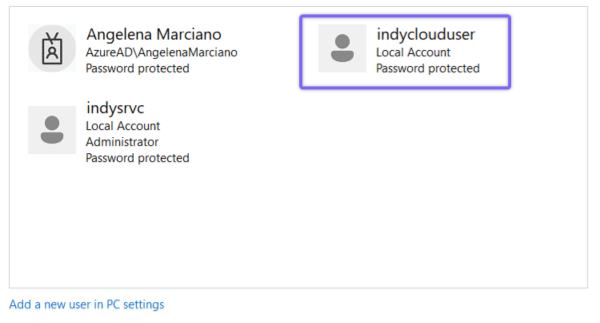
Example of indyclouduser local Windows account
2. Add web credential
Next, we will map the Windows user to a designated Web Credential in the Admin Tool. This Web Credential will always be used to start the RDP session, bypassing the need for Windows user credential entry and bringing users directly to the IndySoft login screen.
- Select the ‘Web’ tab → Web Credentials
- Click on 'Add a new Web Credential'
- The ‘Web Login’ will be "indyclouduser", leave the ‘Web Password’ empty
- Input the local Windows user account created in the previous step as the ‘Windows Login’
- Leave ‘Max num of concurrent sessions’ blank (unlimited) and Save
- Once saved, check the following radio buttons under “Web Access Page”
- Enable Web Credentials
- Allow Empty Password
- Mask Username field
- Once you see the indyclouduser populated into the grid, click “Save” in the bottom right-hand corner
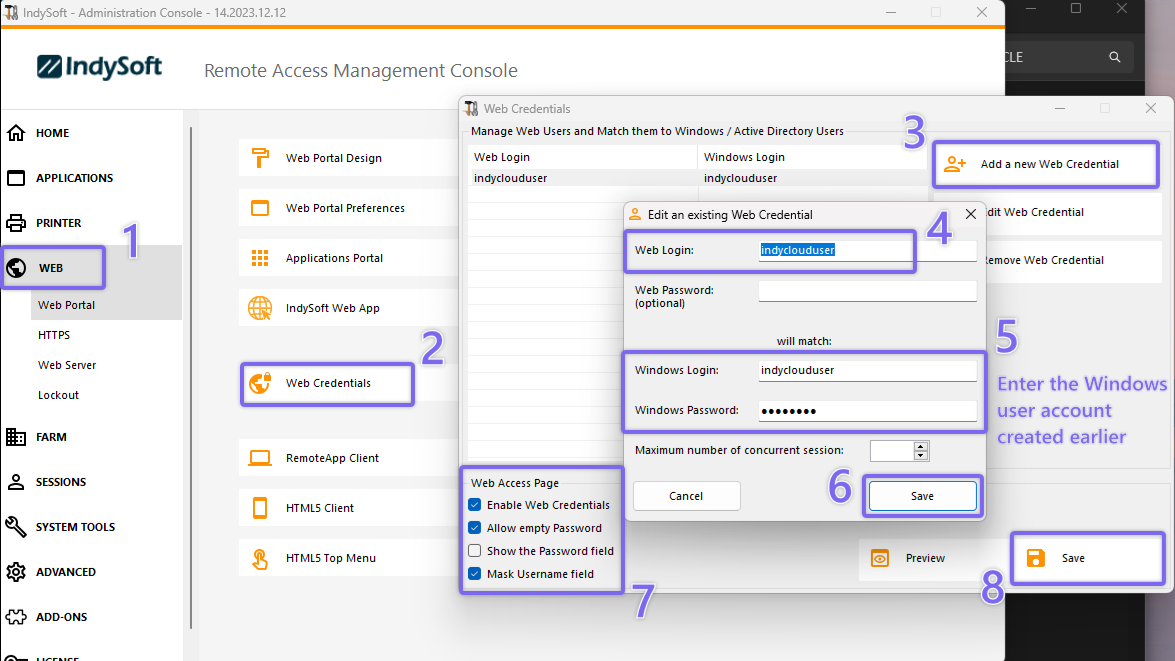
Admin Tool - Add New Web Credential
3. Map User to Application
- Navigate to the ‘Applications’ tab
- Under published applications, highlight the IndySoft app icon
- If no IndySoft icon is listed, add a new application and link to C:\Program Files\IndySoft\isdashboard.exe
- Select the ‘Assign Application’ button
- Ensure the radio button for 'specified users/groups only' is selected
- Add the Windows user that you just mapped the web credential
- Hit Save
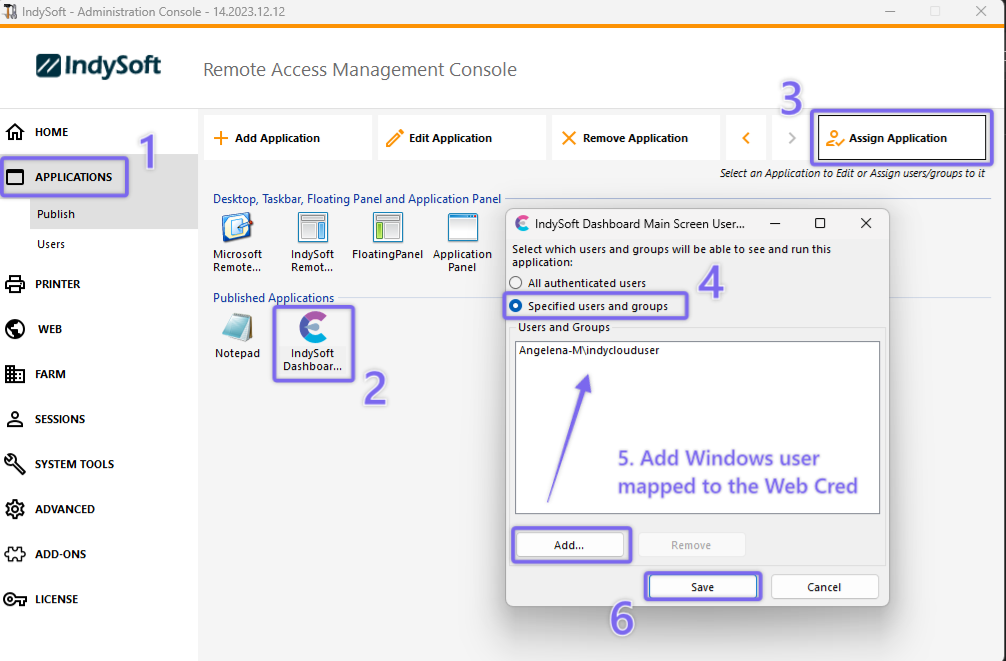
Admin Tool - Map Web Credential to IndySoft Application
4. Reboot Services
- Navigate to the 'Home' tab
- Use the reboot icon to reboot the WebTier services and apply changes
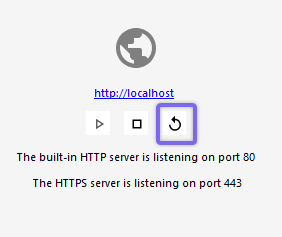 Admin Tool Home tab - Reboot Services
WebTier Admin Tool Settings
Follow the instructions below on the recommended settings to apply within the Admin Tool.
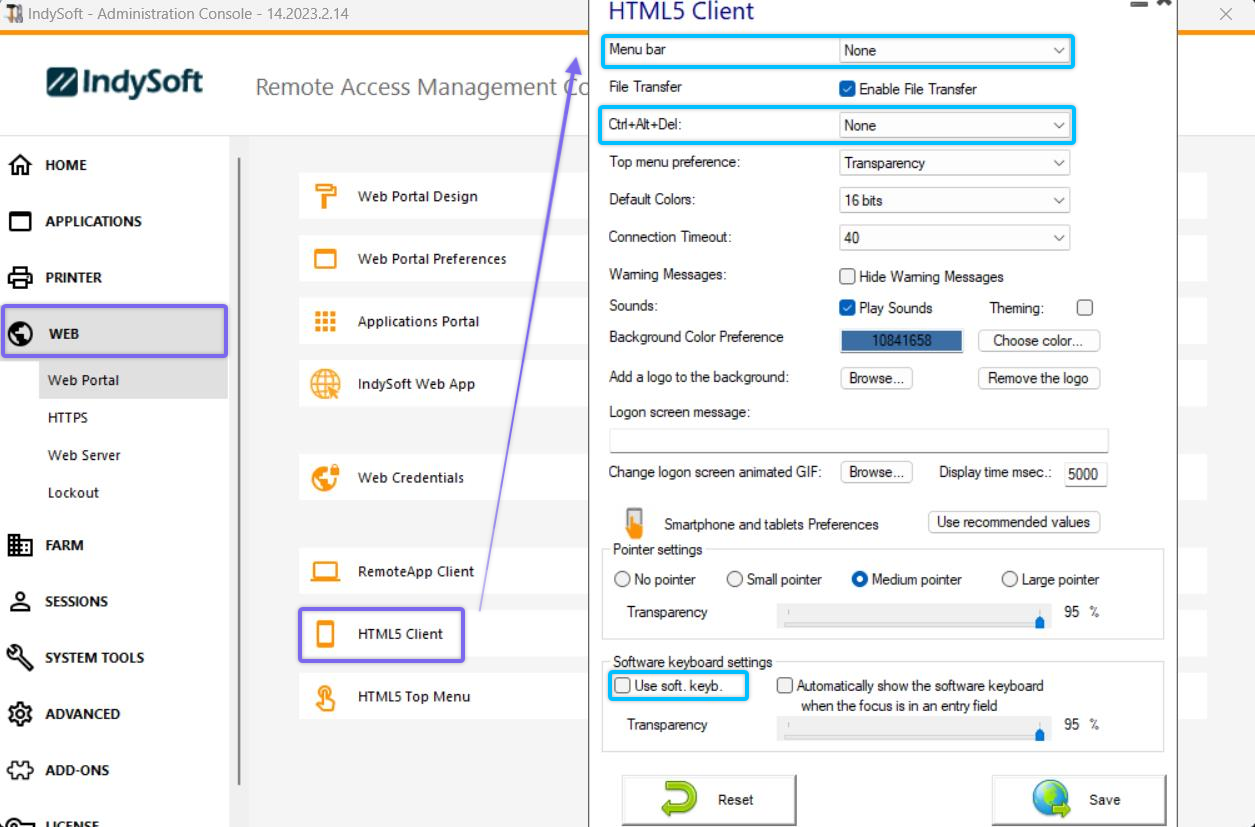
- Adjust HTML5 Client Settings
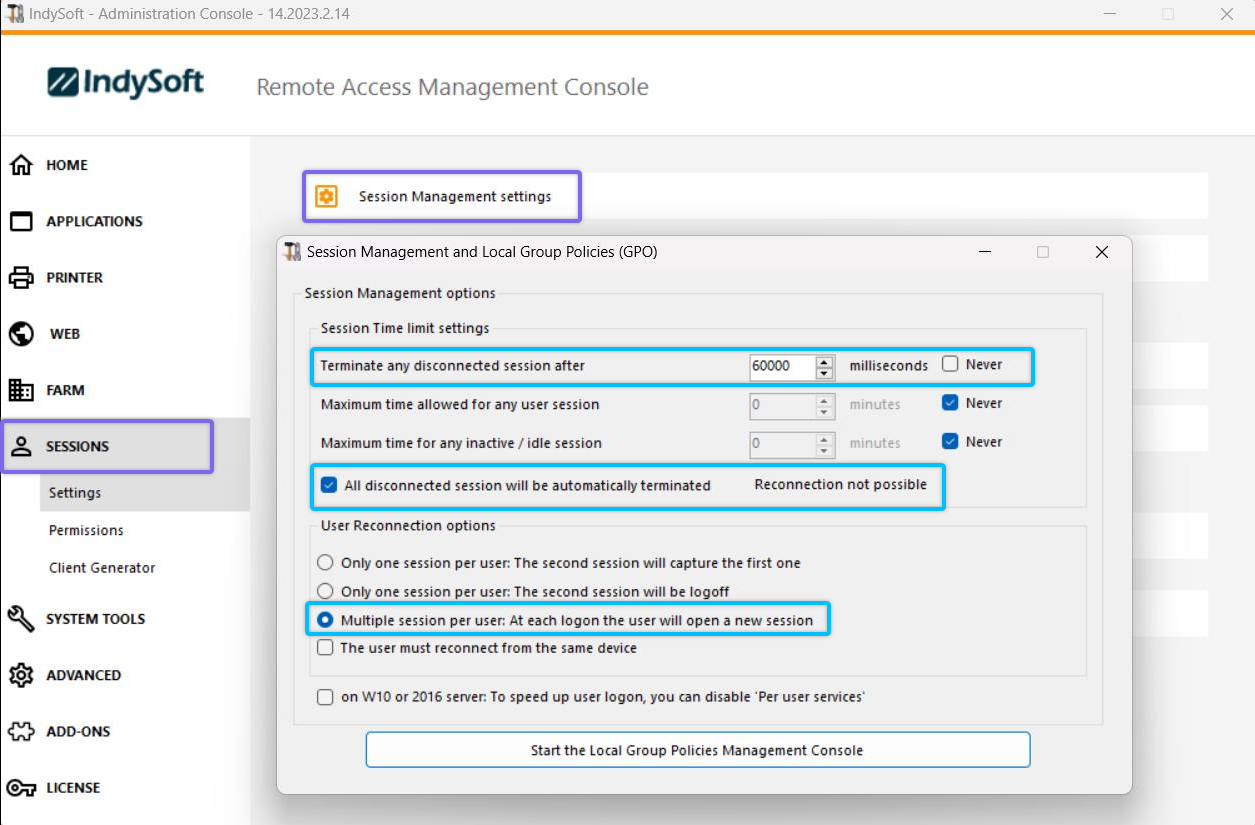
 2. Adjust Session Management Settings
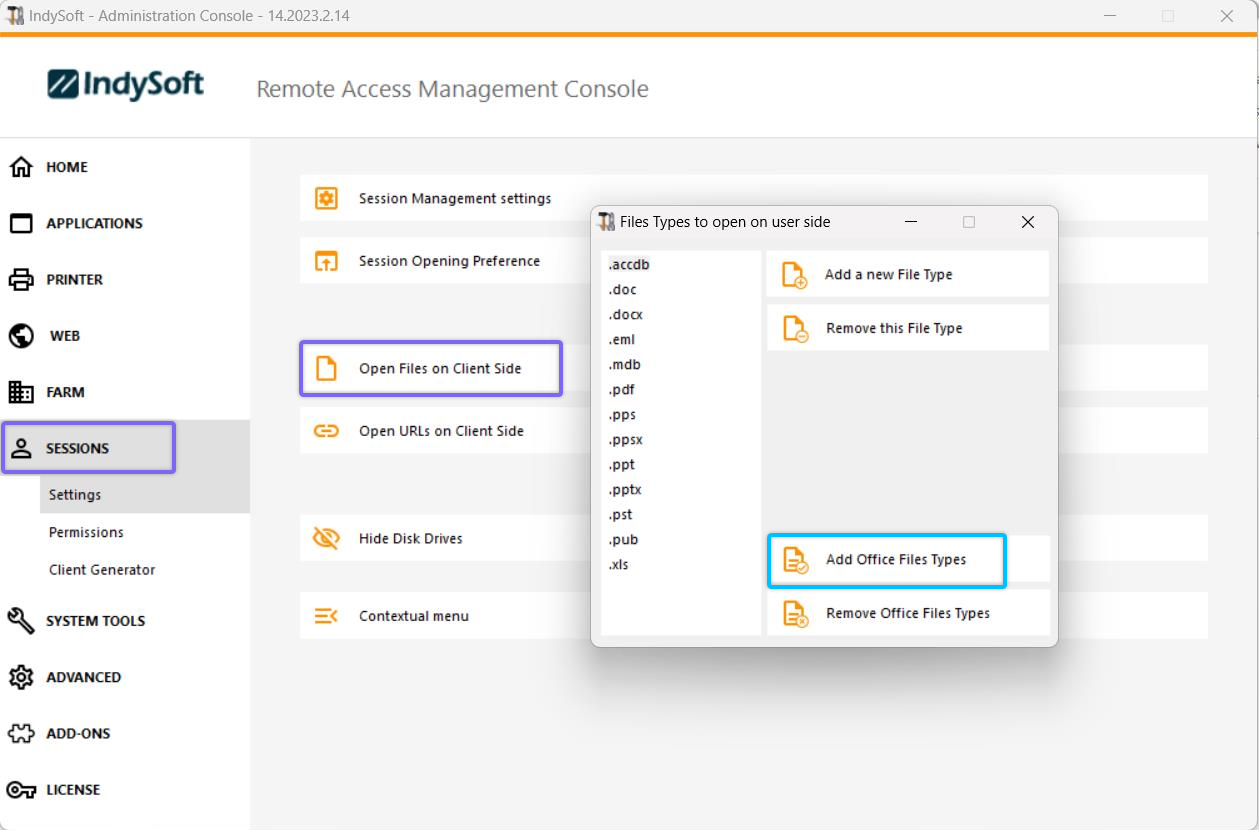
 3. Open Files on Client Side
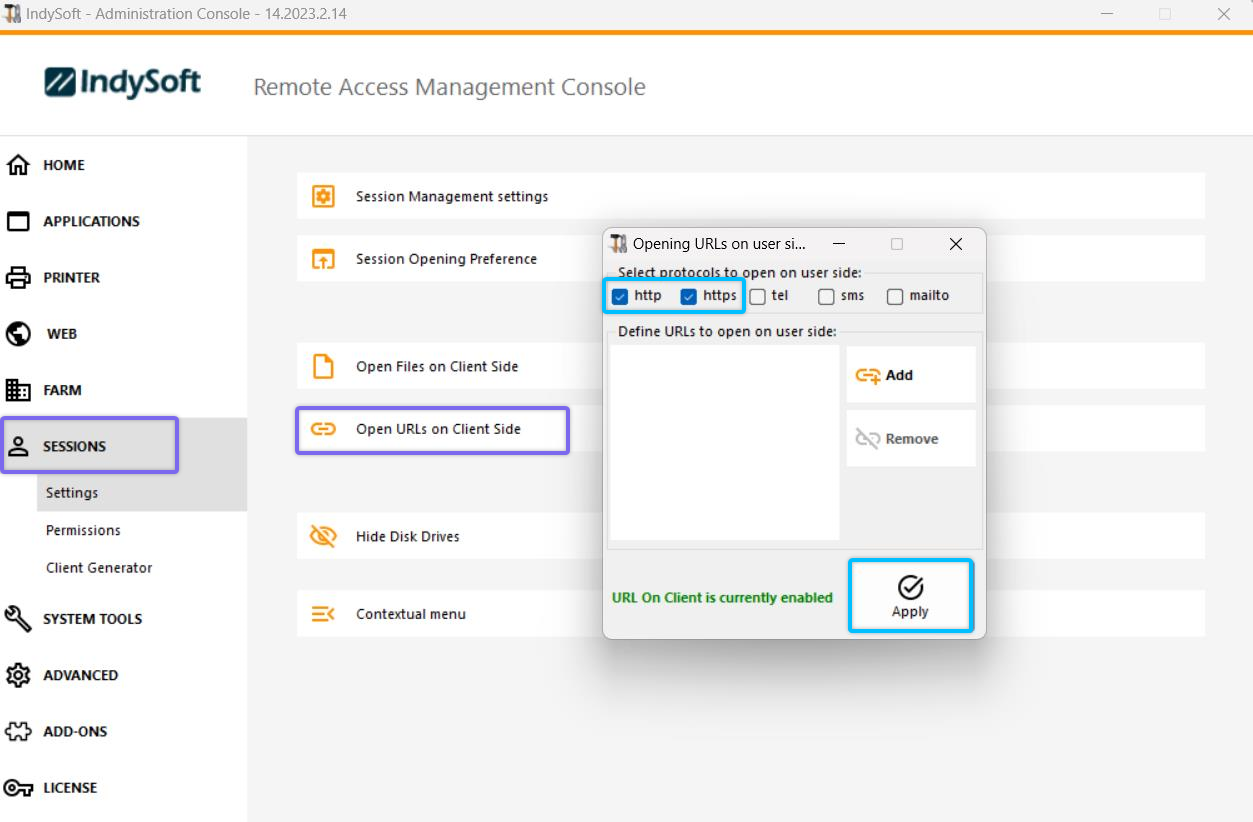
 4. Open URLs on Client Side
 5. Settings files
WebTier Setup Tool
Follow the instructions below on the recommended settings to apply within the Web-Tier Setup tool.
This utility will be located on the desktop of the WebTier server under the following icon:

Once launched, the following dialog appears:
- Select the 'Simple (Direct to IndySoft Login)' radio button
- Hit "Save All Settings" in the bottom right-hand corner
This will rewrite the index.html file with the necessary settings to bypass directly to the IndySoft login screen.
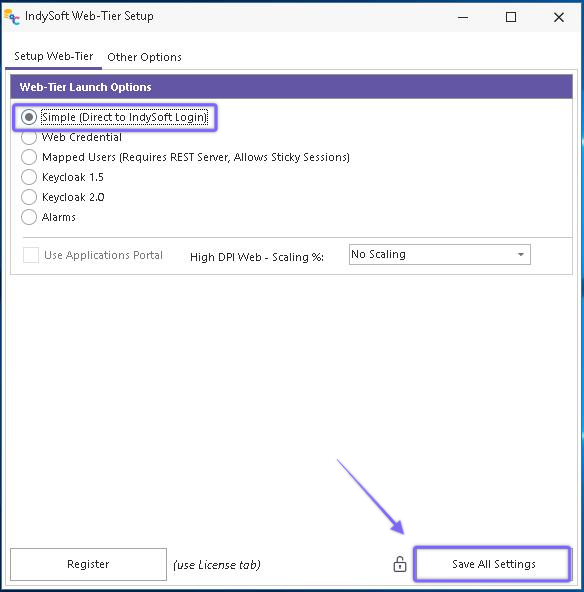
IndySoft Web-Tier Setup Dialog
Under the 'Other Options' tab, you will notice the indyclouduser is already embedded directly into the URL:
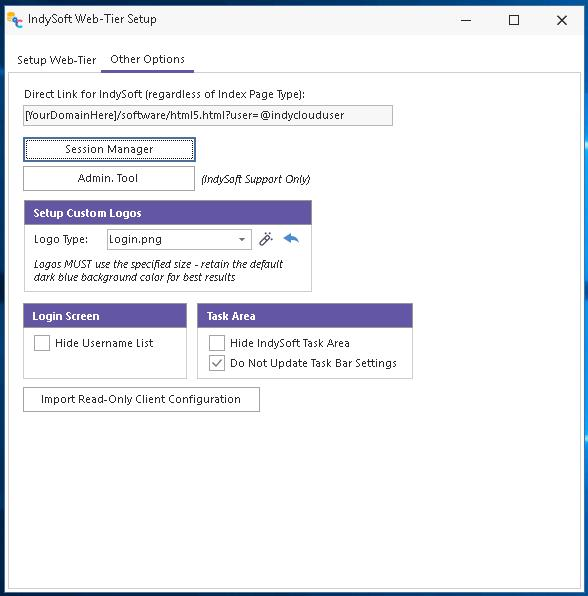
IndySoft Web-Tier Setup Dialog - Other Options
You can also choose to "Hide Username List" on the login screen for additional security purposes.