Work Order Line Item Contexts
Introduced in 14.2 and accessible from the Pending Work tab by System Administrators, Work Order Line-Item Contexts can be considered custom views for various roles within your organization. The key distinction between these Contexts and Equipment reports is that the contexts join in information from the Work Order and Work Order Line Items. The outlined Filtering Options allow users to see: Vendor/Branch specific work, equipment in specific Tracking Statuses, and Work which is in particular Statuses and/or Sub-Statuses. These contexts can be assigned to the Branch Manager or the Pending Work tab of the software for specific users, Vendor/Branch Profiles, and even have Branch Specific views. One context can be designated as the "Primary Context" which can be thought of as the Context for the native "Work Order Line-Items" portion of pending work. That primary context is generally where users would be running Calibration events and performing the described work from the Work Order. Other contexts which are exposed are meant to provide a quick way to see other key actions for described work/equipment in particular states.
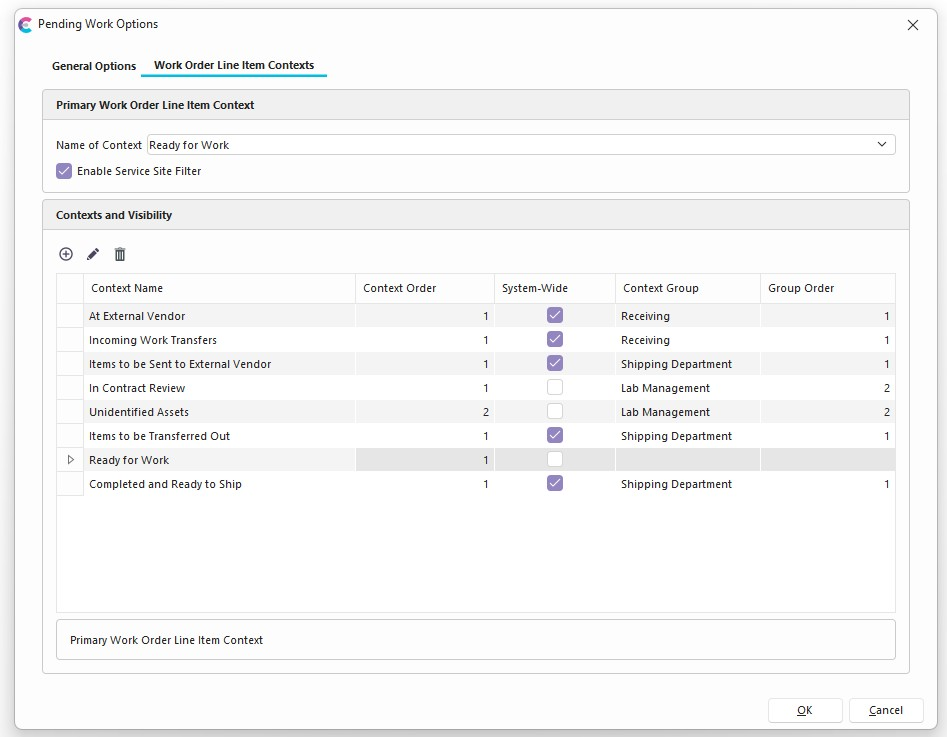
Notice that the Primary Context, does not allow any Visibility Options. All other contexts can be assigned visibility options.
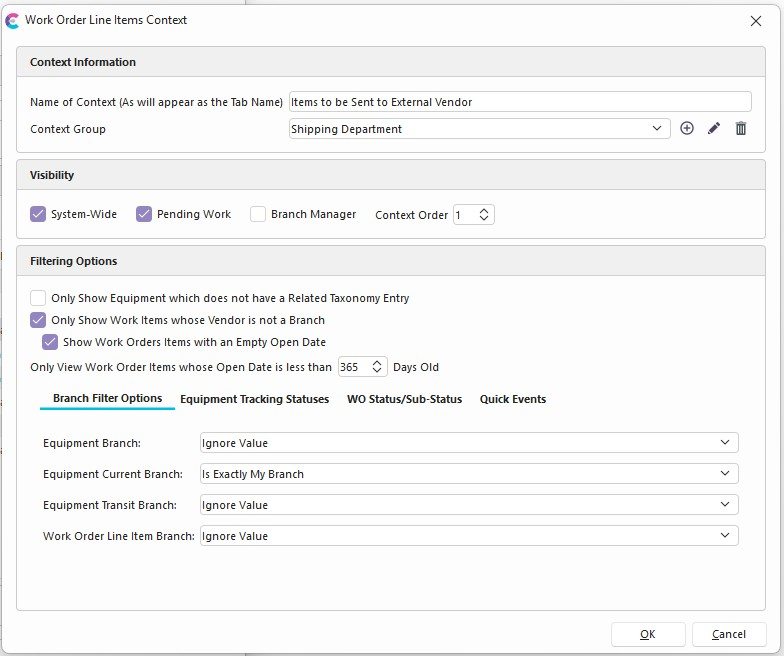
Visibility Options of Work Order Line-Item Contexts
When creating a Context, the main form allows the Admin to specify if the context should be visible System-Wide or Not, if it should appear in the Pending Work Tab and/or the Branch Manager Tab, if it should appear in the left-hand Panel as a Specific Group, the relative order of the group can be assigned to the context group and the relative order of the context within a group can be specified by the "Context Order" in the Visibility Section above.
Context Groups can be used to show contexts together under that Context Group section in the left-hand panel.
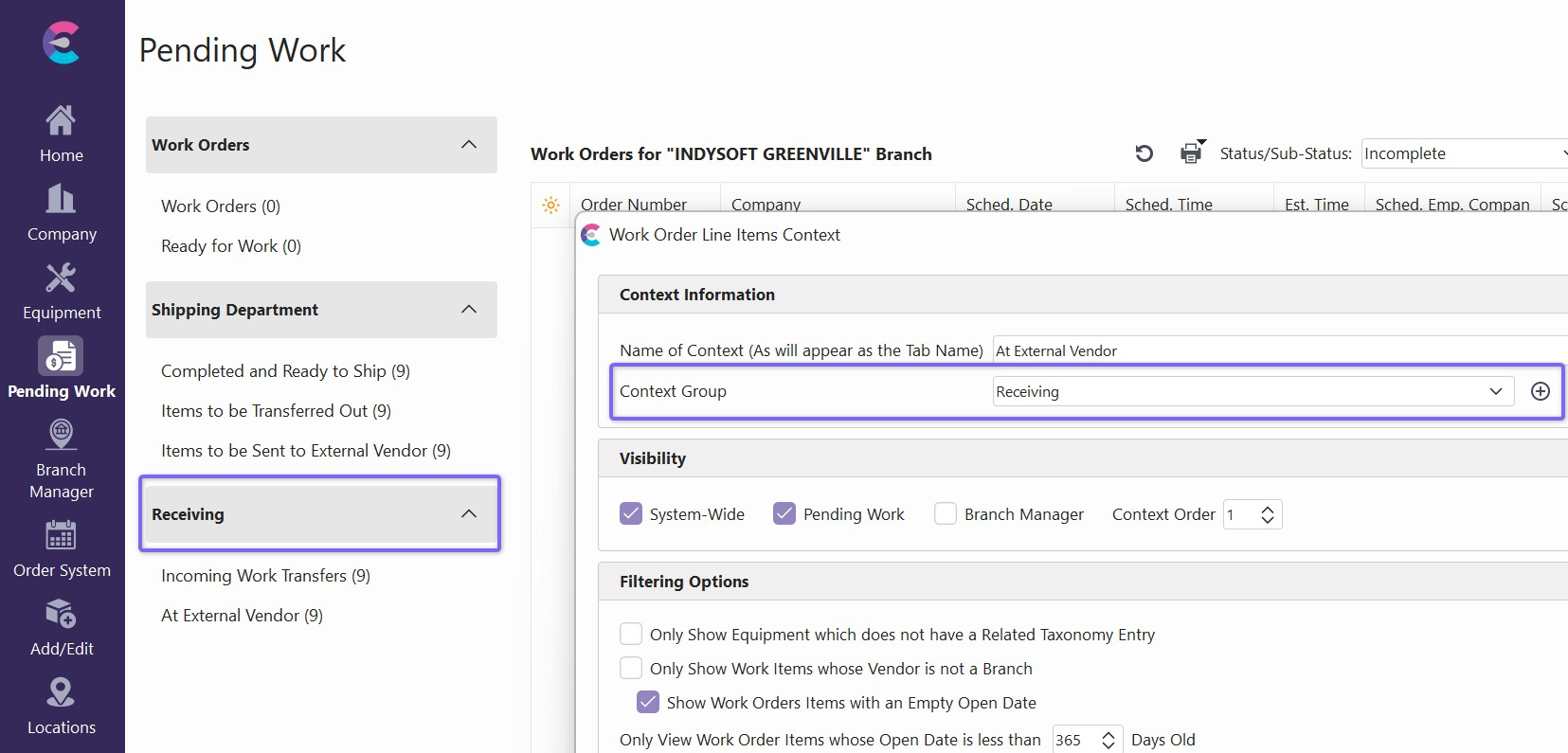
Only Show Equipment which does not have a Related Taxonomy Entry will filter all pending work context results to only show items who are not identified within the Taxonomy Tree. (Any filters like this that are Equipment-specific will automatically exclude described work that does not have a piece of equipment assigned in the Order.)
Only Show Work Items whose Vendor is not a Branchwill filter all pending work context results to show only Work Order Line-Items whose Vendor field is not a Branch. If the Vendor has a direct link to a Branch, then that branch is considered a "Sister Branch." This filter would exclusively be used to see if the Vendor is not one of those. Populating the Vendor field at the Work Order Line-Item Level requires the use of the Contract Review workflow.
Only View Work Order Items whose Open Date is less than "X" Days This feature allows the Admin to specify when Work Orders are too old to be useful in the Pending Work or Branch Manager. 0 (Zero) days is the same as disabling the filter.
Show Work Orders with an Empty Open Date If using the date filter, this still allows visibility for Work Orders with blank or null Open Dates.
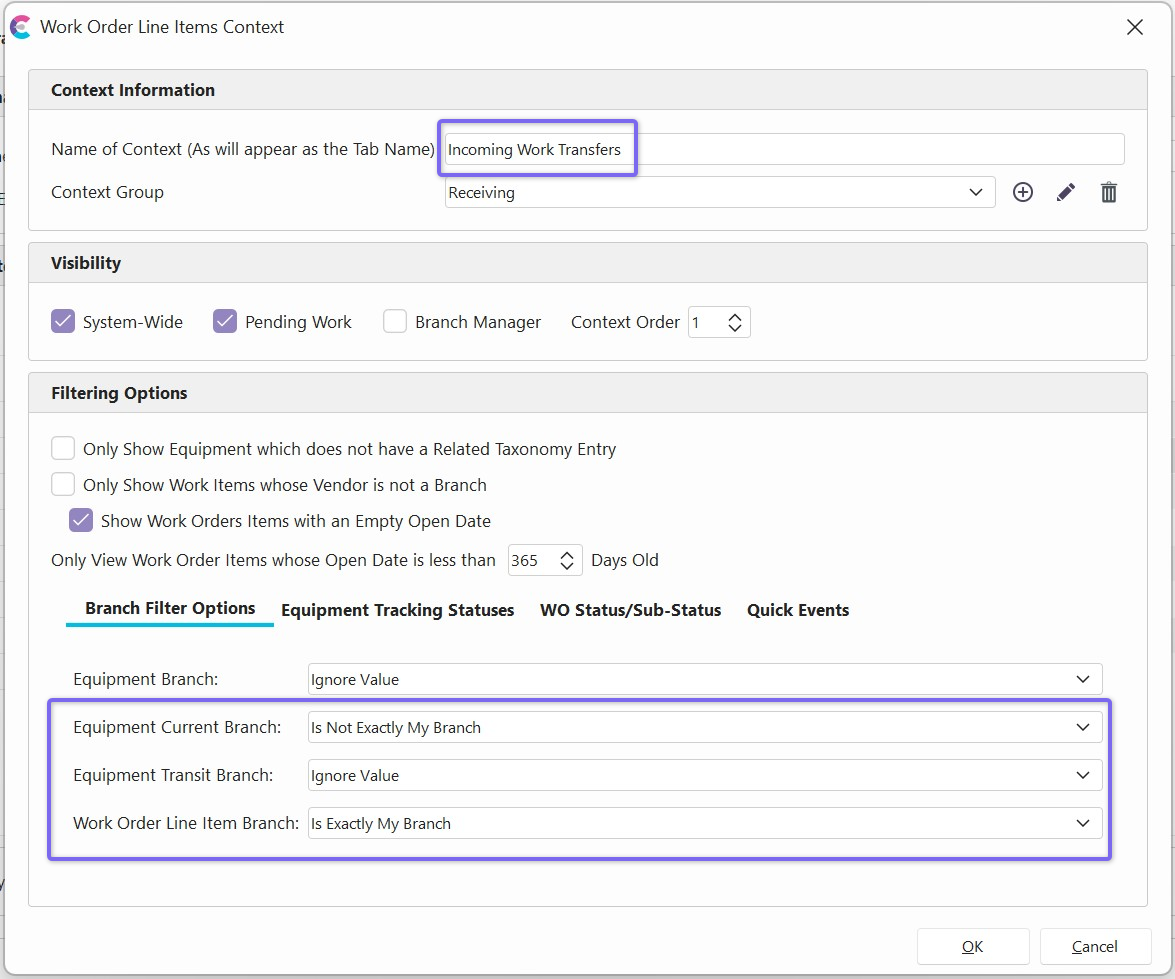
Branch filter options allow System Admins to utilize Vendor/Branch Locations and Equipment/Work Branch fields to create Branch Specific Contexts. There are four fields which can describe the Branch of Equipment and Work Items
- Equipment Branch known as "Branch" from the Equipment View, this could generally describe where the piece of equipment is normally sent. This is likely the least important of the 4 fields for the purpose of having Vendor/Branch Specific views.
- Equipment Current Branch known as "Current Branch" in the equipment view, this describes at which Branch is the piece of equipment currently located.
- Equipment Transit Branch known as "In Transit Branch" in the equipment view, this might describe future Branch location after the item is shipped but before it is received.
- Work Order Line Item Branch is the Branch field at the Work Order Line Item level and describes where the work needs to be performed.
Any of these options for a given context can receive one of 3 relative options:
- Ignore Value If this is selected, then the value for that related field will not be filtered against.
- Is Exactly My Branch If this is selected, the "Branch" in the user's user location settings will be looked up for that related field in the context.
- Is Not Exactly My BranchIf this is selected, then for that related field in the Context, items whose related field matches the "Branch" in the user's user location settings will be filtered out or not displayed.
Examples
Incoming Work Transfers might be described as Equipment whose Current Branch is not the Vendor/Branch you are currently viewing, but whose work needs to be performed at your Vendor/Branch.
The primary context might require that the Current Branch and the described work are both at the Vendor/Branch where you are working. This would indicate that the work is currently at your Vendor/Branch and also is supposed to be worked there.
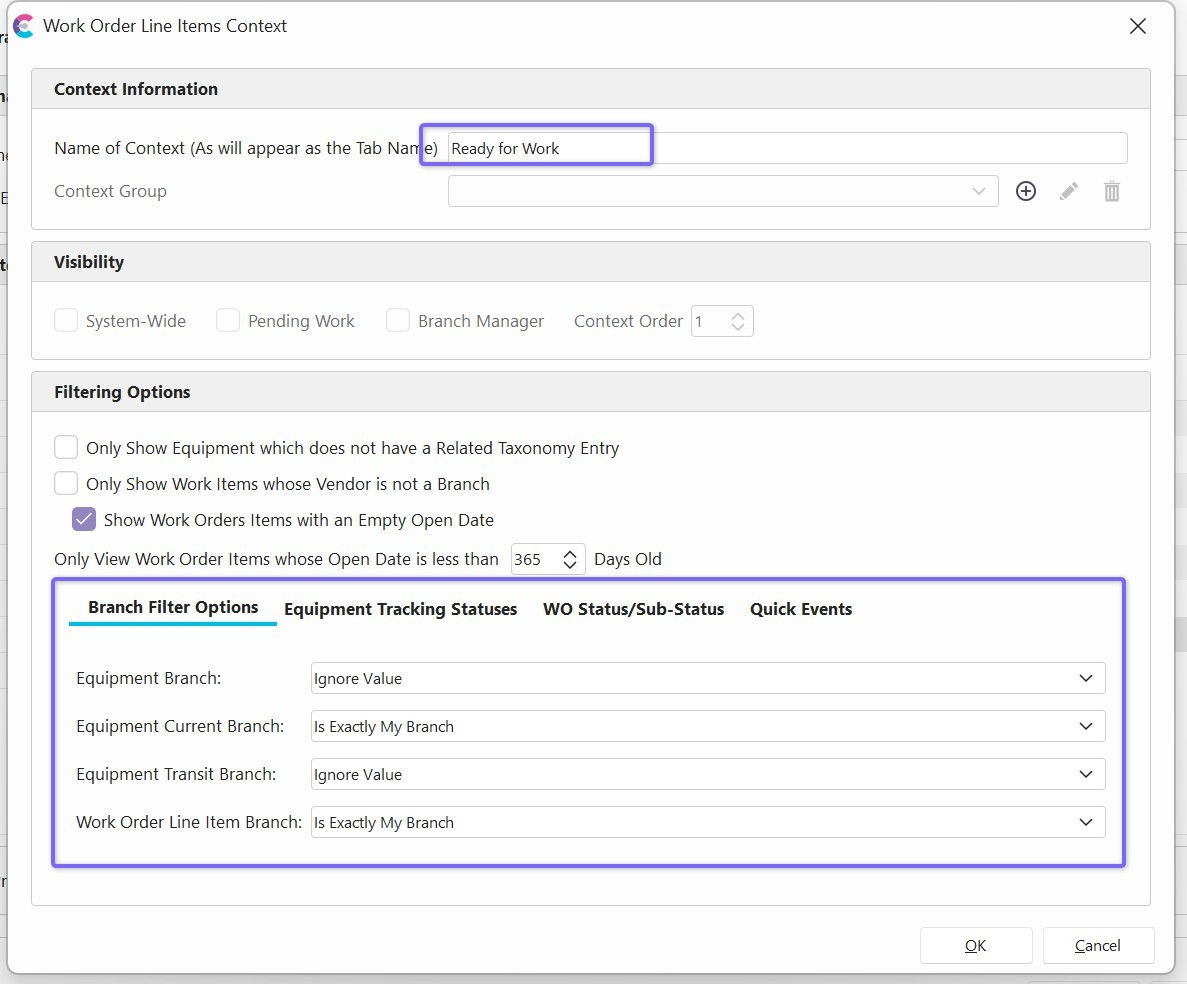
Note that if you are accessing a context and you do not have a Branch in your user/location settings, all Branch filter options will be ignored.
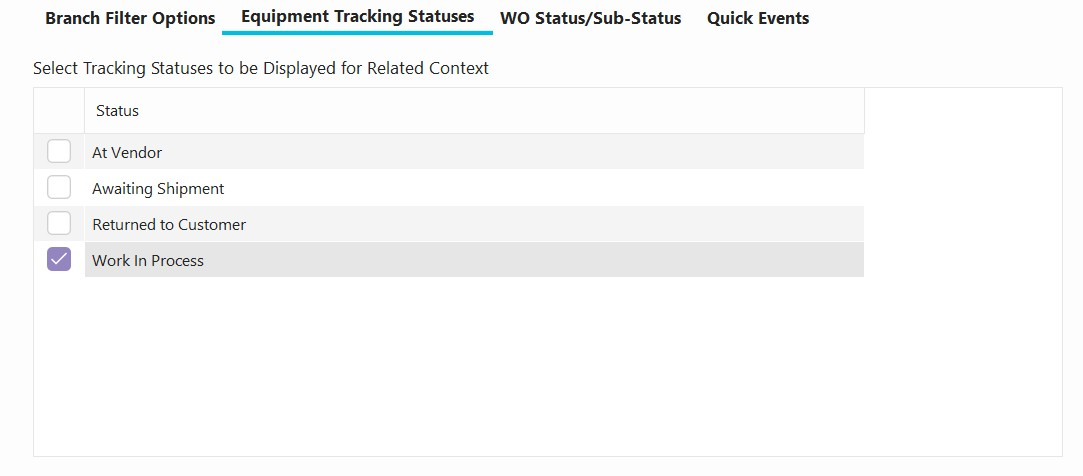
Admins can also filter for equipment Tracking Statuses that apply to the context, meaning that only particular tracking statuses can be used to show work in a context. (Any filters or choices like this that are Equipment-specific will automatically exclude described work that does not have a piece of equipment assigned in the Order.)
Only Equipment in the "Work In Process" Tracking Status would be shown in the below Context.
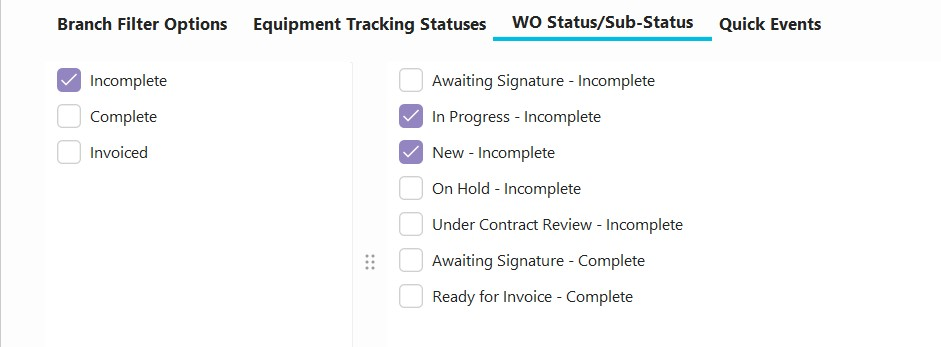
This allows work to be filtered for the Work Order Header Status and Sub-Statuses
In this example, Incomplete Work Orders which are "In Progress" or "New" will only be shown in this Context
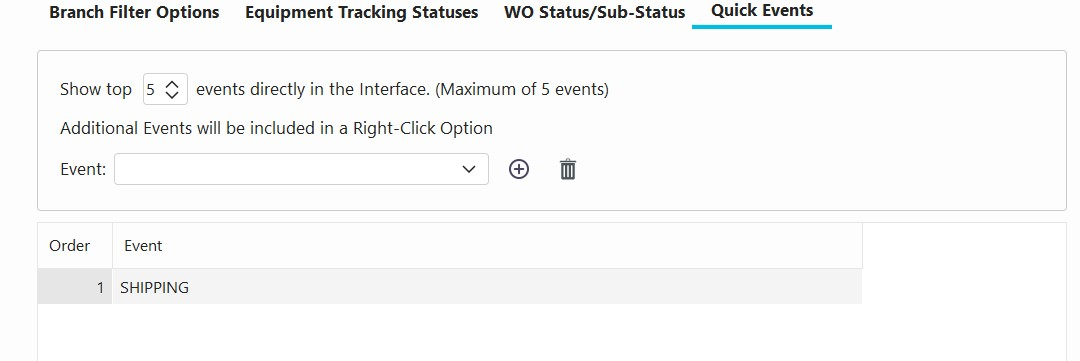
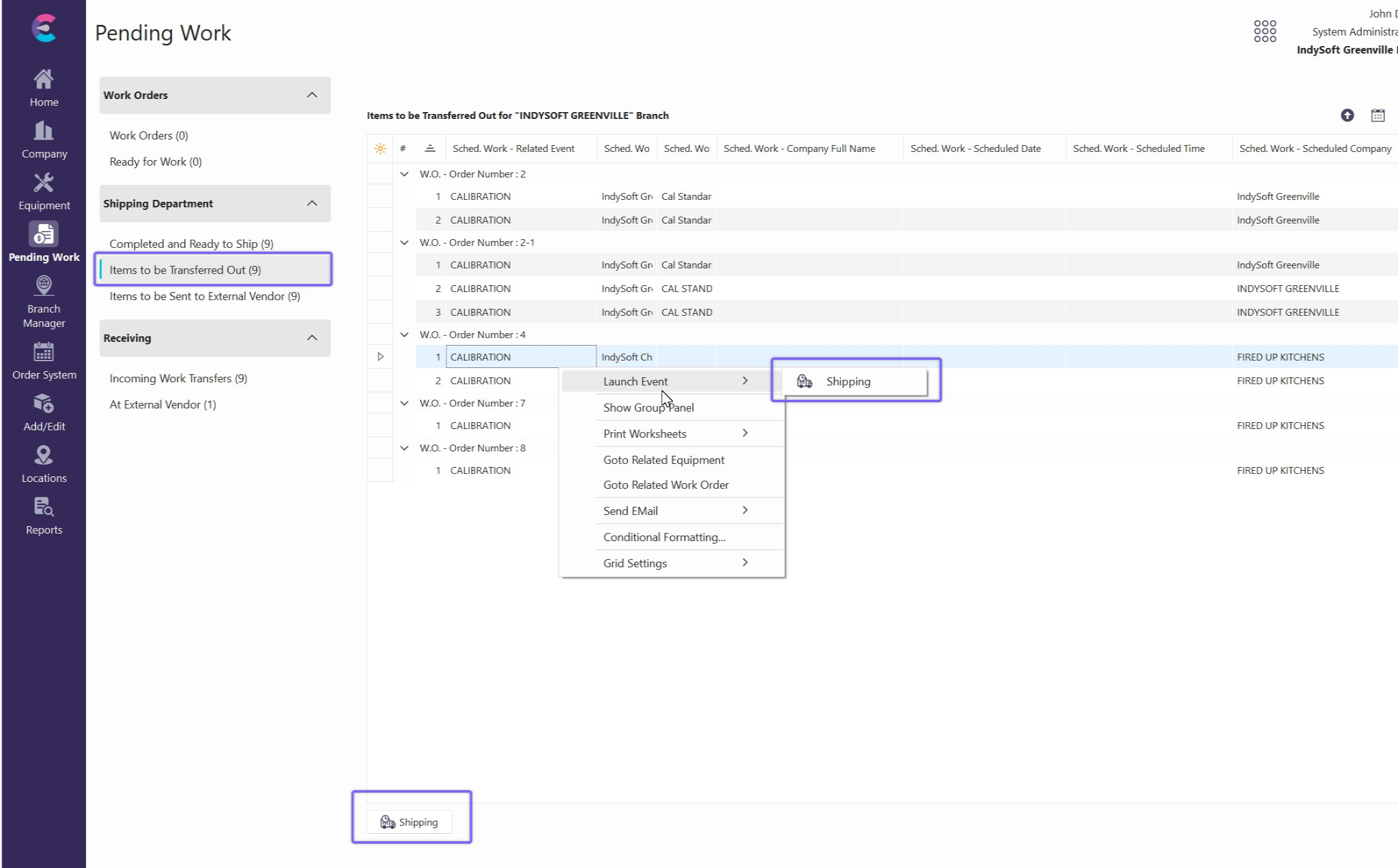
Any context can have IndySoft events associated as "Quick" or preferred event options for that particular scenario. Up to 5 events can be shown at the bottom of the context in the Branch Manager or Pending Work in the Order in which they are described. Any events beyond the top 5 (or the number specified in the "Show top" option) will still show up in the right-click option for that context.
For the best experience, only have Events exposed if you are using: Equipment Branch Filter Options, Equipment Tracking Statuses, or the "Only Show Equipment which does not have a Related Taxonomy Entry." The use of these options will filter out Work Order Line Items which do not have a piece of equipment associated. In other words, Events can only be performed on actual equipment and these options will filter out invalid items to be added to events.