Profile Manager - Company Filters
Some customers that use IndySoft have many companies tracked in their database. For calibration labs, for example, 10,000 or more companies can be in the system. Say you are System Administrator for IndySoft and just hired a new technician for your NORTHEAST branch. There are 640 companies (which are customers in this example) that are serviced by NORTHEAST personnel. But various NORTHEAST personnel have various security profiles. So you don't want to have to set up 640 company exceptions!
Company Filters allow you to establish a filter box rule that points to a subset of companies/customers and give this subset a name. This name can then be dragged/dropped onto a username as if it were a regular company name. For instance, say you set up a System-Wide custom label for a field in the Add/Edit...Companies...Company wizard, and called it 'Region':
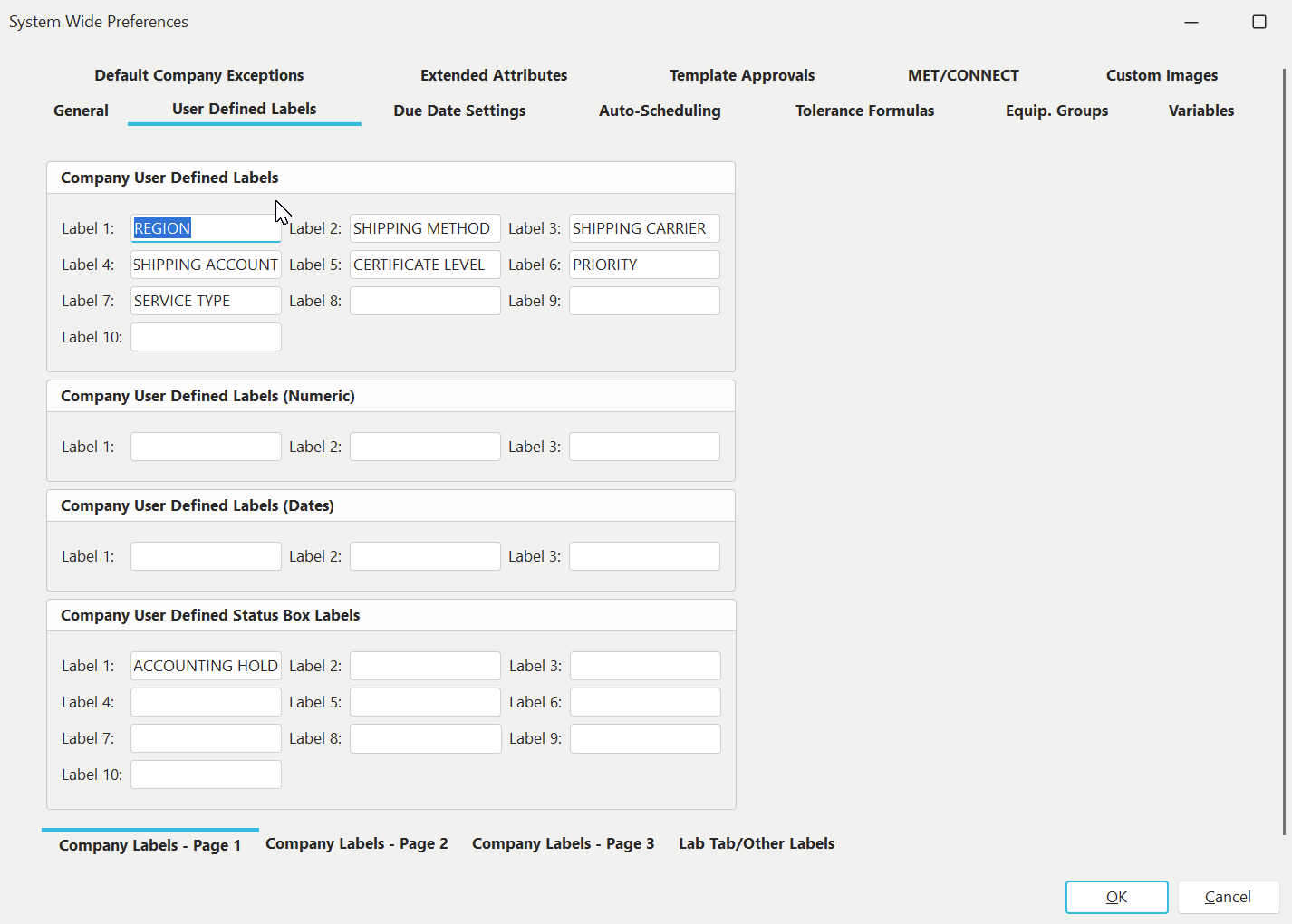
System-Wide Preferences Example - Setting REGION custom field
You then used this field in the Add/Edit...Companies...Company wizard to specify the appropriate region per company:
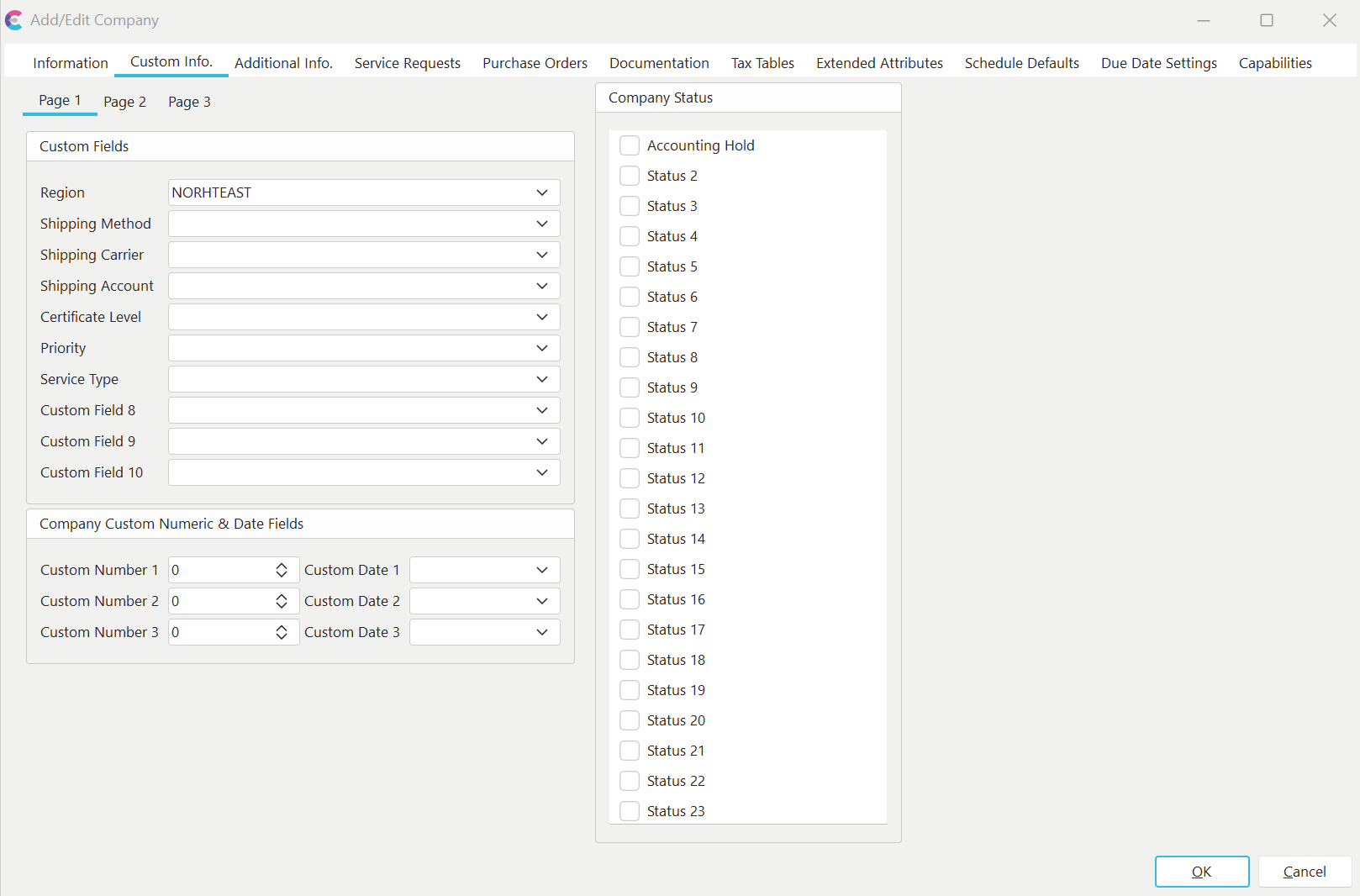
Example: Setting Region Custom Field per Company/Customer
Now it is possible in Profile Manager to establish a Company Filter pointing to all companies with a 'Region = NORTHEAST.' To add a company filter, go to the 'Company Filters' tab in the lower right and press the 'New Company Filter' button:
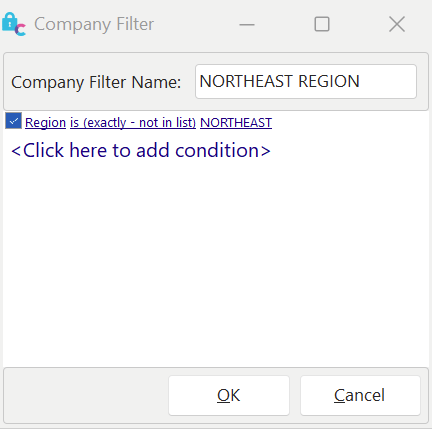
Example Company Filter
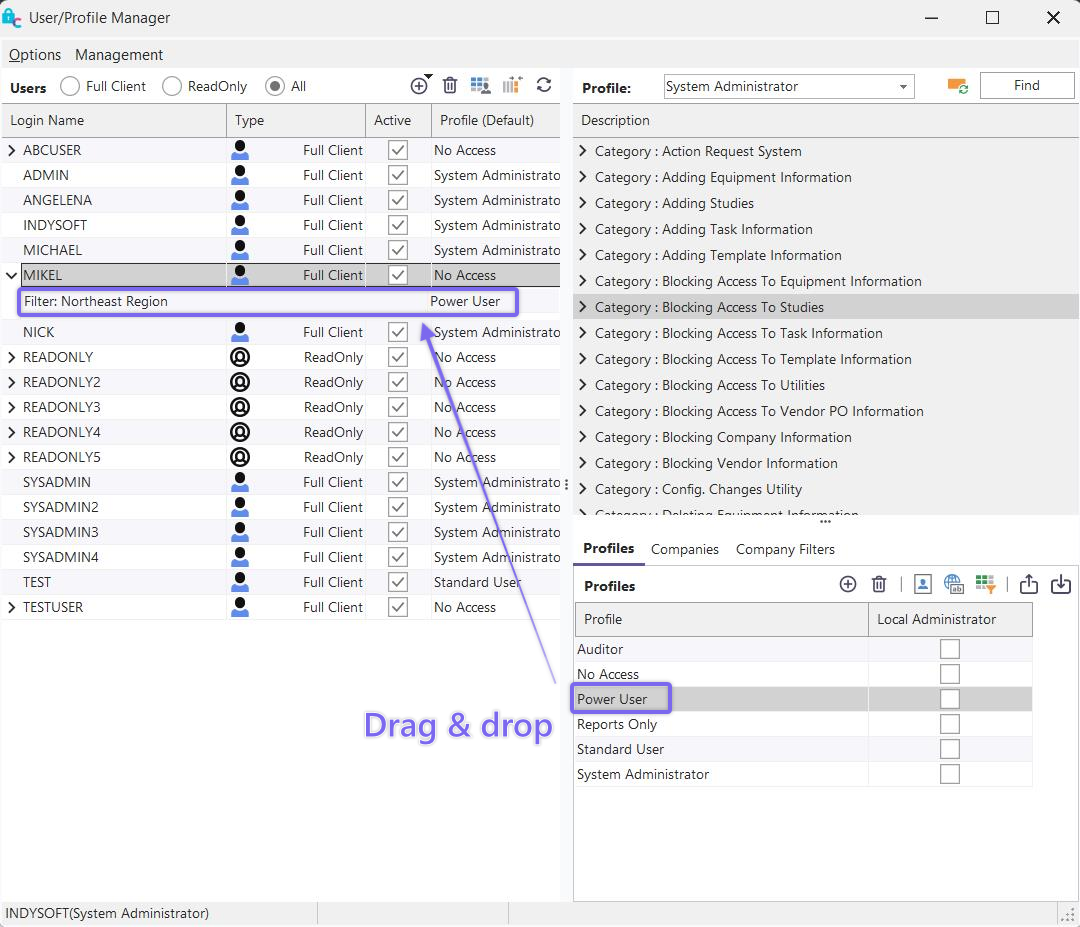
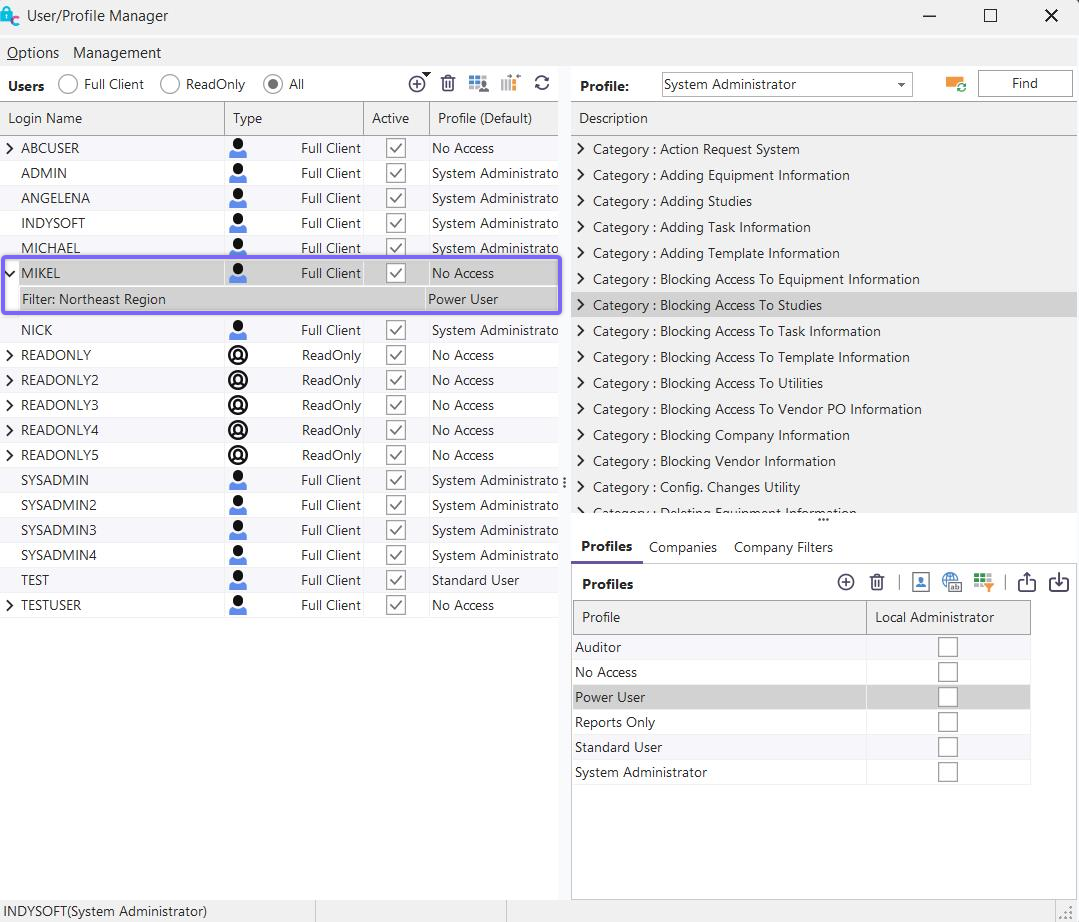
Once a company filter is saved, it can be used as a company except for a user-based profile, just as you would with a standard company name. So in the example below, we have dragged 'NORTHEAST REGION' as a company exception onto 'MIKEL.' By default, MIKEL has 'No Access,' but now he has access to all companies in the 'NORTHEAST REGION' (where he will be a 'Power User').
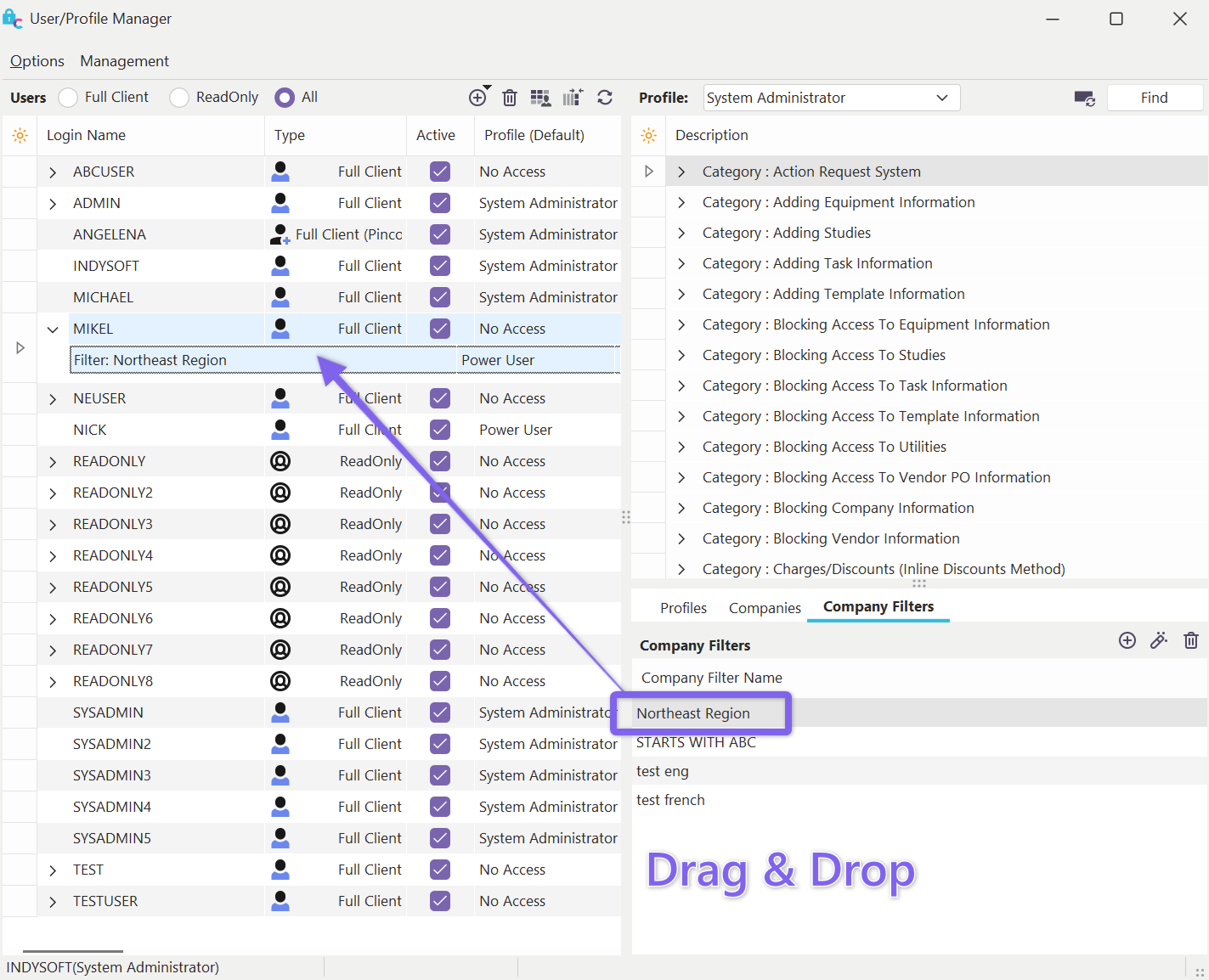 ../Storage/indysoft-help-publication/98596500.png
Setting Up Company Filter for MIKEL - Step 1
 ../Storage/indysoft-help-publication/98596574.png
Setting Up Company Filter for MIKEL - Step 2
 ../Storage/indysoft-help-publication/98597201.png
Setting Up Company Filter for MIKEL - Result
Default Company Filters for System Administrators
The above steps significantly speed up the process of adding new NORTHEAST users into the IndySoft system. But your company is growing fast, and you are based in California as the main IndySoft System Administrator. You don't want to be bothered with adding new NORTHEAST users in most cases since they all are set up with the same 'No Access' default profile, with an exception for 'NORTHEAST REGION.' It is possible in IndySoft to set up multiple 'System Administrator' users to default one or more of these System Administrators with a default company filter. Think of this as creating a slightly 'lower level' System Administrator. These System Administrators can still get into Profile Manager. Still, when they create new users in Profile Manager, they must be set up by default with a particular Company Filter. In this example, the 'NORTHEAST REGION' is their sandbox for creating/editing users, but no more.
To set up a default company exception for a 'System Administrator' user, you must first be a 'System Administrator' yourself. Otherwise, you wouldn't be able to get into Profile Manager in the first place...so we'll check off that requirement. Next, you cannot have a Company Filter exception setup for your username - only the highest-level admins can modify this setting. If you meet these requirements, then select the user, right-mouse click, and select 'Edit User':
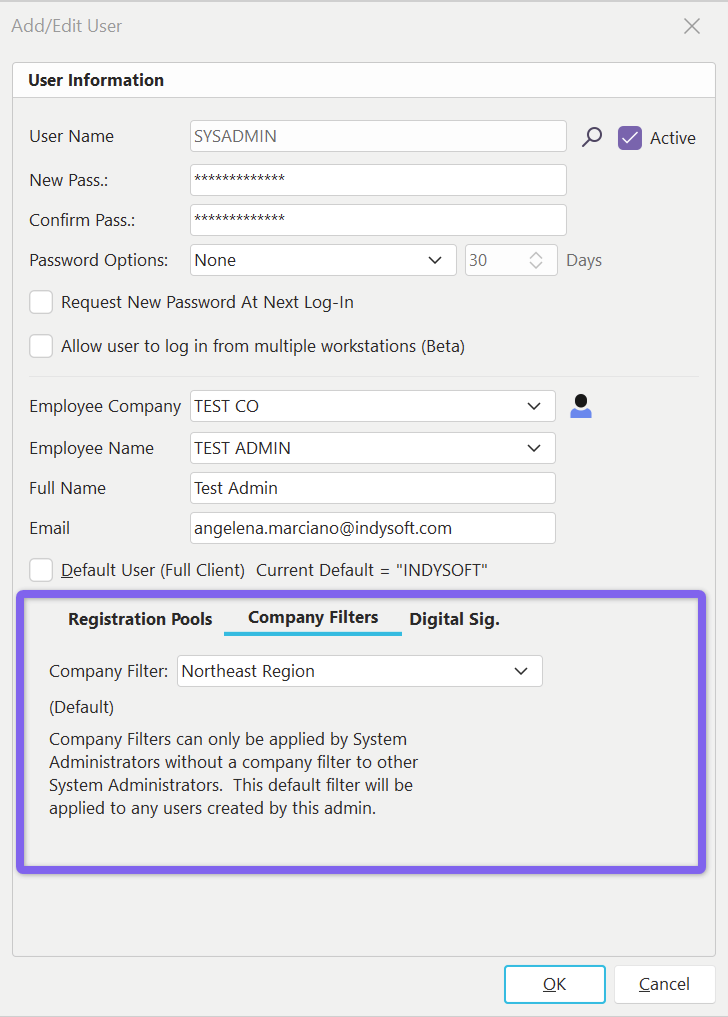
Edit User Dialog - Default Company Filter
Use the 'Company Filter' drop-down to select the default company filter for this user. So in this example, I'm logged into Profile Manager as 'INDYSOFT,' who is also a 'System Administrator,' but I don't have a Company Filter on my username. I want to modify 'SYSADMIN,' a System Administrator, to have a Company Filter for 'NORTHEAST REGION.' Now SYSADMIN can handle adding users for the NORTHEAST REGION in Profile Manager. Still, the new users will automatically be set up with a default profile of 'No Access,' with a Company Exception of 'NORTHEAST REGION.' The profile for the 'NORTHEAST REGION' company exception will be equal to the profile selected in the initial 'Add User' dialog:
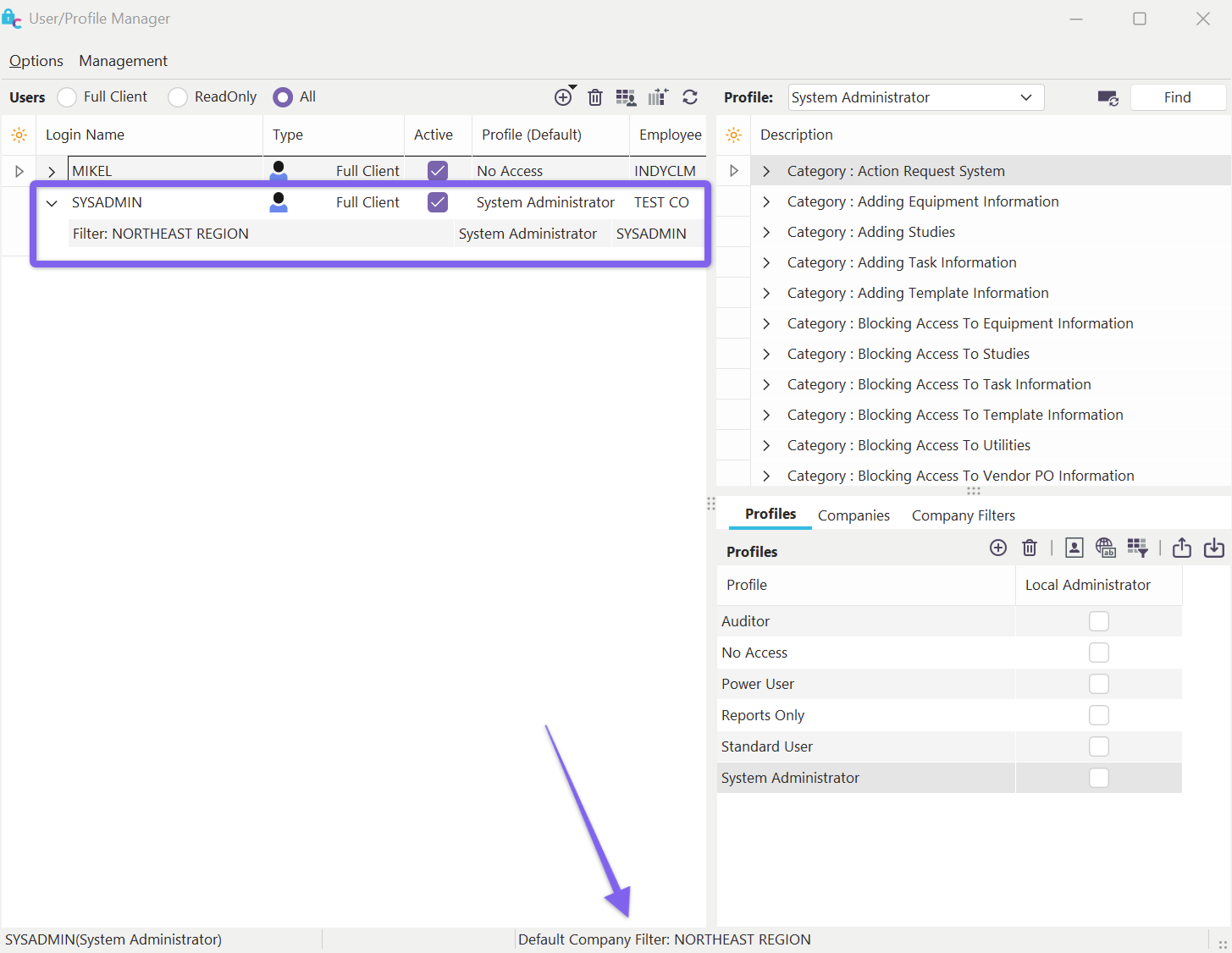
New User added with Default Company Filter.
Note **:**In the above example that when logged into Profile Manager as SYSADMIN (who has a default Company Filter), there is an alert in the bottom status panel - reminding us that a default company filter is in place:

Allowing System Admins With Default Company Filters to Modify Security Items
When using additional 'System Administrator' users with default company filters, you might or might not want these users to modify the security values for particular profiles. To modify this option, you must first be the 'highest level' System Administrator who does NOT have a default company filter. If you are logged in as such, you can right-mouse click on the user name from within Profile Manager and go to 'Edit User/Location Settings:
../Storage/indysoft-help-publication/98597806.png
User (with default company filter) - modify Security Items.
Note **:**This setting CANNOT be set from the User/Location Settings dialog when it is recalled from within the IndySoft main screen (because in that context, the user/location settings are for the user currently logged in - and that user has a default company filter - and those users cannot change this setting for their username). |