Support Utility
The Support Utility can be accessed from the same installation folder that your IndySoft client is running from. (Typically, an easy way to access this is by right-clicking on your IndySoft icon and selecting 'Properties,' then selecting 'Open File Location.') Look for the 'SupportInfo' file inside that folder and double-click to open it.
In version 13, you can also launch the utility from within the Admin Panel:
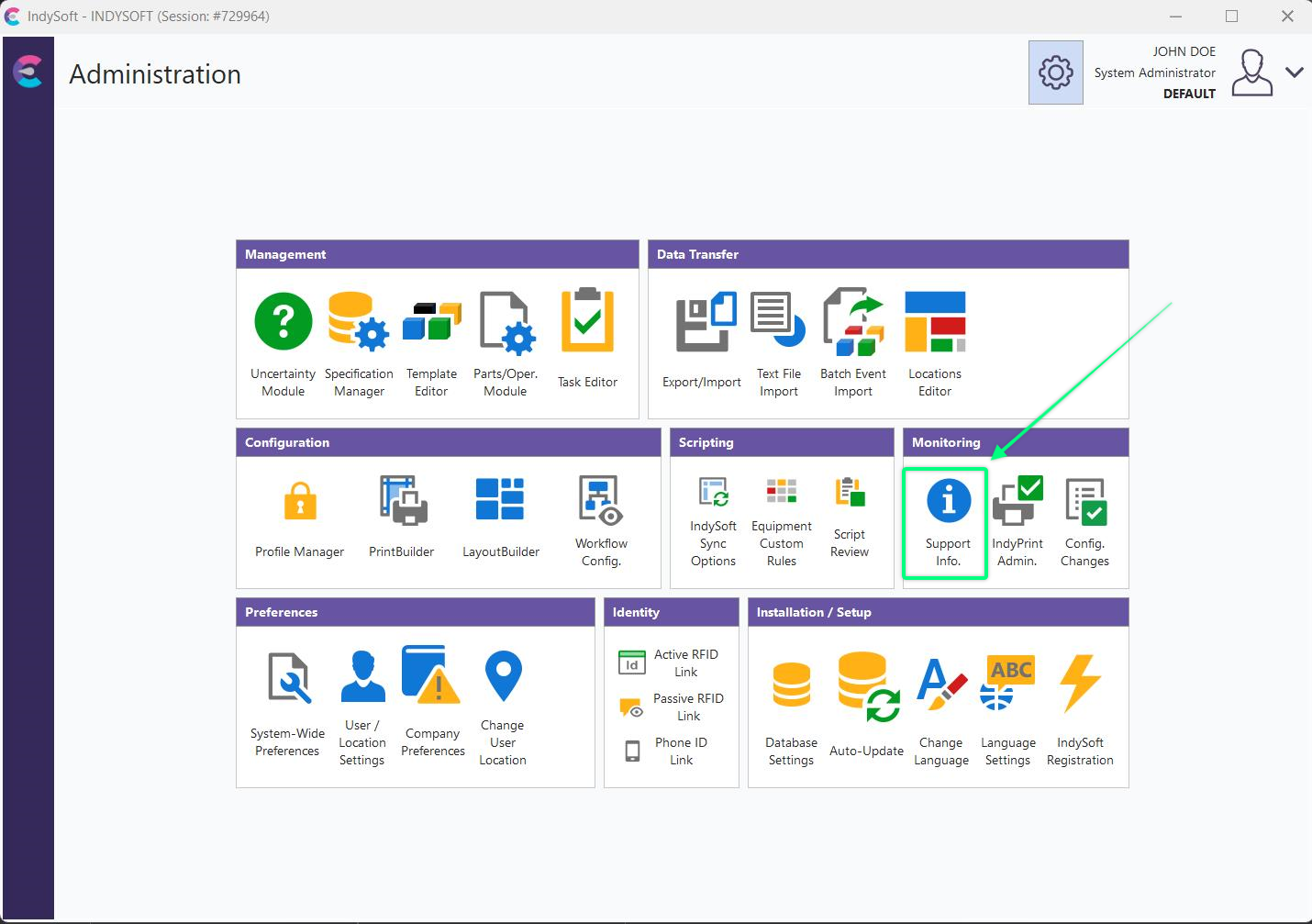
The Support Utility is used to see who is logged into the IndySoft client. If your company is limited to the number of licenses (seats), you can log off a user who may not be using the client at that time to free up that license for another user.
Also, the Support Utility can access IndySoft SQL Exec to import event types or zip files from support and the ability to Email Support Requests to IndySoft directly.
Users Logged In
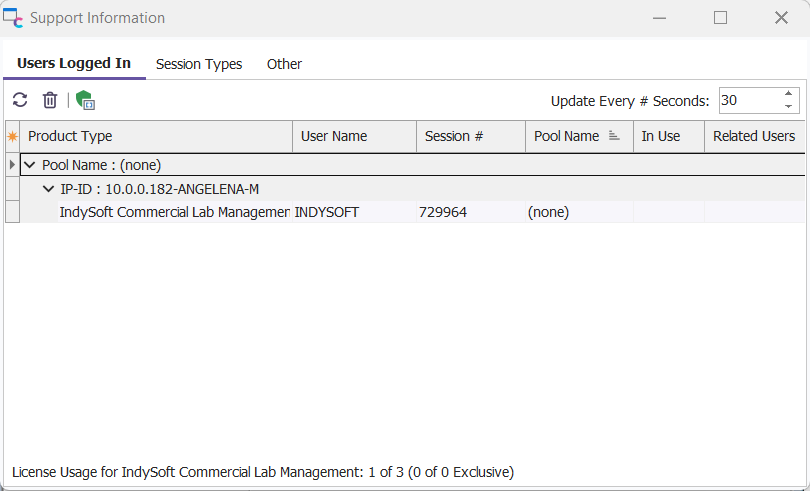
Support Utility
 Refresh Licenses
This button will refresh the User Logged In grid.
 Log Out User
This button will automatically log out the selected user from IndySoft.
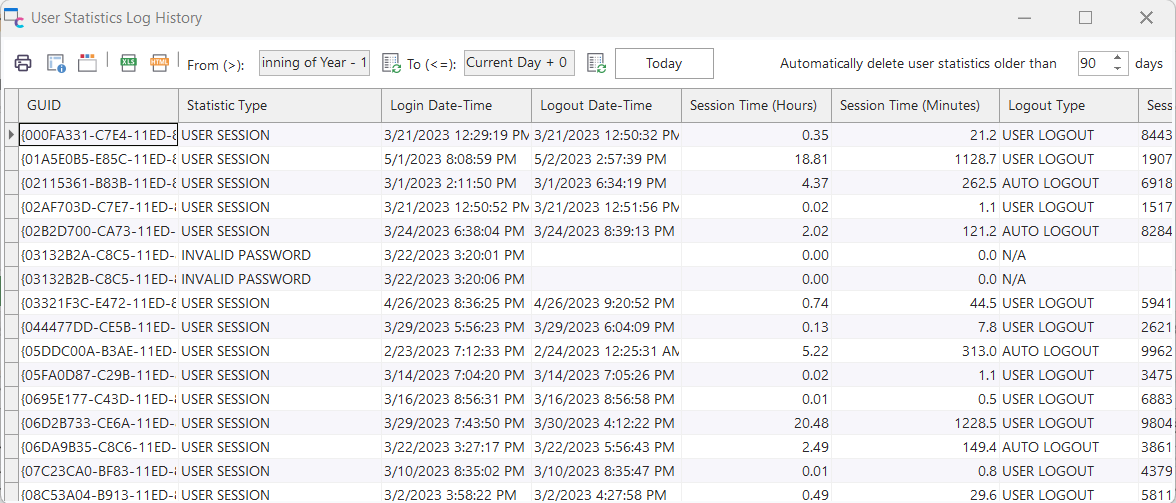
 User Statistics Log History
This button will launch the User Statistics Log History dialog. From here, Admins can further inspect user statistics -- such as additional details on user sessions and invalid password attempts with associated IP addresses.
Other Options
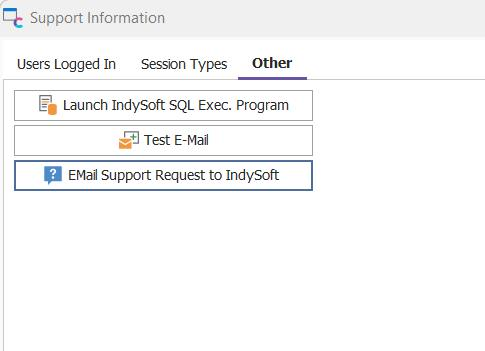
 IndySoft SQL Exec Program
This utility is helpful when troubleshooting problems in the database. See SQL Utility for more information.
 Test Email
This option is used to send a test email from the system.
 Email Support Request to IndySoft
This button can be very helpful when troubleshooting problems with your IndySoft program, especially if those problems involve Events or Reports. You may initiate a report here or be requested to send the information from IndySoft Support Engineers. Either way, by clicking the button, a dialog window will pop up as follows:
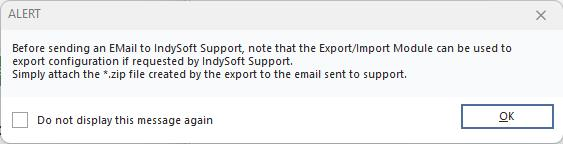
Support Request Items - Use Export/Import Module
By default, all items all selected. But to simplify your support request, use the buttons to the right of each window to deselect all items, then select the ones that are appropriate to your problem. If you are unsure, then feel free to send in all.
After selecting 'OK,' you will be prompted to include all Tracking Statuses in the export file. Click 'Yes' or 'No,' then the Email or ZIP file will be generated. Send an email to: support@indysoft.com. Please include your company name and company account number. |