Equipment Finder - Simple Equipment Selection
Using the EquipmentFinder is truly one of the great features in IndySoft.
The EquipmentFinder utility is very useful for finding a particular piece of equipment or finding a set of Equipment. The dialog is divided up into 2 sections vertically: the Selection Method (top of the screen) and the Selected Equipment (bottom of the screen). To select equipment, simply type in the 1st few letters of the equipment I.D. If you want to list all items, press the button to the right of the I.D. If you want to search by all companies, check the All Companies box. If you want to choose all matching equipment, press the blue double down arrow. To add the currently highlighted piece of equipment to the selected equip. section, press the blue single down arrow. To remove one item from the selected equip. section, simply highlight it and press the blue up button. To remove all equipment from the Selected Equip. section, press the blue double arrow up button.
For this tutorial topic, we will look at the Simple Equipment Selection. For information on the SQL Based Selection see the IndySoft User Manual.
To launch the EquipmentFinder, select "Search-By" on the main screen menu. You will see the EquipmentFinder feature at the bottom of the drop-down menu.
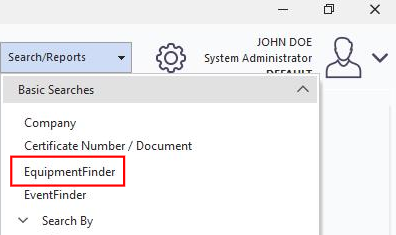
The Simple Equipment Selection allows the user to see all the equipment for a particular Company or Customer. By checking the "All Companies" box, every gage in the system is available.
To begin, select the Company list you wish to view from the Company drop-down. Then click the "List All" icon  , this will display all the equipment for that Company.
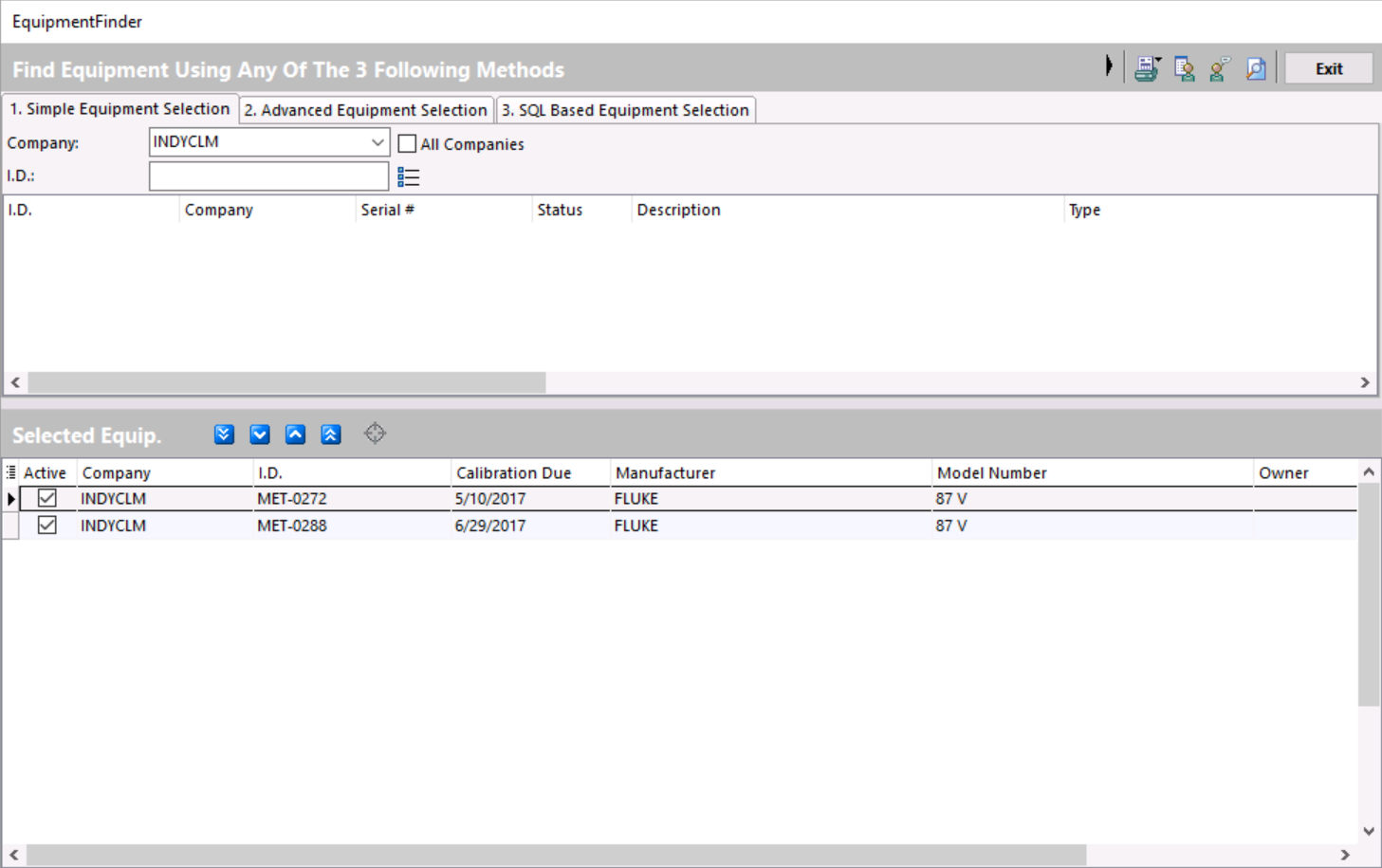
You can scroll through the list and each time you see a gage you want to add to the list, select it and then double-click it. The gage will be sent to the Selected Equipment grid at the bottom of the screen. See below.
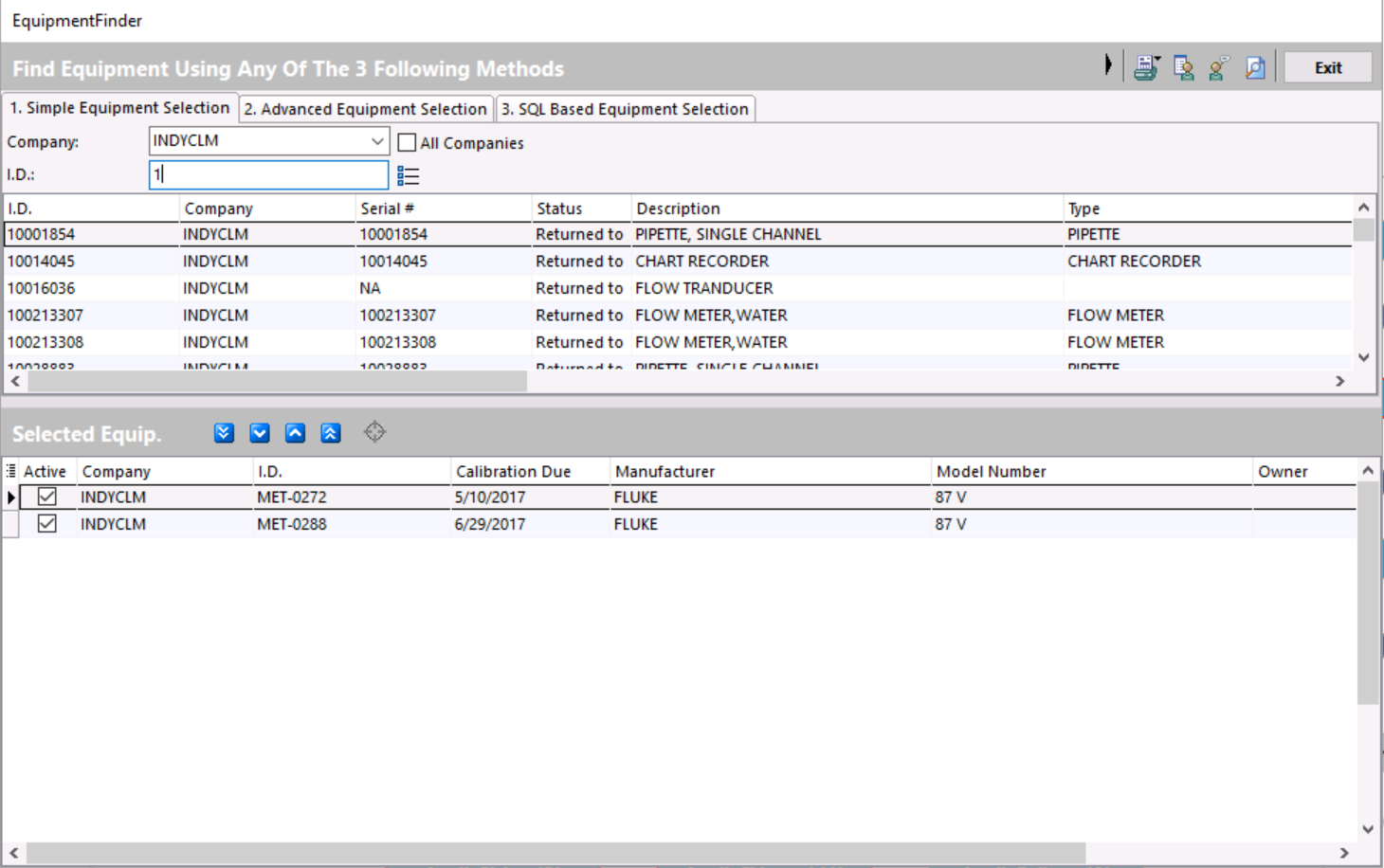
Once you have made your choices, you can now use the icons at the top right of the screen to process the information.
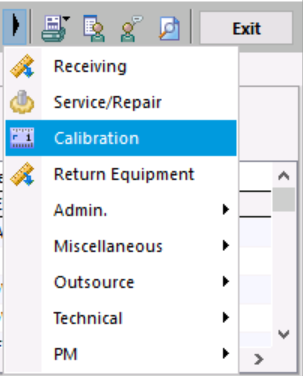
The black arrow icon opens the events drop down. You can perform any of these events for one or all of the equipment from the EquipmentFinder.
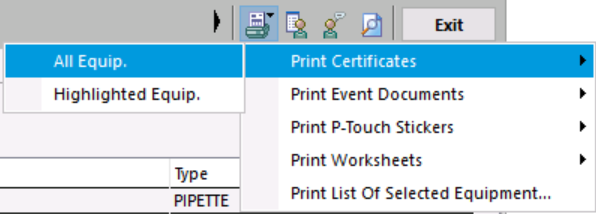
The Print icon allows the user to select and print documents from the equipment that were selected in the equipment grid. For example, if you wanted to print all the Worksheets for the equipment, all you would have to do is select the "Print All Equipment" feature or you can simply choose one gage that is highlighted and print that one.
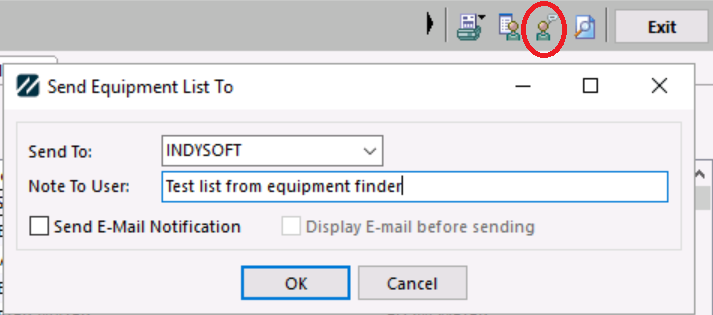
If you wish to send the gage information in the grid to another user, you can do that by clicking the "Send to Another User" icon . When you open the dialog box, you will be prompted to choose a user name to send the gage information to as well as writing a short note if you like. The gage information will be sent to an IndySoft user within your company. You can also send them an e-mail if you wish that will go directly to their inbox. The "Send to User" function is more like an instant message pop-up that will display on the user screen.
The last icon we will look at is the "View Item" icon . This selection will display the highlighted gage on the main screen and will close the EquipmentFinder. |