Cloud Login - Mapped Users
Initial Login
IndySoft Web-Tier can be run in 3 login modes, as selected from the WebTierSetup.exe on the server:
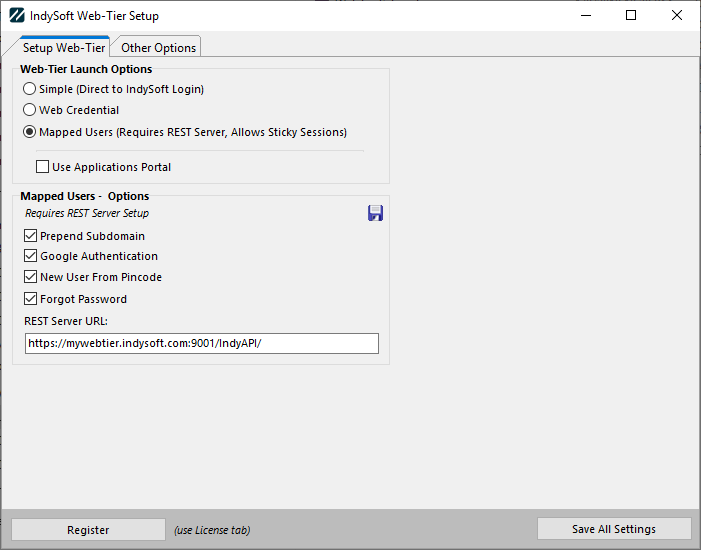
Web-Tier Setup
This document addresses the initial login options/requirements related to the Mapped Users mode above. Using this mode allows IndySoft to support sticky sessions type functionality. Meaning, a web-tier user can lose a connection and then later re-connect through a browser and their previous work is restored (even from a different workstation). Also, this mode only requires a single login to IndySoft from the browser (faster login process).
To accomplish this, IndySoft needs to learn/log additional details about each login and store it in the database. So, each IndySoft web-tier user (when using this mode) will need to go through a password reset. This is a one-time operation. Doing this password reset assures that all the login details are correctly stored for the user.
Customers that are implementing this new Mapped Users mode have a few options on how to accomplish this one-time password reset per user. These options are outlined below:
·OPTION ONE: If email addresses are already input into the IndySoft database for the employees related to each IndySoft login, then a password reset can be quickly initiated for ALL users at once in Profile Manager.
Simply log into Profile Manager (from within web-tier), open the Options menu, and select Create Web-Tier Credentials For All Users:
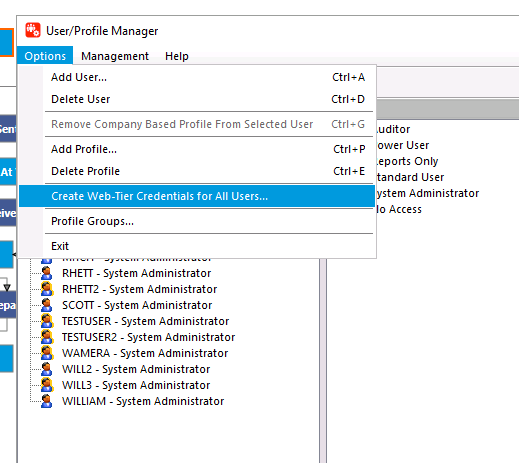
Profile Manager - Create Web-Tier Credentials for All Users
Note that this action is ONLY effective if your users are already associated with employee records that have valid email addresses. The password reset sends an email to each employee with a temporary login password. Once the user logs in with these temporary credentials, they can then input their final credentials and continue normal usage.
To quickly review the linked email addresses per login, go to Management...Password Settings, and press the Review EMail Addresses button:
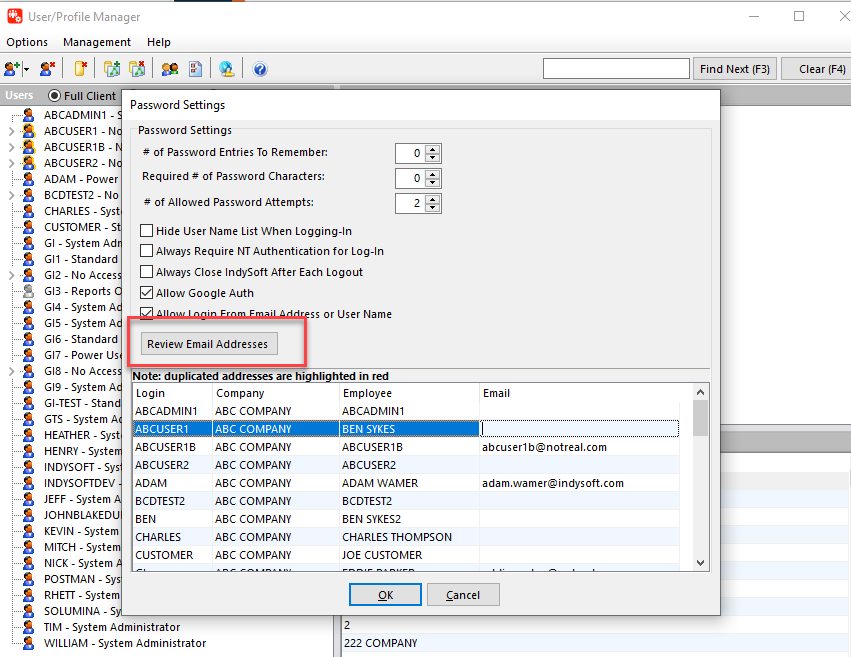
Profile Manager - Review EMail Addresses
·OPTION TWO: If you would like to only send a few targeted password reset emails, you can do that per user in Profile Manager through a right-mouse click operation:
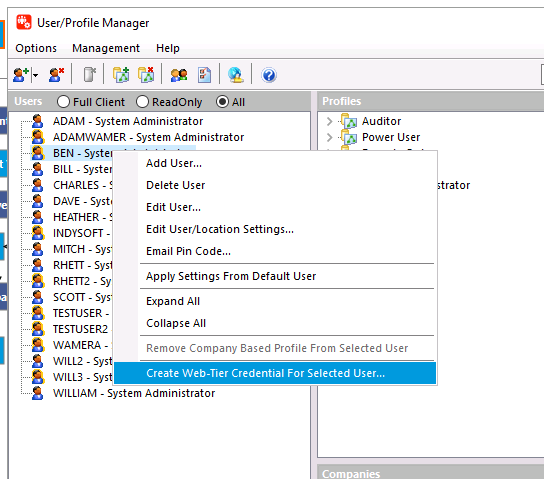
Profile Manager - Create Web-Tier Credential For Selected User...
·OPTION THREE: The password reset can simply be requested from the cloud login page upon the first login. Navigate to the IndySoft web-tier login page in your browser and input your IndySoft user name. As you exit the user name edit box, if you have not yet setup this username for a mapped cloud login then you will see the following alert:

Unable to locate mapped user
This is your reminder to simply press the Forgot your password? link above. This will cause a password reset email to be sent to the email address associated with the current login.
Note that in some instances, the user might not yet have an email address setup for their related Employee record in IndySoft. This would prevent them from executing a successful password reset from the cloud login page. To address this scenario, IndySoft allows the user to specify their email address, as long as they can provide a valid username AND related password for IndySoft.
So in this scenario, after noting the Error: Unable to locate mapped user and pressing Forget your password?, the user will be sent to the dialog below:

Add email dialog - cloud login
After inputting a valid username and password, along with their related email address, the Setup button will save this email address to the database then reset the password, kicking off the email to the user. Note that the email address needs to be unique - not already in use by another IndySoft user. If the email address is not unique then an alert will be shown.
Password Reset
Regardless of the method used to execute a password reset, the email will always have the same look, as defined by an optional email layout in LayoutBuilder. The email will look something like this:
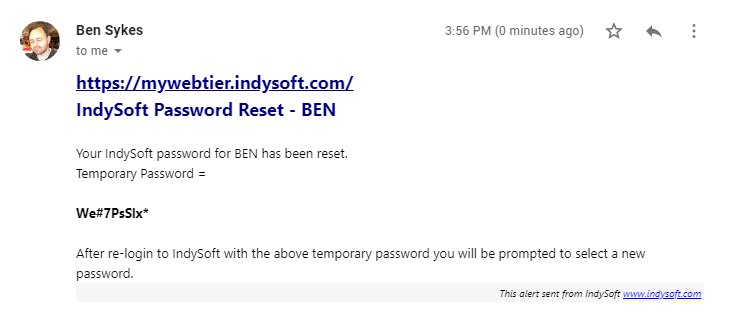
EMail for Password Reset - Example
Simply cut/paste the password from the email into the login screen for IndySoft web-tier. After login, the user will be immediately prompted (from within IndySoft) to choose their updated credentials. Often the user will elect to change their password back to what it was before the password reset process began:

Password Change - After Password Reset
Thats it - all future logins simply require one input of user name and password. Any connections that are lost remain running on the server and can be restored later upon re-login.
Google Authentication
Note there is an option in WebTierSetup.exe that allows for Google authentication from the cloud login screen. This option requests Google credentials through the browser. Once an authenticated email is returned from the Google token, this email address is looked up in the IndySoft database to find a matching user, and then login proceeds automatically.
To log in using Google, simply press the Google logo in the lower-left (instead of inputting username and password):

Sign in with Google
From within IndySoft, if you would like to exit IndySoft and also force IndySoft to forget the current Google token associated with the login, then simply select the Log-Out (Google Authentication) menu option:
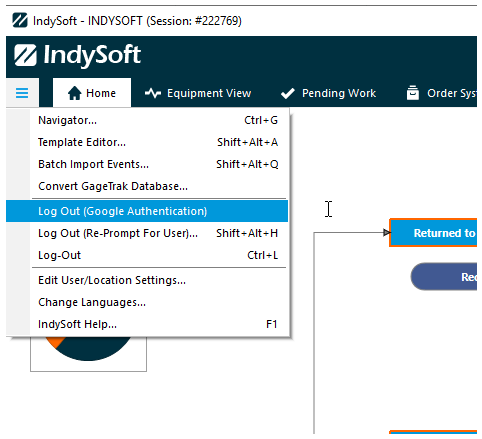
Log Out (Google Authentication)
Modifying Email Layouts
The look of both the Password Reset email and the New User from Pincode email can be modified from LayoutBuilder. To modify the Password Reset email, go to the EMail Layouts section and modify EMAIL RESET:
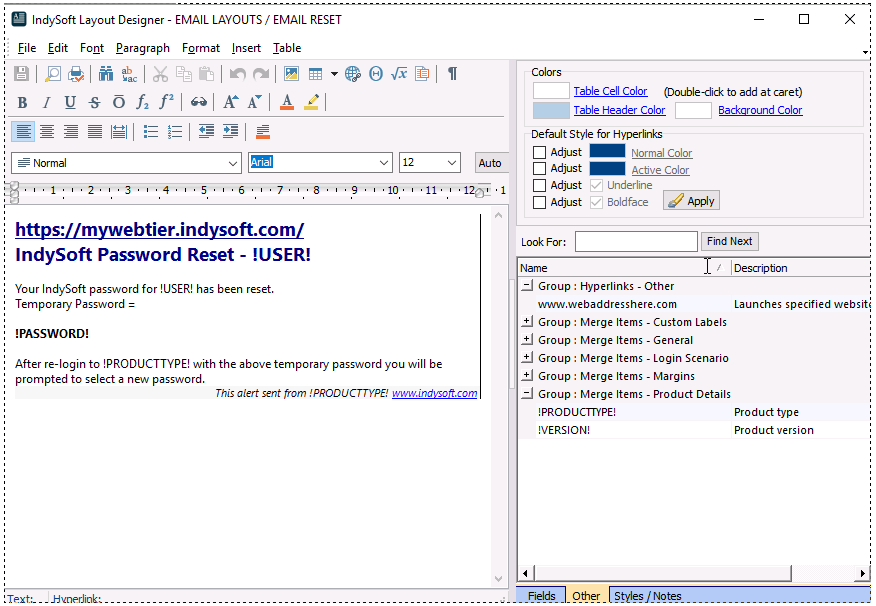
EMail Layout - Password Reset
Note the 2 important mail-merge items are:
!USER!
!PASSWORD!
To modify the email sent to new users created from pincode (as initiated from Profile Manager), modify EMAIL PINCODE. To modify the email sent to new users after they press the Pincode Sign Up link on the cloud login screen, modify EMAIL NEW.
Finally, note that the exact layouts used for all 3 of these operations can be mapped/changed from 3 System-Wide Variables:
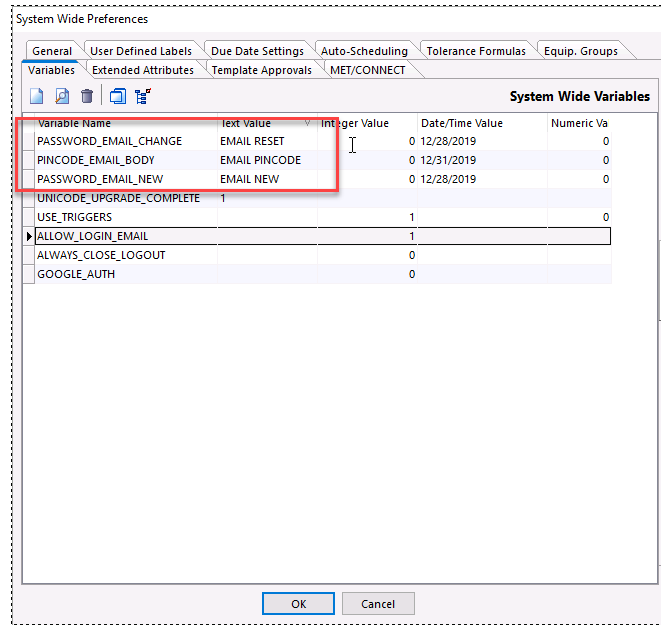
EMail Layout Variables - System Wide Options |