Windows (AD) User Setup
Initial Setup
Generally, WebTier is set up using the Simple Setup or Web Credential Method on-premise. Using a web credential maps a password input upon login to a Windows user. However, when setting up WebTier for use with Windows (Active Directory) Users/Groups, the web credential configuration is no longer necessary. Once you have the Windows users/groups set up successfully on the server hosting WebTier, we can then quickly assign the designated users to the IndySoft application. Once assigned to the application, the behavior will be very similar to Simple Setup with the exception of a Windows login page being displayed first:
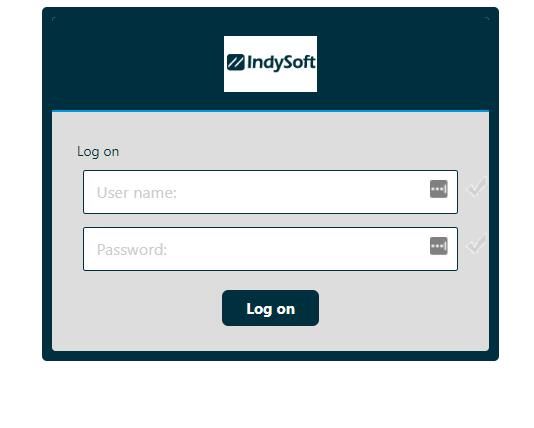
WebTier - Initial Windows Credential Login Screen
Users will log in to the session using their Windows credentials in the above screen. Once entered, either hit "Log on" or the enter key on your keyboard to launch into the IndySoft session.
If the credentials entered do not match an assigned application (the IndySoft Client), then you will automatically be bumped back to the Windows Login screen to re-enter credentials and try again.
Once you are logged into the session successfully with a Windows user that is mapped to the IndySoft Client application, we would then be pushed to the IndySoft login screen. To further streamline this, we can use NT authentication to pull the Windows username in as the client login -- as long as the Windows username exactly matches the IndySoft username.
The benefit of this is that once set up correctly, users should only be required to enter credentials one time to log in to WebTier successfully -- using their Windows credentials on the initial WebTier login screen.
WebTier Admin Tool Settings
Follow the instructions below on setting up the WebTier Admin Tool settings for use with Windows (AD) users/groups
1. Disable Web Credentials
- Within the Web...Web Portal tab -- open 'Web Credentials'
- Uncheck the first checkbox 'Enable Web Credentials'
- Press 'Save'

Web Credentials Dialog - Uncheck Enable Web Credentials
2. Adjust Web Portal Login
- Within the Web...Web Portal tab -- open 'Web Portal Design'
- Change the theme to 'Color'
- Press 'Save'

Web Portal Design Dialog - Adjust Theme to Color
3. Uncheck Remember Last Login
- Within the Web...Web Portal tab -- open 'Web Portal Preferences'
- Uncheck 'Remeber Last Login' under Default Values
- Press 'Save'

Web Portal Preferences - Uncheck Remember Last Login
4. Set One Session per User
- Within the Sessions...Settings tab -- open 'Session Management Settings'
- Check the radio button for 'Only one session per use: The second session will capture the first one'
- Click 'X' to save

Session Management Settings - One Session per User
5. Adjust Session Permissions
- Within the Sessions...Permissions tab - review the server advanced security options
- Check the checkbox to 'Allow only users with, at least, one assigned application'

Session Permissions - Allow only users with at least one assigned application
Assigning Windows Users to IndySoft Application
Follow the instructions below to assign Windows (AD) users/groups to the IndySoft Client published application
Note: At this point in the setup process, the Windows users/groups should already be created, configured, and set up with credentials.
In the following example, I am using the 'angelena' Windows user as my main user when testing. I have also created the testuser account to further confirm the behavior.

Local Windows Users Example
Application Assignment will be done through the 'Applications' tab of the WebTier Admin Tool:

Admin Tool - Assign Users to Application
1. Open the Applications tab
- Ensure that the IndySoft Client application exists within the Published Applications list
2. Click on the IndySoft Client icon to select that application
3. Click on the 'Assign Application' button in the top-right
4. In the IndySoft User Assignment Dialog:
- Ensure the radio button for 'Specified users and groups' is checked on
- Click the 'Add...' button to add new users to the assigned users list
- Click on 'Advanced...' for more search options

- Note: In the above example, I have already assigned the 'angelena' Windows user to IndySoft Client
5. Save the IndySoft User Assignment Dialog
Using NT Authentication
By default, each workstation has the option to log in using NT Authentication by checking on the setting in the Database Settings utility. When this option is turned on, a user's Windows name (which would have required proper access in normal corporate Windows environments) can be passed into the initial IndySoft login screen -- the Windows username is uppercased and all non-alphanumeric characters are removed. The remaining parsed username is then compared to the pre-existing IndySoft usernames and if a match is found, that user is automatically used to login to the IndySoft system (bypassing the IndySoft Login screen)
This option can also be configured on the profile manager level, which forces this requirement for all users within the IndySoft system - ignoring the workstation-specific option altogether.
- This can be configured in Profile Manager under the Management tab...Password/Keycloak Settings
- Check 'Always Require NT Authentication for Log-in'

Profile Manager...Management Tab - Password/Keycloak Settings
If you would only like to apply this functionality to the WebTier server instance and not systemwide for all users (local client and web), then you can check the option within the DatabaseSettings.exe of the IndySoft Client on the WebTier server.

Database Settings - Log-In Using NT Authentication