Add/Edit...System-Wide...Scheduling...Schedule Groups
Schedule Groups enable you to write simplified filter boxes (searches), such as in EquipmentFinder...Advanced. For instance, say you have 5 calibration-type schedules and want to create a report for all assets due for all calibration-type schedules. You could use 5 lines in the filter box with 'OR's - one per calibration schedule type or set up a schedule group that points to all 5 schedule types. Then, in the filter box, use that Schedule Group name instead of the name of each schedule type.
In equipment filter boxes, all schedule groups are named: 'Sched. Group - [name] + field name' - in terms of the order of fields in the drop-down you created in the Add/Edit list (described below). Also - this is helpful down the road when your business rules change a bit - say you decide you need a 6th calibration schedule type for an even more specific interval. You can create the schedule type and add it to the group - then your old filter boxes (if they used schedule groups) do not have to be rewritten - those assets will show up automatically.
Add/Edit Schedule Groups
To add to or manage the Schedule Groups list, in the IndySoft left-hand panel, click Add/Edit and select System-Wide...Scheduling...Schedule Groups from the drop-down menu.
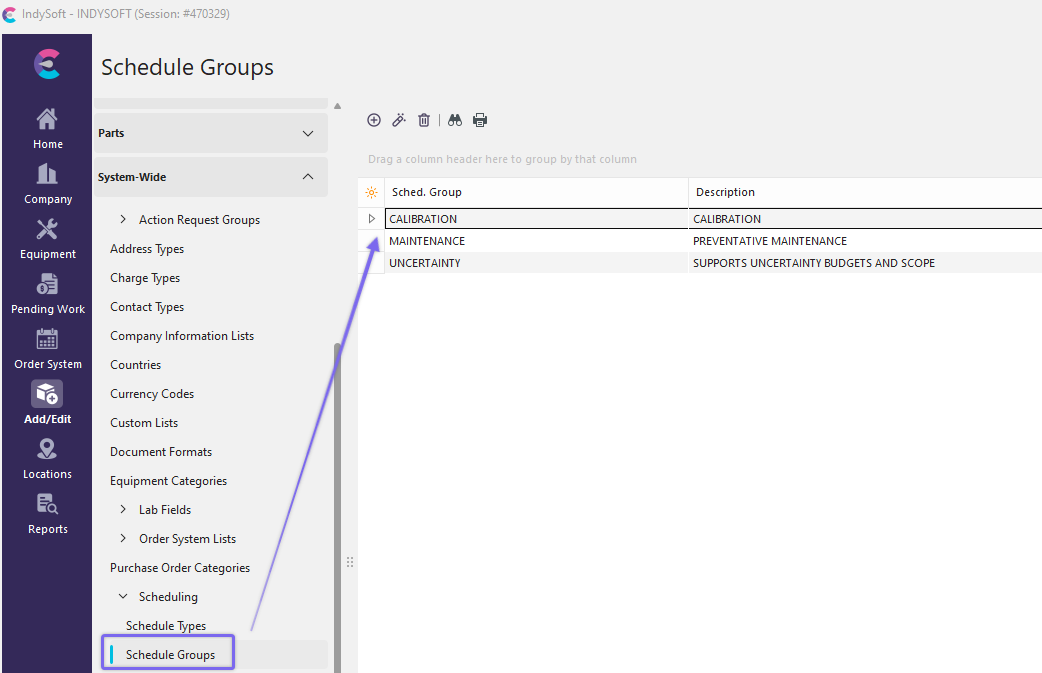
Add/Edit Schedule Groups
Click  'New Item' to add a new Vendor or
  to 'View/Edit Item.'
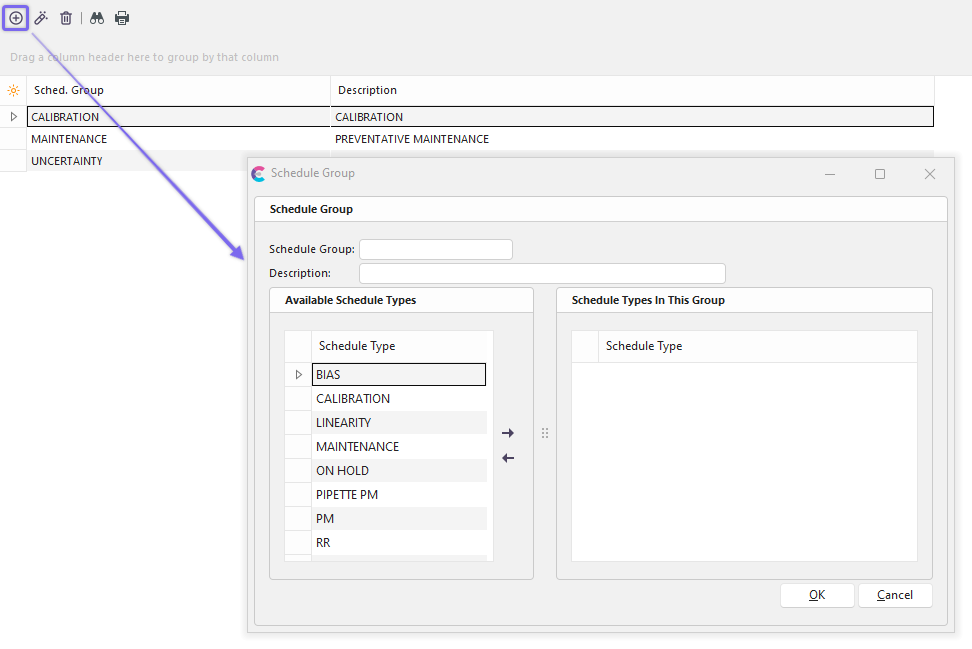
Schedule Group
Schedule Group
This is the name of the group that you will find in the search filter box...'Sched. Group - [name] + field name'
Description
Write a short description of the group - optional
Available Schedule Types
This is from the list that is created under Add/Edit...System-Wide...Scheduling...Schedule Types
Schedule Types in This Group
Select a type from the menu on the left and use the blue arrows to move that type into the Group list on the right. You can have more than one type in each group.
Using Schedule Groups
An example of using Schedule Groups is in Equipment Finder.
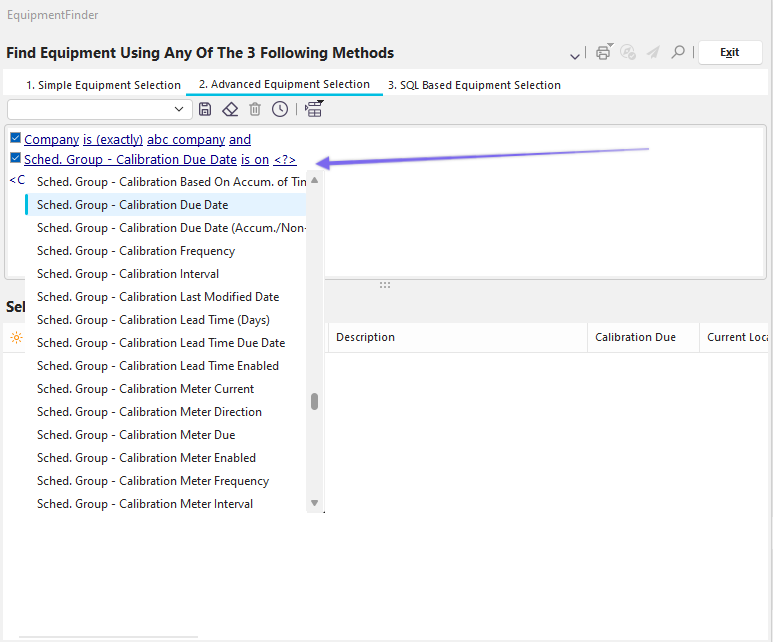
Equipment Finder - Schedule Groups Example
By selecting <click here to add any condition> (not shown) in the Equipment Finder dialog box, scroll down the menu to 'Sched. Group'. In this example, you will see 'Pm,' the PM group created in the example at the beginning of this topic. Whatever name you created will show up here grouped in alphabetical order. |