Event Steps - Overview
Event Steps Overview
All events can be configured using the Work Flow Configuration Wizard. A complete listing of the functionality provided in all available tabs follows. Twelve possible tabs can be included in an event. These event steps can be arranged in any order by using the up/down arrows in Work Flow Configuration - Event Steps:
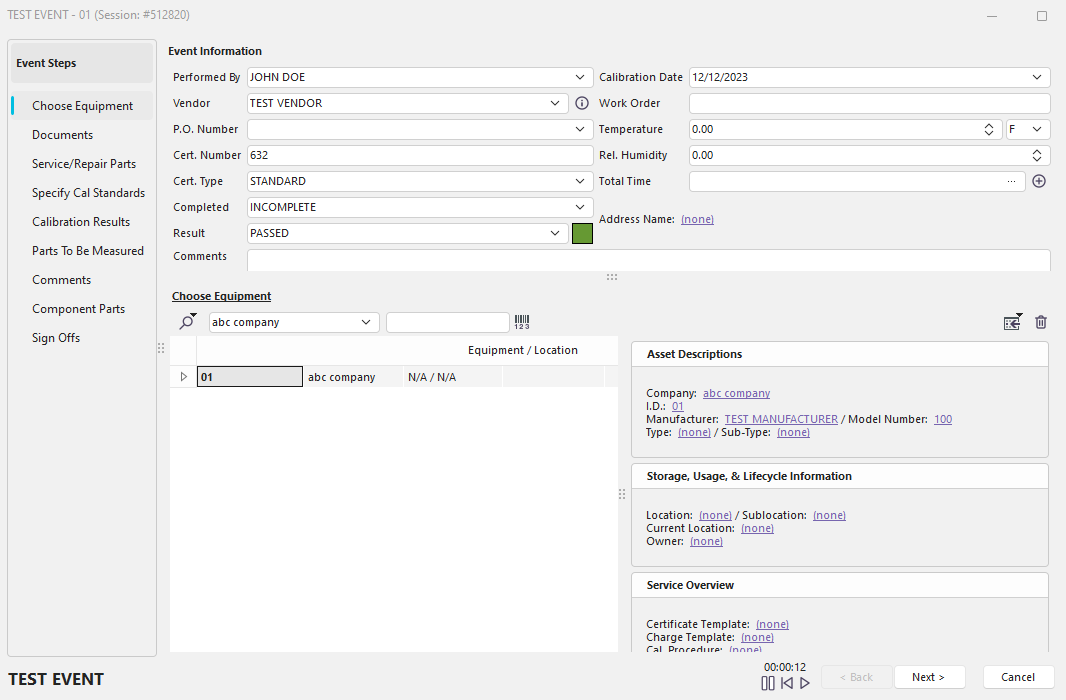
Test Event - Overview
Event Information
See the Event Tabs - Event Information section for more details.
Choose Equipment
See the Event Tabs - Choose Equipment section for more details.
Documents
See the Event Tabs - Documents section for more details.
Parts To Be Measured
See the Event Tabs - Parts To Be Measured section for more details.
Specifying Standards That Will Be Used To Calibrate This Equipment (Default Masters)
See the Event Tabs - Specify Masters That Will Be Used To Calibrate This Gage section for more details.
Calibration Results
See the Event Tabs - Calibration Results section for more details.
Choose Service/Repair Parts and Charges
See the Event Tabs - Choose Service/Repair Parts and Labor section for more details.
Comments
See the Event Tabs - Comments section for more details.
Remove/Modify/Add Equipment
See the Event Tabs - Remove/Modify/Add Equipment section for more details.
Sign Offs
See the Event Tabs - Sign Offs section for more details.
Tasks
See the Tasks Tab - Tasks section for more details.
Event Attributes
See the Event Tabs - Event Attributes section for more details.
Component Parts
See the Event Tabs - Component Parts section for more details.
If you have selected the Event Configuration Option to display a timer during an event type, then the timer control will appear along the bottom bar of all event tabs. The timer automatically starts when you create or re-launch an incomplete event in IndySoft. Convenient buttons for start, pause, and stop are also provided.

Event System Timer |