Event Steps - Remove/Modify/Add Equipment
Making Changes to Equipment in an Event
The 'Remove/Modify/Add Equipment' event step appears if the 'Global Modifications' event step has been selected for the current event type through the Work Flow Configuration Wizard - Event Steps.
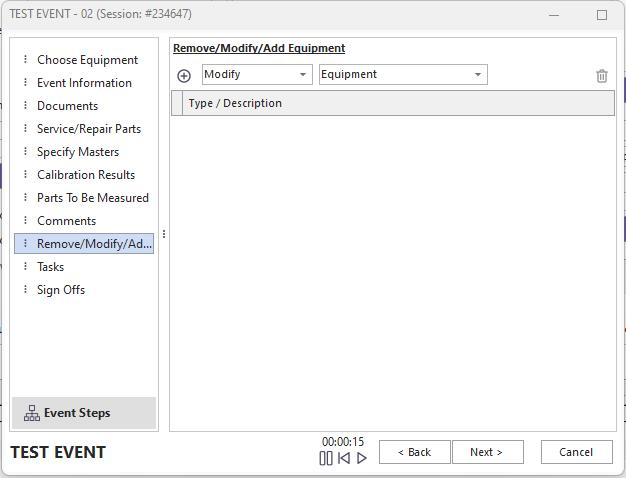
Event Steps - Remove/Modify/Add Equipment
This event step is a powerful addition to IndySoft, allowing equipment information to be very specifically modified using an event. This functionality can be used with the Profile Manager (Security System) to provide a complete audit trail of all equipment information changes. Also, since IndySoft events can be performed upon multiple pieces of equipment at once, this event step makes global changes of equipment information quick and easy.
Specifying Equipment To Modify
Depending upon how your Global Equipment Change event has been set up, there are two ways to specify equipment to be updated. One way is to choose equipment using the standard Multi-Gage Select dialog simply. To select multiple pieces of equipment for an event, see the Event Steps - Choose Equipment section for more details. The other way is using a 'Filter' to narrow down the equipment to be updated. We highly suggest updating many pieces of equipment simultaneously using the 'Filter' method as this will be the fastest process. In cases where you are updating thousands of pieces of equipment, it could mean a difference of a few hours with single equipment selection vs. a few seconds with the 'Filter' method.
 Click 'Add an Audit Equipment Information Type' to use the 'filter' method:
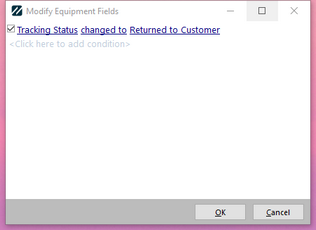
Modify Equipment Fields
Specifying What To Modify
The last portion of this event is to specify what equipment you want to modify. The displayed grid lists all the information that will be removed/modified/added when the event is completed. A text summary of each operation is given, including a list of equipment the process will operate upon. Above the grid, two drop-down boxes facilitate the choice of the appropriate operation:
Remove/Modify/Add Drop Down
From this drop-down, select the operation you would like to perform upon the information in the following drop-down to the right. For instance, choose 'Modify' if you want to modify a gage.

Information Type Drop Down
Select the information you want to remove/modify/add from this drop-down.
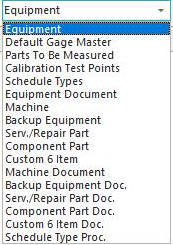
There are 19 options:
·Equipment
A piece of equipment will be modified. Note: this operation can only change gage header information (still over 100 possible fields), not information stored in a master-detail relationship. Only modified operations are allowed for gages using this wizard. A gage filter box will appear, as shown above. Modify as many lines as you would like, associating a gage field with its new value. You can select 'change to' items with drop-down lists and pick from a list of saved items. If you want to type a new item not in the list, select 'change to (not in the list).' See the Modify Equipment Fields box above.
·Default Master
Allows you to remove, add, or modify a default gage master for all selected equipment. If you add or remove a default gage master, select the new master (or the master you are removing) from the dialog. If you are modifying a default gage master, select the gage master that you would like to modify from the first dialog, then select the gage master that you would like to change to in the second dialog. In effect, this would replace one gage master with another gage master.
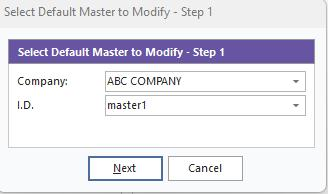
Step 1 - Select Default Master to Modify
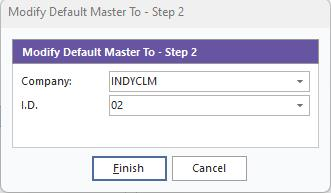
Step 2- Modify Default Master To
·Parts To Be Measured
Allows you to remove, add, or modify a default Parts to Be Measured item for all selected equipment. If you are adding or removing a default Part to Be Measured, select the new default Part to Be Measured (or the part you are removing) from the dialog. If you modify a default Part to be Measured, select the default Part to Be Measured that you would like to modify from the first dialog, then select the default Part to Be Measured that you would like to change to in the second dialog. In effect, this can replace one default Part to Be Measured with another default Part to Be Measured.
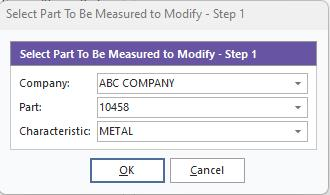
Select Part To Be Measured To Modify
·Calibration Test Points
If you choose the 'Modify' or 'Add' options here, you will copy calibration test points from a gage that you select in the dialog to the gages selected for your event. Note: this will overwrite any existing test points for this equipment. You are asked to confirm the operation if you choose to 'Remove' Calibration Test Points.
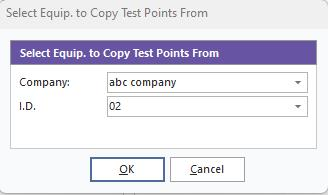
Select Equip to Copy Test Points From
·Schedule Type
If you choose to 'Add' a schedule type for the selected equipment, the 'Schedule Information' dialog will appear, as shown below. If you choose to 'Modify' a schedule type, you will first be asked to select a schedule type to modify. The settings specified in the' Schedule Information' dialog will be applied if this schedule type exists for the select equipment (per equipment basis). If you choose to 'Remove' a schedule type, you will be asked to specify the type that should be removed.
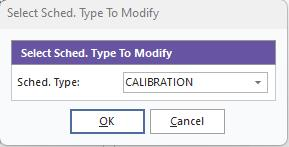
Select Schedule to Modify
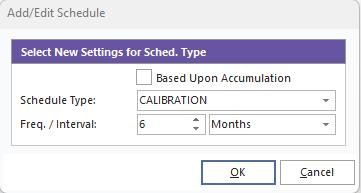
Add/Edit Schedule
·Equipment Document
If you add or delete a document, you will be prompted for the document (company and document name). If you modify a document, you will be prompted first for the document you want to change from, then a second prompt for the document you want to switch to (swap the document references).
·Machine
If you add or delete a machine, you will be prompted for the machine (company and machine name). If you are modifying a machine, you will be prompted first for the machine you want to change from, then a second prompt for the machine you want to change to (swap the document references).
·Backup Equipment
If you add or delete backup equipment, you will be prompted for the backup equipment ID. If you modify backup equipment, you will be prompted first for the backup equipment ID you want to change from, then a second prompt for the backup equipment ID you wish to change to.
·Serv./Repair Part
If you add or delete service/repair parts, you will be prompted for the service/repair part (company and serv./repair part). If you are modifying service/repair parts, then you will be prompted first for the service/repair part (company and serv./repair Part) you want to change from, then a second prompt for the service/repair part (company and serv./repair part) that you want to change to.
·Component Part
If you add or delete component parts, you will be prompted for the component part (company and component part). If you modify component parts, you will be prompted first for the component part (company and component part) you want to change from, then a second prompt for the component part (company and component part) you wish to change to.
·Custom 6 Item
If you add or delete custom six items, you will be prompted for the custom 6 item (company and custom 6 item). If you are modifying six custom items, you will be prompted first for the custom 6 item (company and custom six items) you want to change from, then a second prompt for the custom 6 item (company and custom six items) you wish to change to.
·Machine Document
First, you will be prompted to select the machine for the updated document. If you add or delete a document, you will be prompted for the document (company and document). If you modify a document, you will be prompted first for the document (company and document) you want to change from, then a second prompt for the document (company and document) you wish to change to.
·Backup Equipment Document
First, you will be prompted to select the backup equipment ID for the updated document. If you add or delete a document, you will be prompted for the document (company and document). If you modify a document, you will be prompted first for the document (company and document) you want to change from, then a second prompt for the document (company and document) you wish to change to.
·Serv./Repair Part Document
First, you will be prompted to select the service/repair part for the updated document. If you add or delete a document, you will be prompted for the document (company and document). If you modify a document, you will be prompted first for the document (company and document) you want to change from, then a second prompt for the document (company and document) you wish to change to.
·Component Part Document
First, you will be prompted to select the component part for the updated document. If you add or delete a document, you will be prompted for the document (company and document). If you modify a document, you will be prompted first for the document (company and document) you want to change from, then a second prompt for the document (company and document) you wish to change to.
·Custom 6 Item Document
First, you will be prompted to select the custom 6 item for the updated document. If you add or delete a document, you will be prompted for the document (company and document). If you modify a document, you will be prompted first for the document (company and document) you want to change from, then a second prompt for the document (company and document) you wish to change to.
·Schedule Type Procedure
First, you will be prompted to select the schedule type for the updated procedure. If you add or delete a procedure, you will be prompted for the procedure (company and procedure name). If you modify a procedure, you will be prompted first for the procedure (company and procedure name) you want to change from, then a second prompt for the procedure (company and procedure name) you wish to change to.
·Uncert. Budget Assoc.
If you add or delete an uncertainty budget association, you will be prompted for the uncertainty budget association (company and budget name) and associated test points. Suppose you are modifying an uncertainty budget association. In that case, you will be prompted first for the uncertainty budget association (company and budget name) you want to change from, then a second prompt for the uncertainty budget association (company and part) that you want to change to, along with associated test points.
·Uncertainty Attribute
If you add or delete an uncertainty attribute, you will be prompted for the uncertainty attribute (company, ID, attribute name). If you are modifying an uncertainty attribute, you will be prompted first for the uncertainty attribute (company, ID, attribute name) you want to change from, then a second prompt for the uncertainty attribute (company, ID, attribute name) you want to change to. Remove An Audit Equipment Information Type (Delete)
This button removes Remove/Modify/Add items from the grid. |