Workflow Configuration - Miscellaneous
Configuration Wizard - Miscellaneous (Step 5 of 22)
The miscellaneous step displays miscellaneous settings for each event.
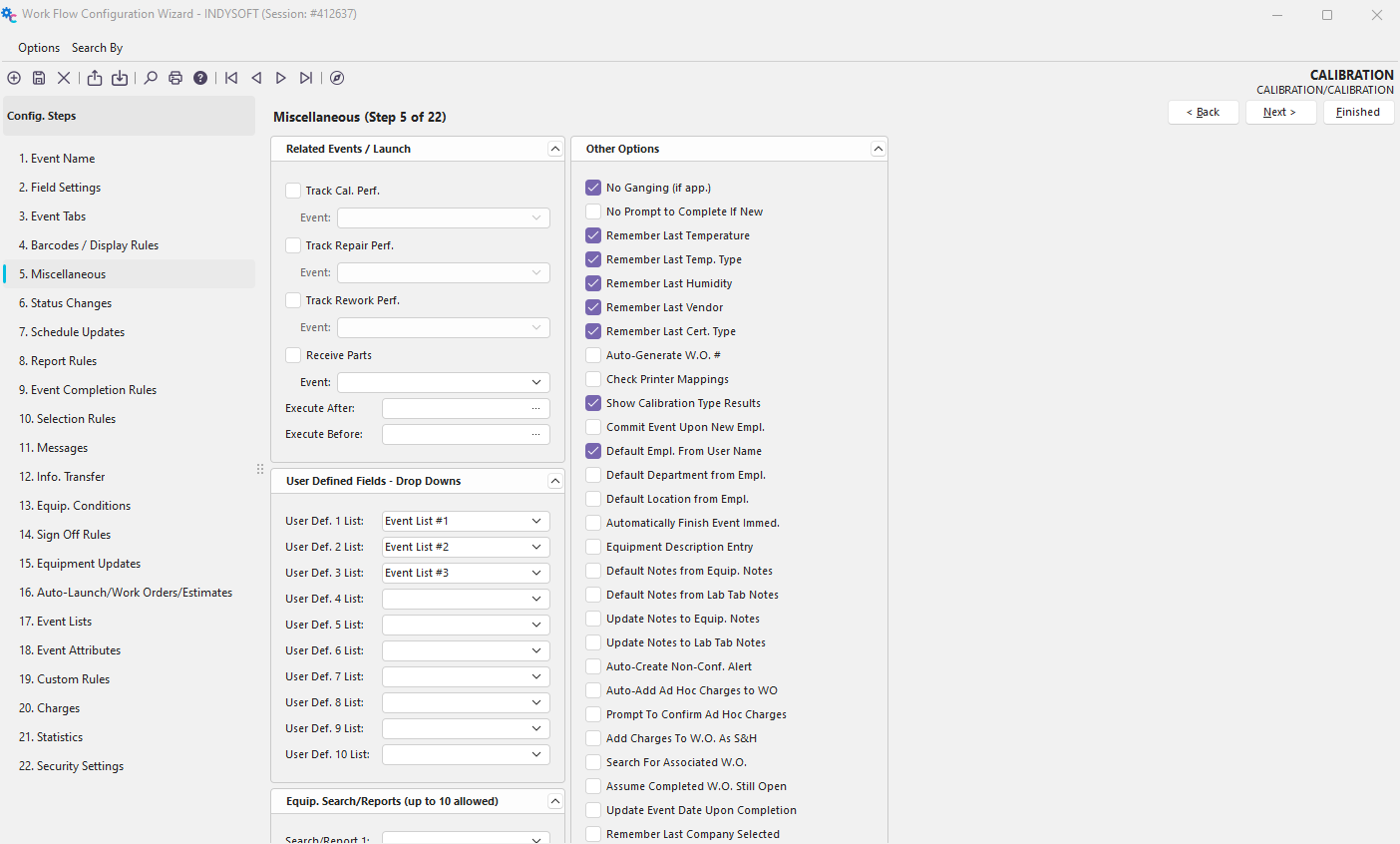
Configuration Wizard - Step 5 of 22 - Miscellaneous
Related Events / Launch
The Related Events fields can be used to link the current event to another event in some fashion. Below is an explanation of each Related Event setting.
Track Calibration Performance
This checkbox will track the difference between the current event and the related event and will add this to the specified Vendor's 'vendor performance' average for calibration work. The Vendor Field must be marked as visible in the Field Settings for this feature to work.
Track Repair Performance
This checkbox will track the difference between the current event and the related event and will add this to the specified Vendor's 'vendor performance' average for repair work. The Vendor Field must be marked as visible in the Field Settings for this feature to work.
Track Rework Performance
Operates similarly to the other two, but for rework.
Execute Before
This feature gives you the option of auto starting an external windows application before the event launches. You must place only the name of the .exe here and the program must reside in the same directory as your IndySoft programs.
Execute After
This feature gives you the option of auto starting an external windows application after the event launches. You must place only the name of the .exe here and the program must reside in the same directory where you IndySoft programs are located.
User Defined Fields - Drop Downs
If you will be using any of the 10 user defined fields in your event, you can choose to populate each of them with a specific list type. To choose a list type, simply pick one from the corresponding drop-down list on the right.
Menu Options
Barcode Key
The Barcode key can be used to set up a special code for the current event. This code can be printed out as a barcode and at any time while on the main IndySoft screen or during an event, you can quickly begin the current event by scanning the barcode, no keystrokes required.
In order for this to work, you must always preface your Key Code with an exclamation point '$'. For example, if you key code was 12, then your barcode would need to be $12
Key. Shortcut
The Key Shortcut field allows you setup an 'accelerator key' to quickly start an event. You must pick from the existing list of accelerator keys. Once you pick a character, pressing 'Shift+Ctrl+the specified character' will automatically start an event. If you duplicate an accelerator key for two events, you will be warned when saving the event.
Company
If you want the current event to only show up when looking at a particular company's equipment, then enter the specific company name here. For example, if you enter 'ABC COMPANY' in this field, then this event type will only appear when the ABC COMPANY has been selected as the current company.
Menu Group
Use this feature if you would like an event type to appear in it's own menu group. For example, if you would like for 3 events to display on your menu underneath a group called 'Repair Events', then specify 'Repair Events' in this field for all 3 event types.
Equipment Review Panel
No equipment review panel
Use this checkbox to toggle the equipment review panel off within the event
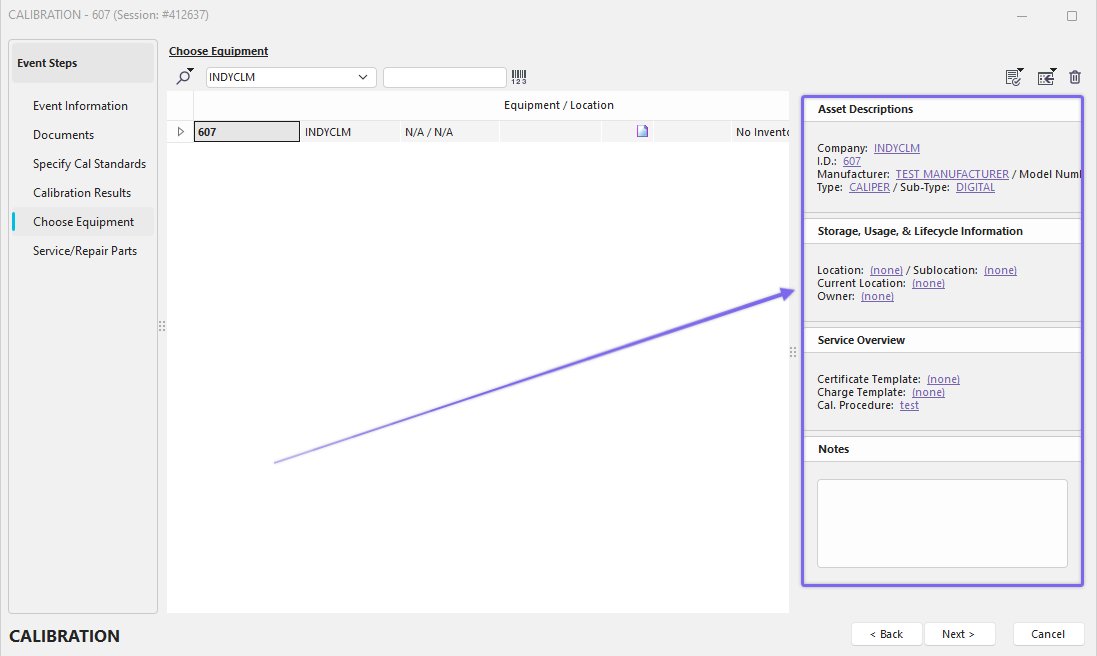
Equip Layout
Represents the equipment layout that is visible within the equip review panel.
Field Layout
Represents the event layout that is displayed within the event information tab showing the event fields.
Other Options

Miscellaneous Step 5 - Other Options
](/it/Storage/indysoft-help-publication/98887697.png)
- No Ganging (if app.)
This option will remove the 'Gang Selected Equipment' button from above the 'Choose Equipment' grid (if that event step is visible). This option is required if the 'Show Event Att. Below Tabs' option is selected.
|
| | 
](/it/Storage/indysoft-help-publication/98880661.png)
Workflow Config. -> Gang Selected Equipment (click to expand/collapse)
- No Prompt to Complete If New
Enable this option to avoid the prompt below for all new events:
|
| |

- Remember Last Temperature
If the temperature field is visible in Field Settings Event Information, then the temperature defaults to the value used in the most recent event.
- Remember Last Temp. Type
If the Temperature Type field is visible in Field Settings Event Information, then the Temperature Type defaults to the value used in the most recent event.
- Remember Last Humidity
If the humidity field is visible in Field Settings Event Information, then the humidity defaults to the value used in the most recent event.
- Remember Last Vendor
If the Vendor field is visible in Field Settings Event Information, then the Vendor defaults to the value used in the most recent event.
- Remember Last Cert. Type
If the Cert. Type field is visible in Field Settings Event Information, then the Cert. Type defaults to the value used in the most recent event.
- Auto-Generate W.O. #
The Work Order field (on Field Settings Tab, Step 2 of Configuration) will be automatically populated with a new work order number, generated with the next number in the series - just as if you press the 'New Work Order' button in the Order System.
- Check Printer Mappings
If this option is selected, then before the event is started a check is performed on the report rules (Step 8) that setup for the event. IndySoft notes all distinct printers that will be required by the reports that could be printed by this event upon completion, then double-checks that these printers are mapped in the User/Location Settings options. If not, the user is alerted, as in the example below, and the event cannot be executed (because you don't to risk completing an event and not be able to create the necessary reports).
|
| |

- Show Calibration Type Results
This option controls the drop down values available from the 'Result' field (as setup in the 'Field Settings' (Step 1) of Workflow Configuration). If this option is unchecked, then the values are:
PASSED
FAILED
If this option is turned on, the options include Calibration-type results as follows:

Workflow Config. -> Show Calibration Type Results
- Commit Event Upon New Empl.
This option was only applicable to the Tooling Management version of IndySoft - no longer supported.
- Default Empl. From User Name
This option automatically defaults the Employee value based on the employee name that is associated with the user currently logged into IndySoft. This default is populated when the event is launched.
- Default Department from Empl.
This option automatically defaults the Department field value to the department of the employee that is associated with the user currently logged into IndySoft. This default is populated when the event is launched (as specified in Add/Edit...Employee...Employees wizard).
- Default Location from Empl.
This option automatically defaults the Location field value to the location of the employee that is associated with the user currently logged into IndySoft. This default is populated when the event is launched (as specified in Add/Edit...Employee...Employees wizard).
- Automatically Finish Event Immed.
Use this option if you would like for the event to have zero user interface - the event simply pops up and immediately closes. So, you get a log of the event in the history of the asset, and any equipment updates and/or custom rules are performed (possibly modifying the asset), but there is not information to confirm, and no user interaction required.
- Equipment Description Entry
This feature allows for a different use of the 'Description' field in the 'Choose Equipment' grid for the event. Typically this 'Description' field (which maybe be shown/hidden by right-mouse click option in the grid...Customize Fields) is populated with the description of the asset, as input on the IndySoft main screen. When this event option is selected, however, the field is defaulted to blank. Then, above the grid you will see a new button called 'Equipment Description Entry' (noted below). Use this button to enter text describing the asset. Keep in mind this text will be stored only for the current event, so it should be used only that purpose - a description of the asset at the time the event was performed. This concept is similar to the equipment Condition field, but allows for longer text, and can be input with different values for each asset in the event (assuming multiple assets are selected in one event).
|
| |

Workflow Config. -> Equip. Description Entry
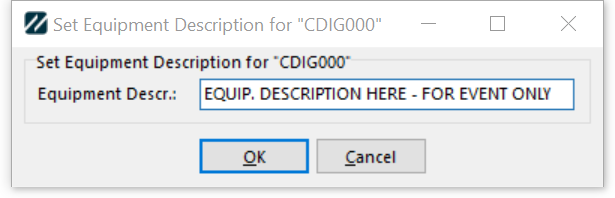
Set Equipment Description Dialog

Workflow Config. -> Choose Equipment -> Equipment Description
Note:
If you do not see column names on your Choose Equipment screen (see above for examples), right-click in the grid and check 'Show Field Headers'

- Default Notes from Equip. Notes
This option will default the event notes from the Equipment Notes for the selected asset (as input on the IndySoft main screen...Notes/Docs detail tab/dialog).
- Default Notes from Lab Tab Notes
This option will default the event notes from the Lab Notes for the selected asset (as input on the IndySoft main screen...Lab detail tab/dialog).
- Update Notes to Equip. Notes
This option will automatically update the Equipment Notes to the equal the Notes entered during the event (the 'Comment' field in Event Information). This option can be used along with the 'Default Notes from Equip. Notes' option to allow for event-based modification of the Equipment Notes.
- Update Notes to Lab Tab Notes
This option will automatically update the Lab Notes to the equal the Notes entered during the event (the 'Comment' field in Event Information). This option can be used along with the 'Default Notes from Lab Notes' option to allow for event-based modification of the Lab Notes.
- Auto-Create Non-Conf. Alert
- Auto-Add Ad Hoc Charges to WO
When IndySoft is used in a lab environment that utilizes the IndySoft Order System to create work orders...typically the flow is: 1) equipment is received through an event, this event automatically creates a work order, adds Scheduled Work Items, 2) technicians perform the Schedule Work events, as the events are performed the charges are added/updated on the related work order. But on occasion, IndySoft users could perform additional events upon assets included on open work orders - events that were not anticipated in the original work order. This feature can automatically add these events to the related open work order as scheduled line items, to ensure that they are present on the order when it is invoiced. So when this option is enabled, as the equipment is added to the event, IndySoft searches open work orders for Scheduled Work items that match this asset and this event type. If a reference is not found, then a charge for this event is added to the work order (after an optional prompt, based on following 'Prompt To Confirm Ad Hoc Charges' setting). If a reference IS found (for a Scheduled Work item on this asset and this event type on an open order), then IndySoft confirms that the linked event is different than the current event, and if so, an alert is shown to the user, alerting them that this event is likely not necessary since it is being addressed in another event. In this case, charges from this event will NOT be added to the related work order. Note: to include Complete work orders (but not yet invoiced) in the searches relative to this feature, use the 'Assume Completed W.O. Still Open' option below.
- Prompt To Confirm Ad Hoc Charges
See description of 'Auto-Add Ad Hoc Charges to WO' above. The prompt will look similar to what is shown below, listing the event type and WO #:

Confirm Ad Hod Charges Prompt
- Add Charges To W.O. As S&H
Use this option to automatically add charges from this event to a related work order, such as shipping and handling. The work order field is automatically populated from an open work order (or also Complete but not yet Invoiced work order - if 'Assume Completed W.O. Still Open' option is selected) that has a Scheduled Work item for the current asset.
- Search For Associated W.O.
When this option is selected the event W.O. Number field is automatically pre-populated with the linked Work Order, if possible. IndySoft looks for an open work order (or also Closed by not yet Invoiced Work Orders, depending upon the 'Assume Completed W.O. Still Open' setting) that has a Scheduled Work item matching the current asset.
- Assume Completed W.O. Still Open
See description of 'Search For Associated W.O.', 'Add Charges To W.O. As S&H', and 'Auto-Add Ad Hoc Charges to WO' settings above. When IndySoft searches for related work orders, this option will include Complete but not yet Invoiced Work Orders, rather than simply searching incomplete Work Orders.
- Update Event Date Upon Completion
This option will automatically reset the event date and time to the current date and time when the event is completed. This is helpful if the event might take a long time to input the data or perform the operation and you want to insure that the date/time at completion is used, not the date/time when the work was started.
- Remember Last Company Selected
This option will remember the company selected in the prior event (company drop down above the 'Choose Equipment' grid, or if that tab isn't visible...the company that owns the asset selected into the event) and use this as the default company for the current event. The last event does NOT necessarily have to have this option selected in Workflow Configuration.
- No Vendor Contact Auto-Populate
If this option is enabled then the 'Vendor Contact' field will not be automatically populated. This field is automatically populated by default if there is a 'Serviced By' vendor specified for the current asset, and this vendor has a Billing Contact setup in the Add/Edit...Equipment Info...Vendors wizard.
- Ignore All WO Alerts
If this event type is setup to automatically create a work order (from Auto-Launch Rules) and an asset selected into the event already exists on an open work order, then the user is alerted (by default) that the asset will not be included on the new work order. This option can omit this alert.
- Ignore WO Alerts on Re-Edit
This option is like the 'Ignore All WO Alerts' option above, but only occurs if the event is being edited after a previous completion.
- Skip Perf. By Set When Unique
This option is specific to the Tool Management version of IndySoft. When a unique tool or a gage is checked back in the employee that originally checked out the tool is used to populate the Employee field, if this field is blank. This option removes this functionality.
- Clear Cert. Number
By default, the Cert Number field is automatically populated, when possible, based upon the Vendor field. Once the Vendor is selected the next certificate number in the series is populated - User/Location Settings options for prefix, suffix, etc. are considered. This option turns off the automatic population of the Cert. Number field. The field must instead be populated by Custom Rules or directly by the user.
- Allow AdHoc Repair Parts
- Hide Repair Parts Tab

Event Config -> Hide Repair Parts Tab (click to expand/collapse)
- Hide Charges Tab

Event Config -> Hide Charges Tab (click to expand/collapse)
- Skip Masters Check On Completion
- Skip Masters Check On Sign-Off
- Do Not Default PO # from WO #
This option will not automatically pull the PO # into the event from the WO # by default
- Use Current Due Date as Last Cal
Typically when updating a schedule type (as defined in the Schedules Update tab in Workflow Configuration) after event completion the event's date is saved as the schedule's new 'Last Date Perf.' date, and this date is used when calculating a new schedule due date. This option forces the use of the current 'Last Date Perf.' date, rather than the event's date. So this date might be prior to the event date. For instance, say this asset is due for calibration every 3 months, and the most recent due date is March 1st. You actually perform the calibration on March 3rd. This option will force the 'Last Date Perf.' to be March 1st, with a due date of June 1st, rather than a 'Last Date Perf.' of March 3rd and a due date of June 3rd.
- Default Out-Equip Crib to (All)
- Auto-Select Out Equip.
- Clear Fields New Charges
- Test Points w/ Multi. Equip No Gang
- Hide Not in Default Crib Dialog
- Add Parts to WO for Unsched. Work
- Auto-Print Attached Event Docs
When selected, this option automatically prints all attached event documents on Event Completion.
- Show Procs From All Sched. Groups
- Omit Equip. Description Copy to WO
By default any IndySoft event that includes an update to the Work Order header or Work Order Schedule Work item updates the Description field to match the Description field of the asset selected in the event. Turn on this checkbox if you would like to skip this functionality.
- Omit Link to Existing WO
By default any IndySoft event upon Event Finish, checks to see if there is an outstanding Work Order that is Incomplete that includes this asset scheduled for this type of work, and if so, prompts to associate this asset with this work order. Turn on this option to disable this functionality.
- Skip Add Equip. In Prompt Wizard
If an event prompts for certain fields and the event allows for multiple pieces of equipment to be added, then the event may prompt for for equipment as well. This option disables the equipment prompt which appears.
- Do Not Copy Serviced By To Vendor
- Remember Last Barom. Pressure
- Remember Last Barom. Pres. Type
- Edit All Test Point Info. ON at start
This option will automatically toggle "Edit all test points" option on within the calibration results tab of the event. This will allow for freely modifying Test Points in the event without having to use the right click option every time.
- Do Not Select Task if Empty Due Date
If using Tasks which do not have a due date, this checkbox enforces that they are not automatically be selected in the event.
- Require Only One Task Selected
If using Tasks, IndySoft will require that only one task be selected at the completion of the event.
- Require At Least One Task Selected
If using Tasks, IndySoft will require that at least one task be selected at the completion of the event.
- Do Not Default P.O. Number
If performing work for a company that has a "Default" PO in Add/Edit Company, then IndySoft automatically selects that PO. This option allows events to ignore that feature.
- Do Not Add Event Charges to WO
Upon completion of an event which has charges, this feature stops any from making it to a related work order.
- Do Not Add Repair Parts to WO
Upon completion of an event which has repair parts, this feature stops any from making it to a related work order.
- Do Not Complete Rel. WO Line Item
Upon completion of an event which has a related work order line item, this feature will prevent IndySoft from automatically completing it.
- Show in Estimates to Create WOs
If this is enabled, IndySoft will show a new icon from the Estimate Charges tab in the order system where this event will be shown in a drop down. Upon selecting this event, IndySoft will select all distinct Equipment and add them to the event automatically. This checkbox is designed to also have an auto-launch rule in place to create a work order from the event.
- Component Parts...Default from Equipment at Start
This option is only applicable if the 'Component Parts' event step is visible. If this option is enabled the Component Parts are automatically populated from the Component Parts on the Equipment Level (Component Parts detail tab/dialog).
- Component Parts...Update Equipment at End
This option is only applicable if the 'Component Parts' event step is visible. If this option is enabled the Component Parts that are input during the event are automatically updated/inserted into the Component Parts for the Equipment (Component Parts detail tab/dialog). Note: all component parts are first deleted on the equipment level before they are repopulated based upon the event's Component Parts. This means that the Component Parts are completely replaced from the event's Component Parts, not simply supplemented.
- Pull Order System Job Num as WO #
 *Version 13.0.12 ||*New Misc. Checkbox to Pull current order number into EVENTS.WO_NUMBER
- Force Test Points Read Only
*Version 13.0.15 ||*New Misc. Checkbox to force test points to be displayed as read only - for review only, test point grid is not editable |