Workflow Configuration - Selection Rules
Configuration Wizard - Selection Rules (Step 10 of 22)
The Selection Rules tab allows you to specify which types of equipment are valid for a particular event type. These rules are enforced as you choose equipment, as opposed to the Event Completion Rules, which are enforced upon the completion of an Event.
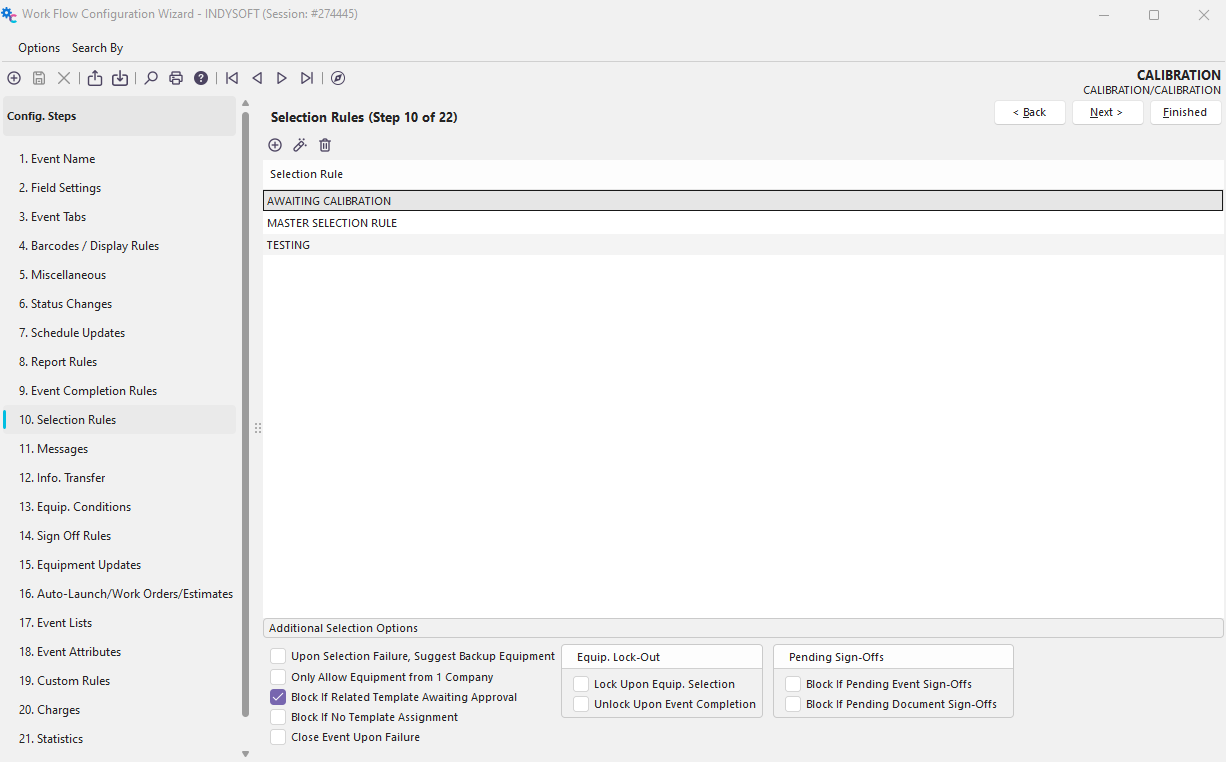
Configuration Wizard - Step 10 of 22 - Selection Rules
Adding Selection Rules
Selection Rules are great for forcing events to disallow items based on the selected equipment's status or attribute.
 Click the 'Add Equipment Selection Rule' button to add a new rule or
  to view/edit.
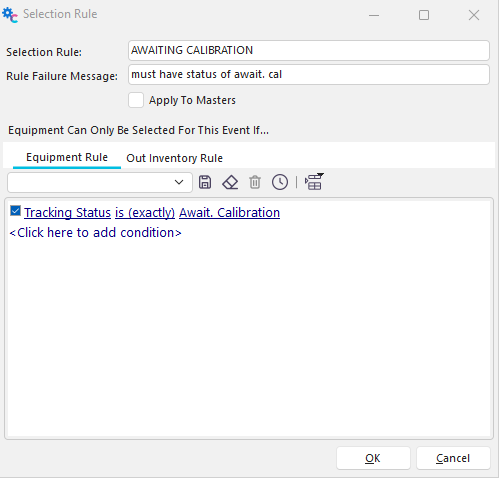
Add/Edit Selection Rule
Selection Rule
This field is a unique name for the Selection Rule. This name must be unique for each Event Type you set up.
Rule Failure Message
This message will be displayed if a piece of equipment fails a rule.
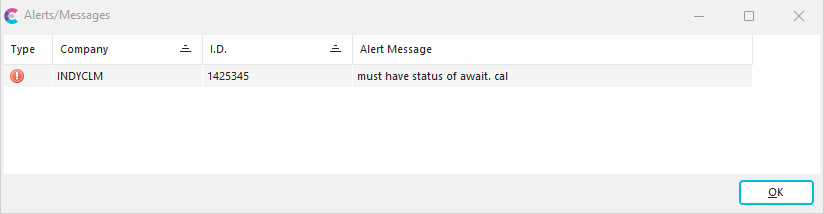
Selection Rules Failure Message
Apply To Masters
If this option is checked, the selection rule will be applied against any Masters (also known as 'Standards') selected during the event.
Equipment Rule
Use this tab to pick the type of equipment that you want to be considered in the Selection Rule. Choose a rule here that will define what types of equipment are OK for the current event type.
Out Inventory Rule
This rule only applies to users of the Tool Management module. It is similar to the Equipment Rules and helpful for dealing with Check-In and Check-Out events.
Additional Selection Options
Along the bottom of the grid, in this step, you are presented with several additional selection options. Refer to the screenshot below:

Selection Rules - Additional Selection Options
 Productivity Tip
After creating the rule described above and clicking 'Finish,' a refresh of IndySoft, right-clicking in the header and selecting 'Reload all Settings, is suggested before trying to use that rule in an event.