System-Wide Vendors
The System-Wide Vendors option was added in version 14.1 and allows administrators to maintain a single list of Vendors. This list can then be associated with Vendor/Branches to allow users to only access a subset of Branch approved Vendors. Enabling this option is a requisite for utilizing any Vendor or Vendor/Branch related properties underneath the Taxonomy Tree such as: Capabilities, Pricing.. and other future options. System-Wide Vendors which are linked to a specific Branch can also be used in the new System-Wide Vendor/Branch Location Administrative Management Options in Profile Manager.
Transitioning to System-Wide Vendors
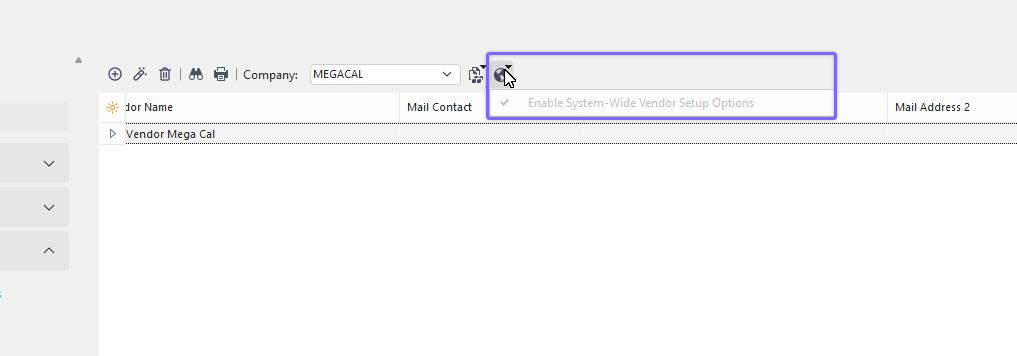
From the Add/Edit>Equipment Info>Vendors, System Administrators are able to see the option to "Enable System-Wide Vendor Setup Options."
This option will allow the following features to be accessed.
- It allows users with privileges to be able to right click in the Company Based Vendor List and "Copy Selected Vendor to System-Wide List." This will copy all data to the System-Wide list for review and use once enforcement of the System-Wide Vendor list is enabled and complete.
-
It exposes a new Add/Edit list option underneath the System-Wide Add/Edit category which is also called "Vendors."
-
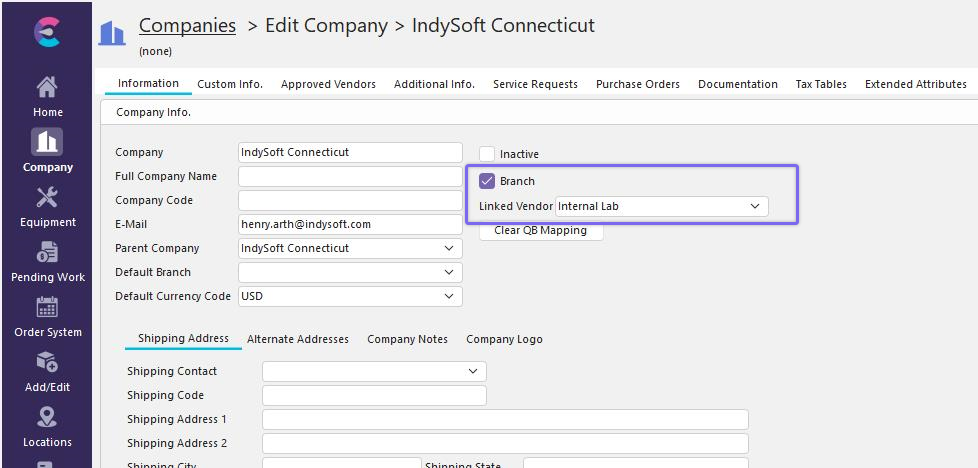
In Add/Edit Company, if the company is flagged as a "Branch", then that Company can be directly linked to a Vendor. (This link functions to indicate that a Branch is an internal or corporate Vendor as opposed to an external Vendor. Only System-Wide Vendors which are not already linked to a Branch will show up as an option for a direct link. Vendors which are directly linked to a Company in this way can have different properties in the taxonomy tree and can also be used in the Vendor/Branch Location Administrative Management Feature Set.
 )
)
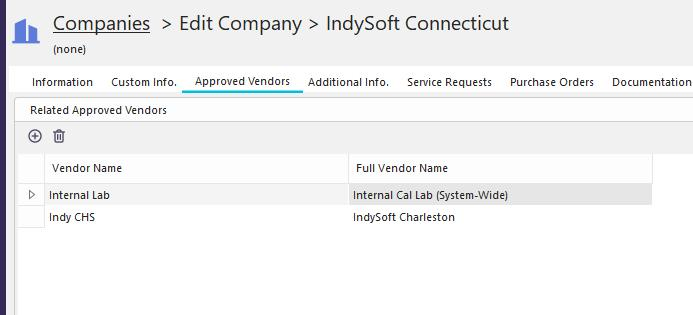
- Also in Add/Edit Company for entities flagged as a "Branch", that Branch will have a new tab where System-Wide Vendors can be associated as "Approved" Vendors for that Branch. Upon Enforcement of System-Wide Vendors, Vendors which are approved under a specific Branch will appear for users working in the context of that Vendor/Branch.
Importantly, "Enable System-Wide Vendor Setup Options" does not change any other parts of the workflow and is meant to allow the responsible transition over to the Enforcement of System-Wide Vendor Options.
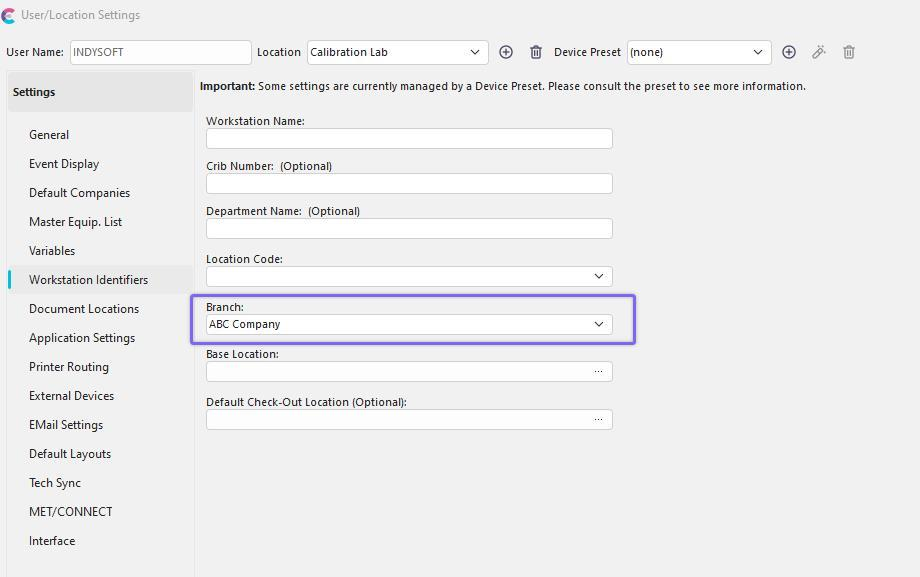
Once Administrators have transitioned all vendors over to the System-Wide list and, if desired, have set up Branches with a linked Vendor and Approved Vendors; they can "Test Enforcement of System-Wide Vendor Mode" from Add/Edit System-Wide>Vendors. This option will still allow users to transition from the Company based Vendor Lists, but will actually enforce which Vendors a user can see in Events and Equipment View Vendor Type Drop Downs. The Branch that a user is working under is dictated by the Branch field in their user/location settings. If the Branch field is populated for their user/location settings in this mode, then any Vendor related list will only show approved Vendors under that related Branch. If no Branch is indicated, then users will be able to see all System-Wide Vendors which are flagged as Approved. If a Branch is indicated, but there are no values in the Approved Vendor List for that Branch, then all System-Wide Vendors will be visible.
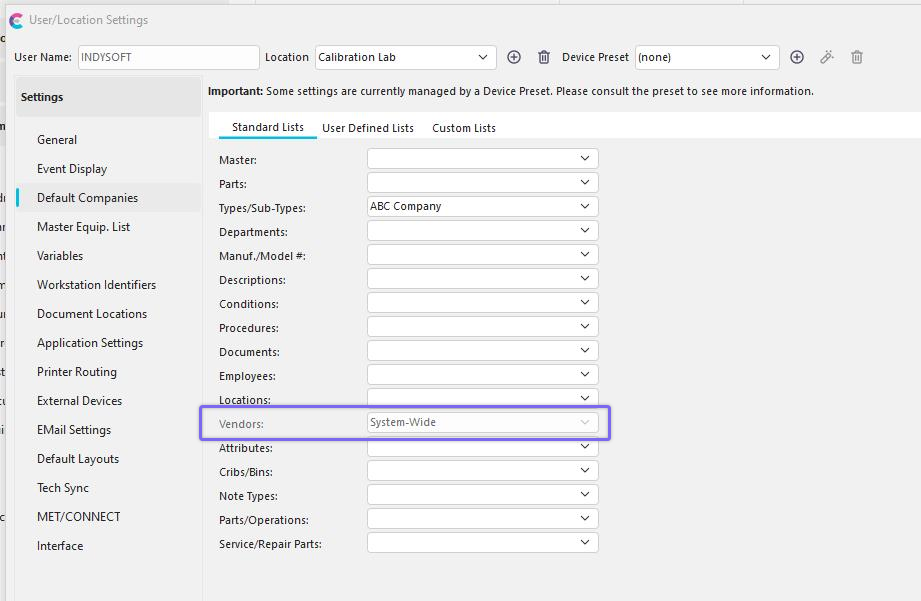
The final step of the transition from Company based to System-Wide Vendors is to "Enforce System-Wide Vendor Mode." This can be found in the Globe option from System-Wide Vendors. This option will simply hide the Company based Vendor Option in Add/Edit>Equipment Info.>Vendors.