Advanced Company Search
The Advanced Company Search is used to find a company from the database quickly. Depending upon where the Advanced Company Search dialog is launched, you might also be prompted to select an asset from the selected company in a follow-up dialog.
There are several ways to launch the Advanced Company Search - the main methods are:
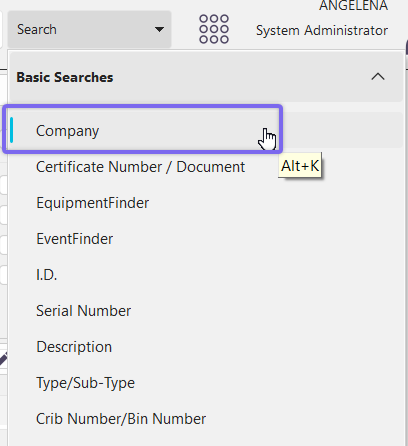
- From the Search dropdown 'Company' menu option in the Dashboard main screen header (can also use the keyboard shortcut "Alt + K" )
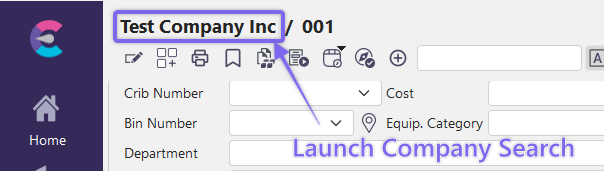
- In v13 new field layouts, this is automatically linked to the Company Full Name object.
The Advanced Company Search dialog has three main sections of functionality: 1) Search Fields, 2) Company Results Grid, and 3) Company Layout - noted below:
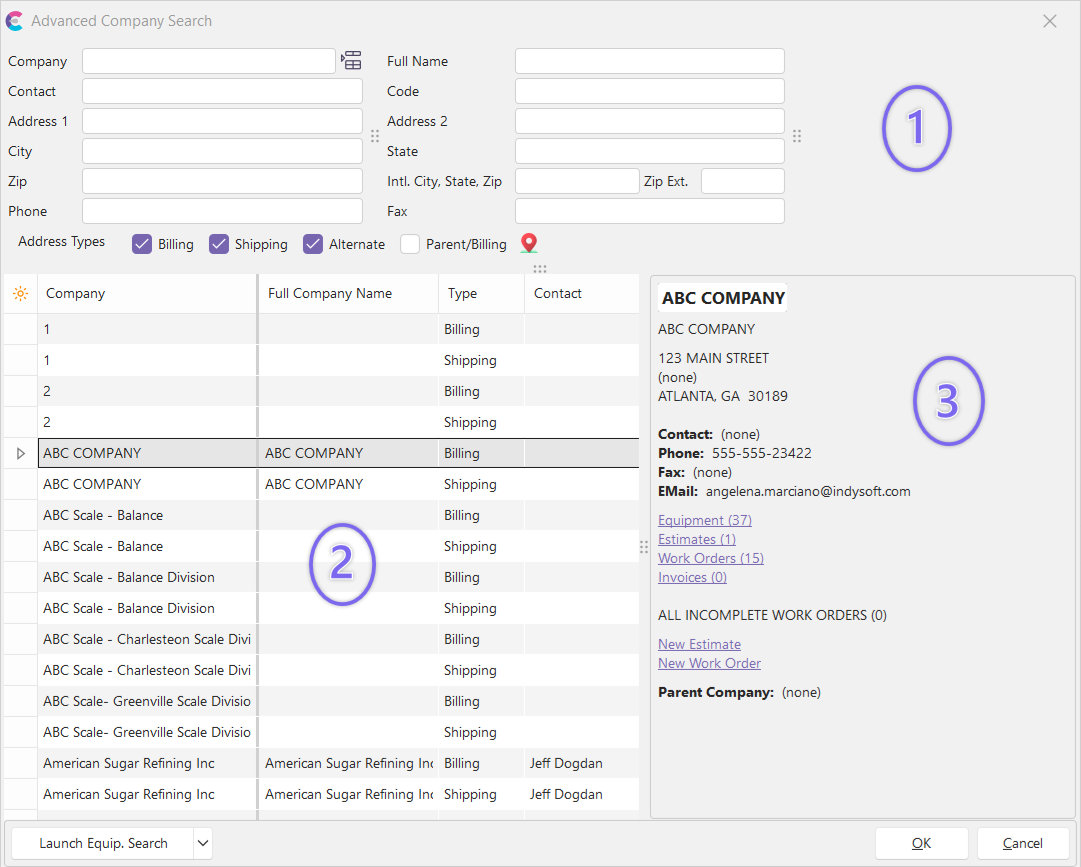
Advanced Company Search Dialog - Main Sections
Search Fields
The top 'half' of the Advanced Company Search dialog shows 12 fields that can be used for inputting search criteria - any or all fields can be used to search at once, in any combination. As you enter/modify the search criteria, the Company results grid (below) will be updated with any matching records. Let's take an example: say you are a front-office worker, and you get a call from a customer that is input in your IndySoft database as a company. You have over 12,000 companies input in the IndySoft database, so you need a searching mechanism - this is why we have the Advanced Company Search. (Although it also works very well for a small number of companies). As you speak with the customer on the phone, you first learn their company name. This is likely the 'Full Company Name' since the 'Company' field might be used for the internal account number. But you know there are often several customers with similar names - and you are not sure exactly how the name is input in the IndySoft database, so you type in the first word, 'ACME.' Next, the customer volunteers that they are located in Atlanta, with a 30067 zip code. You input these two pieces of information into 'City' and 'Zip', instantly finding the company you need.
Keep in mind that the Advanced Company Search is not simply locating a company, but more specifically, it is locating an address (stored somewhere in the IndySoft database) that will point us back to a Company Name. Four different types of addresses can be stored for companies in the IndySoft database:
1. Billing - these addresses are input through the Add/Edit Companies...Companies wizard...'Billing Address' tab.
2. Shipping - these addresses are input through the Add/Edit Companies...Companies wizard...'Shipping Address' tab.
3. Alternate - these addresses are input through the Add/Edit Companies...Companies wizard...'Alternate Addresses' tab.
4. Parent/Billing - these addresses are input through the Add/Edit Companies...Companies...Parent Companies wizard.
So, as you do business with a particular customer (or a business group within your Enterprise - however you use the Company designation), you track the various locations that 'do business as' this company. You can use the four check boxes on the bottom of the 'Search Fields' area to select the type of addresses that you want to return to the results grid:
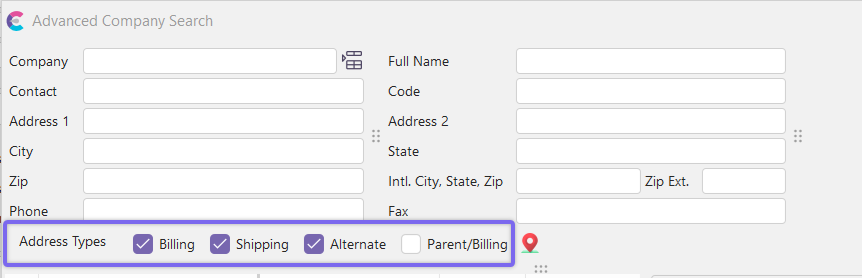
Address Types - Advanced Company Search
Important: Note that the searching functionality of the Advanced Company Search follows the same Search Options in User/Location Settings - General as used in standard equipment search by dialogs.
Company Results Grid
Based on the text input in the search fields, IndySoft creates a union of any addresses selected from 'Address Types to Search' that match the search criteria. The grid shows columns that match the filter options (fields) at the top of the dialog. Scroll through the results to highlight the desired company. In addition, company custom fields and status fields are also displayed. However, there is a lot of information to see - it requires a lot of horizontal scrolling in the grid. For this reason, we allow for displaying a Company Layout to the right of the results grid.
There are right-mouse click options available from the results grid, as follows:
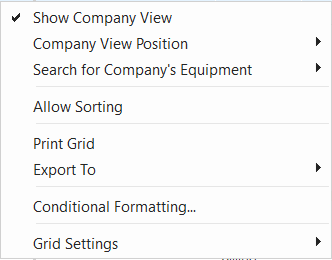
Show Company View
Turn on this option to display the Company Layout. There are three options for display (described below)
Company View Position
Select 'Right,' 'Bottom,' or 'Window.' These options are similar to the Equipment Layout options available in Custom Search Bys.
Search for Company's Equipment
New in version 14, there is a right-click option to allow the user to easily launch into an equipment search for the selected company. There are 2 options:
- Search by ID...
- Search using EquipmentFinder...
Allow Sorting
Print Grid
See Print Grid (Preview)
Export to Excel
See Save Grid To An Excel File
Conditional Formatting...
See Grid Customization - Conditional Formatting
Grid Settings
See Grid Settings
Company Layout
This section will appear (typically on the right) to allow a quick preview of company details for the selected record. Only one Company Layout is allowed in the database - it is edited through LayoutBuilder...Company Layout. Use LayoutBuilder to modify the look/feel of this panel to highlight the Company fields that are most important to your business/process. Note that several hyperlinks are also available for use in the Company Layout that can allow the quick launch of important operations like:
·Launch a search for related estimates
·Launch a search for related work orders
·Launch a search for related invoices
·Create a new estimate
·Create a new work order |