Equipment View - Overview
The Equipment View tab on the Dashboard main screen is where you take the perspective of one asset. There are three main sections:
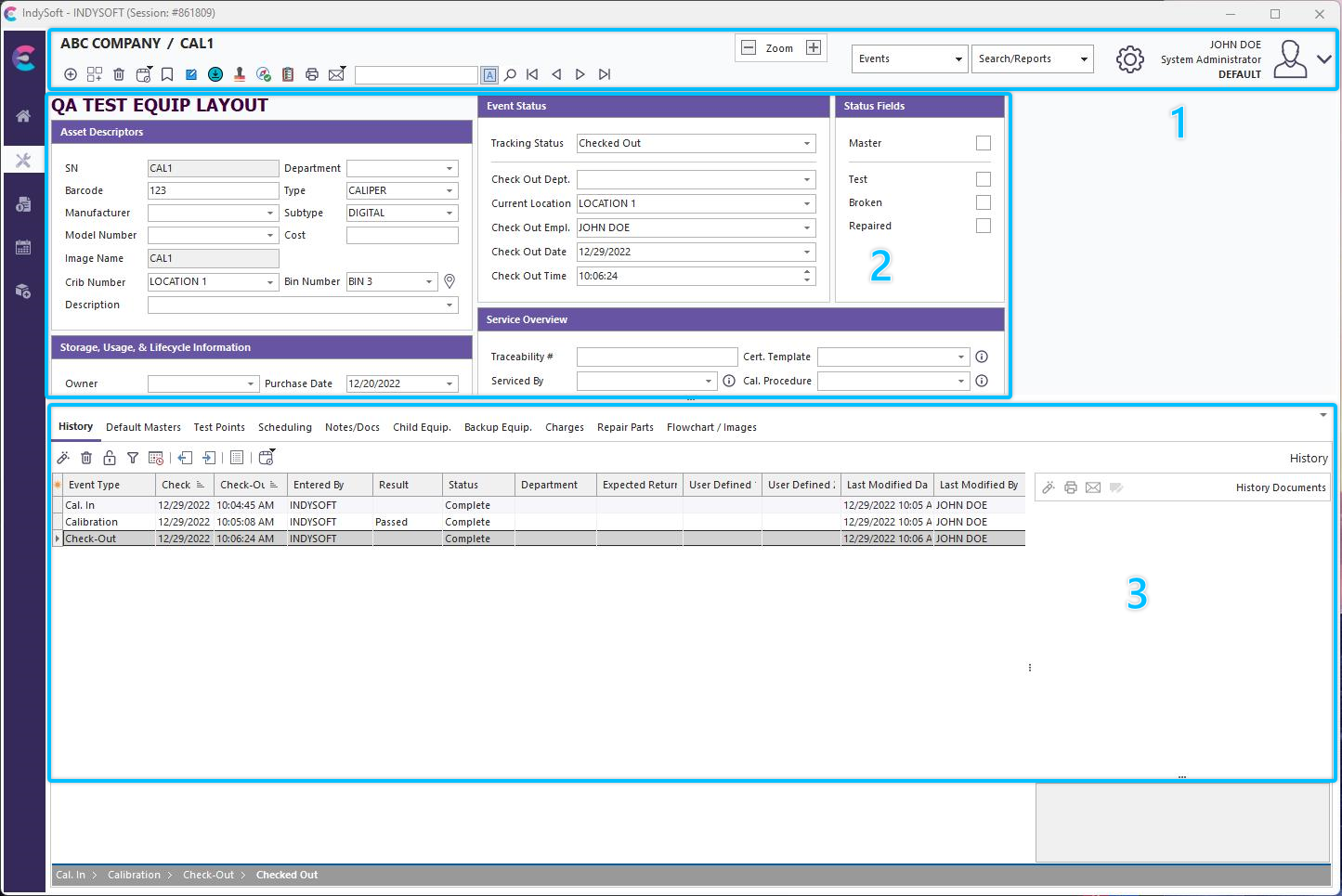
Equipment View Tab - Main Sections
1. Equipment View Header - an interactive header that can be customized as needed by a system administrator. Right-click within the header and select "customize" to explore the available options that can be adjusted within the equipment view header panel.
2. Equipment View Main Layout - an interactive document that displays all relevant equipment information for one asset. Depending upon your security profile and the Equipment Layout you are currently using, you can see field information and modify it through hyperlinks. Other standard equipment-related functions are available through hyperlinks. This Equipment Layout's 'look and feel' is controlled directly within the field layout using right-click options. For old equip layouts (prior to v13), this will be done through LayoutBuilder...Equipment Layout. See the Equipment Layout and Edit Equipment Fields topics for more details.
3. Detail Dialogs - Up to 16 details tabs can be shown along the bottom of the layout. Only one tab is visible at a time, as selected from the drop-down above the tabs. If you single-click on the gray panel containing the drop-down, then the visibility of the detail tabs will toggle on/off. If the currently selected tab is 'History,' you might also note an Event Trail along the bottom. If an Equipment View Flowchart is used (and properly configured to show an event trail), then an Event Trail panel will be shown along the bottom of the History tab. Think of this as a 'breadcrumb' listing of events, starting at the 'top' event in your workflow, like a 'Receive' event. So if you want a quick reference for the events that have taken place for this asset in the most recent round-trip, then this is the best place to start. Hovering over each event will give additional details in a helpful hint. Clicking on events from this panel will launch them for review. See the Event Trail topic for more details. The Equipment View Flowchart can also be shown here. This flowchart is often very similar to the Home View flowchart (if used) - but it adds some functionality by automatically highlighting the asset's current status and noting all 'next' options in the flowchart. See the Equipment View Flowchart topic for more details.
Note that most sections above can be hidden through options in either the Equipment Layout or the Home View Layout. See the LayoutBuilder topic for more details. So...there is MUCH that can be configured, but for now, let's give an example of the most common usage of the Equipment View - so you can get an idea of the flow. Let's assume the basic layout in the screenshot above - since it includes many core concepts.
Important: All Equipment View data is automatically refreshed once every 5 minutes. So if this asset is pulled up on another workstation and updated, the changes will not immediately reflect on all workstations (that have the equipment already in view). Still, they will be synced within 5 minutes. If the asset is requested through a search-by, etc., then the changes will be immediately seen. |