Tracking Status Details - Right-Side Panel
On the right side of the Equipment View panel on the Dashboard main screen, you will see a section dedicated to Tracking Status Details:
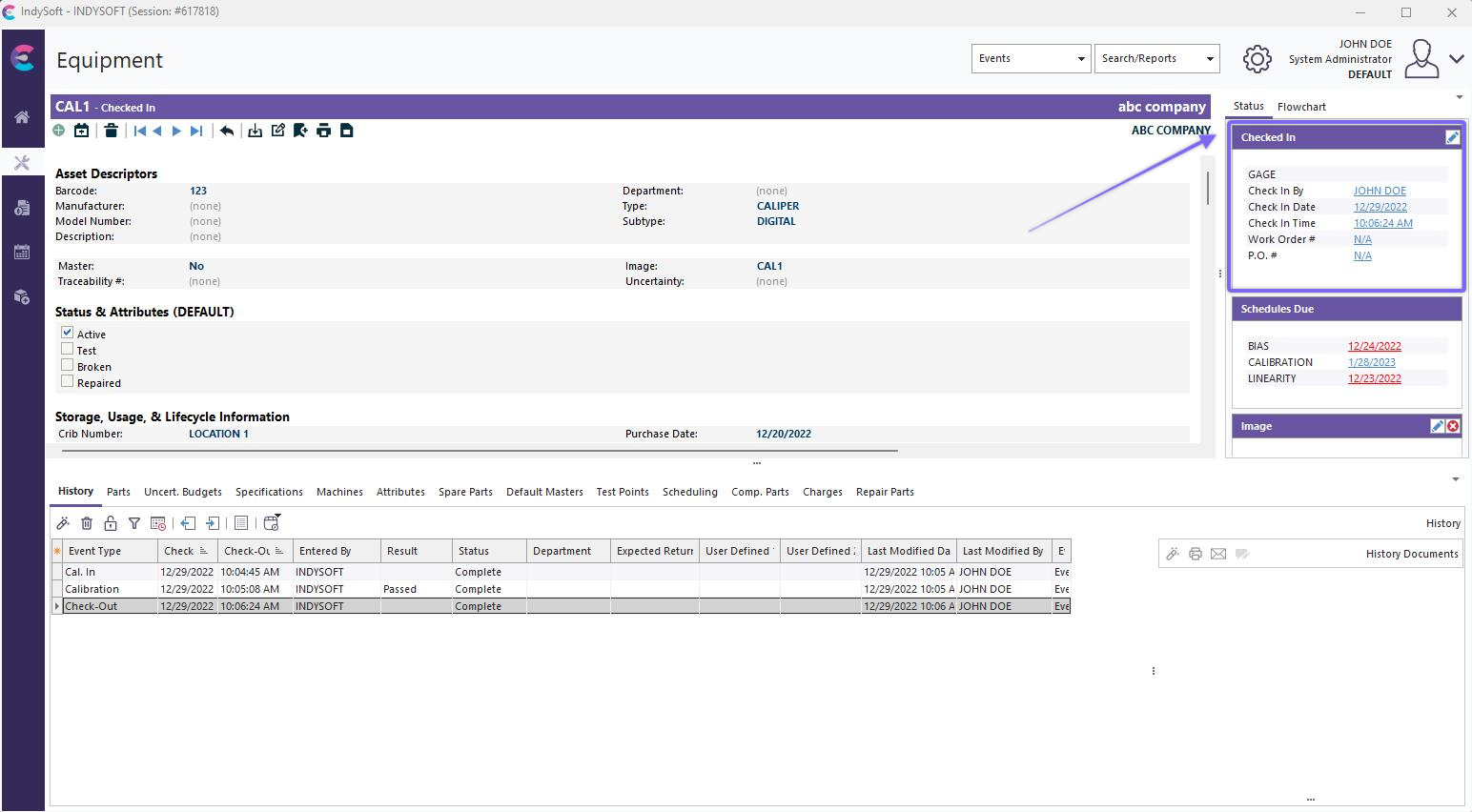
Tracking Status Details
This Tracking Status Details section will always be the top section in the right-side panel of Equipment View. The title of this section will display the current tracking status - 'Awaiting Routing' in the above example. In the box, any tracking status detail fields will be shown if they are configured for the tracking status through Workflow Configuration - Status Changes. These fields are typically populated from the most recent (or a recent) event in the workflow - and give additional details about the current 'round trip' on the workflow. So, the Equipment View is dedicated to more permanent field information like Description, Type, Manufacturer, etc. But each time an asset comes through the shop for service, certain information is important only for that round-trip. Glancing at this box saves you the trouble of reviewing past historical events to glean details about the current status.
There are 37 different fields that can be displayed in this panel - 19 'Current' fields and 18 'Transit' fields. The possible choices are the same for 'Current' and 'Transit' fields - with one exception: there is no 'Transit' Part/Oper. #:
Contact (Current or Transit)
User Defined 1 (Current or Transit)
User Defined 2 (Current or Transit)
User Defined 3 (Current or Transit)
User Defined 4 (Current or Transit)
Department (Current or Transit)
Employee (Current or Transit)
Date (Current or Transit)
Time (Current or Transit)
Condition (Current or Transit)
Location (Current or Transit)
Machine (Current or Transit)
Part/Oper. # (only Current)
P.O. Number (Current or Transit)
Expected Return (Current or Transit)
Sub-Location (Current or Transit)
Vendor (Current or Transit)
Workstation (Current or Transit)
Work Order (Current or Transit)
As you may notice, these are the same type fields that you can display in events through the Event Information tab. See the Workflow Configuration - Field Settings for more details on how you can set up an event to show one of these type fields and then update either the current or the transit values for the fields on the level of the equipment (screenshot below):
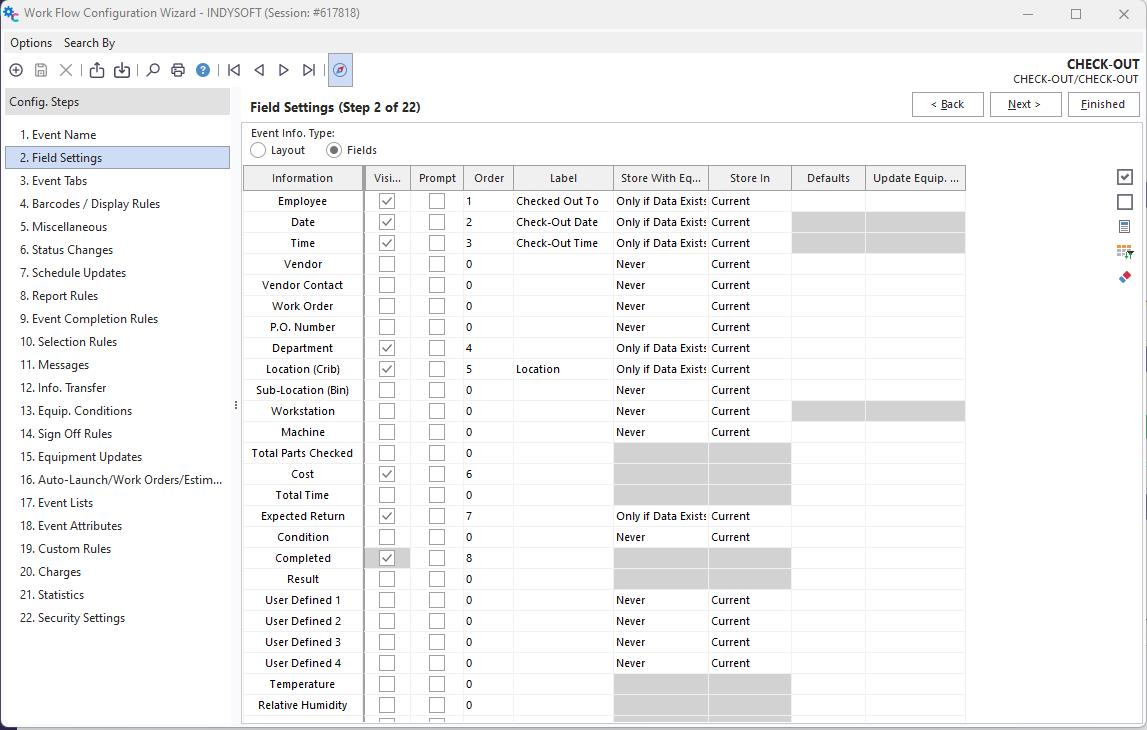
Example Field Settings in Workflow Configuration Module
By storing an event value back with the piece of equipment, you save the step of having to re-lookup that event later to 'join' in the additional information. For instance, when an asset first comes into the shop for work, you might have an early event in the workflow that has an 'Expected Return' field - maybe this is set in your 'Receive' event, but it could also be modified later in the 'Routing' event. You could set up both your 'Receive' and 'Routing' possibilities to have an 'Expected Return field, then set up these fields to update the 'Current Expected Return' field on the equipment upon event finish. So once you know that the 'Current Expected Return' data is populated, you must specify which tracking statuses in your workflow show this 'Current Expected Return' field (make it visible). Tracking status detail fields are made visible in the Workflow Configuration through Add/Edit Tracking Status. Navigate here by choosing "6. Status Changes" on the left-hand side of Workflow Configuration, then clicking on the blank paper ("create new") icon. The current/transit fields that have labels input in the example below will be visible for the 'Awaiting Routing' tracking status:
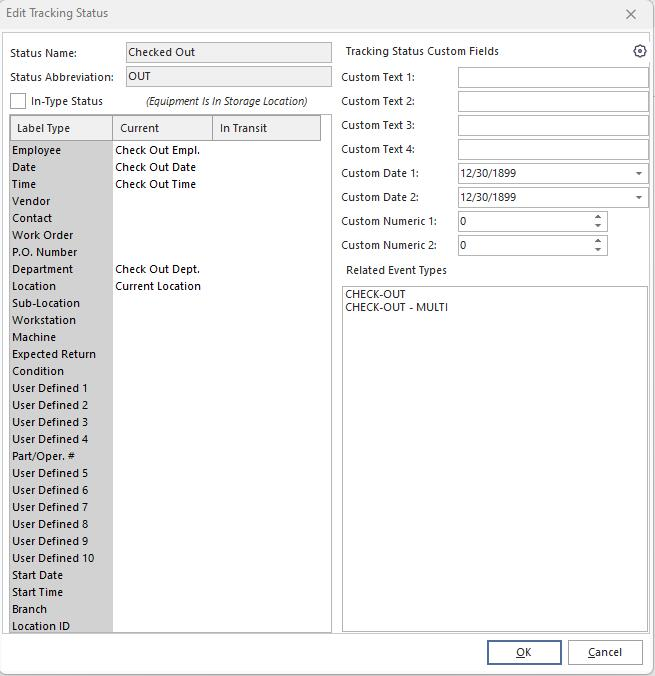
Example - Modifying Tracking Status Visible Fields through Workflow Configuration
For instance, the tracking status after the Receive event (in our example workflow) is 'Awaiting Routing,' then later 'Awaiting Calibration' or 'Awaiting Repair,' then 'Awaiting Shipping,' then finally 'Returned to Customer.' Since you know that the 'Current Expected Return' is populated early on, you might choose to show that field during 'Awaiting Routing,' 'Awaiting Cal,' 'Awaiting Repair,' and 'Awaiting Shipping.' But since the Shipping event (in our example) clears this date in the database (since the round-trip is over), you may hide the 'Expected Finish Date' field for 'Returned to Customer' status - since it is irrelevant.
We mentioned earlier that two slates of event fields could be displayed per tracking status: Current and Transit. For almost all workflows, you only need to concern yourself with the 'Current' fields. A second set of fields with the 'Transit' prefix are provided for two reasons: 1) in case you run out of certain types of fields in the 'Current' set, or 2) in some advanced workflows, you might have a situation where an event is effectively moving (as an example) an asset from one location to another, and when the asset gets there (which will be the next event in the workflow) a new employee will take responsibility for the asset (the 'Current Employee'). So until this next event takes place, the 'Current Employee' is equal to the employee that runs the first event (the employee that starts the asset moving from one location to another). As soon as the asset gets to the new location (new event), there will be a new 'Current Employee.' But you might also need to log some information about yet another employee (and/or Department, Workstation, etc.) currently responsible for physically moving the asset from one location to another. This employee could be the 'Transit Employee.'
Remember that the captions displayed for the current/transit fields shown in this section are not necessarily the default names listed above. The caption for each field can be changed specific to each tracking status. See Add/Edit Tracking Status for more details.
These tracking status detail fields are generally shown to users for reference only - so they can be reminded of key information from recent events. But if a user has appropriate security, the Dashboard interface allows quick edits on the tracking status and tracking status detail fields.
Equip. View - Tracking Status Details
hm-quick-edits-tracking-status.md