Setup Equipment Filters
When using Standard Reports, you will be given the option to modify the filters used to select equipment, select where and how you want the report to print, and also the option to modify the report grid in some cases.
The first equipment filter screen may differ depending on where you select the report. When selecting a report from the IndySoft Header Reports icon, you will be sent to the last step...Print This Report To option. You still have the option to go back to the previous steps to modify. In PrintBuilder, you will start with Step 1.
Step 1
Step 1 is where you will set up or modify your filters.
 Note: some reports that use a 'Report Filter' such as 'Accumulate Gages for Calibration' reports will have an additional step, starting at Step 1. Most other reports will see the 'Equipment Filter' (second window below) first.
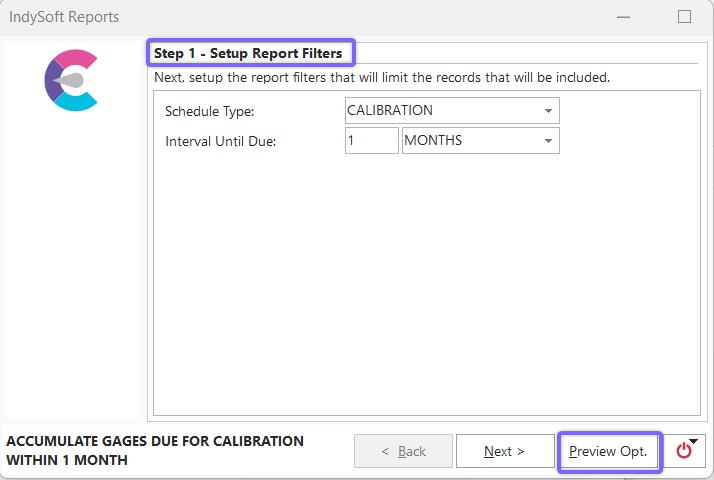
Standard Reports - Setup Report Filters
In this window, select the Schedule Type, such as Calibration or Service, the Interval #, and the time frame (days, weeks, months). You will see a 'Preview Opt.' or 'Print To' button in the bottom right corner. These buttons work the same, directing you to the 'Print This Report To' screen described below.
OR
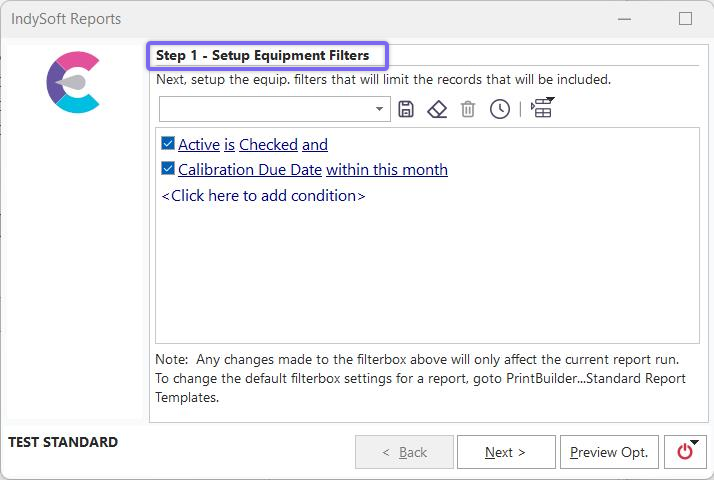
Standard Reports - Setup Equipment Filters
For most reports that don't require the extra step of the Report filter, this will be the starting step 1. Similar to EquipmentFinder, select the equipment filters that limit the records that will be included. Remember that any changes to the filterbox will only affect the current report run when running the report from the Reports Menu. To change the default filterbox settings for a report, go to PrintBuilder...Standard Report Templates.
Remember, the Setup Equipment Filter window will be Step 2 only when you have a Report Filter first. |